
1. Product Overview
1.1 Package Contents
- Camera Body
- User Manual
- Power Adapter
- LAN Cable
- Waterproof Cover & Screws
1.2 Camera Components
Familiarize yourself with the various parts of your GENBOLT GB201HG camera:
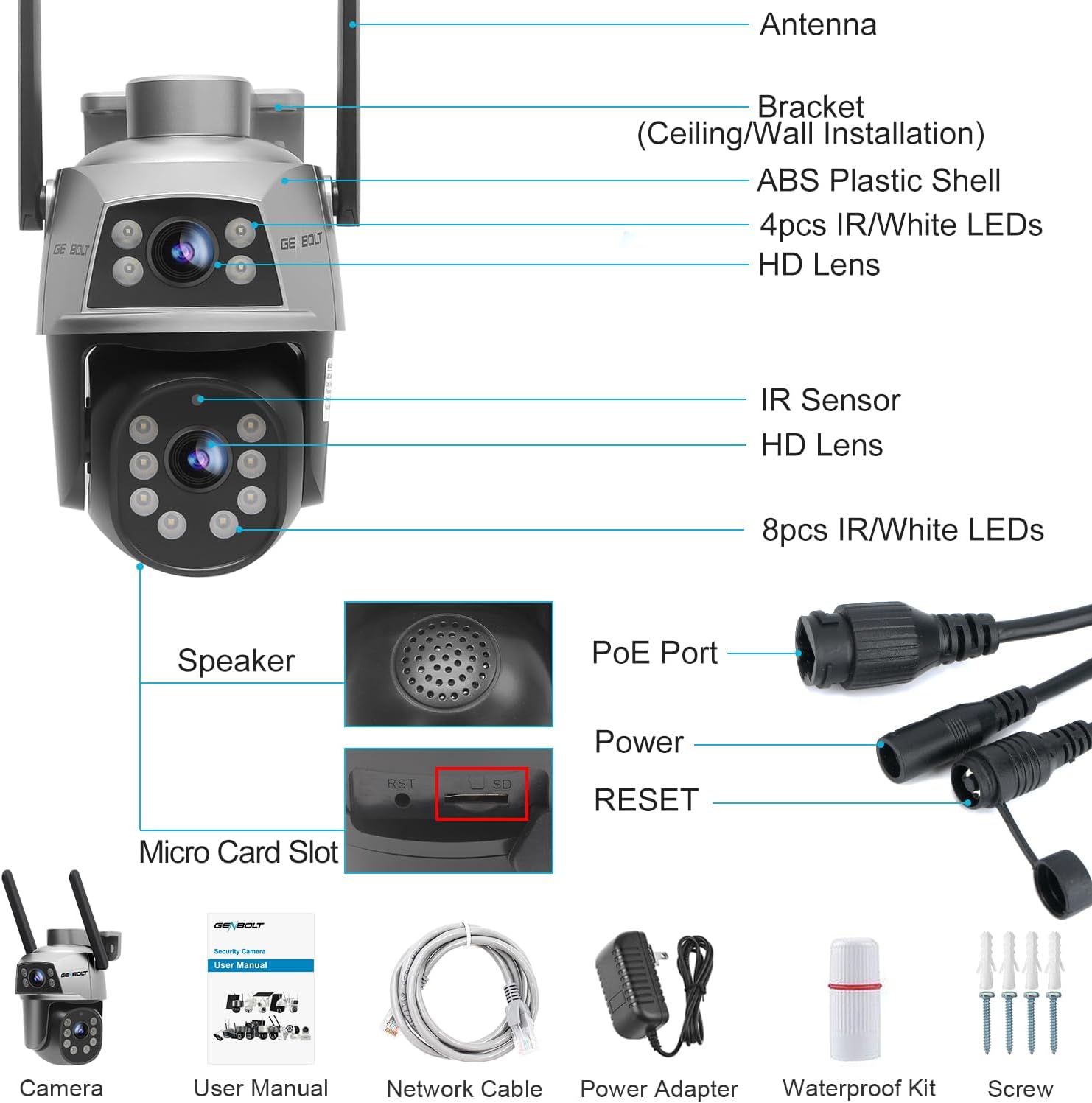
Image: Detailed diagram showing the camera's external features and connection points, including the antenna, bracket, ABS plastic shell, IR/White LEDs, HD lenses, IR sensor, speaker, PoE port, power port, reset button, and micro card slot.
1.3 Key Features
- Dual Lens & 360° View: Features a fixed upper bullet camera and a rotatable lower dome camera (355° horizontal, 90° vertical) for comprehensive coverage without blind spots.
- 2.4/5GHz Stable WiFi: Supports dual-band WiFi for high-speed (5GHz) and stable (2.4GHz) wireless connectivity.
- Humanoid Detection & Auto Tracking: Allows setting specific detection zones and tracks human movement within the surveillance area, reducing false alarms.
- Cloud Storage & TF Card Option: Supports local storage via TF card (up to 128GB, not included) and offers a 7-day free trial for cloud storage.
- DC & PoE Installation: Flexible power options, allowing power and data transmission over a single network cable with Power over Ethernet (PoE) technology.
2. Setup Guide
2.1 Installation Methods
The camera supports both wall and ceiling mounting for flexible placement.

Image: Visual representation of the camera mounted on a wall and from a ceiling, demonstrating the two primary installation options.
2.2 Power and Network Connection
The camera offers versatile connectivity options:
- PoE (Power over Ethernet): For simplified installation, a single Ethernet cable can provide both power and data connection. This is ideal for longer distances and cleaner setups.
- DC Power: Alternatively, the camera can be powered using the included DC power adapter.
- WiFi Connection: The camera supports both 2.4GHz and 5GHz WiFi bands, offering flexibility for network stability and speed.

Image: Depiction of a house with WiFi signals, showing the broader range of 2.4GHz and the faster, more powerful network of 5GHz, indicating the camera's dual-band WiFi capability.
2.3 Initial App Setup
- Download the GENBOLT app from your device's app store (iOS or Android).
- Register an account and log in.
- Add the camera to the app by scanning the QR code on the camera or manually entering its ID.
- Follow the in-app instructions to connect the camera to your WiFi network or confirm the wired connection.
3. Operating Instructions
3.1 Dual Lens and 360° View
The GENBOLT GB201HG features a unique dual-lens system. The upper lens provides a fixed wide-angle view, while the lower dome lens can pan and tilt to cover different areas. This allows for monitoring two distinct positions simultaneously or providing a comprehensive 360° view when combined with the pan/tilt function.

Image: Illustration of the camera's dual-lens capability, showing how the fixed bullet lens and the movable pan/tilt lens work together to monitor different areas of a property.
3.2 Pan, Tilt, and Digital Zoom
Control the lower dome camera's movement directly from the app. It supports 355° horizontal pan and 90° vertical tilt, ensuring no blind spots. The camera also features 4X digital zoom to magnify details within the live view or recorded footage.
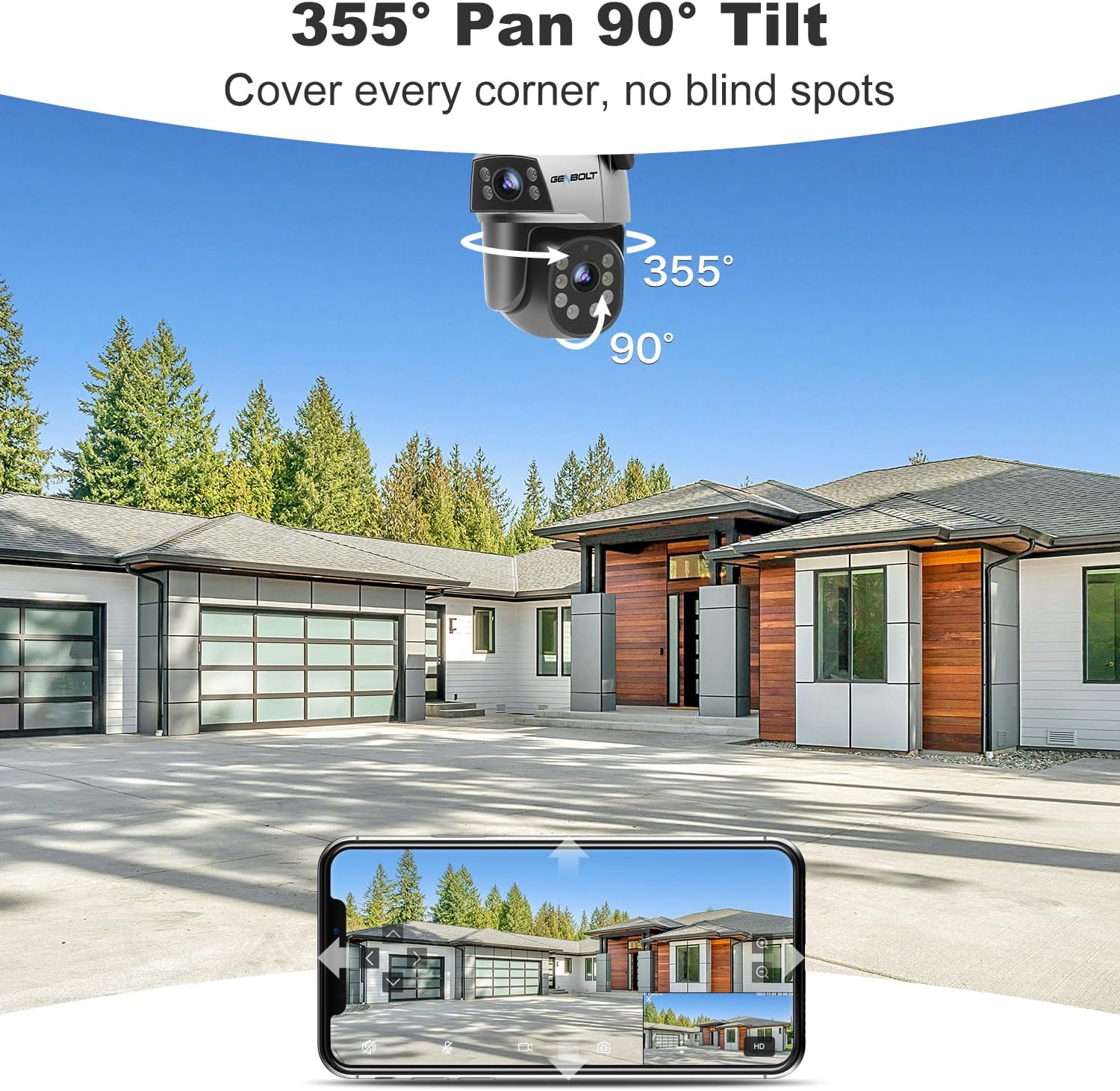
Image: A visual demonstrating the camera's extensive pan (355°) and tilt (90°) capabilities, allowing it to cover a wide area without blind spots, as viewed from a mobile device.
3.3 Humanoid Detection and Auto Tracking
Configure specific detection zones within the app. The camera's advanced Humanoid Detection minimizes false alarms by distinguishing human shapes. When a person is detected, the auto-tracking feature will automatically follow their movement within the camera's field of view, ensuring continuous surveillance.
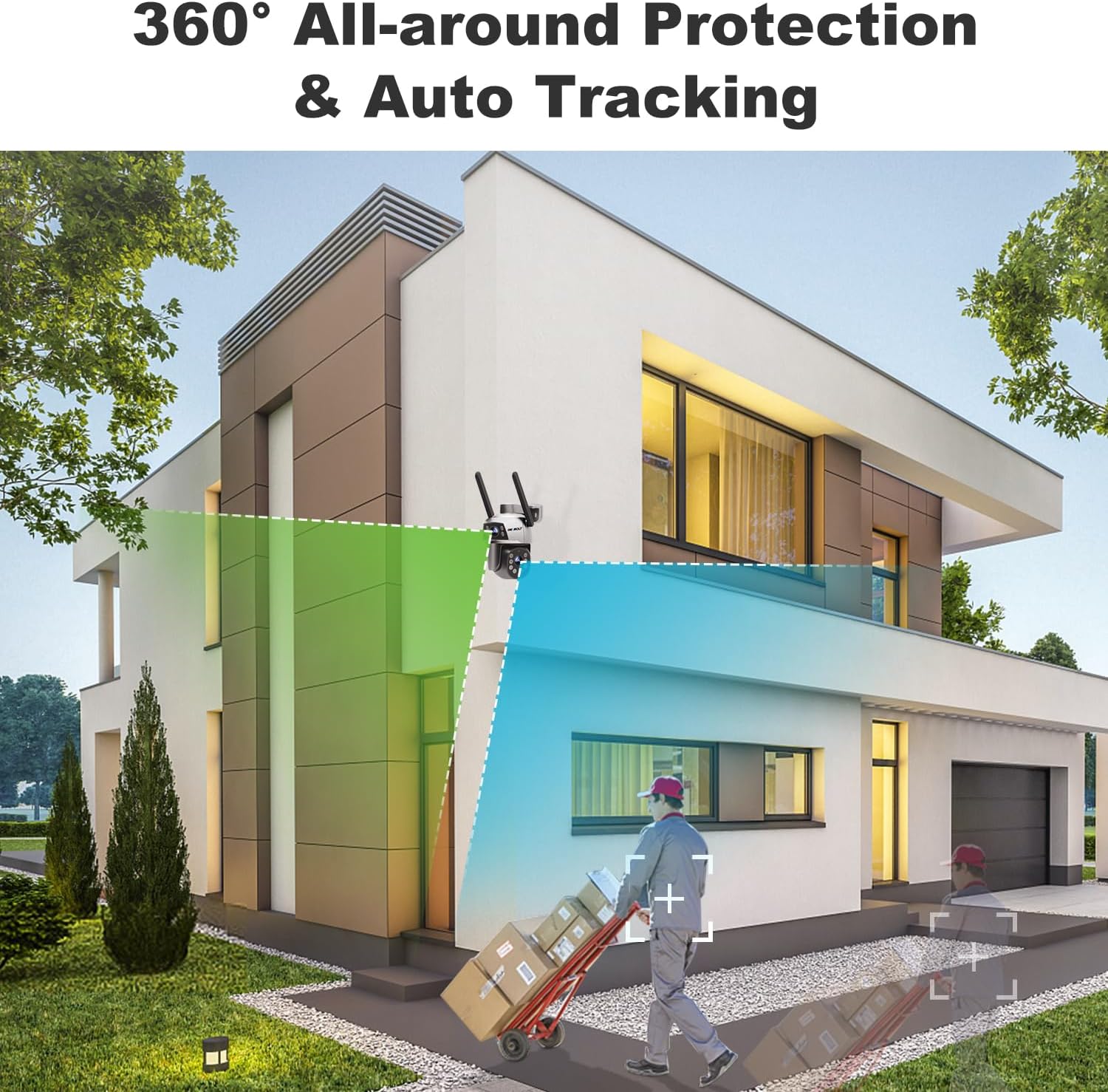
Image: A scene depicting the camera's 360° all-around protection and auto-tracking functionality, where a detected human figure is highlighted, indicating the camera's ability to follow movement.
3.4 Night Vision Modes
The camera offers enhanced night vision capabilities:
- Color Night Vision: Utilizes built-in spotlights to provide full-color video even in low-light conditions.
- Infrared Night Vision: For discreet monitoring, the camera can switch to infrared mode, providing clear black-and-white video in complete darkness.

Image: Comparison of the camera's enhanced night vision, showing a vibrant color view and a detailed infrared (black and white) view of a property at night.
3.5 Storage Options
Record and store your surveillance footage using the following methods:
- TF Card Storage: Insert a Micro SD card (up to 128GB, not included) into the designated slot for local recording.
- Cloud Storage: Utilize the optional cloud storage service for secure, remote access to your recordings. A 7-day free trial is typically available.

Image: Visual representation of the flexible storage options, including cloud storage with a 7-day free trial and TF card storage up to 128GB, alongside an app interface showing recorded events.
3.6 Multi-User Sharing
Share access to your camera's live view and recordings with family members or trusted individuals through the GENBOLT app. You can manage permissions for each shared user.
4. Maintenance
- Cleaning: Regularly wipe the camera lens with a soft, dry cloth to ensure clear image quality. Avoid abrasive cleaners.
- Firmware Updates: Check the GENBOLT app periodically for firmware updates. Keeping the firmware updated ensures optimal performance and access to new features.
- Cable Inspection: If using wired connections (PoE or DC), periodically inspect cables for any signs of wear or damage, especially in outdoor installations.
5. Troubleshooting
| Issue | Possible Cause | Solution |
|---|---|---|
| Camera offline | No power; WiFi signal weak/disconnected; Network cable issue (PoE) | Check power supply; Verify WiFi signal strength and router connection; Inspect network cable. |
| Poor image quality | Dirty lens; Insufficient lighting; Network bandwidth issues | Clean the lens; Ensure adequate lighting or enable night vision; Check network speed. |
| False alarms | Sensitivity too high; Non-human movement triggering detection | Adjust detection sensitivity; Define specific detection zones to exclude irrelevant areas. |
| Cannot connect to 5GHz WiFi | Router settings; Distance from router | Ensure router supports 5GHz and is configured correctly; Move camera closer to router or use 2.4GHz. |
6. Specifications
| Feature | Detail |
|---|---|
| Model | GB201HG |
| Mounting Type | Wall Mount |
| Video Capture Resolution | 1080p |
| Color | Black |
| Number of Channels | 2 (Dual Lens) |
| Wireless Communication | Bluetooth, 2.4/5GHz Dual WiFi, Ethernet |
| Form Factor | Bullet + Dome |
| Viewing Angle | 355 Degrees (Pan) |
| Night Vision Range | 15 Meters |
| Frame Rate | 15 frames per second |
| Material | Acrylonitrile Butadiene Styrene (ABS) |
| Water Resistance Level | Waterproof |
| Flash Memory Type | Micro SD (up to 128GB) |
| Power Source | DC & PoE |
| Indoor/Outdoor Usage | Outdoor |
| Compatible Devices | Desktop, Smartphone (Android, iOS) |
7. Warranty and Support
- 30-Day Money Back Guarantee: Enjoy a 30-day money-back guarantee and free exchange.
- 1-Year Limited Warranty: The product comes with a 1-year limited warranty.
- 24/7 Lifetime Free Technical Support: GENBOLT provides continuous technical assistance for the lifetime of the product.
For further assistance or to contact support, please visit the official GENBOLT store or support channels.


