
SUPVAN E11
SUPVAN E11 Bluetooth Label Maker Machine User Manual
Model: E11 | Brand: SUPVAN
Introduction
This user manual provides comprehensive instructions for the setup, operation, maintenance, and troubleshooting of your SUPVAN E11 Bluetooth Label Maker Machine. Designed for home, kitchen, office, and school organization, the E11 offers both direct keyboard input and smart app printing capabilities. Please read this manual thoroughly to ensure optimal performance and longevity of your device.
What's in the Box
- SUPVAN E11 Label Maker Machine
- White Continuous Tape x 4
- USB-C Cable
- User Manual
Product Overview
The SUPVAN E11 label maker features a compact design with a full QWERTY keyboard and an LCD display for easy operation. It supports both direct keyboard input and Bluetooth connectivity for app-based printing.

Image: Front view of the SUPVAN E11 Label Maker, showing the QWERTY keyboard and LCD screen.
Key Features:
- Fast Keyboard & Smart App Printing: Print directly via the keyboard for quick frequent labeling, or use the Bluetooth App for customized designs.
- Portable with Rechargeable Battery: Features a 1200 mAh battery providing up to 1 month of use per charge. Lightweight (0.5 lb) and compact (5.7" x 2.9" x 1.3").
- Minimal Margin Printing: Prints labels with only 0.2" margin, reducing material waste.
- Versatile App Editing Function: Customize labels with 40 fonts, 50 frames, and over 450 icons. Create and save templates locally.
- Wide Label Compatibility: Works with continuous labels, fixed-size labels, and cable labels.
- Inkless Thermal Printing: No ink or toner needed, only thermal paper.
Setup Guide
1. Charging the Device
The SUPVAN E11 comes with a built-in 1200mAh rechargeable battery. Before first use, ensure the device is fully charged.
- Locate the USB-C charging port at the bottom of the device.
- Connect the provided USB-C cable to the port and plug the other end into a compatible USB power adapter (not included) or a computer's USB port.
- The battery indicator on the LCD screen will show charging status. A full charge provides approximately one month of standby time.

Image: The label maker being charged via its USB-C port, highlighting its rechargeable battery feature.
2. Installing Label Tape
The E11 uses thermal label tape and does not require ink or toner. Follow these steps to install a new roll:
- Locate the tape compartment on the right side of the device.
- Press the "open" switch (located on the side) downwards to open the compartment door.
- Remove the clear plastic band surrounding the new tape roll.
- Insert the tape spool onto the round axle with the label side facing down.
- Pull the end of the tape slightly out of the compartment opening, ensuring a small portion sticks out when the door is closed.
- Close the compartment door firmly until it clicks into place.

Image: Illustration of how to install thermal label paper into the SUPVAN E11, emphasizing the inkless design.
3. Powering On/Off
- To power on, press and hold the power button (usually located at the top left of the keyboard) until the LCD screen illuminates.
- To power off, press and hold the power button again until the screen turns off.
Operating Instructions
1. Printing via Keyboard
The E11 features a full QWERTY keyboard for direct and quick label creation.
- Power on the device.
- Use the QWERTY keyboard to type your desired text. The text will appear on the LCD screen.
- Use the navigation arrows and "Set" button to adjust font size, style, or other settings as needed.
- Press the "Print" button (usually indicated by a printer icon) to initiate printing.
- After printing, use the cutter switch (located on the side, marked with a scissor symbol) to cleanly cut the label.

Image: Comparison of keyboard printing for fast labeling and app printing for creative designs.
Video: Official product video demonstrating the SUPVAN E11 Label Maker Machine in use, including both keyboard and app printing functionalities.
2. Printing via Bluetooth App
For more advanced customization and design options, connect your E11 to the dedicated mobile app via Bluetooth.
- Download the official SUPVAN app from your device's app store.
- Ensure Bluetooth is enabled on your mobile device and the E11 label maker is powered on.
- Open the app and follow the on-screen instructions to pair with your E11 device.
- Within the app, you can design your labels using various fonts, frames, and icons.
- Once your design is complete, send it to the E11 for printing via the app's print function.

Image: Visual workflow demonstrating how to print using either the QWERTY keyboard directly on the device or through the mobile app with various editing options.
3. Customization Options
The SUPVAN app offers extensive customization for your labels:
- Fonts: Choose from over 40 available fonts.
- Frames: Select from more than 50 decorative frames.
- Icons: Access over 450 icons to enhance your labels.
- QR Codes & Barcodes: Generate QR codes and barcodes directly from the app for various applications.
- Templates: Create and save your own custom templates for repeated use.

Image: Overview of the app's editing functions, including a wide selection of fonts, frames, icons, and the ability to generate QR codes and barcodes.
4. Label Types and Applications
The E11 supports various label types for diverse organizational needs:
- Continuous Labels: Ideal for long content or custom lengths.
- Fixed-Size Labels: Pre-cut labels for standard applications.
- Cable Labels: Specifically designed for cable identification and management.
- Round Labels: Circular labels for unique applications.

Image: Demonstrates the versatility of the label maker with examples of fixed-size, continuous, cable, and round labels.
Labels produced by the E11 are:
- Waterproof: Resistant to water exposure.
- Heat Resistant: Can withstand elevated temperatures.
- Low Temperature Resistant: Suitable for cold environments.
- BPA Free: Made from safe, environmentally friendly materials.
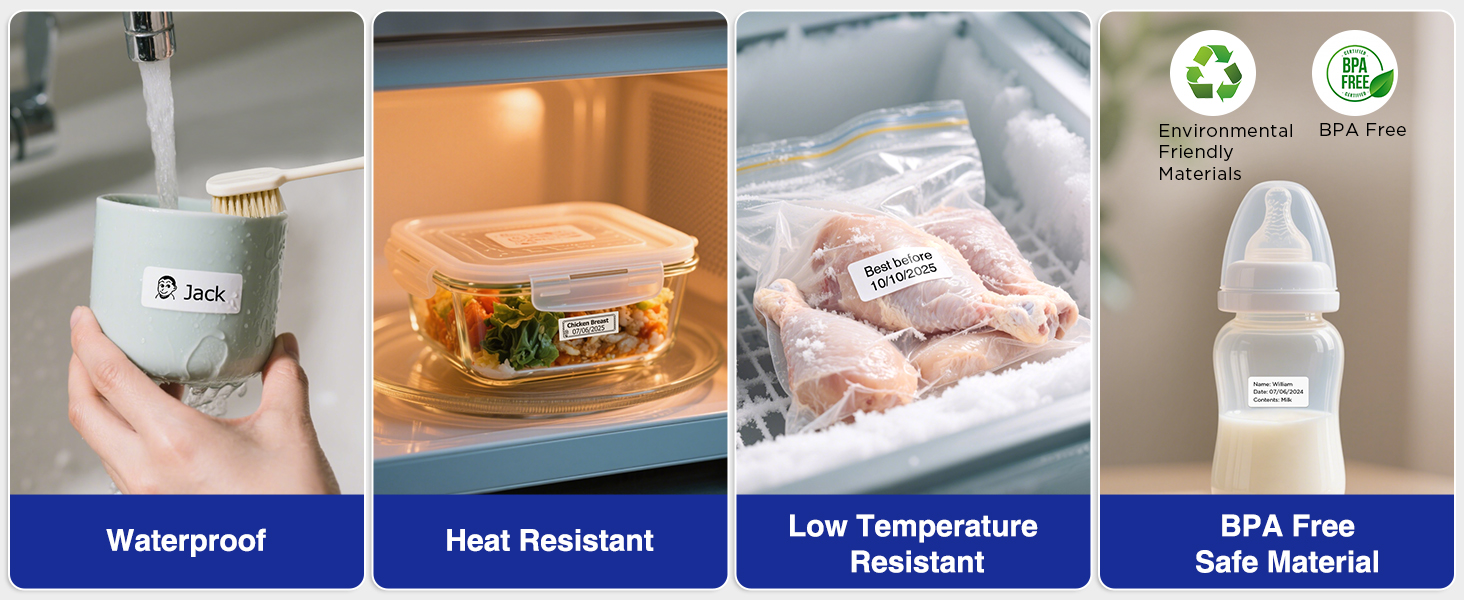
Image: Visual representation of label durability, showing resistance to water, heat, and low temperatures, and confirming BPA-free material.
Common applications include:
- Organizing pantry items, kitchen containers, and food storage.
- Labeling office files, documents, and supplies.
- Identifying tools in garages or workshops.
- Marking school supplies and personal belongings.
- Cable management and identification.

Image: Examples of wide applications for the label maker, including labeling bottles, files, storage bins, and notebooks.
Maintenance
Cleaning the Device
To ensure consistent print quality and device longevity, regularly clean your label maker.
- Power off the device before cleaning.
- Use a soft, dry cloth to wipe the exterior of the label maker.
- For the print head, gently wipe with a cotton swab lightly dampened with isopropyl alcohol. Allow it to dry completely before use.
- Remove any dust or debris from the tape compartment.
Battery Care
- Avoid fully discharging the battery frequently to prolong its lifespan.
- If storing the device for an extended period, charge it to about 50% and store in a cool, dry place. Recharge every few months to prevent deep discharge.
Troubleshooting
| Problem | Possible Cause | Solution |
|---|---|---|
| Device does not power on. | Low battery or no charge. | Charge the device using the provided USB-C cable. |
| Poor print quality (faint, inconsistent). | Dirty print head; incorrect tape installation; low battery. | Clean the print head (see Maintenance section). Reinstall the tape correctly, ensuring it's not creased. Charge the device. |
| Printer jams or tape does not feed. | Tape improperly installed; tape stuck or damaged. | Open the tape compartment and re-install the tape, ensuring it's properly aligned and not obstructed. Remove any torn or stuck tape pieces. |
| Bluetooth connection drops frequently. | Interference; app issue; device too far from phone. | Ensure the label maker is within Bluetooth range of your phone. Restart both the label maker and the app. Check for app updates. Minimize other Bluetooth devices nearby. |
| Labels have excessive margin. | Incorrect margin setting or tape type. | The E11 is designed for minimal 0.2" margin. Ensure you are using compatible SUPVAN tapes. Check app settings for any margin adjustments if applicable. |
Specifications
| Feature | Detail |
|---|---|
| Brand | SUPVAN |
| Model Name | E11 |
| Product Dimensions | 5.7"D x 2.9"W x 1.3"H |
| Item Weight | 0.5 Pounds (8 ounces) |
| Connectivity Technology | Bluetooth |
| Printing Technology | Thermal |
| Printer Ink Type | Thermal (Inkless) |
| Maximum Black and White Print Resolution | 203 dpi |
| Maximum Media Size | 2'' x 3-1/8'' |
| Display Type | LCD |
| Battery | 1200 mAh Rechargeable |
| Hardware Interface | USB Type C |
| Special Features | Wide Label Compatibility, Rechargeable Battery, Smart App, Minimal Margin, Fast Keyboard |
| Language | English |
Warranty and Support
For warranty information, technical support, or customer service inquiries, please refer to the official SUPVAN website or contact their customer support directly. The manufacturer's contact details are typically provided in the packaging or on their official product pages.
You can visit the SUPVAN Store on Amazon for more product information and support resources.
Related documentsE11


Ask a question about this manual
Ask about setup, troubleshooting, compatibility, parts, safety, or missing instructions. Manuals+ will review the question and use this page’s manual context to help answer it.