
1. Introduction
This manual provides detailed instructions for the setup, operation, maintenance, and troubleshooting of your Peplink MAX Transit Duo Pro LTE Cellular Router. This device is designed to provide robust and reliable connectivity for various applications, leveraging dual cellular modems and advanced networking features.
2. Package Contents
Verify that all items listed below are included in your package:
- Transit Duo Pro Unit
- 4x LTE Paddle Antennas
- 2x WiFi Paddle Antennas
- 1x GPS Active Antenna (ACW-232)
- Mounting Bracket (ACW-724)
- 110-240V Power Adapter with 4-pin connector; 6-pin terminal block

Figure 2.1: All components included in the product package.
3. Setup Guide
3.1 Device Overview

Figure 3.1: Front panel of the MAX Transit Duo Pro, showing LAN, WAN, USB-C, and DC In ports.

Figure 3.2: Top panel of the MAX Transit Duo Pro, illustrating antenna connectors and dual cellular SIM slots.
3.2 Antenna Installation
- Connect the 4 LTE paddle antennas to the "Main 1", "Aux 1", "Main 2", and "Aux 2" ports on the top of the device. Ensure they are securely tightened.
- Connect the 2 WiFi paddle antennas to the "Wi-Fi Antenna A" and "Wi-Fi Antenna B" ports.
- Connect the GPS active antenna (ACW-232) to the "GPS" port.
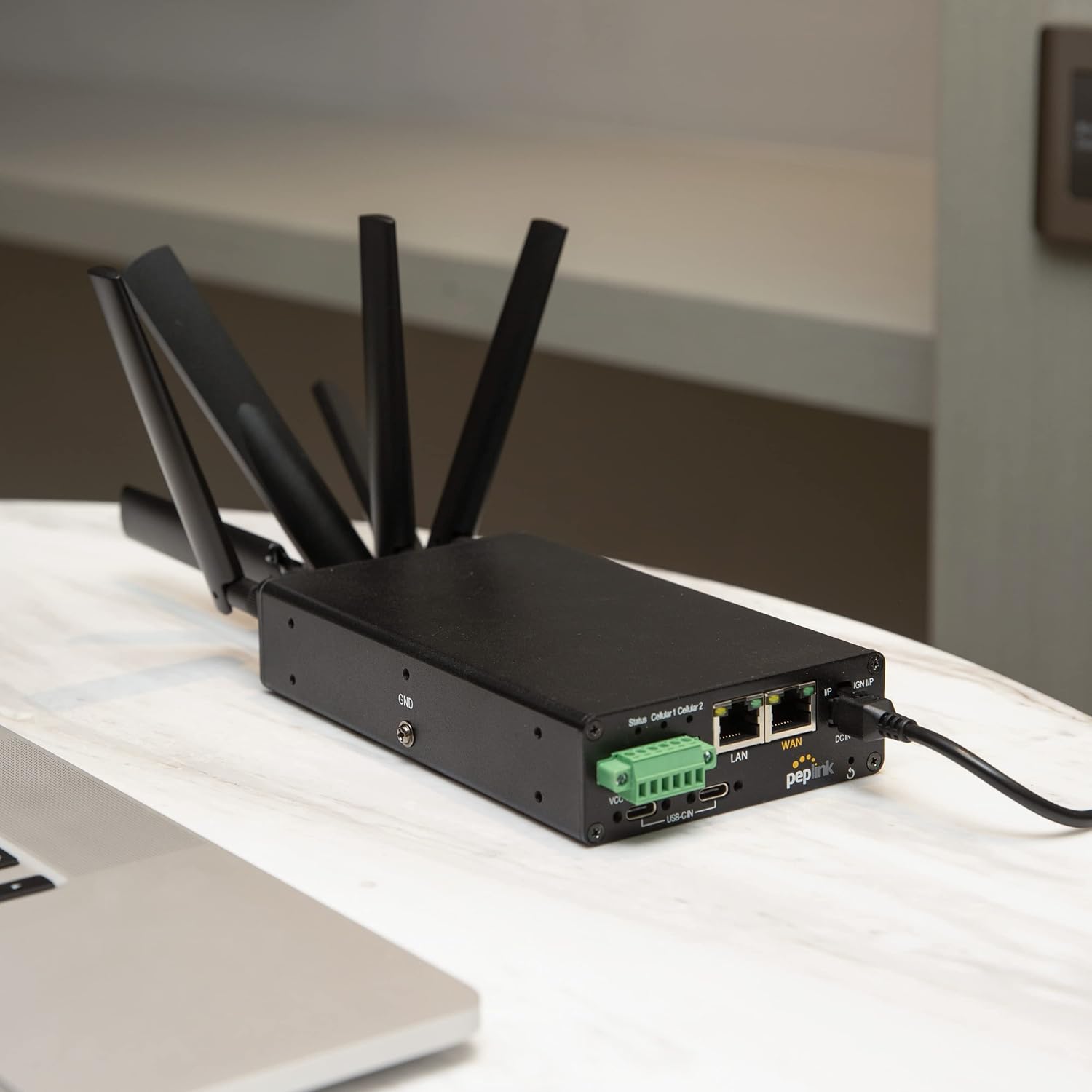
Figure 3.3: The router with all antennas properly installed.
3.3 SIM Card Installation
- Locate the two cellular SIM slots on the top panel of the device.
- Insert your activated Nano-SIM cards into the respective slots (Cellular SIM 1 and Cellular SIM 2) until they click into place. Ensure the SIM cards are oriented correctly as indicated on the device.
- The dual CAT-12 LTE cellular modems provide redundant SIM card slots for continuous connectivity.
3.4 Power Connection
- Connect the provided 110-240V power adapter to the DC IN port on the front panel.
- Alternatively, the device supports dual USB-C power input for non-stop power, and a Micro-Fit power source for secure connections.
- Plug the power adapter into a suitable electrical outlet.
3.5 Network Connections
- LAN Port: Connect your local network devices (e.g., computers, switches) to the LAN port using an Ethernet cable.
- WAN Port: Connect an external internet source (e.g., DSL/Cable modem, Starlink) to the WAN port for wired internet access.
4. Operating Instructions
4.1 Initial Power-Up and Status Indicators
Once powered on, observe the status LEDs on the front panel. The "Status" LED indicates the overall operational state, while "Cellular 1" and "Cellular 2" LEDs show the status of each cellular modem.
The device features built-in Wi-Fi 6, simultaneously supporting 2.4GHz and 5GHz frequency bands for high-speed data transfer and stable connections.
4.2 SpeedFusion Technology
The MAX Transit Duo Pro includes SpeedFusion technology, offering:
- Hot Backup: Ensures seamless failover between WAN connections.
- WAN Smoothing: Reduces latency and jitter for critical applications.
- Bandwidth Bonding: Combines multiple WAN links for increased throughput.
Note: A PrimeCare subscription is required for SpeedFusion features, with the first year typically included.
4.3 Edge Computing Capabilities
The router supports Edge Computing, allowing you to run third-party applications directly on the device. This includes support for Docker containers and Python applications, enhancing the router's versatility for specialized deployments.
4.4 SIM Management
With the dual cellular SIM slots and compatibility with SIM Injector devices, you can effectively manage multiple SIMs for optimized network performance and redundancy.
5. Maintenance
- Keep the device in a well-ventilated area to prevent overheating.
- Regularly check for and install firmware updates to ensure optimal performance and security. Firmware updates are typically available through the Peplink InControl platform or the device's web administration interface.
- Clean the exterior of the device with a soft, dry cloth. Avoid using liquid cleaners.
6. Troubleshooting
6.1 No Internet Connection
- Verify that all cables (Ethernet, power, antennas) are securely connected.
- Check the status LEDs on the front panel. If cellular LEDs are off or red, ensure SIM cards are properly inserted and activated with your carrier.
- Restart the router and any connected modems.
- Confirm your cellular data plan is active and has sufficient data.
6.2 Slow Speeds
- Ensure antennas are correctly installed and positioned for optimal signal reception.
- Check for network congestion in your area.
- Utilize SpeedFusion features like Bandwidth Bonding if you have multiple WAN sources.
- Verify that your devices are connected to the appropriate Wi-Fi band (2.4GHz or 5GHz) for best performance.
7. Specifications
| Feature | Detail |
|---|---|
| Brand | Peplink |
| Model Name | Transit Pro Duo |
| Item Model Number | MAX-TST-PRO-DUO-LTEA-Q-T-PRM |
| Wireless Type | 802.11n, 802.11ax (Wi-Fi 6), 802.11ac |
| Frequency Band Class | Quad-Band |
| Cellular Modems | Dual CAT-12 LTE |
| SIM Slots | Redundant SIM card slots |
| Throughput | 1 Gbps (supports 25-150 users) |
| Connectivity Technology | Wi-Fi, USB, Ethernet, LTE |
| Power Input | 12 Volts, Dual USB-C Power, Micro-Fit Power Source |
| Item Weight | 1.61 pounds |
| Package Dimensions | 11 x 6 x 2.6 inches |
| Color | Black |
| Operating System | RouterOS |
| Special Feature | QoS, Access Point Mode, Remote Access |
| Compatible Devices | Security Camera, Personal Computer, Smartphone |
| Recommended Uses | Business |
| Date First Available | November 1, 2024 |
8. Warranty and Support
For warranty information, technical support, and additional resources, please visit the official Peplink website or contact their customer service. Keep your purchase receipt for warranty claims.


