
GimeBox TV BOX
User Manual for GimeBox H96 Max M1 Plus TV Box
Model: TV BOX
1. Introduction
Thank you for purchasing the GimeBox H96 Max M1 Plus TV Box. This device is designed to transform your television into a smart entertainment hub, offering access to a wide range of applications, streaming services, and multimedia content. Featuring Android 14.0, a powerful RK3528 Quad Core CPU, 4GB RAM, and 128GB ROM, it supports Dual WiFi 6.0, 8K resolution, 3D content, and Bluetooth 5.4 for a superior viewing and connectivity experience.
This manual provides detailed instructions on setting up, operating, and maintaining your TV box to ensure optimal performance and longevity. Please read this manual thoroughly before using the product and retain it for future reference.
2. Safety Information
- Use only the provided power adapter. Using unauthorized adapters may damage the device and void the warranty.
- Do not expose the device to water, moisture, or extreme temperatures.
- Avoid placing the device near heat sources such as radiators, heat registers, stoves, or other apparatus (including amplifiers) that produce heat.
- Do not block any ventilation openings. Install in accordance with the manufacturer's instructions.
- Protect the power cord from being walked on or pinched, particularly at plugs, convenience receptacles, and the point where they exit from the apparatus.
- Unplug this apparatus during lightning storms or when unused for long periods of time.
- Refer all servicing to qualified service personnel. Servicing is required when the apparatus has been damaged in any way, such as power-supply cord or plug is damaged, liquid has been spilled or objects have fallen into the apparatus, the apparatus has been exposed to rain or moisture, does not operate normally, or has been dropped.
3. Package Contents
Please check the package contents upon opening. If any items are missing or damaged, contact your retailer.
- GimeBox H96 Max M1 Plus TV Box
- Remote Control
- Power Adapter
- HDMI Cable
- User Manual (this document)

Image: The GimeBox H96 Max M1 Plus TV Box, a white square device with rounded corners, shown alongside its white remote control. The TV box features various ports on its sides.
4. Product Overview
Familiarize yourself with the various ports and components of your TV box.

Image: Top-down view of the GimeBox H96 Max M1 Plus TV Box, highlighting its dimensions (L96mm, W96mm, H20.6mm) and labeled ports: DC (power input), AV (audio/video output), HD (HDMI output), Ethernet (LAN port), USB1, and USB2.
4.1 Ports and Interfaces
- DC Port: For connecting the power adapter.
- AV Port: For connecting to older televisions using an AV cable (not included).
- HD Port (HDMI 2.0): For connecting to your TV or monitor via HDMI cable. Supports up to 4K2K@60 max resolution output with HDR, CEC, and HDCP 2.2.
- Ethernet Port (RJ-45): For wired network connection (10/100M).
- USB Ports (USB1, USB2): Two High-speed USB 2.0 ports for connecting USB devices such as external hard drives, USB flash drives, mouse, or keyboard.
- Card Reader: Supports SD/SDHC/MMC cards for expanded storage.

Image: A visual representation of the TV box's connectivity features, including BT5.4, 100M Ethernet, HD 2.0b, and two USB ports. The image also illustrates screen mirroring capabilities like Airplay, DLNA, and WiFiDisplay, showing content from the TV box mirrored to a smartphone.
5. Setup Guide
Follow these steps for the initial setup of your GimeBox H96 Max M1 Plus TV Box.
- Connect to TV: Connect one end of the HDMI cable to the HD port on the TV box and the other end to an HDMI input port on your television. Note the HDMI input number (e.g., HDMI 1, HDMI 2).
- Connect Power: Plug the power adapter into the DC port on the TV box, then plug the adapter into a wall outlet.
- Power On: The TV box should automatically power on. If not, press the power button on the remote control.
- Select Input: On your TV, use the remote control to select the correct HDMI input source that corresponds to where you connected the TV box.
- Initial Setup Wizard: Follow the on-screen instructions to complete the initial setup, which typically includes language selection, screen calibration, and network connection.
6. Operating Instructions
6.1 Remote Control Functions
The included remote control allows you to navigate the Android interface and control media playback. Insert two AAA batteries (not included) into the remote control.
- Power Button: Turns the device on/off or puts it into standby mode.
- Navigation Pad (Up/Down/Left/Right/OK): Used to navigate menus and select items.
- Back Button: Returns to the previous screen.
- Home Button: Returns to the main home screen.
- Menu Button: Accesses context-sensitive menus.
- Volume Buttons: Adjusts the volume.
- Mouse Mode: Activates an on-screen cursor for easier navigation in certain apps.
6.2 Network Connection
Your TV box supports both wired (Ethernet) and wireless (Wi-Fi) network connections.
6.2.1 Wi-Fi Connection (Dual WiFi 6.0)
- From the home screen, navigate to Settings.
- Select Network & Internet.
- Turn on Wi-Fi.
- Select your desired Wi-Fi network from the list.
- Enter the Wi-Fi password if prompted and select Connect.

Image: A graphic illustrating the WiFi 6 technology, showing a comparison between 2.4G&5G and WiFi 6, indicating faster speeds and reduced network congestion with WiFi 6. A race car is depicted, symbolizing speed.
6.2.2 Ethernet Connection
For a stable and faster connection, you can use a wired Ethernet connection.
- Connect an Ethernet cable from your router or modem to the Ethernet port on the TV box.
- The device will automatically detect and connect to the wired network.
6.3 App Installation and Usage
The GimeBox H96 Max M1 Plus TV Box runs on Android 14.0, allowing you to download and install various applications from the Google Play Store or other authorized app stores.
- Google Play Store: Navigate to the Google Play Store icon on the home screen. You will need to sign in with your Google account to download apps.
- Third-Party Apps: The device does not come pre-installed with third-party streaming apps. You can download many useful software applications from the app store.
6.4 Media Playback and Features
The TV box supports a wide range of media formats and features.
- 8K Resolution: Enjoy crystal-clear 8K resolution content, rendering every pixel with stunning clarity and realism.
- 3D Support: Experience enhanced visual depth with 3D content support.
- Video Formats: Supports mkv, wmv, mpg, mpeg, dat, avi, mov, iso, mp4, rm, HD MPEG1/2/4, H.264, H.265.
- Photo Formats: Supports HD JPEG/BMP/GIF/PNG/TIFF. Also supports JPEG thumbnail, scaling, rotation, and transition effects.
- Subtitle Support: SRT/SMI/SUB/SSA/IDX+USB.
- Bluetooth 5.4: Connect Bluetooth-enabled devices such as headphones, speakers, or game controllers.

Image: A television screen displaying vibrant 8K Ultra HD content, specifically a flamingo. The GimeBox H96 Max M1 Plus TV Box and its remote are shown in the foreground, emphasizing the 8K experience.
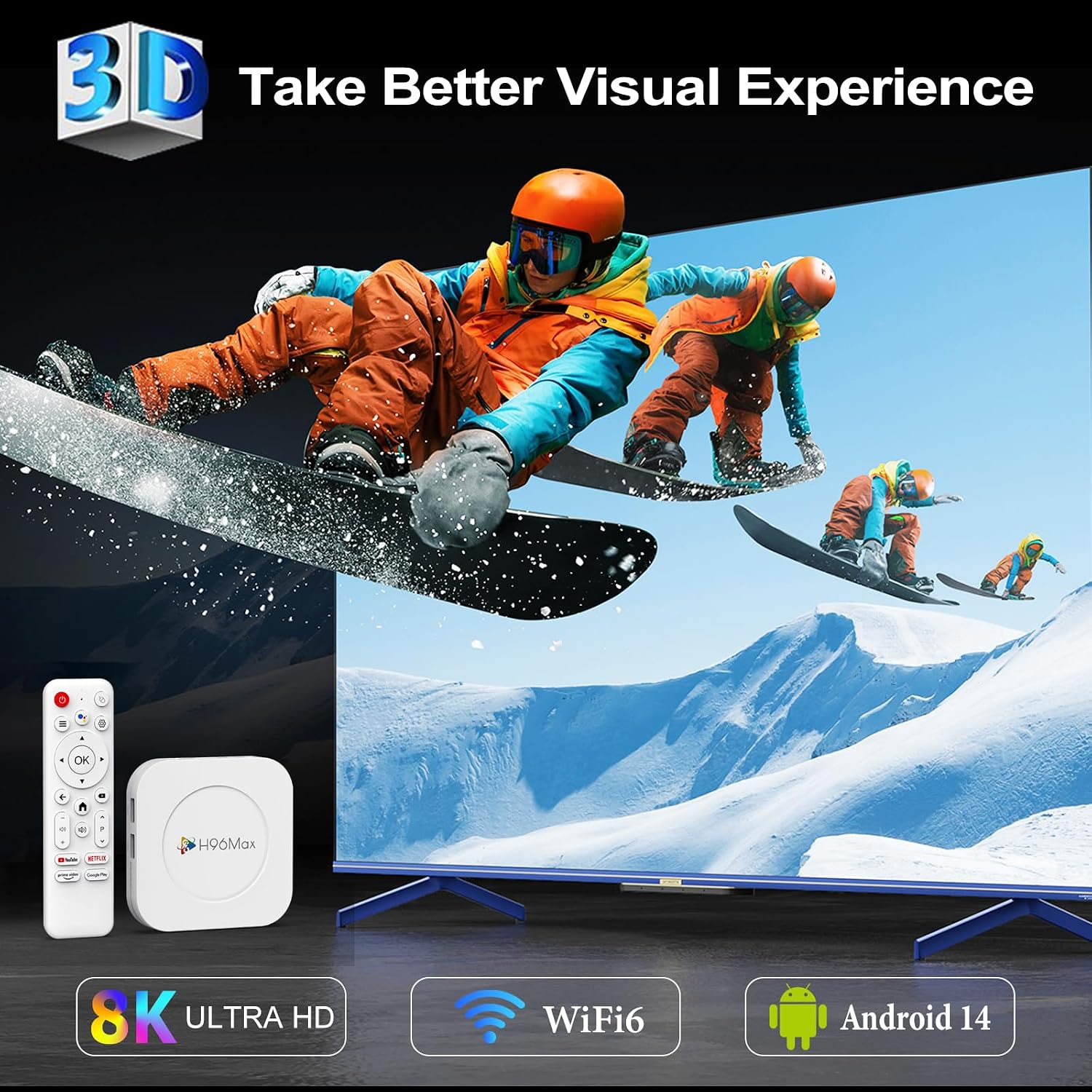
Image: A dynamic scene depicting snowboarders, illustrating the 3D visual experience capability of the TV box. Icons for 8K Ultra HD, WiFi6, and Android 14 are also displayed, highlighting key features.
7. Maintenance
Proper maintenance ensures the longevity and optimal performance of your TV box.
- Cleaning: Use a soft, dry cloth to clean the device. Do not use liquid cleaners or aerosol sprays.
- Ventilation: Ensure the device has adequate ventilation. Do not cover the ventilation openings.
- Firmware Updates: Periodically check for system updates in the settings menu to ensure you have the latest features and bug fixes.
- Storage: When not in use for extended periods, unplug the device and store it in a cool, dry place.
8. Troubleshooting
If you encounter issues with your TV box, refer to the following common problems and solutions.
| Problem | Possible Cause / Solution |
|---|---|
| No power / Device not turning on. |
|
| No display on TV. |
|
| Cannot connect to Wi-Fi. |
|
| Remote control not responding. |
|
| Apps are slow or crashing. |
|
9. Specifications
Detailed technical specifications for the GimeBox H96 Max M1 Plus TV Box.
| Feature | Description |
|---|---|
| Operating System | Android 14.0 |
| CPU | RK3528 Quad Core ARM Cortex-A53 |
| GPU | Mali-450 MP2 |
| RAM | 4GB DDR3 |
| Internal Storage | 128GB EMMC Flash |
| Wi-Fi | Dual-band Wi-Fi 6.0 (2.4G & 5G) |
| Bluetooth | BT 5.4 |
| Ethernet | 10/100M, Standard RJ-45 |
| USB Host | 2 x High-speed USB 2.0 (supports U DISK and USB HDD) |
| Card Reader | SD/SDHC/MMC cards |
| Video Output | HD 2.0 up to 4k2k Output with HDR, CEC and HDCP 2.2, 4Kx2K@60 max resolution output |
| Video Decoding | 4K2K H.265 Hardware Video Decode |
| Supported Video Formats | mkv, wmv, mpg, mpeg, dat, avi, mov, iso, mp4, rm, HD MPEG1/2/4, H.264, H.265 |
| Supported Photo Formats | HD JPEG/BMP/GIF/PNG/TIFF (supports thumbnail, scaling, rotation, transition effects) |
| Supported Subtitle Formats | SRT/SMI/SUB/SSA/IDX+USB |
| Dimensions | 96mm (L) x 96mm (W) x 20.6mm (H) |
| Weight | 12.1 ounces (approx. 343g) |

Image: A detailed view of the Rockchip RK3528 processor, highlighting its specifications: Quad-core ARM Cortex-A53 CPU, Mali-450 MP2 GPU, and RAM/ROM options (2GB/4GB RAM, 16GB/32GB/128GB ROM).
10. Warranty and Support
For warranty information and technical support, please refer to the terms provided at the time of purchase or contact GimeBox customer service.
You can visit the official GimeBox store on Amazon for more information and support:
Visit the GimeBox Store on Amazon
Please note that GimeBox does not provide any third-party applications on this box. Users are encouraged to download useful software from the app store.
Ask a question about this manual
Ask about setup, troubleshooting, compatibility, parts, safety, or missing instructions. Manuals+ will review the question and use this page’s manual context to help answer it.