
1. Introduction
This manual provides detailed instructions for the installation, operation, and maintenance of your CUQI 7-inch Portable Touch Screen Car Stereo. This device is designed to enhance your driving experience by integrating wireless CarPlay and Android Auto functionalities, along with a backup camera, live navigation, Bluetooth connectivity, Mirror Link, and TF card support. Please read this manual thoroughly before using the product to ensure safe and optimal performance.
2. Package Contents
Verify that all items listed below are included in your package. If any items are missing or damaged, please contact customer support.
- 7 Inch Portable Car Stereo
- Rear Camera
- AUX Cable
- TF card (32G)
- Wiring Buckle
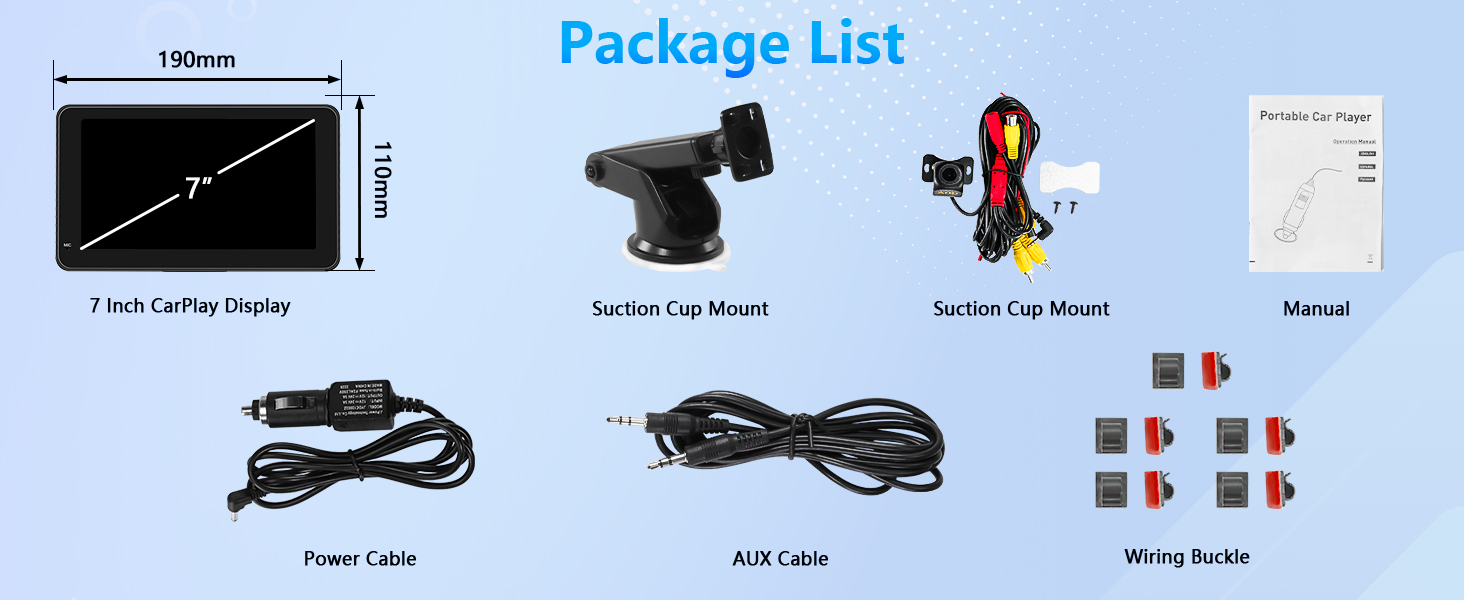
Figure 2.1: Package contents including the 7-inch CarPlay display, suction cup mounts, rear camera, cables, and manual.
3. Product Overview
The CUQI 7-inch Portable Car Stereo features a high-definition touchscreen display and various ports for connectivity and power. It includes a built-in microphone for voice commands and calls.
3.1. Ports and Controls
- AUX Input: For connecting external audio devices via the included AUX cable.
- AV IN: Video input for the backup camera.
- USB Port: For wired phone connection (CarPlay/Android Auto) or media playback from a USB drive.
- TF Card Slot: For media playback from a TF (MicroSD) card.
- DC 12V Power Input: For connecting the car power adapter.
- MIC: Built-in microphone for voice control and hands-free calling.

Figure 3.1: Detailed view of the device's ports for various connections.
4. Setup & Installation
4.1. Mounting the Display
The portable car stereo comes with a suction cup mount for easy installation on your dashboard or windshield. Ensure the mounting surface is clean and dry for optimal adhesion.
- Attach the display to the mounting bracket.
- Position the suction cup mount on your desired surface.
- Press firmly on the suction cup for approximately 5 seconds to secure it.
- Adjust the display angle for optimal viewing.

Figure 4.1: Display mounted on the dashboard with cable management.
4.2. Power Connection
Connect the included power cable to the DC 12V input on the device and plug the other end into your car's cigarette lighter socket.
4.3. Rear Camera Installation
The device includes a 720P AHD rear view camera. Connect the camera's video cable to the AV IN port on the main unit. The red cable of the backup camera should be connected to the positive terminal of your vehicle's reversing light. This ensures the display automatically switches to the rear view when reversing.

Figure 4.2: Rear camera connection diagram.
5. Operating Instructions
5.1. Wireless CarPlay & Android Auto Connection
The device supports wireless CarPlay and Android Auto, allowing you to access navigation, music, calls, and messages directly from your phone on the 7-inch screen.
5.1.1. Wireless CarPlay (iPhone 5 and higher, iOS 13 or higher)
- Open the CarPlay interface on the portable stereo.
- On your iPhone, turn on Bluetooth and Wi-Fi.
- Connect to the device via Bluetooth and complete the pairing process.
- CarPlay will connect successfully.

Figure 5.1: Wireless CarPlay connection steps.
5.1.2. Wireless Android Auto (5G Wi-Fi support, Android 11 or higher)
- Open the Android Auto interface on the portable stereo.
- On your Android phone, turn on Bluetooth and Wi-Fi.
- Connect to the device via Bluetooth and complete the pairing process.
- Android Auto will connect successfully.

Figure 5.2: Wireless Android Auto connection steps.
5.2. Wired CarPlay & Android Auto Connection
For a wired connection, simply connect your smartphone to the device's USB port using a compatible USB cable. The system should automatically detect and launch CarPlay or Android Auto.
5.3. AirPlay & Android Cast
The 7-inch portable car stereo supports AirPlay for Apple devices and Android Cast for Android devices, allowing you to mirror your phone's screen onto the display.
5.3.1. Wireless Apple AirPlay Connection
- Open the AirPlay interface on the portable stereo.
- Switch on your iPhone's Wi-Fi.
- Connect to the device's Wi-Fi network and enter the password.
- Activate screen mirroring on your iPhone and select "Connect SmartScreen".
- Connection will be successful.

Figure 5.3: Wireless Apple AirPlay connection steps.
5.3.2. Wireless Android Cast Connection
- Open the Android Cast interface on the portable stereo.
- Scan the QR code displayed on the screen to download the necessary app.
- Connect your device via the app.
- Connection will be successful.

Figure 5.4: Wireless Android Cast connection steps.
5.4. Audio Output Options
The device offers multiple ways to output audio to your car's sound system:
- Built-in Speakers: The unit has its own integrated speakers for direct audio output.
- AUX Connection: Use the provided AUX cable to connect the device to your car's AUX input for higher quality audio.
- Bluetooth: Connect the device to your car's Bluetooth system for wireless audio streaming.
- FM Transmission: Transmit audio wirelessly to your car's FM radio by tuning both devices to an unused FM frequency.

Figure 5.5: Available audio output methods.
5.5. Voice Control
Utilize Siri or Google Voice Assistant through the built-in microphone for hands-free control of navigation, music, calls, and messages, ensuring safer driving.

Figure 5.6: Voice control features.
5.6. Media Playback
The device supports media playback from a TF card (32G included) or a USB drive connected to the USB port. Navigate through your media files using the touchscreen interface.
6. Troubleshooting
If you encounter issues with your device, refer to the following common solutions:
- Screen Glitching/Incorrect Touch Response: If the touchscreen buttons are misaligned (e.g., clicking the top activates the bottom), navigate to the device's settings menu. Look for a "Screen Calibration" option and follow the on-screen instructions to recalibrate the touch response.
- Audio Quality Issues (Static/Low Volume): Ensure the audio output method is correctly configured. If using FM transmission, try a different, clear FM frequency. For AUX connection, ensure the cable is fully inserted and your car's AUX input is selected.
- Device Stays On After Car is Off: If the device remains powered when the car is off, it may be due to the car's power outlet remaining active. Unplug the device when not in use to prevent battery drain.
- Connection Issues (CarPlay/Android Auto): Ensure Bluetooth and Wi-Fi are enabled on your phone and the device. For wireless connections, ensure your phone meets the minimum OS requirements (iOS 13+ for CarPlay, Android 11+ with 5G Wi-Fi for Android Auto). For wired connections, use an original or certified USB cable.
7. Specifications
| Feature | Specification |
|---|---|
| Display Size | 7 inches |
| Display Type | HD Touchscreen |
| Connectivity Technology | Bluetooth, Wi-Fi |
| Controller Type | Android, iOS |
| Special Feature | Touchscreen |
| Compatible Devices | Smartphone |
| Connector Type | 3.5mm Jack, USB Type A |
| Audio Output Mode | Stereo |
| Surround Sound Channel Configuration | 2 |
| Video Encoding | H.264, H.265/HEVC, MPEG-4 |
| Color | Black |
| Item Weight | 1.61 pounds |
| Package Dimensions | 8.58 x 5.63 x 4.09 inches |
| Voltage Compatibility | 12-36V (suitable for cars, trucks, caravans, vans, trailers, motorhomes) |
8. Maintenance
To ensure the longevity and optimal performance of your CUQI 7-inch Portable Car Stereo, follow these maintenance guidelines:
- Cleaning: Use a soft, dry cloth to clean the screen and exterior of the device. Avoid using abrasive cleaners or solvents that could damage the surface.
- Temperature: Avoid exposing the device to extreme temperatures, both hot and cold, as this can affect its performance and lifespan.
- Cable Management: Ensure all cables are neatly routed and secured using the provided wiring buckles to prevent damage or interference with driving controls.
- Software Updates: Periodically check for system version upgrades to ensure you have the latest features and performance improvements.
9. Warranty & Support
CUQI provides a 1-year product warranty service for this portable car stereo. We also offer lifetime system version upgrades. For any questions, technical assistance, or warranty claims, please contact our customer support team. We aim to reply within 24 hours to make your purchase worry-free.
For further assistance, please visit the CUQI Store on Amazon.
