
Gimebox R69 Plus
Gimebox R69 Plus Android Box 14.0 TV Box User Manual
Model: R69 Plus
1. Introduction
Thank you for choosing the Gimebox R69 Plus Android Box 14.0 TV Box. This device transforms your television into a smart entertainment hub, offering access to a vast array of streaming content, applications, and media playback capabilities. Powered by Android 14.0, it features a high-performance processor, ample memory, and advanced connectivity options to deliver a smooth and immersive user experience. Please read this manual carefully to ensure proper setup, operation, and maintenance of your device.
2. Product Features
- Operating System: Android 14.0
- Processor: H728 Octa-core ARM Cortex A55
- Graphics: Mali G57-MC1 GPU
- Memory (RAM): 4GB
- Storage (ROM): 64GB
- Wireless Connectivity: Dual-band Wi-Fi (2.4GHz/5.8GHz), Bluetooth 5.0
- Wired Connectivity: Gigabit Ethernet (10/1000M RJ-45)
- Video Output: Supports up to 6K resolution, 4Kx2K H.265 Hardware Video Decode, HDR10 and HLG modes
- USB Ports: High-speed USB 3.0
- Additional Features: Supports 3D graphics acceleration, multiple OSD languages, HDMI 2.0 with HDR, CEC, and HDCP 2.2.
3. Package Contents
Upon opening the package, please verify that all items are present and in good condition. The standard package typically includes:
- Gimebox R69 Plus Android TV Box
- Remote Control
- Power Adapter
- HDMI Cable
- User Manual (this document)
Note: While the primary product listing indicates 'TV BOX' as the sole content, typical accessories for a complete user experience are listed above.
4. Product Overview and Ports

Figure 4.1: Gimebox R69 Plus Android TV Box and included remote control.
Front/Side Panel
- USB 3.0 Ports: For connecting external storage devices (USB drives, external hard drives), keyboards, mice, or other USB peripherals. Provides faster data transfer speeds compared to USB 2.0.

Figure 4.2: USB 3.0 ports on the Gimebox R69 Plus, offering high-speed data transfer.
Rear Panel
- DC 5V/2A: Power input port. Connect the provided power adapter here.
- Optical (SPDIF): Digital audio output for connecting to home theater systems or soundbars.
- Reset: Small button for factory reset (requires a pin to press).
- HD (HDMI): High-Definition Multimedia Interface output. Connect to your TV or monitor using an HDMI cable for video and audio.
- LAN (RJ-45): Gigabit Ethernet port for wired network connection, providing stable and high-speed internet access.

Figure 4.3: Gigabit Ethernet port on the Gimebox R69 Plus for high-speed wired network connection.
- AV: Analog video and audio output for connecting to older televisions using an AV cable (not always included).
5. Setup Guide
5.1 Connecting the Device
- Connect to TV: Insert one end of the HDMI cable into the HD port on the R69 Plus TV Box and the other end into an available HDMI input on your television.
- Connect to Power: Plug the DC power adapter into the DC 5V/2A port on the TV Box, then plug the adapter into a wall outlet.
- Connect to Network (Optional):
- Wired Connection: For a stable connection, connect an Ethernet cable from your router to the LAN port on the TV Box.
- Wireless Connection: If using Wi-Fi, ensure your router is powered on and within range. You will configure Wi-Fi after initial boot.
5.2 Initial Boot and Setup Wizard
- Turn on your television and select the correct HDMI input source corresponding to where you connected the TV Box.
- The Gimebox R69 Plus will automatically power on and begin the boot process.
- Follow the on-screen setup wizard to configure basic settings such as language, screen resolution, and network connection (if not using wired Ethernet).
- If prompted, connect to your Wi-Fi network by selecting your network name and entering the password.
- Complete any remaining setup steps to reach the main Android home screen.
6. Operating Instructions
6.1 Navigating the Interface
Use the provided remote control to navigate the Android interface. The directional pad (up, down, left, right) moves the cursor, and the 'OK' button selects items. The 'Back' button returns to the previous screen, and the 'Home' button returns to the main home screen.
6.2 Installing Applications
The Gimebox R69 Plus runs on Android 14.0, allowing you to install applications from the pre-installed App Store (e.g., Google Play Store, if available, or a proprietary app store). Navigate to the App Store icon on the home screen, browse or search for desired applications, and select 'Install'.
Note: This device does not come with pre-installed third-party applications. Users are required to download desired software from the App Store.
6.3 Media Playback
The device supports various media formats for video, audio, and photos. You can play media from connected USB storage devices, network shares, or streaming applications. Use a file manager app to browse local files or open streaming apps to access online content.

Figure 6.1: The Gimebox R69 Plus supports diverse usage scenarios including media consumption and screen casting.
6.4 Advanced Features
- HDR10 Support: Experience enhanced contrast and color with HDR10 compatible content and displays.

Figure 6.2: HDR10 technology provides more vivid and beautiful picture display.
- 3D Display: Enjoy a smooth and immersive 3D gaming or viewing experience with compatible content.

Figure 6.3: Powerful 3D display capabilities for an enhanced gaming and viewing experience.
- Wi-Fi 6 Support: Benefit from faster speeds, lower latency, and a more secure network with Wi-Fi 6 compatible routers.
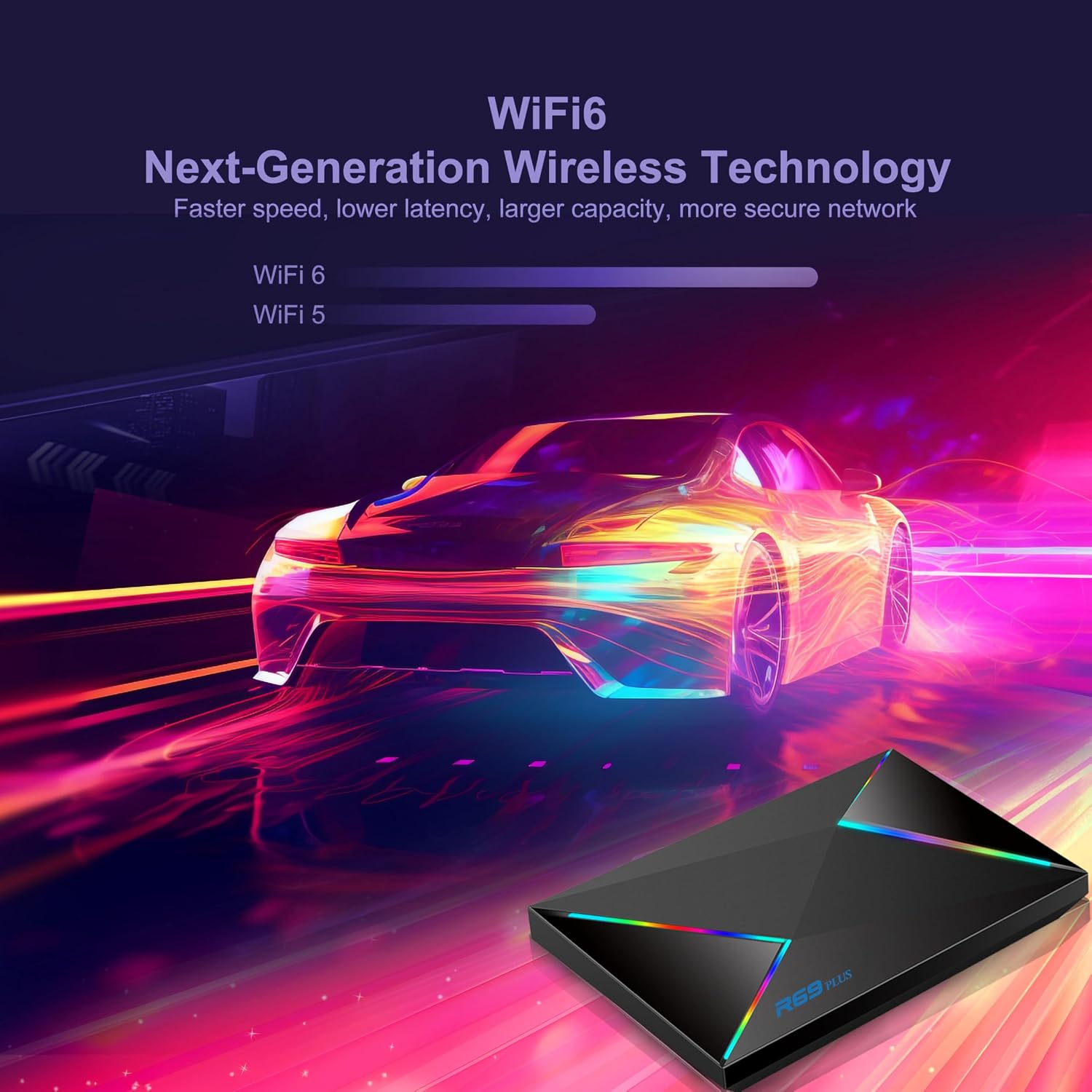
Figure 6.4: Next-generation Wi-Fi 6 technology for faster and more efficient wireless connectivity.
7. Maintenance
- Cleaning: Use a soft, dry cloth to clean the exterior of the device. Do not use liquid cleaners or aerosols.
- Ventilation: Ensure the device is placed in a well-ventilated area to prevent overheating. Do not block any ventilation openings.
- Power Off: When not in use for extended periods, it is recommended to power off the device and unplug the power adapter.
- Software Updates: Periodically check for system updates through the device's settings menu to ensure optimal performance and security.
8. Troubleshooting
| Problem | Possible Cause | Solution |
|---|---|---|
| No power / Device does not turn on | Power adapter not connected or faulty; Power outlet issue. | Ensure power adapter is securely connected to the device and a working power outlet. Try a different outlet. |
| No signal on TV / Blank screen | Incorrect HDMI input selected on TV; Loose HDMI cable; TV Box not powered on. | Select the correct HDMI input on your TV. Check HDMI cable connections. Ensure the TV Box is powered on. |
| Remote control not working | Low batteries; Obstruction between remote and device; Remote not paired (if Bluetooth). | Replace batteries. Remove any obstructions. Ensure line of sight for IR remotes. Refer to remote pairing instructions if applicable. |
| Cannot connect to Wi-Fi | Incorrect password; Router too far; Wi-Fi disabled on device. | Double-check Wi-Fi password. Move device closer to router. Ensure Wi-Fi is enabled in device settings. Restart router and TV Box. |
| Applications crashing or freezing | Insufficient memory; App compatibility issues; Corrupted app data. | Close background apps. Clear app cache/data in settings. Reinstall the app. Perform a factory reset if issues persist (backup data first). |
9. Specifications
| Feature | Detail |
|---|---|
| Model | R69 Plus |
| Operating System | Android 14.0 |
| CPU | H728 Octa-core ARM Cortex A55 |
| GPU | Mali G57-MC1 |
| RAM | 4GB |
| ROM | 64GB |
| Wi-Fi | 2.4GHz / 5.8GHz Dual-band (Wi-Fi 6 compatible) |
| Bluetooth | BT 5.0 |
| Ethernet | Standard 10/1000M, Gigabit RJ-45 |
| Video Decoding | 4k2k H.265 Hardware Video Decode, up to 6K |
| HDR Support | HDR10 and HLG modes |
| USB Host | High speed USB 3.0 |
| Power Supply | DC 5V/2A |
| Dimensions | 13.78 x 7.09 x 1.18 inches |
| Weight | 10.6 ounces |
| Supported Media Formats | Avi/Rm/Rmvb/Ts/Vob/Mkv/Mov/ISO/wmv/asf/flv/dat/mpg/mpeg (Video) MP3/WMA/AAC/WAV/OGG/AC3/DDP/TrueHD/DTS/DTS/HD/FLAC/APE (Audio) HD JPEG/BMP/GIF/PNG/TIFF (Photo) |
10. Warranty and Support
For warranty information and technical support, please refer to the documentation provided with your purchase or contact the seller/manufacturer directly. Keep your purchase receipt as proof of purchase for warranty claims.
For further assistance, you may visit the Gimebox store on Amazon: Gimebox Store
Ask a question about this manual
Ask about setup, troubleshooting, compatibility, parts, safety, or missing instructions. Manuals+ will review the question and use this page’s manual context to help answer it.