
KAGO MV401
KAGO 4K HDMI Multi Viewer (QuadView) User Manual
Model: MV401
1. Introduction
Thank you for purchasing the KAGO 4K HDMI Multi Viewer. This device allows you to connect up to four HDMI sources and display them simultaneously on a single 4K display. With support for resolutions up to 4K at 30Hz and 7.1 channel audio pass-through, it provides a versatile solution for managing multiple video inputs. This manual provides detailed instructions for setup, operation, and troubleshooting to ensure optimal performance.
Package Contents:
- KAGO 4K HDMI Multi Viewer (MV401)
- Remote Control
- Power Adapter (DC 5V/1A)
- User Manual
2. Safety Information
Please read and follow these safety instructions carefully before operating the device to prevent damage and ensure safe use.
- Do not expose this unit to water, moisture, or excessive humidity.
- Do not place the unit on an unstable surface.
- Use only the provided power adapter.
- Do not attempt to open or repair the unit yourself. Refer all servicing to qualified personnel.
- Ensure proper ventilation around the unit to prevent overheating.
- Keep the unit away from direct sunlight, heat sources, and strong magnetic fields.
3. Product Overview
Front Panel:
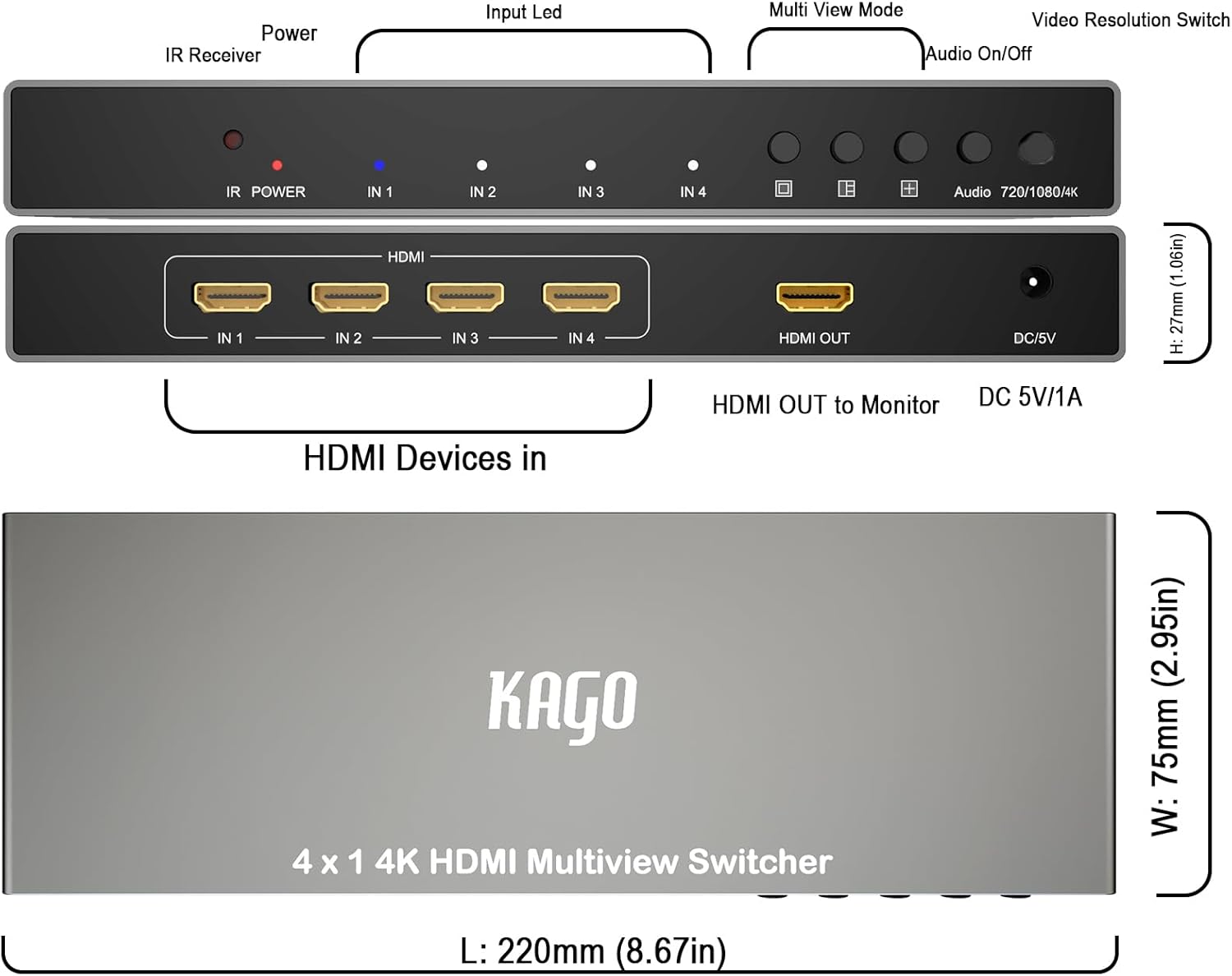
This image displays the front and rear panels of the KAGO 4K HDMI Multi Viewer, highlighting the various ports and controls. The front panel includes the IR Receiver, Power LED, Input LEDs (IN 1-4), Multi View Mode buttons, Audio On/Off button, and Video Resolution Switch. The rear panel features four HDMI Input ports (IN 1-4), one HDMI Output port, and the DC 5V/1A power input.
- IR Receiver: Receives signals from the remote control.
- Power LED: Indicates the power status of the device.
- IN 1-4 LEDs: Indicate which HDMI input is currently active or selected.
- Multi View Mode Buttons: Cycle through different display modes (Full Screen, Side-by-Side, Quad View).
- Audio On/Off: Toggles audio output.
- Video Resolution Switch: Adjusts output resolution (e.g., 720p, 1080p, 4K).
Rear Panel:
- HDMI IN 1-4: Connect your HDMI source devices (e.g., gaming consoles, media players, set-top boxes).
- HDMI OUT: Connect to your display (TV, monitor, projector).
- DC 5V/1A: Power input port.
4. Setup
Follow these steps to set up your KAGO 4K HDMI Multi Viewer:
- Power Off Devices: Ensure all HDMI source devices and your display are powered off before making connections.
- Connect HDMI Sources: Connect up to four HDMI source devices (e.g., Blu-ray player, game console, PC) to the HDMI IN 1-4 ports on the rear panel of the Multi Viewer using high-quality HDMI cables.
- Connect Display: Connect your 4K display (TV, monitor, projector) to the HDMI OUT port on the rear panel of the Multi Viewer using a high-quality HDMI cable.
- Connect Power: Plug the provided DC 5V/1A power adapter into the DC 5V/1A port on the Multi Viewer, then plug the adapter into a power outlet. The Power LED on the front panel will illuminate.
- Power On Devices: Power on your display first, then power on your HDMI source devices.
- Select Input: The Multi Viewer will automatically detect active inputs. You can use the front panel buttons or the remote control to select the desired input or multi-view mode.
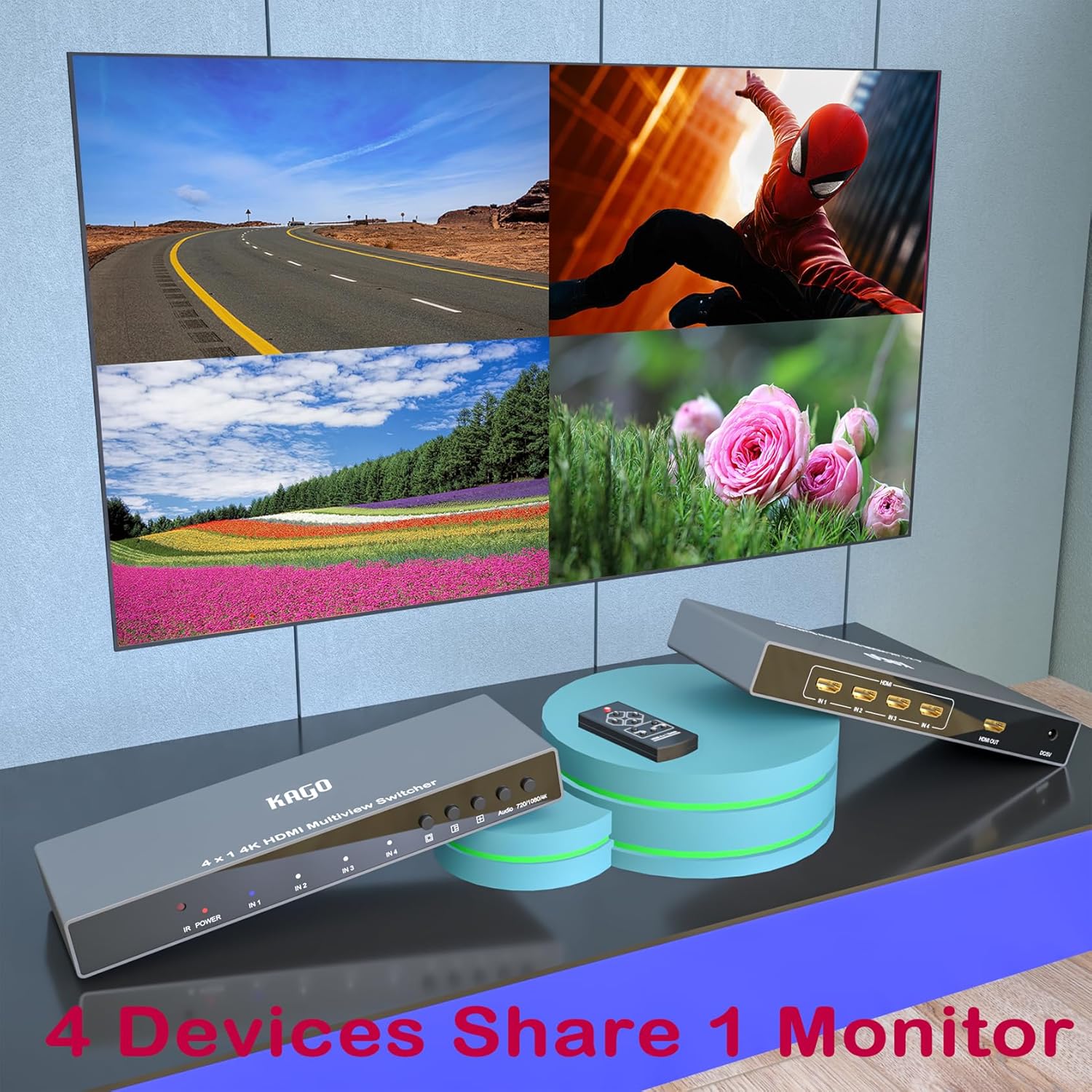
This image illustrates a typical setup for the KAGO 4K HDMI Multi Viewer, showing the device connected to a display and multiple source devices, demonstrating its capability to allow four devices to share one monitor.
5. Operation
Using the Remote Control:

This image shows the remote control for the KAGO 4K HDMI Multi Viewer alongside a display in full-screen mode, demonstrating how to select a single input for viewing.
- Power Button: Turns the Multi Viewer on or off.
- Input Selection Buttons (1, 2, 3, 4): Directly select the corresponding HDMI input to display in full screen mode.
- Sound Button: Toggles audio output.
- Multi View Mode Buttons:
- Full Screen Mode (□): Displays a single selected input across the entire screen.
- Side-by-Side Mode (□□): Displays two inputs side-by-side.
- Quad View Mode (⊞): Displays all four inputs simultaneously in a quad layout.
Multi-View Modes:
The KAGO Multi Viewer supports various display modes to suit your needs:
Full Screen Mode:
This mode displays one selected HDMI input across the entire screen. Use the numbered buttons (1-4) on the remote or the corresponding input selection buttons on the front panel to switch between full-screen inputs.
Side-by-Side Mode:

This mode allows you to view two HDMI inputs simultaneously. The image illustrates various side-by-side layouts, including two main inputs displayed horizontally with two smaller inputs below. Use the dedicated Side-by-Side mode button on the remote or front panel to activate this mode and cycle through available layouts.
Quad View Mode (Screen Splitter):

In this mode, all four HDMI inputs are displayed simultaneously on the screen, typically in a 2x2 grid. The image demonstrates the quad layout. Use the dedicated Quad View mode button on the remote or front panel to activate this mode.

This comprehensive image showcases the KAGO 4K HDMI Multi Viewer and its remote, along with a display demonstrating the versatility of its multi-view capabilities, including full screen, side-by-side, and quad view modes.
6. Troubleshooting
If you encounter issues with your KAGO 4K HDMI Multi Viewer, please refer to the following common problems and solutions:
| Problem | Possible Cause | Solution |
|---|---|---|
| No video output / Black screen |
|
|
| No audio output |
|
|
| Remote control not working |
|
|
| Image flickering or distorted |
|
|
7. Specifications
| Feature | Detail |
|---|---|
| Model | MV401 |
| HDMI Inputs | 4 |
| HDMI Output | 1 |
| Supported Resolutions | Up to 4K@30Hz (3840x2160@30Hz), 1080p, 720p, etc. |
| Audio Support | 7.1 Channel Audio Pass-through |
| Power Supply | DC 5V/1A |
| Control Method | Front Panel Buttons, IR Remote Control |
| Dimensions (L x W x H) | 220mm x 75mm x 27mm (approx. 8.67in x 2.95in x 1.06in) |
| Weight | 621.42 g (approx. 1.37 lbs) |
| Color | Black |
8. Maintenance
To ensure the longevity and optimal performance of your KAGO 4K HDMI Multi Viewer, follow these maintenance guidelines:
- Cleaning: Use a soft, dry cloth to clean the exterior of the unit. Do not use liquid cleaners or aerosol sprays.
- Ventilation: Ensure the ventilation openings are not blocked. Do not place the unit in an enclosed space without adequate airflow.
- Storage: If storing the unit for an extended period, disconnect it from power and store it in a cool, dry place away from direct sunlight.
- Cable Management: Avoid bending HDMI cables sharply or placing heavy objects on them, as this can damage the cables or ports.
9. Warranty and Support
For warranty information or technical support, please contact KAGO customer service through the retailer where you purchased the product or refer to the contact details provided on the product packaging or official KAGO website. Please have your model number (MV401) and purchase details ready when contacting support.
Ask a question about this manual
Ask about setup, troubleshooting, compatibility, parts, safety, or missing instructions. Manuals+ will review the question and use this page’s manual context to help answer it.