
Beats Solo4
Beats Solo 4 Wireless Bluetooth On-Ear Headphones
Instruction Manual
1. Introduction
The Beats Solo 4 Wireless Bluetooth On-Ear Headphones deliver powerful Beats sound with custom acoustic architecture and updated drivers. Designed for all-day comfort, these headphones feature an ultralight ergonomic design, flex-grip headband, and UltraPlush ear cushions. Enjoy up to 50 hours of battery life and personalized Spatial Audio with dynamic head tracking. They offer dual compatibility for both iOS and Android devices, high-resolution lossless audio via USB-C or 3.5mm cable, and high-quality call performance.
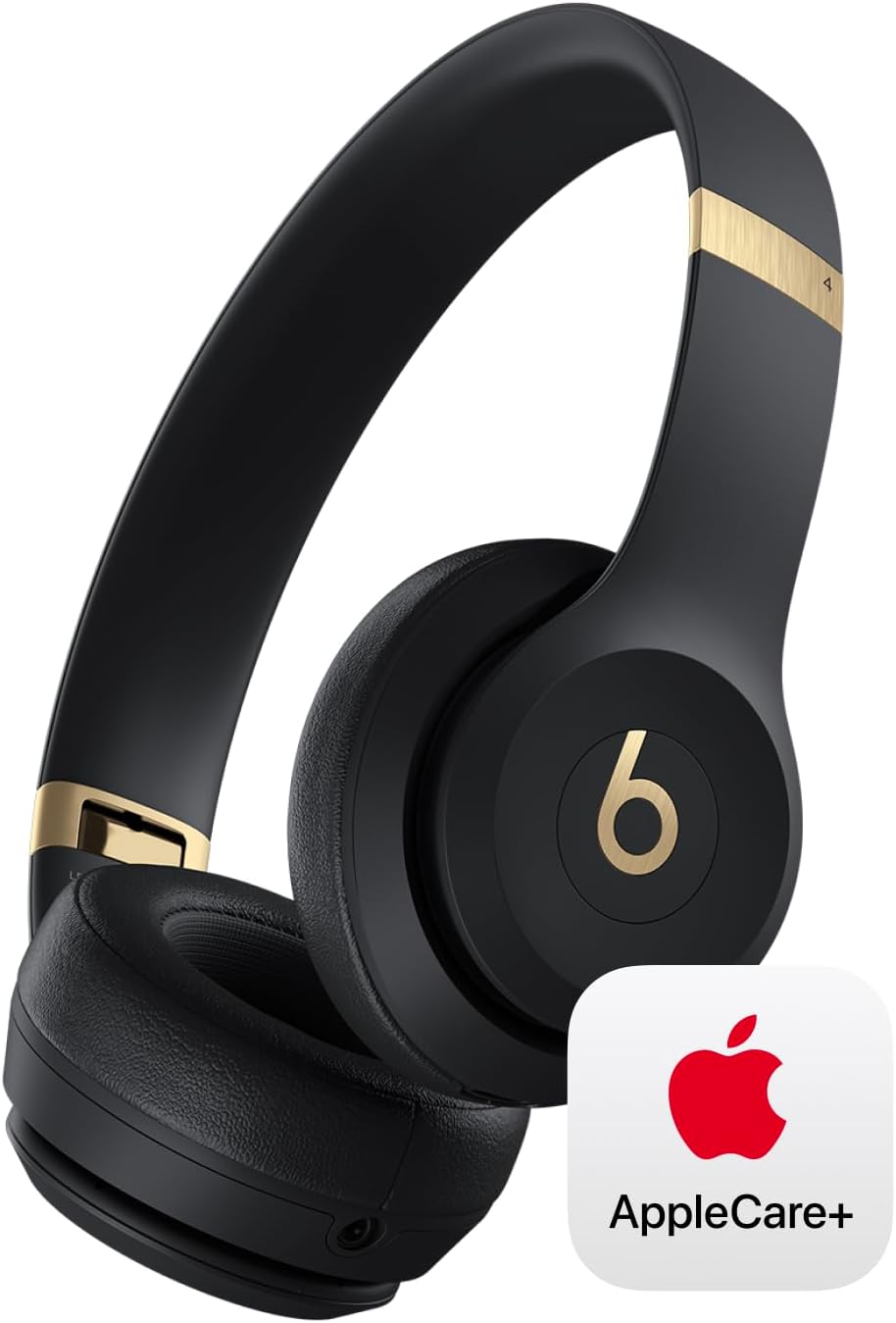
Image: Beats Solo 4 headphones in black and gold, showcasing their sleek design and the included AppleCare+ coverage.
2. What's in the Box
Your Beats Solo 4 package typically includes the following items:
- Beats Solo 4 Wireless Bluetooth On-Ear Headphones
- Carrying Case (soft woven)
- USB-C to USB-C Charging Cable
- 3.5mm Audio Cable
- Quick Start Guide
- Warranty Card

Image: The Beats Solo 4 headphones in their compact, folded state, ready to be stored in their carrying case.
3. Setup
3.1. Charging Your Headphones
Before first use, fully charge your Beats Solo 4 headphones. Connect the included USB-C to USB-C charging cable to the USB-C port on the left earcup and to a power source.
- The LED indicator on the right earcup will show charging status.
- A full charge provides up to 50 hours of listening time.
- Fast Fuel: A quick 10-minute charge provides up to 5 hours of playback when the battery is low.

Image: A visual representation highlighting the impressive 50-hour battery life of the Beats Solo 4 headphones.
3.2. Pairing Your Headphones
The Beats Solo 4 headphones offer seamless one-touch pairing for both iOS and Android devices.
For iOS Devices:
- Ensure your iPhone/iPad is unlocked and Bluetooth is enabled.
- Hold your Beats Solo 4 headphones near your iOS device.
- Follow the on-screen prompts to connect.
For Android Devices:
- Ensure your Android device's Bluetooth is enabled.
- Open the Beats app (if installed) or go to Bluetooth settings.
- Put your Beats Solo 4 into pairing mode (usually by holding the power button until the LED flashes).
- Select "Beats Solo 4" from the list of available devices.

Image: The Beats Solo 4 headphones positioned next to a smartphone, illustrating their compatibility and ease of pairing with both Apple and Android devices.
4. Operating Your Headphones
4.1. Basic Controls
The controls are intuitively placed on the earcups for easy access:
- Power Button: Located on the right earcup. Press and hold to power on/off.
- Volume Controls: Up and down buttons on the left earcup.
- Multi-function Button (b button): Located on the left earcup.
- Press once for Play/Pause or Answer/End Call.
- Press twice to Skip Forward.
- Press three times to Skip Backward.
- Press and hold to activate voice assistant.
4.2. Personalized Spatial Audio
Experience immersive sound with Personalized Spatial Audio and dynamic head tracking. This feature creates a theater-like experience, making sound appear to come from all around you.
- Requires compatible hardware and software.
- Content must be supported in apps.
- For personalized profile, an iPhone with TrueDepth camera is required.

Image: A visual representation of Personalized Spatial Audio, showing sound waves emanating from various directions around the Beats Solo 4 headphones, simulating an immersive audio experience.
4.3. Wired Connection
The Beats Solo 4 supports high-resolution lossless audio via wired connections:
- USB-C Audio: Connect the USB-C cable to a compatible device for digital audio playback and charging simultaneously.
- 3.5mm Audio: Use the included 3.5mm audio cable for traditional analog audio playback. This mode requires zero battery power.
5. Maintenance
5.1. Cleaning
- Wipe the earcups and headband with a soft, damp, lint-free cloth.
- Do not use abrasive cleaners or solvents.
- Ensure no moisture enters any openings.
5.2. Storage
- When not in use, store your headphones in the included soft woven carrying case to protect them from dust and scratches.
- Avoid storing in extreme temperatures or high humidity.
5.3. Battery Care
- For optimal battery longevity, avoid fully discharging the battery frequently.
- If storing for an extended period, charge the headphones to about 50% before storage.
6. Troubleshooting
| Problem | Possible Solution |
|---|---|
| Headphones won't power on | Ensure the headphones are charged. Connect to a power source using the USB-C cable. |
| Cannot pair with device | Ensure Bluetooth is enabled on your device. Put headphones in pairing mode. Move headphones closer to the device. Forget the device in Bluetooth settings and try pairing again. |
| No sound or low volume | Check volume levels on both headphones and connected device. Ensure headphones are properly paired. Try playing different audio. |
| Sound cutting out | Move closer to your device. Avoid interference from other wireless devices. Ensure headphones are charged. |
| Microphone not working | Ensure headphones are selected as the audio input device on your connected device. Check for any obstructions on the microphone. |
7. Specifications
| Feature | Detail |
|---|---|
| Brand | Beats |
| Model | Solo4 |
| Color | Black/Gold |
| Ear Placement | On Ear |
| Form Factor | On Ear |
| Earpiece Shape | Circle |
| Wireless Communication Technology | Bluetooth |
| Compatible Devices | Laptops, Cellphones |
| Battery Life | Up to 50 hours |
| Charging Port | USB-C |
| Audio Input | USB-C, 3.5mm Audio Cable |
8. Warranty and Support
Your Beats Solo 4 headphones come with a standard limited warranty. Additionally, this specific product includes AppleCare+ for extended coverage.
8.1. AppleCare+ Coverage
AppleCare+ provides hardware coverage for your headphones, battery, and included charging cable. It also includes unlimited repairs for accidental damage (service fees apply) and 24/7 priority access to Apple experts.

Image: An infographic detailing the benefits of AppleCare+, such as unlimited repairs for accidental damage, battery coverage, and 24/7 priority access to Apple experts.
8.2. Obtaining Support
For technical assistance, warranty claims, or service, please visit the official Beats support website or contact Apple Support directly. Keep your proof of purchase and product serial number handy.
For more information, visit the Beats Store on Amazon.
Related documentsSolo4


Ask a question about this manual
Ask about setup, troubleshooting, compatibility, parts, safety, or missing instructions. Manuals+ will review the question and use this page’s manual context to help answer it.