
1. Product Overview
The Tapo C501GW is a versatile 360° outdoor surveillance camera designed for locations without Wi-Fi access, utilizing 4G LTE connectivity. It provides high-definition video, advanced AI detection capabilities, and robust weather resistance.

Figure 1.1: Front view of the Tapo C501GW camera with antenna and mounting bracket.
Key features include:
- 4G LTE Connectivity: Operates independently of Wi-Fi, ideal for remote locations.
- 360° Coverage: Offers a 360° horizontal and 130° vertical viewing range to eliminate blind spots.
- Starlight Color Night Vision: Captures vivid, full-color images in low-light conditions up to 20 meters.
- 1080P Full HD: Delivers clear and detailed video footage.
- Free AI Detection: Intelligently identifies people, pets, and vehicles, reducing false alarms.
- IP66 Weatherproof: Designed to withstand rain, dust, and extreme temperatures for outdoor use.
- Dual Power Options: Can be powered via DC adapter or Power over Ethernet (PoE).
- Local & Cloud Storage: Supports microSD card storage (up to 512GB) and optional cloud service.
- Sound & Light Alarm: Customizable audio and adjustable spotlight intensity to deter intruders.

Figure 1.2: Overview of key features including Starlight Color Night Vision, AI Detection, and 4G connectivity.
2. Package Contents
Verify that all items are present in your package:
- Tapo C501GW Camera
- Removable Antenna
- DC Power Adapter
- Mounting Template
- Mounting Bracket
- Wall Plugs
- Mounting Screws
- Waterproof Seal
- Waterproof Cable Fasteners
- Quick Start Guide
3. Setup Guide
3.1 SIM Card Installation
The Tapo C501GW requires a 4G LTE SIM card for network connectivity. Ensure your SIM card is unlocked and compatible with the camera's supported frequencies (LTE-FDD: B 1/3/5/7/8/20/28; LTE-TDD: B 38/40/41).
- Locate the SIM card slot on the camera, usually protected by a rubber cover.
- Carefully open the cover.
- Insert the activated SIM card into the slot with the correct orientation until it clicks into place.
- Close the rubber cover securely to maintain weather resistance.

Figure 3.1: Location of the SIM card slot on the camera.
3.2 Powering the Camera
The camera supports two power options: DC power adapter or Power over Ethernet (PoE).
- DC Power: Connect the provided DC power adapter to the camera's power input and plug it into a standard electrical outlet.
- PoE (Power over Ethernet): If using a PoE-enabled switch or injector, connect an Ethernet cable from the PoE source to the camera's Ethernet port. This provides both power and data connectivity.
3.3 Mounting the Camera
The Tapo C501GW can be mounted on a wall, ceiling, or pole. Choose a location that provides the desired viewing angle and is within range of a power source.
- Use the mounting template to mark the drill holes on the chosen surface.
- Drill holes and insert the wall plugs if mounting on masonry.
- Attach the mounting bracket to the surface using the provided screws.
- Secure the camera to the mounting bracket.
- Adjust the camera's angle for optimal coverage.
3.4 App Installation and Initial Setup
Download the Tapo app from the App Store (iOS 9.0 or higher) or Google Play Store (Android 4.4 or higher) to manage your camera.
- Install the Tapo app on your smartphone.
- Create a Tapo account or log in if you already have one.
- Follow the in-app instructions to add your Tapo C501GW camera. This typically involves scanning a QR code on the camera or manually selecting the model.
- Complete the network configuration within the app.
4. Operating Instructions
4.1 Live View and Playback
Access the live feed of your camera and review recorded footage through the Tapo app.
- Open the Tapo app and select your C501GW camera.
- The live view will be displayed. You can pan and tilt the camera using the controls in the app.
- To view recorded footage, navigate to the playback section within the app.
4.2 Motion Detection and AI Features
The camera's intelligent AI can distinguish between different types of movement, providing more accurate alerts.
- Enable motion detection in the Tapo app settings for your camera.
- Configure detection zones and sensitivity levels as needed.
- The AI will identify people, pets, and vehicles, sending specific notifications to your device.

Figure 4.1: AI detection capabilities for people, pets, and vehicles.
4.3 Night Vision
The Starlight Color Night Vision feature allows the camera to capture full-color video even in very low light conditions, providing more detail than traditional black-and-white infrared night vision.
- The camera automatically switches to night vision mode in low light.
- Ensure the camera's lens is clean for optimal night vision performance.

Figure 4.2: Starlight Color Night Vision in action, providing clear, colorful images at night.
4.4 Alarm Functions
The camera features a built-in sound and light alarm to deter unwanted visitors.
- Customize the alarm sound and spotlight intensity through the Tapo app.
- Set up automated alarm triggers based on motion detection events.
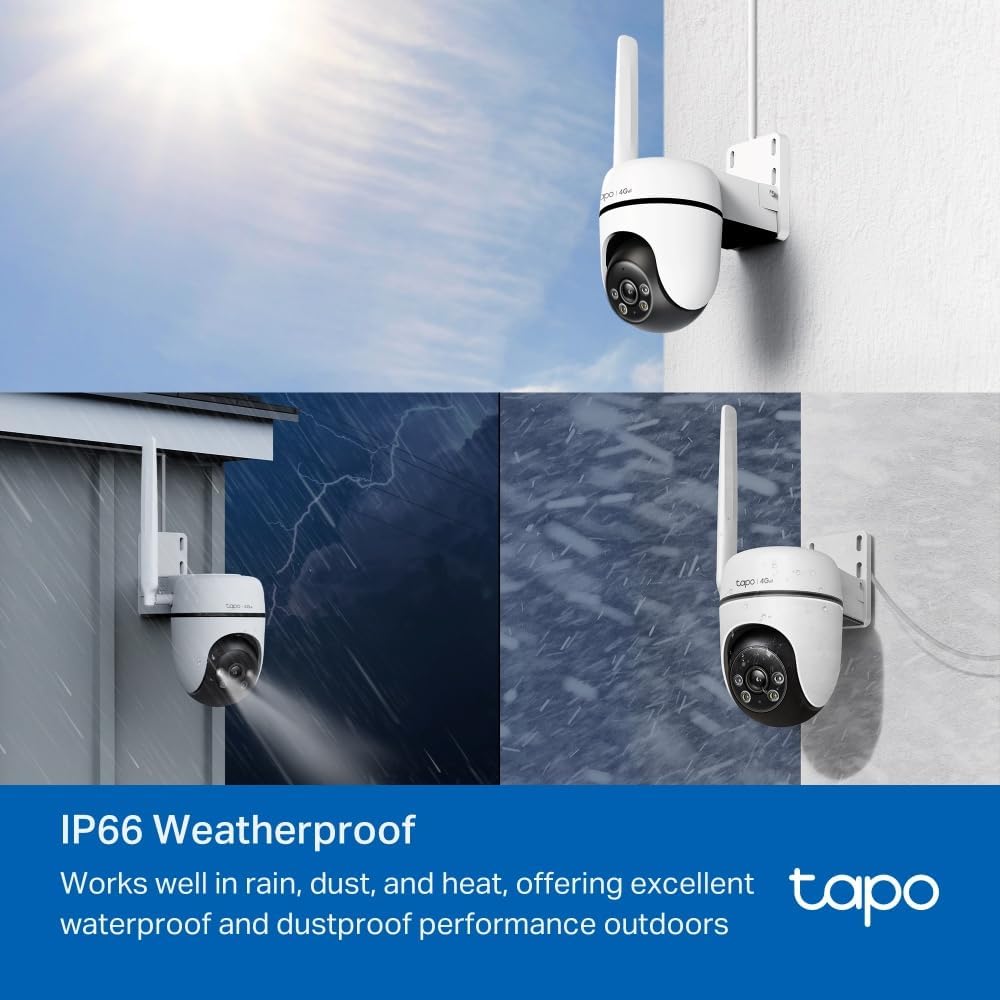
Figure 4.3: The camera's sound and light alarm deterring an intruder.
4.5 Storage Options
Recordings can be saved locally or to the cloud.
- Local Storage: Insert a microSD card (up to 512GB, not included) into the camera's card slot for continuous or event-based recording.
- Cloud Storage: Subscribe to Tapo Care for cloud storage services, allowing access to recordings from anywhere.

Figure 4.4: Local storage via microSD card and cloud storage options.
5. Maintenance
5.1 Cleaning
Regularly clean the camera lens and housing to ensure optimal performance and clear image quality.
- Use a soft, damp cloth to wipe the camera's exterior.
- For the lens, use a lens cleaning cloth and solution to avoid scratches.
- Do not use harsh chemicals or abrasive cleaners.
5.2 Firmware Updates
Keep your camera's firmware updated to benefit from the latest features, security enhancements, and bug fixes.
- Check for firmware updates periodically through the Tapo app.
- Follow the app's instructions to perform updates. Ensure a stable power supply during the update process.
6. Troubleshooting
If you encounter issues with your Tapo C501GW camera, refer to the following common solutions:
| Problem | Possible Solution |
|---|---|
| Camera not connecting to 4G network | Ensure SIM card is activated and unlocked. Verify SIM card is inserted correctly. Check local 4G signal strength. Confirm SIM card data plan is active. |
| No image or black screen in live view | Check power connection. Restart the camera. Ensure the lens is not obstructed. Verify network connectivity. |
| Poor image quality | Clean the camera lens. Ensure sufficient lighting. Check network bandwidth if streaming is choppy. |
| Motion detection not working | Ensure motion detection is enabled in the app. Adjust sensitivity settings. Define detection zones correctly. |
| Cannot access recordings | For local storage, ensure microSD card is inserted, formatted, and not full. For cloud storage, verify Tapo Care subscription is active. |
For more detailed troubleshooting or persistent issues, please visit the Tapo support website or contact customer service.
7. Technical Specifications
| Feature | Specification |
|---|---|
| Model Number | Tapo C501GW |
| Video Recording Resolution | 1080p Full HD (1920 x 1080 pixels) |
| Frame Rate | 30 fps |
| Wireless Communication Technology | 4G LTE |
| Connectivity Protocol | 4G LTE |
| Power Source | DC Power / PoE |
| Water Resistance Level | IP66 (Weatherproof) |
| Dimensions (L x W x H) | 13.1 x 8.4 x 11.6 cm (5.16 x 3.31 x 4.57 inches) |
| Weight | 410 grams |
| Mounting Type | Wall Mount, Ceiling Mount, Pole Mount |
| Storage | MicroSD card (up to 512GB), Cloud Storage (Tapo Care) |
| Compatible Devices | iOS 9.0 or higher, Android 4.4 or higher |
| Manufacturer | TP-Link |
| Recommended Uses | Farm, Vacation Home, Warehouse |
8. Warranty and Support
Tapo products come with a limited warranty. For detailed warranty information, terms, and conditions, please refer to the warranty card included in your product packaging or visit the official Tapo website.
For technical support, product registration, or to download the latest drivers and manuals, please visit the Tapo support page:
- Tapo Official Website: www.tapo.com
- Support Page: Refer to the support section on the Tapo website for FAQs, troubleshooting guides, and contact information.
Please retain your proof of purchase for warranty claims.