
Introduction
This manual provides detailed instructions for the installation, operation, and maintenance of your GigaBlue UHD Quad 4K Pro satellite receiver. Please read this manual thoroughly before using the device to ensure proper functionality and to avoid potential issues.
The GigaBlue UHD Quad 4K Pro is a high-performance 4K Ultra HD PVR receiver equipped with advanced features such as HBB-TV, Bluetooth 5.4, and two FBC DVB-S2 tuners, offering a comprehensive entertainment experience.
Product Features
- 4K UHD Resolution: Supports sharp and vibrant images in 4K Ultra HD quality.
- 2x DVB-S2 FBC Tuners: Equipped with two powerful DVB-S2 FBC tuners for flexible satellite TV reception.
- Optional DVB-C/T2 Dual Tuner: Expand reception capabilities with an optionally available DVB-C/T2 dual tuner for cable and terrestrial TV signals.
- PVR Function: Built-in Personal Video Recorder (PVR) for recording and playback of programs.
- Advanced Connectivity: Multiple connection options including HDMI, USB-A, USB-C, and network ports.
- HEVC/H.265 Video Decoding: Efficient video decoding for high-quality images.
- Removable Plug&Play Frame for 2.5" SATA HDDs: Facilitates easy replacement of hard drives up to 15mm height.
- 12V External Power Supply: Powered by external 12V power adapters.
- SAT>IP and Multiroom Server Function: Distributes TV signals to up to 16 clients in a multiroom system.
- 4 x PIP (Picture-in-Picture): Allows simultaneous display of four images on screen.
- Blindscan: Automatic search for available satellite channels.
- WebKit Browser and YouTube: Integrated web browser for internet access and YouTube.
- Linux OS (Enigma2-based): Provides fast and secure performance.
- Fast Switching Times: Quick response time when changing channels.
- Simultaneous Decryption of 2 CI Modules: Supports parallel decryption of two CI modules.
- Bluetooth 5.4: For connecting with Bluetooth soundbars or headphones.
- Software Updates via Internet and OTA: Supports easy software updates.
- Time-Shift: Enables watching TV with time delay.
- Permanent Timer Function: Fixed timer settings for recording or switching on.
- EPG (Electronic Program Guide) Support: Provides an electronic program guide for program overview.
- Customizable User Interface: Allows adaptation of the interface with various skins.
- Unlimited Channel Set: No restrictions on TV and radio channels.
- Bouquet List Support (Favorites): Create and use favorite lists.
- Multi-language OSD: On-screen display available in various languages.
- Free iOS and Android Apps: Control and use the device on iOS and Android devices.
- Expandable with Free Plugins: Supports installation of additional applications and extensions.
Package Contents
Ensure all items are present before proceeding with the setup:
- 1 x GigaBlue UHD Quad 4K Pro Receiver (with 2 x DVB-S2 FBC tuners)
- 1 x Remote Control
- 1 x Power Adapter
- 1 x User Manual (this document)

Image: The retail packaging box for the GigaBlue UHD Quad 4K Pro receiver.
Setup
1. Connecting the Receiver
- Power Connection: Connect the provided power adapter to the DC 12V input on the rear panel of the receiver and then to a power outlet.
- HDMI Connection: Use an HDMI cable to connect the receiver's HDMI OUT port to an HDMI input on your television.
- Satellite Antenna Connection: Connect your satellite dish cables to the TUNER A and TUNER B inputs on the rear panel. If using an optional DVB-C/T2 tuner, connect your cable or terrestrial antenna to the appropriate input.
- Network Connection (Optional): For internet features like HBB-TV, YouTube, and software updates, connect an Ethernet cable to the GIGA ETHERNET port or configure Wi-Fi via the settings menu.
- USB Devices (Optional): Connect USB storage devices (for PVR) or other peripherals to the USB 3.0, USB-C, or front USB ports.
- Hard Drive Installation (Optional): If you wish to install a 2.5" SATA HDD for PVR functions, open the front flap and slide the HDD into the removable Plug&Play frame.

Image: Rear panel connections including HDMI, USB, Ethernet, and tuner inputs.

Image: Front panel with the flap open, revealing USB ports and card slots for CI modules or an internal HDD.
2. Initial Power On and First-Time Setup
- Turn on your television and select the correct HDMI input.
- Press the power button on the receiver or the remote control to turn on the device.
- Follow the on-screen instructions for the initial setup wizard. This typically includes language selection, network configuration, and tuner setup.
- Perform a channel scan to find available satellite channels.
Operating Instructions
Remote Control Overview
The remote control allows you to navigate menus, change channels, adjust volume, and access various functions. Familiarize yourself with the button layout.
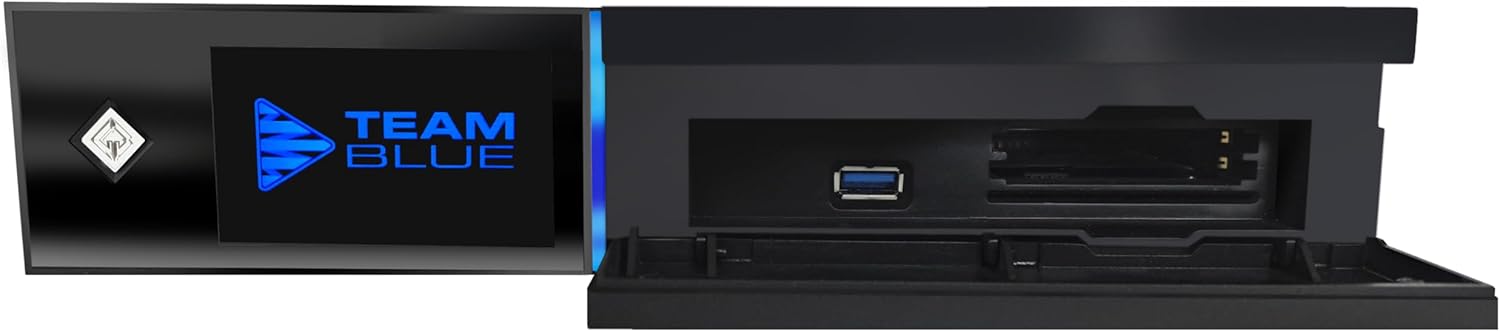
Image: The remote control for the GigaBlue UHD Quad 4K Pro receiver, showing various function buttons.
Basic Navigation
- Use the ARROW buttons to navigate through menus and lists.
- Press OK to confirm a selection or open a channel list.
- Press EXIT to go back to the previous screen or exit a menu.
- Use CH+/- to change channels and VOL+/- to adjust volume.
- The MENU button accesses the main system settings.
- The INFO button displays program information.
Electronic Program Guide (EPG)
Access the EPG to view program schedules, set reminders, or schedule recordings.
- Press the EPG button on your remote control.
- Navigate through channels and time slots using the arrow keys.
- Select a program to view detailed information.

Image: The Electronic Program Guide (EPG) displayed on a television screen, showing channel listings and program details.
PVR and Time-Shift Functions
To use PVR (Personal Video Recorder) and Time-Shift, an internal 2.5" SATA HDD or an external USB storage device must be connected and properly formatted.
- Recording: While watching a program, press the REC button on the remote control to start recording. Press it again to stop. You can also schedule recordings via the EPG.
- Time-Shift: Press the PAUSE button during live TV to activate Time-Shift. You can then pause, rewind, or fast-forward live broadcasts.
Multiroom and SAT>IP
The Multiroom and SAT>IP server functions allow you to stream TV content to other compatible devices (e.g., smartphones, tablets, other SAT>IP clients) within your home network.
- Ensure your receiver is connected to your home network.
- Install the GigaBlue app on your iOS or Android device.
- Follow the app's instructions to connect to your receiver and stream live TV or recorded content.

Image: Illustration of the GigaBlue Multiroom feature, demonstrating live content streaming to various devices like smartphones and tablets.
Bluetooth Connectivity
Connect Bluetooth devices such as soundbars or headphones for enhanced audio experience.
- Go to the receiver's main menu and navigate to "Settings" -> "Bluetooth".
- Enable Bluetooth and search for available devices.
- Select your desired device and pair it.
Maintenance
Cleaning
- Always disconnect the power before cleaning.
- Use a soft, dry cloth to clean the exterior of the receiver.
- Do not use liquid cleaners or abrasive materials.
Software Updates
Regularly check for and install software updates to ensure optimal performance and access to new features.
- Navigate to "Settings" -> "Software Update" in the main menu.
- Select "Update via Internet" or "OTA Update" and follow the on-screen prompts.
- Do not power off the device during an update.
Hard Drive Replacement (if applicable)
The GigaBlue UHD Quad 4K Pro supports easy replacement of 2.5" SATA hard drives.
- Power off and unplug the receiver.
- Open the front flap of the receiver.
- Carefully slide out the existing 2.5" SATA HDD from its Plug&Play frame.
- Insert the new 2.5" SATA HDD (max 15mm height) into the frame until it clicks into place.
- Close the front flap, plug in, and power on the receiver. You may need to format the new HDD via the system settings.
Troubleshooting
| Problem | Possible Cause | Solution |
|---|---|---|
| No picture/sound | Incorrect HDMI input selected on TV, loose HDMI cable, receiver not powered on. | Check TV input, ensure HDMI cable is securely connected, power on receiver. |
| No satellite signal | Loose antenna cable, incorrect tuner configuration, dish misalignment. | Check antenna cable connections, verify tuner settings in menu, consult a professional for dish alignment if necessary. |
| Remote control not responding | Dead batteries, obstruction, remote out of range. | Replace batteries, remove obstructions, ensure you are within range (approx. 3 meters). |
| Receiver freezes or crashes | Software issue, overheating, incompatible plugin. | Restart the receiver. Ensure adequate ventilation. Check for and install latest software updates. If problem persists, consider a factory reset (data loss may occur). |
| Cannot record programs | No HDD/USB storage connected, storage not formatted, storage full. | Connect a compatible HDD/USB drive. Format the drive via system settings. Delete old recordings to free up space. |
Specifications
| Feature | Detail |
|---|---|
| Brand | GigaBlue |
| Model Number | UHD Quad 4K Pro |
| Connectivity Technology | Bluetooth, Ethernet, HDMI, USB, Wi-Fi |
| Controller Type | Remote Control |
| Special Features | SAT>IP, PVR, HBB-TV, 4x PIP, Blindscan |
| Compatible Devices | Television |
| Total HDMI Ports | 2 |
| Connector Type | HDMI, USB Type A, USB Type C, RJ45, RCA, Optical |
| Audio Output Mode | Stereo, Surround |
| Surround Sound Channel Configuration | 5.1 |
| Video Encoding | HEVC / H.265 |
| Number of Channels (PIP) | 4 |
| Supported Internet Services | YouTube, WebKit Browser |
| Wireless Communication Technology | Bluetooth 5.4 |
| Format | 4K UHD |
| Manufacturer | GigaBlue |
| Item Weight | 1.5 Kilograms |
| Color | Black |
| Included Components | 1 x Quad 4K PRO (2 x DVB-S2 FBC tuner), 1 x remote control, 1 x power adapter, 1 x user manual |
Warranty
The GigaBlue UHD Quad 4K Pro receiver comes with a 2-year manufacturer's warranty. Please retain your proof of purchase for warranty claims. For detailed warranty terms and conditions, refer to the documentation provided with your product or visit the official GigaBlue website.
The availability period for spare parts in the EU is 5 years.
Support
If you encounter any issues not covered in this manual or require further assistance, please contact GigaBlue customer support or visit their official website for FAQs, software downloads, and additional resources.
Official GigaBlue Website: www.gigablue.de


