
SIXWIN A3911
SIXWIN 10.1-inch Android Car Stereo User Manual
Model: A3911
1. Introduction
This manual provides detailed instructions for the installation, operation, and maintenance of your SIXWIN 10.1-inch Android Car Stereo. Please read this manual thoroughly before using the product to ensure proper functionality and safety.

Image 1.1: Front view of the SIXWIN 10.1-inch Android Car Stereo, showcasing its large touchscreen display with various app icons.
2. Specifications
| Feature | Description |
|---|---|
| System | Android 13 (C200) |
| Screen Size | 10.1 inches Touchscreen |
| Memory | 4GB RAM + 64GB ROM |
| Power Output | 4*45W (Maximum) |
| Voltage | 12V |
| Connectivity | Wireless CarPlay, Android Auto, Mirror Link (Android/iPhone), Bluetooth, Wi-Fi |
| Navigation | Built-in GPS Navigation (supports online/offline maps) |
| Radio | FM Radio (18 preset stations) |
| Audio Formats | MP3/AAC/OGG/FLAC/APE |
| Video Formats | AVI/3GP/MP4/MOV/MPG/MKV/VOB/RMVB/RM |
| Dimensions | 1 x 1 x 1 inches (Product), 4.31 pounds (Item Weight) |
| Special Features | 360-degree rotation, Steering Wheel Control, Rear View Camera support, Split Screen, Voice Control |

Image 2.1: Visual summary of key functional parameters including screen size, memory, connectivity, and features.
3. Package Contents
Please verify that all items listed below are included in your package:
- 1 x Car Radio Unit
- 1 x Power Cable
- 1 x Speaker Cable
- 1 x External Microphone
- 1 x Instruction Manual
- 1 x Backup Camera
- 1 x 4/6 Pin USB Cable
- 1 x Rear Camera Input Cable
- 1 x RCA Cable
- 1 x Bracket Set
- 1 x GPS Antenna

Image 3.1: Visual representation of all items included in the product package, along with unit dimensions.
4. Setup and Installation
This section provides general guidelines for installing your car stereo. Professional installation is recommended.
4.1 Wiring Connections
- Power Connection: Connect the provided power cable to your vehicle's power supply. Ensure correct polarity (positive to positive, negative to negative).
- Speaker Connection: Connect the speaker cable to your vehicle's speaker system. Match the speaker wires correctly to avoid audio issues.
- GPS Antenna: Connect the GPS antenna and place it in a location with a clear view of the sky for optimal signal reception.
- Rear Camera: If installing the backup camera, connect the rear camera input cable to the stereo and the camera. Ensure the camera is mounted securely.
- USB/RCA Cables: Connect any additional USB or RCA cables as needed for external devices or audio/video output.
4.2 Mounting the Unit
Use the provided brackets to secure the single DIN unit into your car's dashboard. The 10.1-inch display supports 360-degree rotation for optimal viewing angles.
5. Operating Instructions
5.1 Wireless CarPlay & Android Auto
Connect your smartphone wirelessly via Bluetooth to enable CarPlay (for iPhone) or Android Auto (for Android phones). This allows access to navigation, calls, messages, and music directly from the stereo display.

Image 5.1: Display showing the wireless CarPlay and Android Auto connection, enabling seamless smartphone integration.
5.2 Bluetooth Hands-free & Music
Pair your phone via Bluetooth for hands-free calling and audio streaming. Access your phonebook and dial directly from the stereo.
- Go to Bluetooth settings on the stereo.
- Enable Bluetooth on your phone and search for the stereo (e.g., "SIXWIN Car Stereo").
- Pair the devices.

Image 5.2: Screen displaying the Bluetooth connection interface, showing call and music playback options.
5.3 GPS Navigation & WiFi
The unit features built-in GPS navigation. You can use pre-installed maps (e.g., Here We Go) offline or connect to WiFi to download additional apps and use online navigation services.
- Offline Maps: Download desired regional maps within the navigation app for use without an internet connection.
- WiFi Connection: Connect to a mobile hotspot or available WiFi network to access online features, stream content, and download apps from the Play Store.

Image 5.3: Split view showing GPS navigation on one side and various app icons for WiFi connectivity on the other.
5.4 FM/RDS Radio
Tune into FM radio stations. The unit supports 18 preset stations for quick access to your favorite channels.
- Access the FM Radio application from the main menu.
- Use the auto-search function to find available stations or manually tune to a frequency.
- Save preferred stations to presets.

Image 5.4: Screen displaying the FM radio interface, showing current frequency and preset options.
5.5 Steering Wheel Control
The stereo supports integration with your vehicle's steering wheel controls. This allows you to manage audio playback, volume, and calls without taking your hands off the wheel.
- Access the Steering Wheel Control settings in the system menu.
- Follow the on-screen instructions to map your vehicle's steering wheel buttons to the stereo functions.
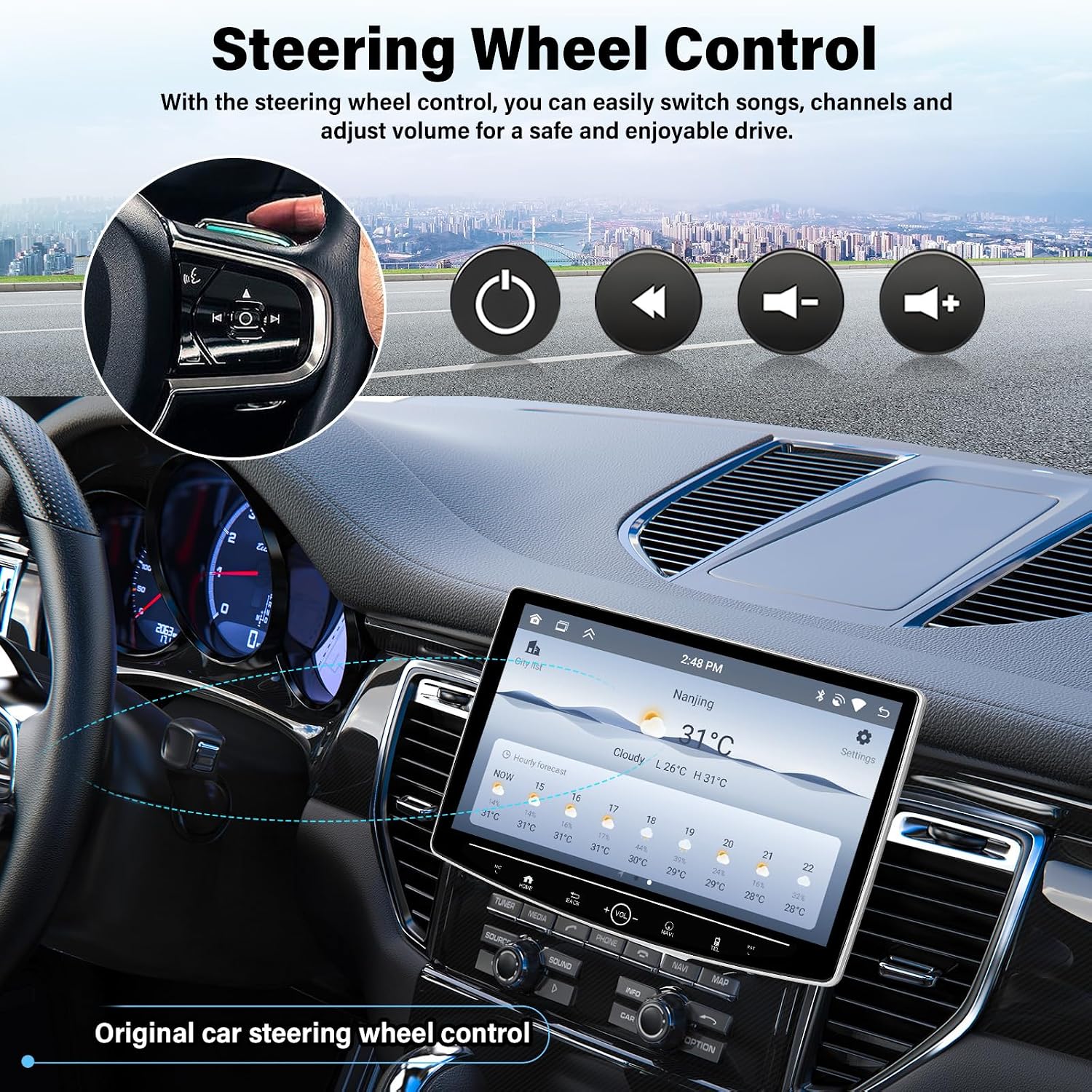
Image 5.5: Illustration of steering wheel controls interacting with the car stereo, showing weather forecast on the display.
5.6 Weather Forecast
After connecting to WiFi and activating the feature, the stereo can display real-time weather forecasts for your location.

Image 5.6: The car stereo displaying a detailed weather forecast for a specific city.
6. Maintenance
- Cleaning: Use a soft, dry cloth to clean the screen and exterior. Avoid abrasive cleaners or solvents.
- Software Updates: Periodically check for system updates via WiFi to ensure optimal performance and access to new features.
- Temperature: Avoid exposing the unit to extreme temperatures, direct sunlight for prolonged periods, or high humidity.
7. Troubleshooting
| Problem | Possible Cause | Solution |
|---|---|---|
| Unit does not power on. | Incorrect wiring; Blown fuse; Vehicle battery issue. | Check power cable connections; Inspect vehicle fuses; Verify car battery voltage. |
| No sound from speakers. | Speaker wires disconnected; Volume too low; Mute function active. | Ensure speaker cables are securely connected; Increase volume; Disable mute. |
| GPS signal is weak or lost. | GPS antenna improperly placed; Obstructions. | Relocate GPS antenna to a clear area (e.g., dashboard); Ensure no metallic obstructions. |
| Bluetooth connection issues. | Phone not discoverable; Interference; Incorrect pairing. | Ensure phone Bluetooth is on and discoverable; Restart both devices; Re-pair the devices. |
| Touchscreen unresponsive. | System freeze; Software glitch. | Perform a soft reset (refer to manual for specific reset button location, if any, or power cycle the unit). |
8. Warranty Information
The SIXWIN 10.1-inch Android Car Stereo comes with a 1-year warranty from the date of purchase. This warranty covers manufacturing defects and malfunctions under normal use. It does not cover damage caused by improper installation, accident, misuse, abuse, neglect, unauthorized modification, or natural disasters.
Please retain your proof of purchase for warranty claims.
9. Customer Support
For technical assistance, troubleshooting, or warranty inquiries, please contact SIXWIN customer support:
- Email: sixwin_vip@163.com
- Online Help: Visit the official SIXWIN store on Amazon for additional resources and FAQs.

Image 9.1: A customer service representative ready to assist with inquiries.
Ask a question about this manual
Ask about setup, troubleshooting, compatibility, parts, safety, or missing instructions. Manuals+ will review the question and use this page’s manual context to help answer it.