
1. Introduction
This user manual provides detailed instructions for the setup, operation, and maintenance of your SAF Indoor Air Quality Bundle, which includes the Aranet4 CO2 Monitor and the Aranet2 Humidity & Temperature Sensor. These devices are designed to help you monitor and maintain optimal indoor air quality and comfort in various environments such as homes, offices, and classrooms.

Image: The Aranet4 CO2 Monitor (right) displaying CO2, temperature, and humidity, alongside the Aranet2 Humidity & Temperature Sensor (left) displaying temperature and humidity.
2. Product Overview
2.1 Aranet4 CO2 Monitor
The Aranet4 is a wireless CO2 monitor that provides real-time measurements of carbon dioxide (CO2) levels, temperature, relative humidity, and atmospheric pressure. It utilizes NDIR (Non-Dispersive Infrared) technology for accurate CO2 readings and features an E-Ink display for clear visibility and low power consumption. The device helps in making informed ventilation decisions to ensure a healthier indoor environment.

Image: Close-up of the Aranet4 display showing current CO2, temperature, and humidity readings, along with indicators for its key features.
2.2 Aranet2 Humidity & Temperature Sensor
The Aranet2 is a smart, portable sensor designed to accurately monitor temperature and relative humidity. It complements the Aranet4 by providing dedicated and precise environmental data, allowing for better control over comfort levels in specific areas. Like the Aranet4, it features an E-Ink display and long battery life.
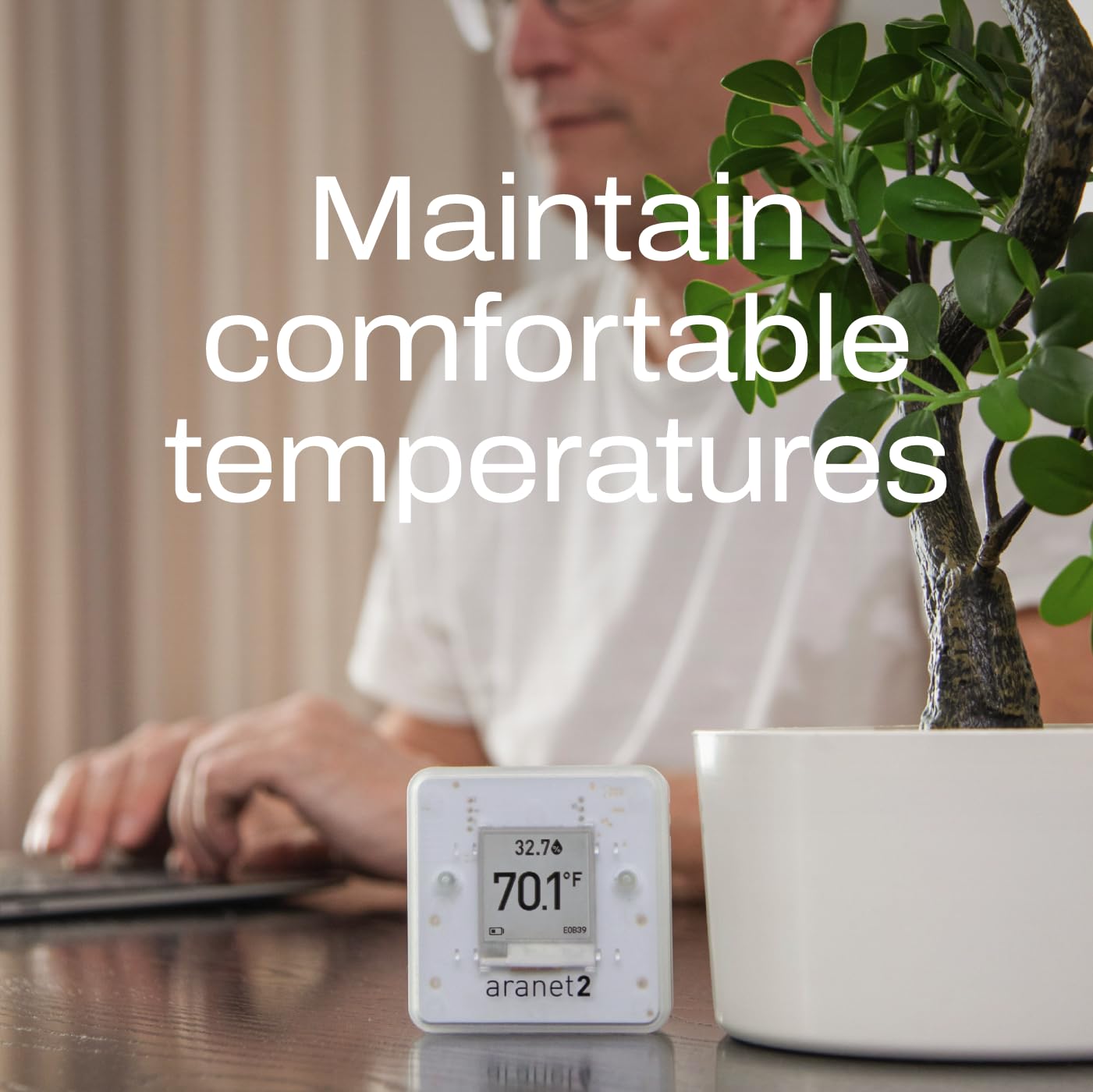
Image: Close-up of the Aranet2 display showing current temperature and humidity readings, emphasizing its role in maintaining comfortable environments.
3. Setup
3.1 Unpacking and Initial Inspection
Carefully remove both the Aranet4 and Aranet2 devices from their packaging. Inspect both units for any visible damage. Ensure all components listed in the packaging are present.
3.2 Battery Installation
Both Aranet4 and Aranet2 are battery-operated. Locate the battery compartment on the back of each device. Insert the specified batteries (typically AA batteries, refer to device markings) ensuring correct polarity. The E-Ink display will activate upon successful battery installation.
3.3 Device Placement
Place the Aranet4 and Aranet2 in locations where you wish to monitor air quality and comfort. For accurate readings, avoid placing them near direct heat sources, open windows, or in direct sunlight. Optimal placement is typically at breathing height in the center of a room.
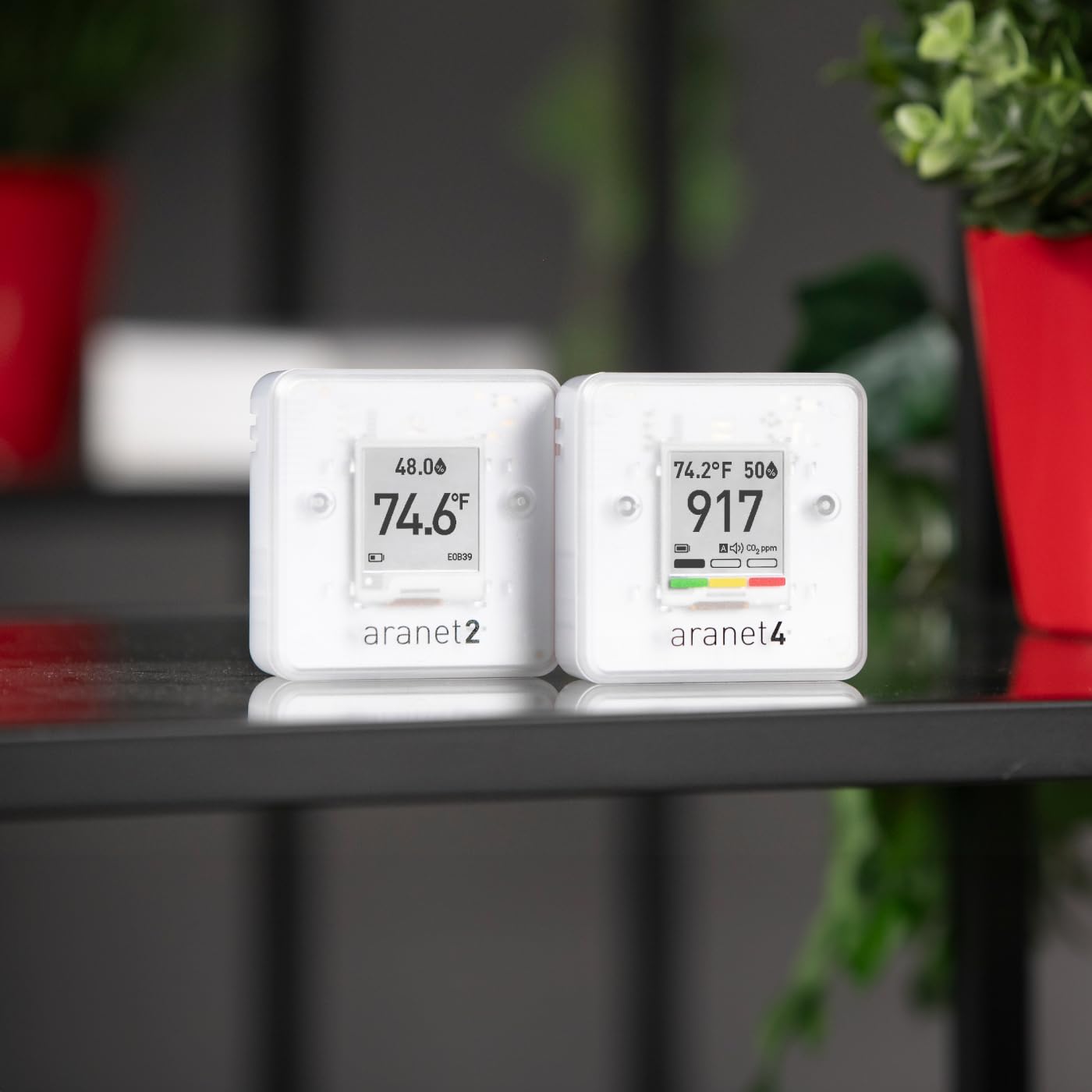
Image: The Aranet4 and Aranet2 devices positioned on a shelf, demonstrating typical placement in an indoor environment.
3.4 Connecting to Aranet Home App
To access historical data, configure settings, and receive alerts, download the free Aranet Home smartphone application. The app is available on both Google Play and the Apple App Store. Follow the in-app instructions to pair your Aranet4 and Aranet2 devices via Bluetooth.

Image: A visual guide to downloading the Aranet Home app, showing the QR code and app store links.
4. Operating Instructions
4.1 Understanding the Display
The E-Ink displays on both devices provide clear, real-time readings. The Aranet4 displays CO2 levels (in ppm), temperature (°F/°C), relative humidity (%), and atmospheric pressure (hPa). It also features a color-coded indicator for CO2 levels (green, yellow, red). The Aranet2 displays temperature (°F/°C) and relative humidity (%). Both devices show battery status.

Image: The Aranet4 device in an office setting, demonstrating its use during work activities.
4.2 Interpreting Readings
- CO2 Levels (Aranet4):
- Green: Good air quality (typically below 1000 ppm).
- Yellow: Moderate air quality, consider ventilation (typically 1000-1400 ppm).
- Red: Poor air quality, immediate ventilation recommended (typically above 1400 ppm).
- Temperature and Humidity (Aranet4 & Aranet2): Monitor these values to ensure comfortable and healthy indoor conditions. Optimal ranges vary but generally, relative humidity between 40-60% is recommended.
4.3 Alerts and Notifications
The Aranet4 provides visual alerts via its color-coded display. For more detailed alerts and notifications, configure custom thresholds within the Aranet Home app. The app can send push notifications to your smartphone when readings exceed set limits.

Image: The Aranet4 device in a collaborative workspace, highlighting its relevance in shared environments.
5. Maintenance
5.1 Cleaning
To clean the devices, gently wipe the exterior with a soft, dry cloth. Do not use abrasive cleaners, solvents, or immerse the devices in water. Ensure the ventilation openings are free from dust and debris.
5.2 Battery Replacement
When the battery indicator on the display shows low power, replace the batteries promptly. Use only the specified battery type. Dispose of old batteries according to local regulations.
6. Troubleshooting
- Device not turning on: Check battery installation and ensure batteries are fresh.
- Inaccurate readings: Ensure devices are placed away from direct heat/cold sources, drafts, or direct sunlight. Allow devices to stabilize for at least 10 minutes after placement or power-on.
- Cannot connect to app: Ensure Bluetooth is enabled on your smartphone and the devices are within range. Restart both the app and the devices if connection issues persist.
- Display not updating: The E-Ink display updates periodically. If it appears frozen, try removing and reinserting the batteries.
7. Specifications
| Feature | Specification |
|---|---|
| Brand | SAF |
| Battery Description | Battery-operated |
| Mounting Type | Tabletop |
| Upper Temperature Rating | 30 Degrees Celsius |
| Temperature Accuracy | 0.5 |
8. Warranty and Support
For warranty information and technical support, please refer to the official SAF website or contact their customer service. Keep your purchase receipt as proof of purchase for any warranty claims.