
Introduction
Welcome to the GIGABYTE Z890 UD WIFI6E Motherboard user manual. This document provides essential information for the proper installation, configuration, and maintenance of your motherboard.
The GIGABYTE Z890 UD WIFI6E is designed to support Intel Core Ultra (Series 2) CPUs, featuring advanced power delivery, high-speed memory support, and comprehensive connectivity options. This manual will guide you through the process of setting up your system to ensure optimal performance and stability.
Product Overview
Key Features
- Digital 12+1+2+1 Phases 60A DrMOS VRM with Solid Capacitor for stable power delivery.
- Reinforced PCIe UD Slot PCIe 5.0 with PCIe EZ-Latch Design for robust graphics card support.
- PCIe M.2 design (Up to 25110) with Thermal Guard for high-speed storage cooling.
- Fully Covered MOSFET Heatsinks for enhanced thermal performance.
- 2x2 Wi-Fi 6E with WIFI EZ-Plug Design for high-speed wireless connectivity.
- 2.5GbE LAN, USB 4.0 Type-C, USB 3.2 Gen2 Type-C for extensive wired and peripheral connectivity.
Specifications
| Feature | Specification |
|---|---|
| Brand | GIGABYTE |
| Model Name | Z890 UD WIFI6E |
| CPU Socket | LGA 1851 |
| Compatible Processors | Intel Core Ultra (Series 2) |
| Chipset Type | Intel Z890 |
| RAM Memory Technology | DDR5 |
| Memory Clock Speed (OC) | Up to 8800 MHz |
| PCIe Slots | 1x PCIe 5.0 x16, 2x PCIe 4.0 x16 (physical x4) |
| M.2 Slots | Multiple PCIe M.2 slots (Up to 25110) |
| LAN | 2.5GbE LAN |
| Wireless Connectivity | Wi-Fi 6E |
| USB Ports | USB 4.0 Type-C, USB 3.2 Gen2 Type-C, and other USB ports |
| Dimensions (LxWxH) | 12.01 x 9.61 x 1.38 inches |
Setup and Installation
Safety Precautions
- Always disconnect the power supply from the wall outlet before installing or removing any components.
- Wear an anti-static wrist strap to prevent electrostatic discharge (ESD) damage to sensitive components.
- Handle components by their edges, avoiding direct contact with pins or circuitry.
Package Contents
Verify that all components listed in your product's packaging are present. Refer to the retail box for a complete list of included accessories.
Motherboard Layout
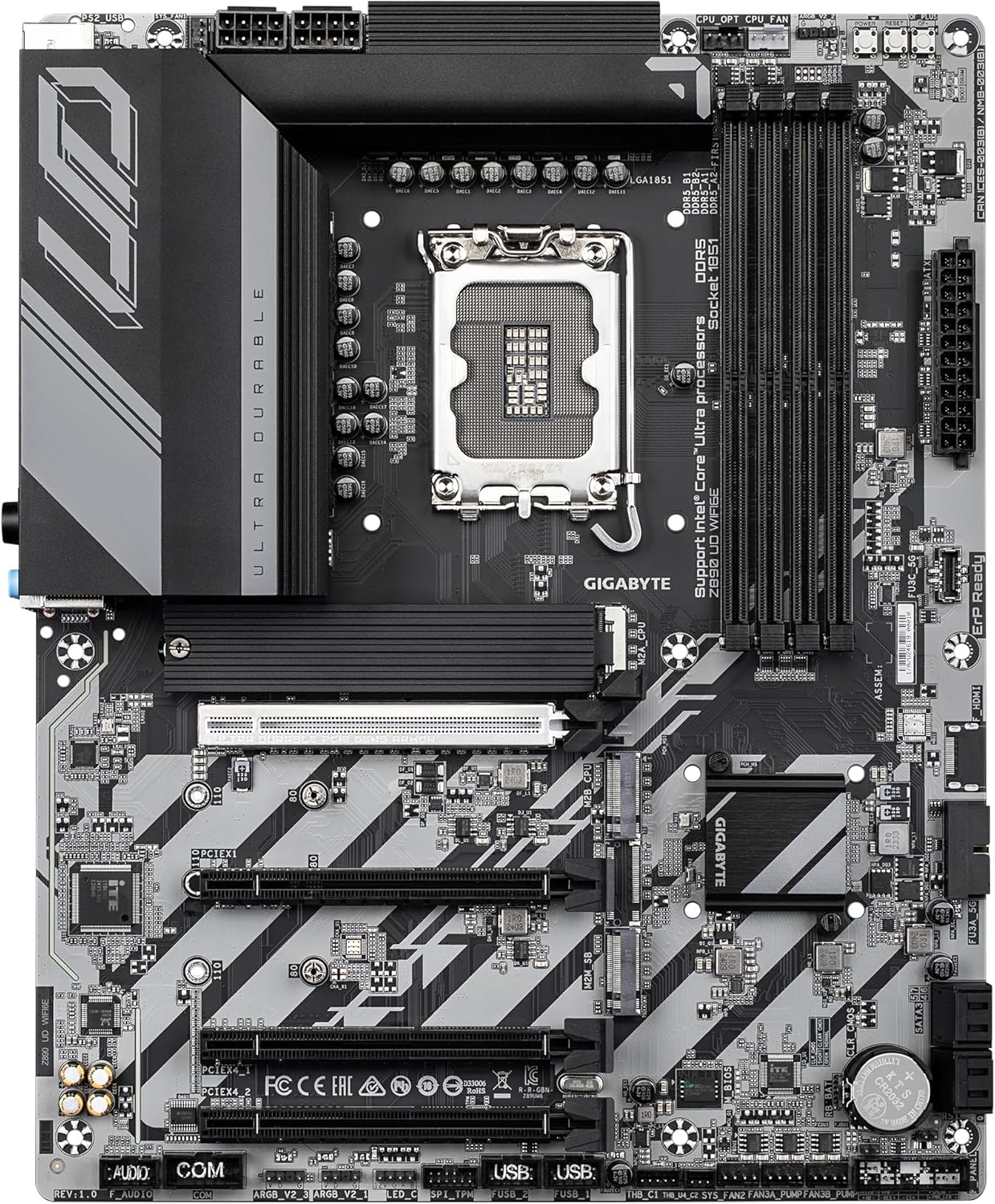
Image: Top-down view of the GIGABYTE Z890 UD WIFI6E Motherboard, highlighting the CPU socket, DDR5 DIMM slots, and PCIe slots.
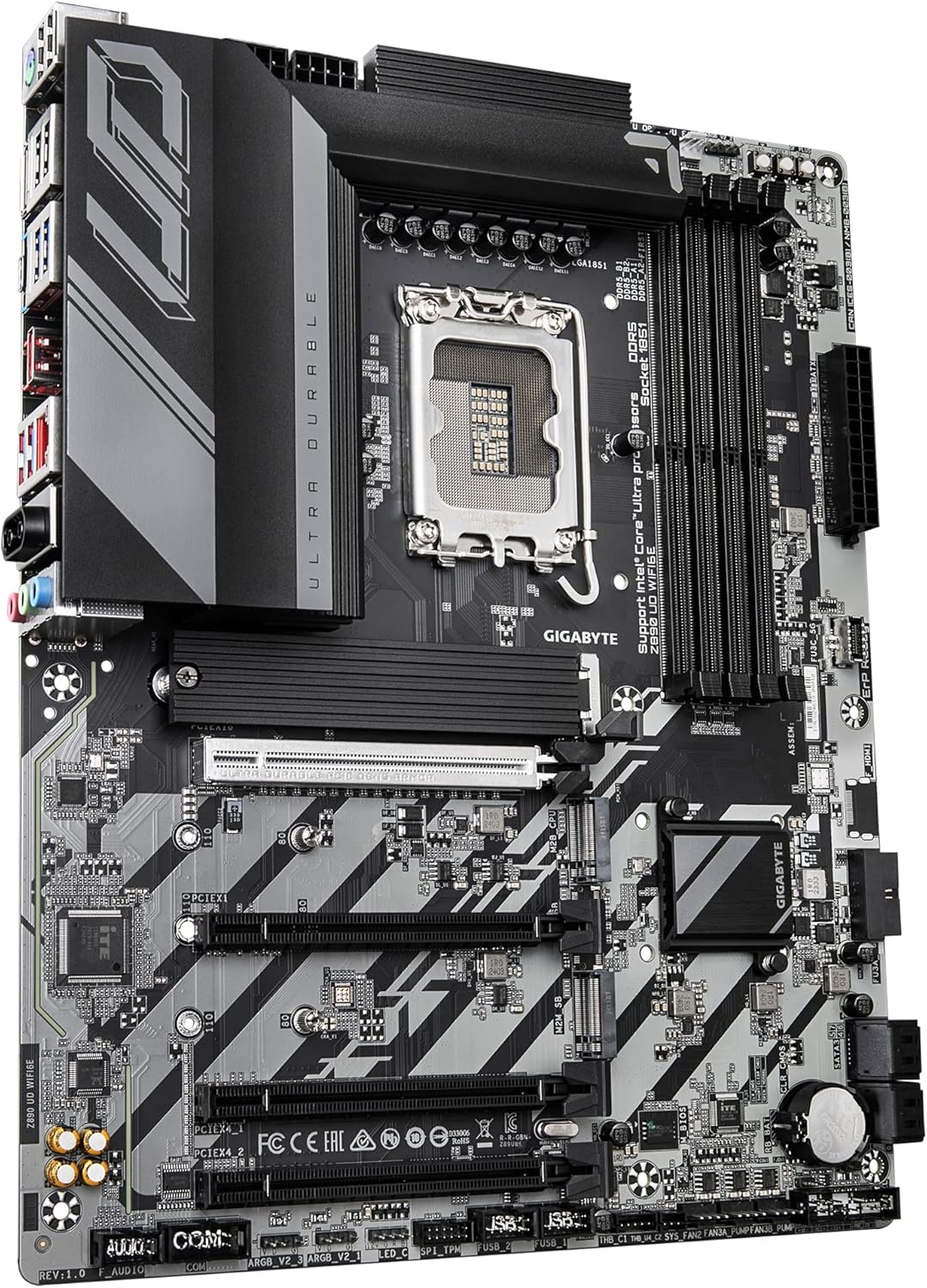
Image: Angled view of the GIGABYTE Z890 UD WIFI6E Motherboard, showing the VRM heatsinks, CPU socket, and M.2 slots.
Familiarize yourself with the motherboard's layout, including the CPU socket (LGA 1851), DDR5 DIMM slots, PCIe 5.0 x16 slot, M.2 slots, and various headers for front panel connections.
Component Installation
1. CPU Installation
- Open the CPU socket retention lever.
- Carefully align the CPU with the socket's notch, ensuring the triangular mark on the CPU matches the mark on the socket.
- Gently place the CPU into the socket without forcing it.
- Close the retention lever to secure the CPU in place.
- Apply a thin, even layer of thermal paste to the CPU's integrated heat spreader (IHS).
- Install the CPU cooler according to its manufacturer's instructions.
2. Memory (RAM) Installation
- Open the clips on both ends of the DDR5 DIMM slots.
- Align the memory module with the slot key (notch) to ensure correct orientation.
- Press firmly on both ends of the memory module until the clips lock into place.
3. M.2 SSD Installation
- Locate the M.2 slots on the motherboard. If present, remove the M.2 heatsink and protective film.
- Insert the M.2 SSD into the slot at a 30-degree angle.
- Gently push down the M.2 SSD and secure it with the provided screw or EZ-Latch mechanism.
- Reinstall the M.2 heatsink if applicable.
4. Graphics Card (PCIe) Installation
- Open the retention clip on the primary PCIe 5.0 x16 slot.
- Align the graphics card with the slot and press firmly until it seats correctly and the clip locks.
- Secure the graphics card to the case with screws.
5. Power Supply Connections
- Connect the 24-pin ATX main power connector from your power supply to the corresponding header on the motherboard.
- Connect the 8-pin (or 4+4-pin) CPU power connector to the CPU power header.
- Connect power cables to other components such as the graphics card and storage drives as needed.
6. Front Panel Connections
- Connect the power button, reset button, HDD LED, and power LED cables from your case to the corresponding pins on the motherboard's front panel header.
- Connect the front panel USB and audio headers.
7. Case Mounting
- Install the I/O shield into your computer case.
- Carefully place the motherboard into the case, aligning it with the standoffs.
- Secure the motherboard with screws.
Operation
First Boot
- After completing the hardware installation, connect a monitor, keyboard, and mouse to the appropriate ports.
- Power on your system. The system should initiate the Power-On Self-Test (POST).
- Access the BIOS/UEFI setup utility by pressing the DEL key repeatedly during startup.
BIOS/UEFI Configuration
- Within the BIOS/UEFI, configure essential settings such as boot order, date and time, and enable XMP/EXPO profiles for your memory modules if applicable.
- Adjust any other system settings as required for your specific hardware configuration.
- Save changes and exit the BIOS/UEFI to proceed with system boot.
Operating System Installation
- Insert your bootable USB drive or optical media containing your preferred operating system.
- Follow the on-screen instructions to install the operating system on your storage drive.
Driver Installation
- After the operating system is installed, install all necessary drivers. These can be found on the official GIGABYTE website for your specific motherboard model or on the provided support DVD (if included).
- Prioritize chipset, LAN, Wi-Fi, and audio drivers for basic functionality.
Maintenance
Cleaning
- Regularly clean dust from the motherboard and other internal components using compressed air.
- Ensure the system is powered off and unplugged from the wall outlet before cleaning.
- Avoid using liquid cleaners directly on components.
BIOS/UEFI Updates
- Periodically check the official GIGABYTE website for BIOS/UEFI updates. Updates can improve system stability, compatibility, and performance.
- Follow the instructions provided by GIGABYTE carefully when performing a BIOS/UEFI update, as improper updates can lead to system instability or damage.
Troubleshooting
No Power / No POST (Power-On Self-Test)
- Check all power connections: 24-pin ATX, 8-pin CPU, and any PCIe power connectors for the graphics card.
- Ensure the CPU and RAM modules are correctly seated in their respective sockets.
- Try booting the system with minimal components (CPU, one RAM stick, graphics card) to isolate the issue.
No Display
- Verify that your monitor is connected to the graphics card (or integrated graphics if applicable) and is set to the correct input source.
- Ensure the graphics card is properly seated in its PCIe slot and has all necessary power cables connected.
- Test with a different display cable or monitor if possible.
Operating System Not Booting
- Check the boot order in the BIOS/UEFI settings to ensure your primary storage drive is selected.
- Verify that all M.2/SATA drive connections are secure.
- If the issue persists, consider running diagnostic tools or reinstalling the operating system.
Wi-Fi/LAN Connectivity Issues
- Ensure that the latest Wi-Fi and LAN drivers are installed correctly.
- For LAN, check the physical Ethernet cable connection to both the motherboard and your router/modem.
- For Wi-Fi, ensure the external antennas are securely connected to the motherboard's I/O panel.

Image: Close-up of the rear I/O panel of the GIGABYTE Z890 UD WIFI6E Motherboard, displaying various USB ports, LAN, Wi-Fi antenna connectors, and audio jacks.
Warranty and Support
Warranty Information
For detailed warranty terms and conditions, please refer to the warranty card included with your product or visit the official GIGABYTE website. Warranty coverage may vary by region and product.
Technical Support
If you encounter issues not covered in this manual or require further assistance, please visit the GIGABYTE support website for FAQs, driver downloads, and contact information for technical assistance.
Official GIGABYTE Support: www.gigabyte.com/support


