
Introduction
This manual provides detailed instructions for the installation, operation, and maintenance of your Loddery Android 13 Car Stereo. Designed specifically for Ford F-150 models from 2009 to 2014, this 9-inch touchscreen unit integrates advanced features such as Wireless Carplay, Android Auto, GPS navigation, Bluetooth, WiFi, FM/RDS radio, and DSP for an enhanced in-car entertainment and connectivity experience. Please read this manual thoroughly before use to ensure proper functionality and safety.
Package Contents
Verify that all items listed below are included in your package:
- 1 x Car MP5 Player (Main Unit)
- 1 x Power Cable
- 1 x GPS Antenna
- 1 x Rear Camera Input Cable
- 1 x RCA Cable
- 2 x USB Cables
- 1 x Camera (Rearview Camera)
- 1 x Canbus Box
- 1 x Radio Adapter Cable
- 1 x Instruction Manual

Image: All components included in the Loddery Android 13 Car Stereo package.
Product Features
The Loddery Android 13 Car Stereo offers a range of features to enhance your driving experience:
- Operating System: Android 13 with 2GB RAM and 32GB ROM for stable performance.
- Display: 9-inch 1024x768 resolution touchscreen.
- Connectivity: Wireless and Wired Apple Carplay / Android Auto, Bluetooth, WiFi.
- Navigation: Built-in offline maps (requires internet for data download) and support for online GPS navigation.
- Audio: FM/RDS radio with 18 preset stations, DSP for high-fidelity sound.
- Control: Supports original steering wheel controls, manual and automatic air conditioning, seat heating/cooling.
- Multimedia: Supports various audio (APE/FLAC/WAV/MP3/WMA), video (MKV/RMVB/AVI/MP4/MDV), and picture formats.
- Additional Functions: Split screen, external microphone support, rearview camera input, dual USB interface.
- Expandability: Supports TPMS, OBD2, DVR, DAB+ (extended equipment functions).
Specifications
| System | Android 13 |
| Chipset | 8227L-DEMO |
| Memory | 2GB RAM + 32GB ROM |
| Screen Size | 9 Inches |
| Screen Resolution | 1024x768 |
| Radio Chip | MT6625 |
| Power Output | 4x45W |
| Work Temperature | -20℃ to 75℃ |
| Power Amplifier Chip | TDA7388 |
| Radio Band | FM/RDS |
| Connectivity | Bluetooth, WiFi |
| USB Interface | Double USB |
| Audio Output Mode | Stereo |
| Mounting Type | Dashboard Mount |
| Vehicle Service Type | Car (Ford F150 2009-2014) |
Setup and Installation
This car stereo is designed for a direct fit in Ford F-150 models from 2009 to 2014. Professional installation is recommended, but the unit is designed for plug-and-play integration where possible.
Vehicle Compatibility
Ensure your vehicle is a Ford F-150 manufactured between 2009 and 2014. The unit supports both manual and automatic air conditioning systems present in these models.
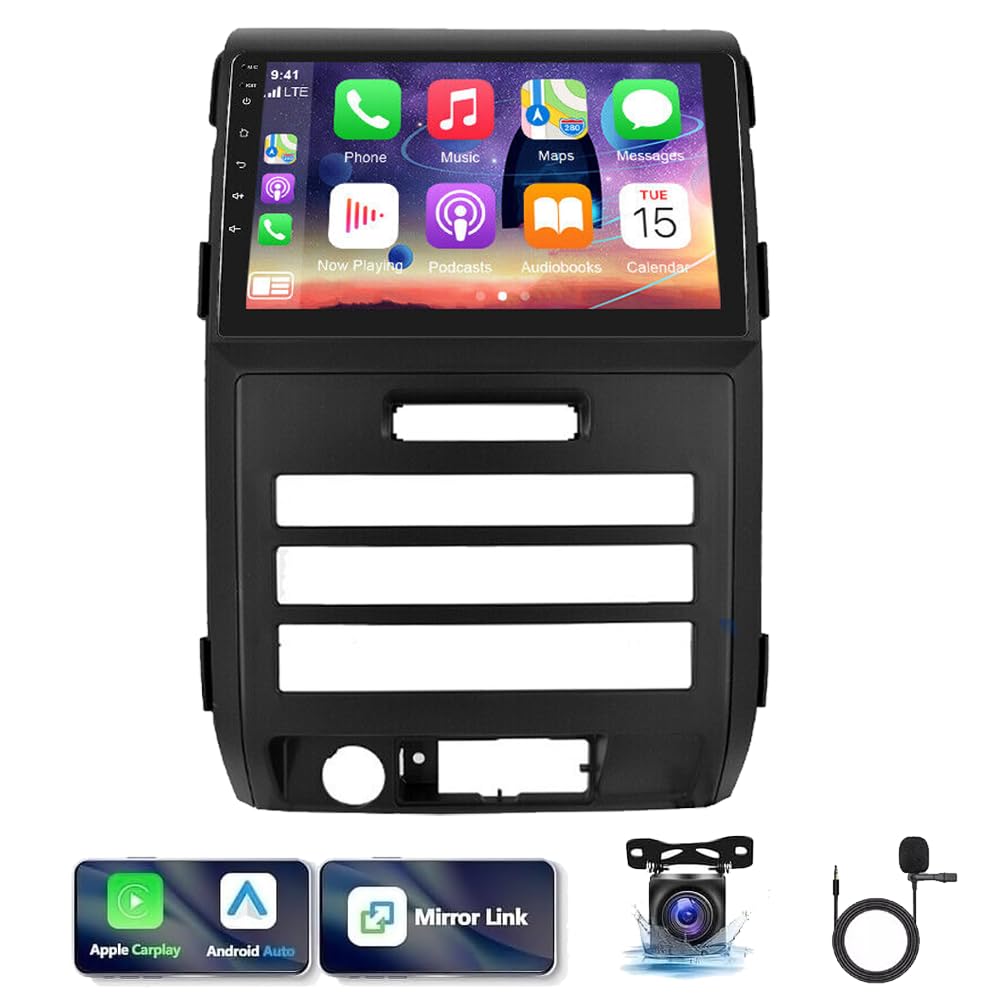
Image: The Loddery Android 13 Car Stereo installed in a Ford F-150 dashboard, with comparison views before and after installation.
General Installation Steps (Consult a professional if unsure)
- Preparation: Disconnect the vehicle's battery before starting any electrical work.
- Remove Old Unit: Carefully remove the factory radio and trim panels.
- Connect Wiring: Connect the provided power cable, RCA cables, GPS antenna, and radio adapter cable to the new unit and the vehicle's harness. Utilize the Canbus box for steering wheel control and other vehicle data integration.
- Rear Camera: If installing the rearview camera, route the camera input cable to the rear of the vehicle and connect the camera.
- Mount New Unit: Secure the Loddery Android 13 Car Stereo into the dashboard opening.
- Test: Reconnect the battery and test all functions before reassembling the trim panels.
Operating Instructions
Wireless Carplay and Android Auto
The unit supports both wireless and wired Apple Carplay and Android Auto. Connect your smartphone via Bluetooth for wireless Carplay, enabling voice-controlled navigation, calls, messages, and music. For Android Auto, download the Android Auto app on your device.

Image: Display of Wireless Apple Carplay and Android Auto functionality on the car stereo screen.
GPS Navigation and WiFi
Utilize the built-in GPS for navigation. The unit supports both online and offline maps. Connect to a WiFi hotspot to download map data or use online navigation services for real-time traffic updates.

Image: GPS navigation interface and WiFi connection feature on the car stereo.
FM/RDS Radio and Bluetooth
Access FM radio stations with RDS support. The unit allows you to save up to 18 preset stations. Bluetooth connectivity enables hands-free calling and audio streaming from your paired smartphone.

Image: FM radio interface and Bluetooth hands-free calling screen.
System Settings and Navigation App Selection
Navigate through the system settings to customize various aspects of your car stereo, including volume, brightness, and selecting your preferred navigation application for quick launch.
Video: Demonstration of the Android 13 car stereo interface, showing navigation app selection and general settings. Note: This video features a 7-inch unit, while the product is 9-inch, but the interface and settings navigation are similar.
Maintenance
To ensure the longevity and optimal performance of your car stereo:
- Cleaning: Use a soft, dry cloth to clean the screen and unit. Avoid abrasive cleaners or solvents.
- Software Updates: Periodically check for and install available software updates to improve performance and add new features.
- Temperature: Avoid exposing the unit to extreme temperatures outside its operating range (-20℃ to 75℃).
Troubleshooting
If you encounter issues with your car stereo, consider the following:
- No Power: Check all power connections and the vehicle's fuse box.
- No Sound: Verify speaker connections, volume settings, and audio source selection.
- GPS Not Working: Ensure the GPS antenna is properly connected and has a clear view of the sky. Check navigation app settings.
- Bluetooth Connection Issues: Ensure Bluetooth is enabled on both the stereo and your device. Try unpairing and re-pairing.
- System Unresponsive: Perform a soft reset by pressing the reset button (if available) or disconnecting the battery for a few minutes.
- Factory Settings: If persistent issues occur, you may need to reset to factory settings. The factory setting keywords are 8888 or 3368. Use this option with caution as it will erase all personalized settings.
Warranty and Support
For warranty information or technical support, please refer to the contact details provided with your purchase or visit the official Loddery website. Keep your proof of purchase for warranty claims.