
1. Product Overview
The MekedeTech DUDUAUTO DUDU7 is an advanced 10.36-inch 2K (2000x1200) IPS touch screen car radio stereo designed as a direct replacement and upgrade for the Toyota Highlander 3 XU50 models from 2013 to 2018. Running on Android 13, this intelligent navigation head unit features a powerful 8-core UIS7870 processor, ample memory (12GB RAM, 512GB ROM), and supports both wired and wireless CarPlay and Android Auto. It integrates seamlessly into your vehicle's dashboard, enhancing your driving experience with superior navigation, entertainment, and connectivity.

Figure 1.1: The MekedeTech DUDUAUTO DUDU7 head unit displaying its user interface with navigation and media playback.
2. Package Contents
Upon unboxing, please verify that all the following components are included in your package:
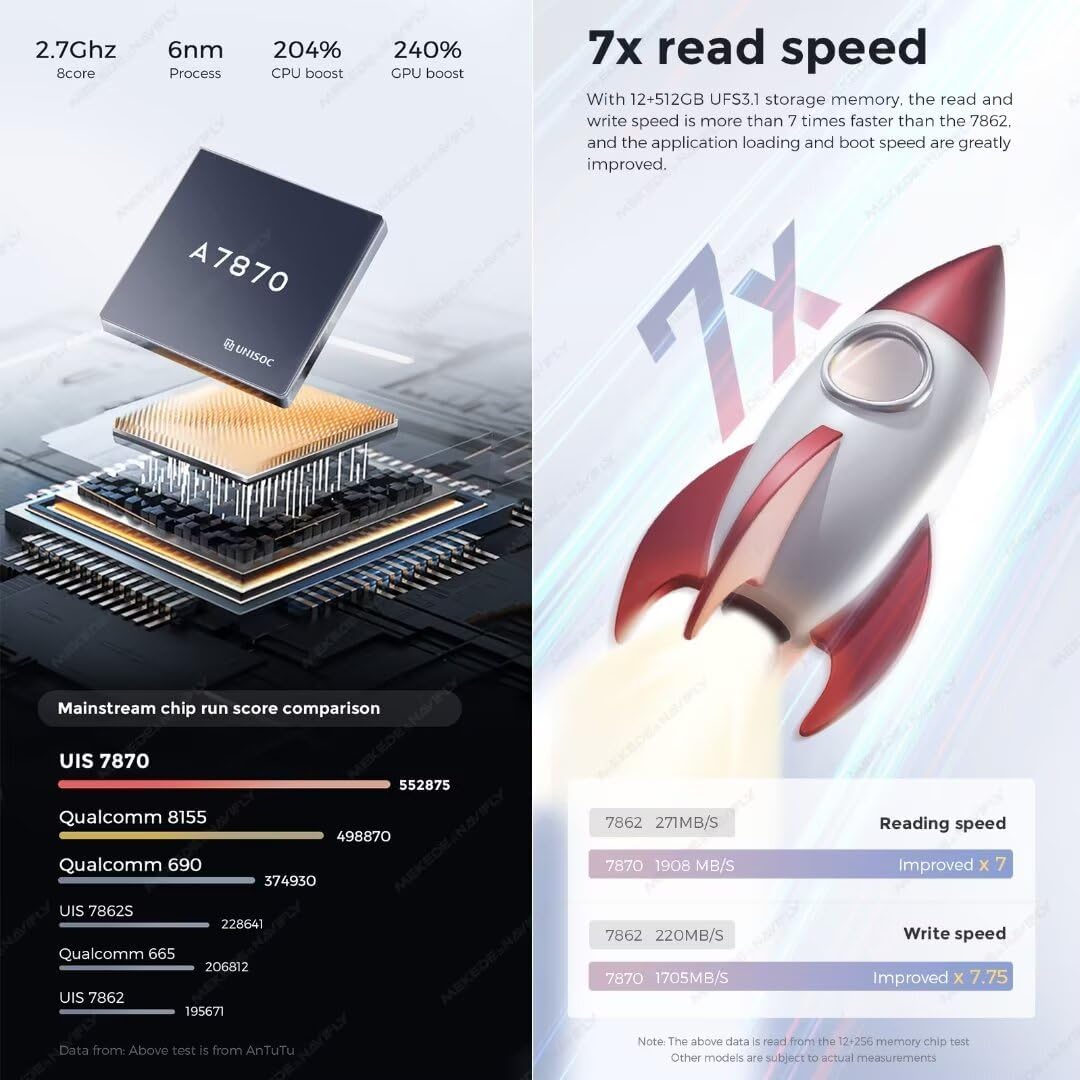
Figure 2.1: Visual representation of the standard package contents.
- Main Head Unit (Machine)
- Power Cable (Type A without CANBUS or Type B with CANBUS, depending on vehicle configuration)
- External Microphone (MIC)
- RCA Cable Set
- Reversing Camera Input Cable
- USB Plugs (x3)
- Fakra 4G Antenna
- Fakra GPS Antenna (for DUDU7 only)
3. Specifications
Detailed technical specifications of the DUDUAUTO DUDU7 head unit:
| Feature | Specification |
|---|---|
| Operation System | Android 13 |
| CPU | 8 Core UIS7870 Customized version A76 2.7Ghz 6nm processor |
| Memory Type | UFS 3.1 (Read data 1700M+) |
| RAM / ROM | 12GB RAM / 512GB ROM |
| Display | 10.36 inch 2K (2000x1200) IPS Touch Screen |
| GPS | Dual Band 6 mode L1 L5 B1 B2a E1 E5a |
| Microphone | Digital Noise Cancellation Microphone |
| USB Ports | USB 3.2 GEN1*1 (TYPE-C), USB 2.0*3 |
| Power Amplifier | TDA7808 Digital AB type |
| DSP | AKM7739 Velvet Audio Technology |
| Bluetooth Chip | Qualcomm 3031 (Supports aptx HD protocol, BT5.0) |
| Audio Output | Optical + Coaxial, RCA 5.1 Channel Outputs |
| WiFi Type | 802.11a/b/g/n/ac (Support 5G WIFI) |
| Radio IC | TDA7708 |
| Work Voltage | 9V~16V |
| CarPlay / Android Auto | Support Wired and Wireless |
| 360 Panorama | Support (requires additional 360 chip and payment) |
4. Setup and Installation
The DUDUAUTO DUDU7 head unit is designed for a plug-and-play installation in Toyota Highlander 3 XU50 models (2013-2018). Professional installation is recommended to ensure proper wiring and functionality.
4.1 Pre-Installation Check
- Ensure your vehicle is compatible with the DUDU7 model (Toyota Highlander 3 XU50, 2013-2018).
- If your car is equipped with a Harmon Sound System, an additional power cable with CANBUS is required to ensure audio functionality. Please search for ASIN B0CTJRJVMQ for the necessary cable.
- Disconnect the vehicle's battery before beginning installation to prevent electrical damage.
4.2 Installation Steps (General)
- Carefully remove the existing factory radio/head unit from your dashboard. Refer to your vehicle's service manual for specific trim panel removal instructions.
- Connect the appropriate power cable (Type A or Type B with CANBUS) to the DUDU7 head unit and the vehicle's wiring harness.
- Connect the RCA cables, USB plugs, Fakra 4G antenna, and Fakra GPS antenna to their respective ports on the DUDU7 unit. Ensure all connections are secure.
- Carefully slide the DUDU7 head unit into the dashboard opening, ensuring no wires are pinched.
- Secure the head unit in place using the provided mounting hardware.
- Reinstall any removed trim panels.
- Reconnect the vehicle's battery.
- Power on the unit and perform initial setup and testing.

Figure 4.1: Comparison of the Toyota Highlander dashboard before and after the installation of the MekedeTech DUDUAUTO DUDU7 head unit.
5. Operating Instructions
The DUDUAUTO DUDU7 operates on Android 13, providing a familiar and intuitive user experience similar to a tablet. The DUDU OS 3.0 offers a customized dynamic wallpaper and user interface.

Figure 5.1: Overview of the DUDU OS 3.0 interface and options for custom dynamic wallpapers, including day and night modes.
5.1 Basic Operation
- Power On/Off: Press and hold the power button (if available) or turn on your vehicle's ignition.
- Touch Screen: Navigate the interface by tapping, swiping, and pinching on the 10.36-inch IPS touch screen.
- Volume Control: Adjust volume using the on-screen controls or steering wheel controls (if supported and configured).
- Home Screen: Access frequently used apps and widgets from the customizable home screen.
5.2 Wireless/Wired CarPlay and Android Auto
The unit supports both wireless and wired connections for Apple CarPlay and Android Auto, allowing seamless integration of your smartphone's features.
- Wireless Connection: Enable Bluetooth and Wi-Fi on your smartphone. On the head unit, open the CarPlay/Android Auto app and follow the on-screen prompts to pair your device.
- Wired Connection: Connect your smartphone to one of the unit's USB ports using a compatible USB cable. The system should automatically launch CarPlay or Android Auto.
- Once connected, you can access navigation, make calls, send/receive messages, and play music directly from your phone's interface displayed on the head unit.
5.3 Bluetooth Connectivity
Equipped with a Qualcomm 3031 Bluetooth 5.0 chip, the unit offers stable and high-quality audio streaming and hands-free calling.
- Pairing: Go to the Bluetooth settings on the head unit, enable Bluetooth, and search for available devices. Select your phone from the list and confirm the pairing code.
- Hands-Free Calling: Once paired, you can make and receive calls directly through the head unit, utilizing the built-in Digital Noise Cancellation Microphone for clear voice transmission.
- Audio Streaming: Stream music and other audio from your paired device to the head unit's speakers.
5.4 GPS Navigation
The dual-band GPS (L1+L5) provides enhanced positioning speed and accuracy for reliable navigation.
- Map Applications: Use pre-installed navigation apps or download your preferred map applications from the Google Play Store.
- Route Planning: Enter your destination and follow the on-screen directions and voice prompts.
- Accuracy: The L1+L5 joint positioning supports lane-level navigation accuracy.

Figure 5.2: Illustration of the Dual Band GPS L1+L5 for improved positioning and the Digital Noise Cancelling Microphone for clear voice.
6. Key Features and Technologies
6.1 High-Performance Processor and Memory
The DUDU7 is powered by an 8-core UIS7870 customized version A76 2.7Ghz 6nm processor, offering superior performance compared to previous generations. Coupled with UFS 3.1 memory, it provides significantly faster read/write speeds, leading to quicker boot times and application loading.
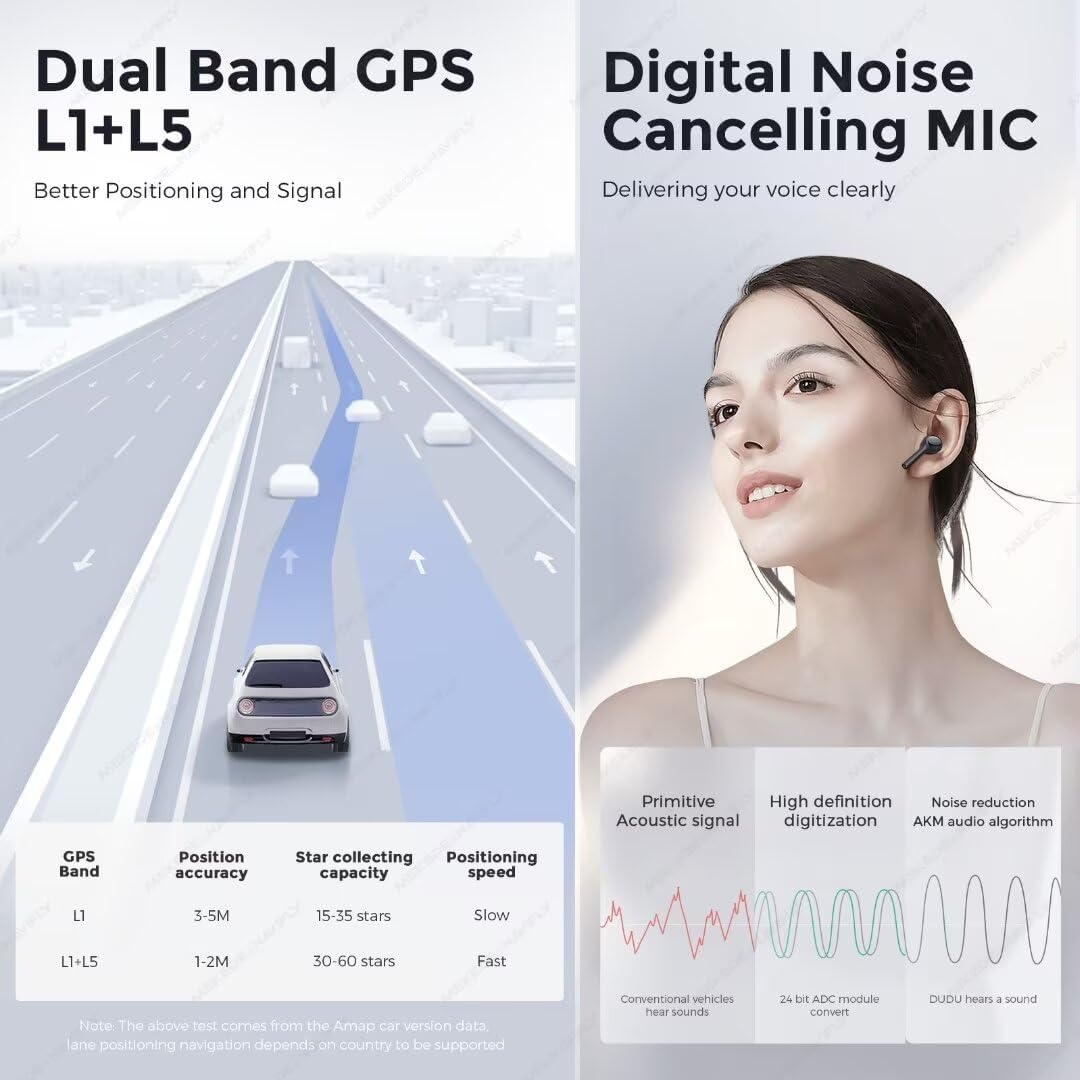
Figure 6.1: Details on the UIS 7870 processor and a comparison illustrating 7x faster read speeds with UFS 3.1 memory.
6.2 AKM7739 DSP Velvet Audio Technology
Experience enhanced audio quality with the integrated AKM7739 DSP (Digital Signal Processor) featuring Velvet Audio Technology. This technology supports "VELVET SOUND" and DTS 5.1 panoramic sound, providing a natural, comfortable, and immersive acoustic experience.

Figure 6.2: Illustration of the AKM7739 DSP chip and its Velvet Audio Technology for superior sound.
6.3 Digital Noise Cancelling Microphone
The built-in digital noise cancelling microphone utilizes an audio noise reduction algorithm to effectively reduce ambient noise, ensuring clear voice transmission even in noisy environments or at high speeds (up to 120 mph).
6.4 Comparison with Other Models/Brands
The DUDUAUTO DUDU7 distinguishes itself through several key hardware and software optimizations compared to other market offerings and even previous DUDU models.
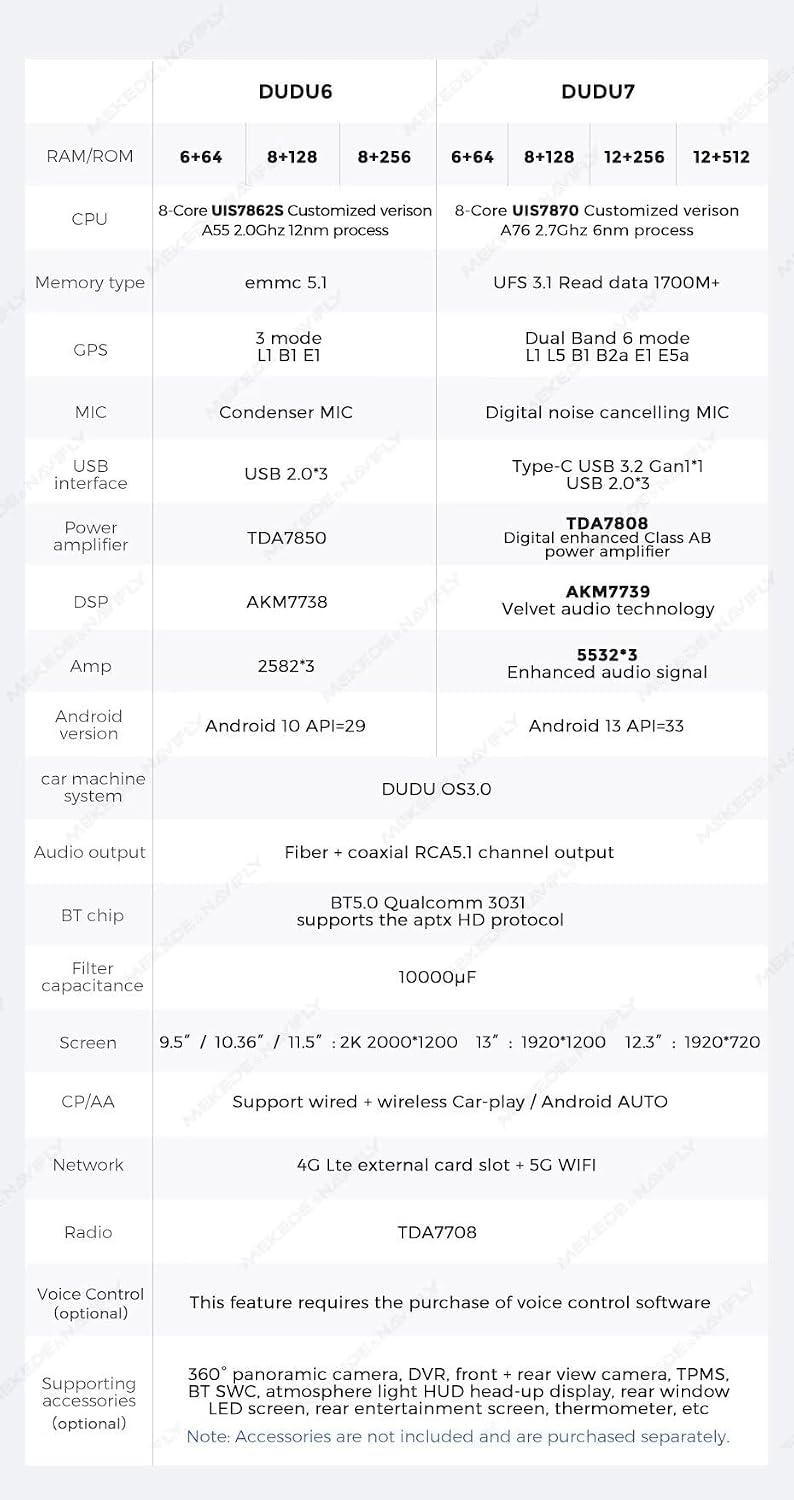
Figure 6.3: A detailed comparison highlighting the unique advantages of DUDUAUTO's customized solutions in terms of system, GPS, microphone, power amplifier, DSP, Op Amp, filter capacitance, BT chip, and peripheral equipment.
7. Troubleshooting
This section provides solutions to common issues you might encounter.
- No Power: Check all power connections. Ensure the vehicle's battery is connected and charged. Verify the fuse for the head unit.
- No Sound: Confirm all audio cables are securely connected. If your vehicle has a Harmon Sound System, ensure you are using the correct CANBUS power cable (ASIN B0CTJRJVMQ). Check volume levels on both the head unit and any connected devices.
- Touch Screen Unresponsive: Try restarting the unit by turning the vehicle ignition off and on. If the issue persists, a factory reset might be necessary (refer to system settings).
- GPS Signal Loss: Ensure the GPS antenna is properly installed and has a clear line of sight to the sky. Check for any obstructions.
- Bluetooth Pairing Issues: Ensure Bluetooth is enabled on both the head unit and your phone. Delete previous pairings and try reconnecting.
- CarPlay/Android Auto Not Connecting: Verify your phone's software is up to date. Try both wired and wireless connections. Ensure the CarPlay/Android Auto app on the head unit is active.
For persistent issues, please contact MekedeTech customer support.
8. Maintenance
Proper maintenance ensures the longevity and optimal performance of your DUDUAUTO DUDU7 head unit.
- Screen Cleaning: Use a soft, lint-free cloth specifically designed for electronics to clean the touch screen. Do not use abrasive cleaners or solvents.
- Software Updates: Periodically check for system software updates through the unit's settings to ensure you have the latest features and bug fixes.
- Environmental Conditions: Avoid exposing the unit to extreme temperatures, direct sunlight for prolonged periods, or excessive moisture.
- Cable Management: Ensure all cables are neatly routed and secured to prevent damage from vibration or accidental pulling.
9. Warranty and Support
MekedeTech products are designed for reliability and performance. For specific warranty terms and conditions, please refer to the warranty card included with your product or visit the official MekedeTech website.
9.1 Customer Support
If you encounter any issues not covered in this manual or require further assistance, please contact MekedeTech customer support. Have your product model number (DUDU7-12-512-10.36) and purchase details ready when contacting support.
- Online Resources: Visit the MekedeTech Store on Amazon for product information and potential FAQs.
- Contact Information: Refer to the packaging or official website for the most current customer service contact details.