
1. Introduction
The Karolama X98 Plus Android 11.0 TV Box is a high-performance streaming media player designed to transform your television into a smart entertainment hub. Featuring an Amlogic S905W2 64-bit Quad Core processor, 4GB RAM, and 64GB ROM, it supports 8K Ultra HD video playback, dual-band Wi-Fi (2.4G/5.0G), and Bluetooth 4.0. This manual provides detailed instructions for setting up, operating, maintaining, and troubleshooting your device to ensure optimal performance and an enhanced viewing experience.
2. Package Contents
Please check the box for the following items:
- X98 Plus Android TV Box
- Remote Control
- Power Adapter (DC 5V/2A)
- HDMI Cable
- User Manual
3. Product Overview
Familiarize yourself with the components and features of your X98 Plus TV Box.
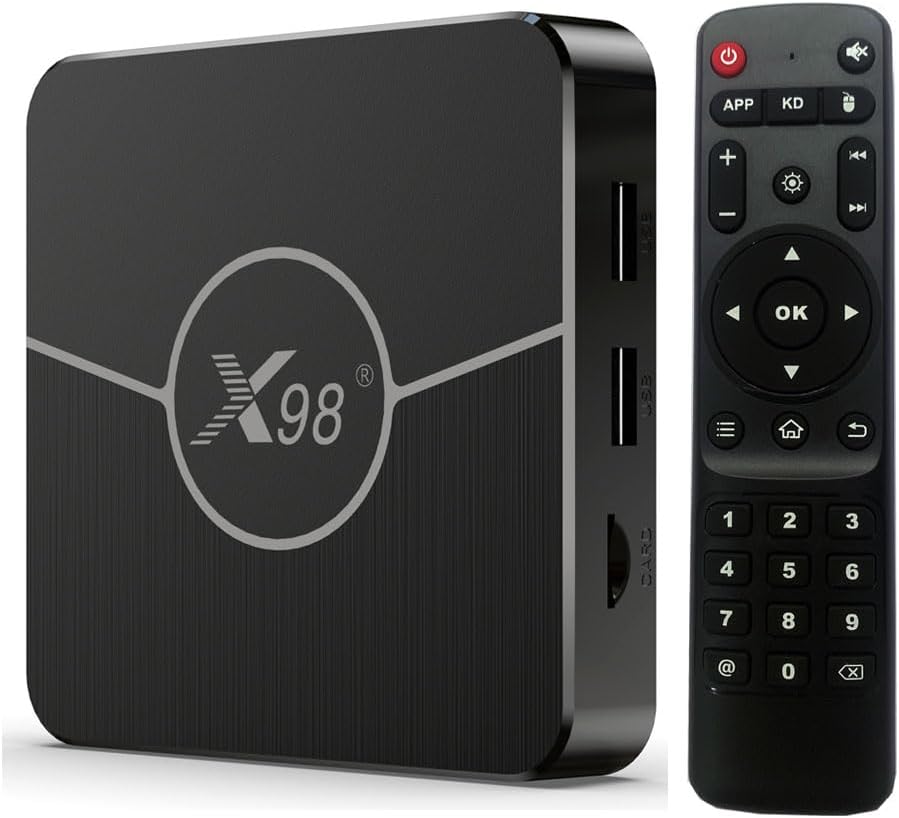
Figure 3.1: The X98 Plus Android TV Box and its accompanying remote control. The box features a sleek, dark design with the 'X98' logo prominently displayed.

Figure 3.2: Detailed view of the X98 Plus TV Box's exterior, highlighting its premium construction with matte, brushed, and high-gloss finishes for a sophisticated appearance.

Figure 3.3: An internal diagram of the X98 Plus TV Box, showing its efficient heat dissipation system with multiple vents designed to maintain optimal operating temperature and enhance device longevity.

Figure 3.4: Visual representation of the X98 Plus's memory configuration, featuring 4GB of RAM for smooth multitasking and 64GB of ROM for ample storage of applications and media.

Figure 3.5: The X98 Plus operates on Android 11, offering the latest system features and enhanced user privacy protections, as depicted in this version progression chart.

Figure 3.6: Connectivity options for the X98 Plus, including dual-band 2.4G and 5G Wi-Fi (802.11ac) for faster and more stable wireless connections, alongside Bluetooth 4.0 for peripheral pairing.

Figure 3.7: The X98 Plus supports advanced video decoding formats like AV1, VP9, and H.265, ensuring high-quality playback and efficient data usage for streaming content.

Figure 3.8: Experience superior visual quality with 4K HDR10+ support, providing enhanced contrast, brightness, and color depth for a lifelike viewing experience at up to 60fps.

Figure 3.9: The X98 Plus is a versatile device, enabling various activities such as playing games, watching movies, sharing music, and facilitating working conferences through Airplay, DLNA, and Miracast functionalities.
4. Setup Guide
Follow these steps to set up your X98 Plus TV Box.
- Connect to TV: Connect one end of the HDMI cable to the HDMI OUT port on the TV Box and the other end to an HDMI input port on your television.
- Connect Power: Plug the DC 5V/2A power adapter into the DC IN port on the TV Box, then plug the adapter into a wall outlet. The power indicator LED on the box will illuminate blue.
- Connect to Network (Optional):
- Wired Connection: Connect an Ethernet cable from your router to the LAN port on the TV Box.
- Wireless Connection: After powering on, navigate to Settings > Network > Wi-Fi, select your network, and enter the password.
- Initial Boot-up: Turn on your TV and select the correct HDMI input source. The TV Box will boot up and display the Android home screen.
5. Operating Instructions
Learn how to navigate and use your X98 Plus TV Box.
5.1 Navigating the Interface
- Use the arrow keys on the remote control to move between icons and options.
- Press the OK button to select an item.
- Press the Back button to return to the previous screen.
- Press the Home button to return to the main home screen.
5.2 Installing and Uninstalling Applications
- Install: Access the Google Play Store (or other app stores) from the home screen, search for your desired app, and select 'Install'.
- Uninstall: Go to Settings > Apps, select the app you wish to remove, and choose 'Uninstall'.
5.3 Connecting Peripherals
- USB Devices: Plug USB flash drives, external hard drives, keyboards, or mice into the USB ports on the TV Box.
- Bluetooth Devices: Go to Settings > Connected devices > Pair new device, and follow the on-screen instructions to connect Bluetooth headphones, gamepads, or other compatible devices.
5.4 Media Playback
- Use pre-installed media players or download your preferred ones from the app store to play local video/audio files or stream content.
- The device supports various formats including 8K Ultra HD, H.265, AV1, and HDR10+.
6. Maintenance
Proper maintenance ensures the longevity and performance of your TV Box.
- Cleaning: Use a soft, dry cloth to clean the exterior of the device. Do not use liquid cleaners or aerosols. Ensure the vents are free from dust accumulation to maintain proper airflow.
- Software Updates: Periodically check for system updates via Settings > About > System update to ensure your device has the latest features and security patches.
- Storage Management: Regularly clear cache and uninstall unused applications to free up storage space and improve performance. Go to Settings > Storage to manage your device's memory.
- Power Cycle: If the device becomes unresponsive, disconnect the power adapter for 10 seconds, then reconnect it to perform a power cycle.
7. Troubleshooting
Refer to this section for solutions to common issues.
| Problem | Possible Cause | Solution |
|---|---|---|
| No power | Power adapter not connected; faulty outlet. | Ensure power adapter is securely connected to the device and a working power outlet. Try a different outlet. |
| No signal on TV | Incorrect HDMI input; loose HDMI cable. | Select the correct HDMI input on your TV. Check HDMI cable connections at both ends. Try a different HDMI cable or port. |
| Wi-Fi connection issues | Incorrect password; router issues; signal interference. | Verify Wi-Fi password. Restart your router and the TV Box. Move the TV Box closer to the router or reduce interference. |
| Remote control not working | Low batteries; obstructed IR sensor. | Replace batteries in the remote. Ensure no obstructions between the remote and the TV Box's IR sensor. |
| Applications crashing or freezing | Insufficient memory; app compatibility issues. | Close background apps. Clear app cache (Settings > Apps). Restart the TV Box. Update the app or the system software. |
8. Specifications
Detailed technical specifications of the X98 Plus TV Box.
| Feature | Description |
|---|---|
| Chipset | Amlogic S905W2 64-bit Quad Core ARM Cortex A35 CPU |
| Operating System | Android 11.0 |
| GPU | G31 MP2 GPU processor |
| Memory (RAM) | DDR3 4GB |
| Storage (ROM) | EMMC 64GB |
| Wi-Fi | 2.4G + 5G (Dual-band 802.11ac) |
| Bluetooth | 4.0 |
| LAN | Ethernet: 10/100M standard RJ-45 |
| Video Decoding | 8K Ultra HD, H.265, AV1, VP9, HDR10+ |
| Power Supply | DC 5V/2A |
| Dimensions | Approximately 5 x 5 x 35 inches |
| Weight | Approximately 14.1 ounces |
9. Warranty and Support
For warranty information and technical support, please refer to the documentation provided with your purchase or contact Karolama customer service directly. Keep your purchase receipt as proof of purchase for warranty claims.
You can visit the Karolama Store on Amazon for more information: Karolama Store