
Gigaset S30350-H224-B101
Gigaset Desk 600 User Manual
Model: S30350-H224-B101
1. Product Overview
The Gigaset Desk 600 is a reliable corded telephone designed for clear communication and ease of use. It features a three-line backlit LED display for caller information, a hands-free function, and a comprehensive phonebook. This manual will guide you through the installation and operation of your new telephone.

Image: The Gigaset Desk 600 corded telephone, showcasing its black design, display screen, and keypad.
2. Package Contents
Before you begin, please ensure all items listed below are present in your package:
- 1x Gigaset DESK 600 Telephone
- 1x Handset Connection Cable
- 1x Power Supply Unit
- 1x Stand
- 1x Telephone Connection Cable
- 1x TAE Connector (if applicable for your region)
- 1x User Manual

Image: An illustration detailing the components included in the Gigaset Desk 600 package, such as the phone unit, power adapter, cables, and stand.
3. Setup and Installation
The Gigaset Desk 600 is designed for simple plug-and-play installation. Follow these steps to set up your telephone.
3.1 Connecting the Telephone
There are two primary connection variants depending on your telephone wall socket.
Variant 1: Direct Wall Socket Connection
- Connect the telephone cable to the designated port on the back of the Gigaset Desk 600.
- Plug the other end of the telephone cable into your wall telephone socket.
- Connect the power supply unit to the phone and then to a power outlet.

Image: A visual guide demonstrating how to connect the telephone cable from the Gigaset Desk 600 directly to a standard telephone wall socket.
Variant 2: Connection via Router/Modem
- Connect the telephone cable to the designated port on the back of the Gigaset Desk 600.
- Plug the other end of the telephone cable into the telephone port (usually marked with a phone icon) on your router or modem.
- Connect the power supply unit to the phone and then to a power outlet.
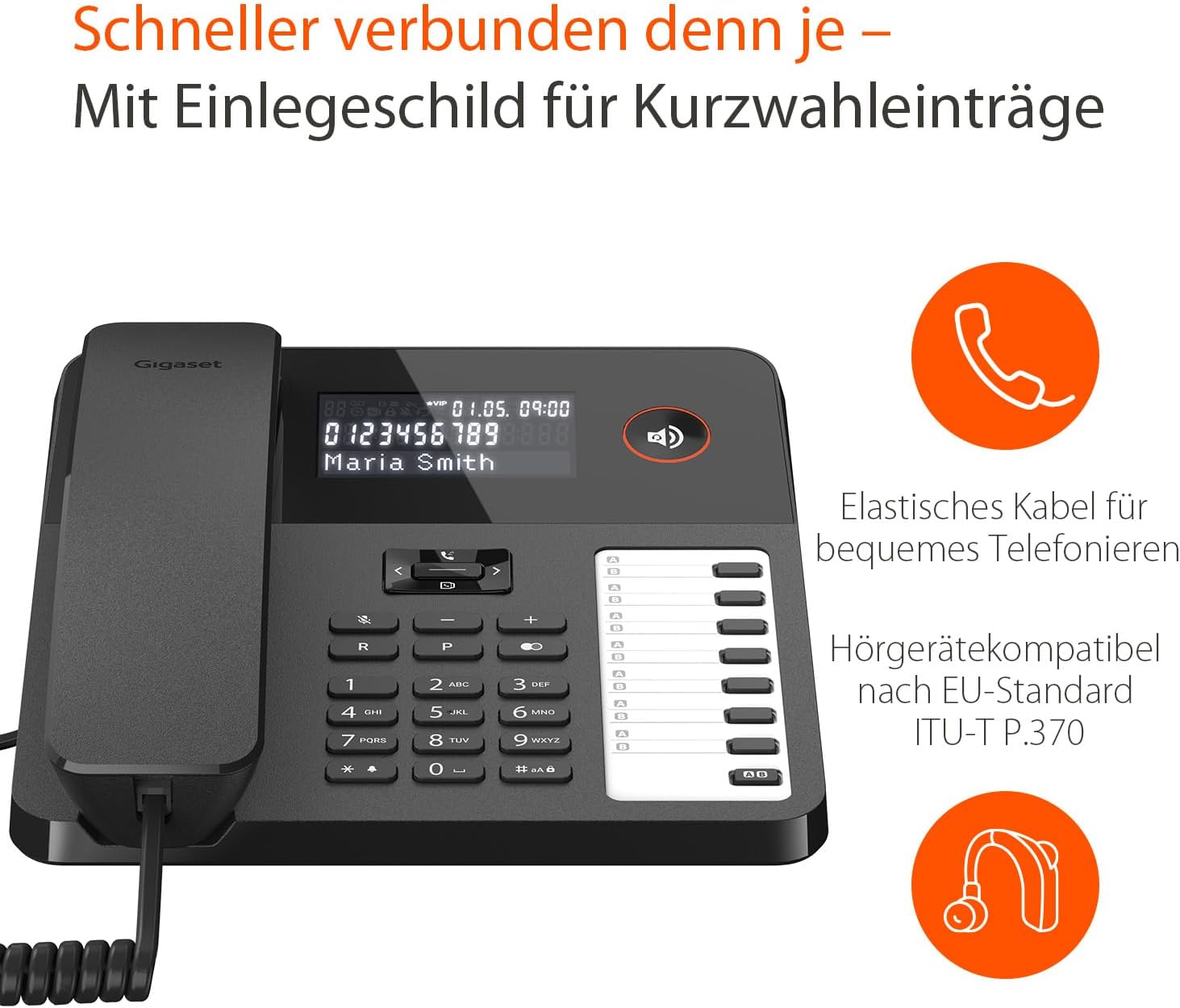
Image: A visual guide illustrating the connection of the Gigaset Desk 600 to a router or modem's telephone port.
Once connected, the phone is ready for immediate use.
4. Operating Instructions
4.1 Basic Functions
The Gigaset Desk 600 features a three-line backlit LED display that provides essential information such as call time, caller's name, and number. The last 50 call entries are saved in the call list.

Image: The Gigaset Desk 600 display, highlighting its ability to show caller ID and indicating the presence of a phonebook with up to 100 entries.
4.2 Making and Receiving Calls
- Making a Call: Lift the handset or press the hands-free button, then dial the number.
- Receiving a Call: Lift the handset or press the hands-free button when the phone rings.
- Hands-free Function: Activate hands-free calling with 7 adjustable volume levels.
- Redial: Use the redial function to call the last dialed number.
4.3 Phonebook and Speed Dial
The phonebook can store up to 100 contacts, including a VIP function for special contacts. Utilize the 7 double direct dial buttons for quick access to frequently called numbers.

Image: The Gigaset Desk 600, emphasizing its flexible coiled handset cable for comfortable use and its compatibility with hearing aids according to ITU-T P.370 standard.
4.4 Audio Features
- Headset Connection: The phone includes an RJ-9 connector for compatible headsets.
- Ringtones: Choose from 10 different ringtones.
- Hearing Aid Compatibility: The Gigaset Desk 600 is compatible with hearing aids.
5. Maintenance and Care
To ensure the longevity and optimal performance of your Gigaset Desk 600, follow these simple maintenance guidelines:
- Cleaning: Use a soft, damp cloth to clean the phone's surface. Avoid abrasive cleaners or solvents.
- Environment: Keep the phone in a dry environment, away from direct sunlight, excessive heat, or moisture.
- Cables: Ensure all cables are securely connected and not kinked or damaged.
- Batteries: The phone requires 2 AAA batteries (included) for certain functions. Replace them when necessary.
6. Troubleshooting
If you encounter any issues with your Gigaset Desk 600, please refer to the common problems and solutions below:
- No Dial Tone: Check all cable connections (telephone line and power supply). Ensure the phone is properly connected to the wall socket or router.
- Display Not Working: Verify the power supply connection. If the issue persists, try a different power outlet.
- Cannot Hear Caller / Caller Cannot Hear You: Adjust the volume settings. Check the handset connection. If using a headset, ensure it is properly connected.
- Phonebook Issues: Ensure contacts are saved correctly. Refer to the operating instructions for saving and retrieving contacts.
For further assistance, please visit the Gigaset service portal or contact customer support.
7. Technical Specifications
| Feature | Specification |
|---|---|
| Brand | Gigaset |
| Model | S30350-H224-B101 |
| Product Dimensions | 20.8 x 18.5 x 7.3 cm |
| Product Weight | 176 g |
| Batteries | 2 AAA batteries (included) |
| Power Source | Corded Electric |
| Compatible Devices | Telephone Systems |
| Material Type | Plastic |
| Display | Three-line backlit LED |
| Phonebook Capacity | 100 contacts with VIP function |
| Direct Dial Buttons | 7 double direct dial buttons |
| Hands-free Function | Yes, with 7 volume levels |
| Headset Connector | RJ-9 |
| Ringtones | 10 |
| Hearing Aid Compatible | Yes |
| Mounting | Wall-mountable |
8. Warranty and Support
Gigaset products are manufactured to high-quality standards. For information regarding warranty terms and conditions, please refer to the documentation provided with your purchase or visit the official Gigaset website.
Should you have any questions about this product or require technical support, please visit the Gigaset service portal. The portal offers comprehensive resources and contact options to assist you.
Ask a question about this manual
Ask about setup, troubleshooting, compatibility, parts, safety, or missing instructions. Manuals+ will review the question and use this page’s manual context to help answer it.