
1. Introduction
The WnewTools VF-6800P is a versatile satellite meter designed to assist in the installation and alignment of satellite dishes and terrestrial antennas. It supports DVB-S/S2, DVB-T/T2, and DVB-C/C2 standards, offering a comprehensive solution for signal measurement and analysis. This manual provides detailed instructions to ensure proper and efficient use of the device.
2. Safety Information
Please read and understand all safety instructions before operating the device. Failure to follow these instructions may result in electric shock, fire, or serious injury.
- Do not expose the device to rain or moisture.
- Do not open the device casing; refer all servicing to qualified personnel.
- Use only the provided power adapter for charging.
- Avoid extreme temperatures and direct sunlight.
- Ensure proper ventilation during operation.
3. Product Overview
The VF-6800P features a compact design with a color LCD screen and intuitive controls for easy navigation and signal analysis.
3.1 Device Components
Below are images illustrating the key components and interfaces of the VF-6800P Satellite Meter.

Figure 3.1: Front View. This image displays the front of the VF-6800P Satellite Meter, showing the 2.4-inch TFT color LCD screen, navigation buttons (up, down, left, right, OK), function keys (F1/S2, F2/T2), and indicators for Power, 22K, 13V, 18V, Lock, and Charge. A compass is also visible on the control panel.

Figure 3.2: Side View with Ports. This image shows the side of the VF-6800P, highlighting the USB port, DC IN port for charging, and the antenna input/output connectors. A power switch is also visible.
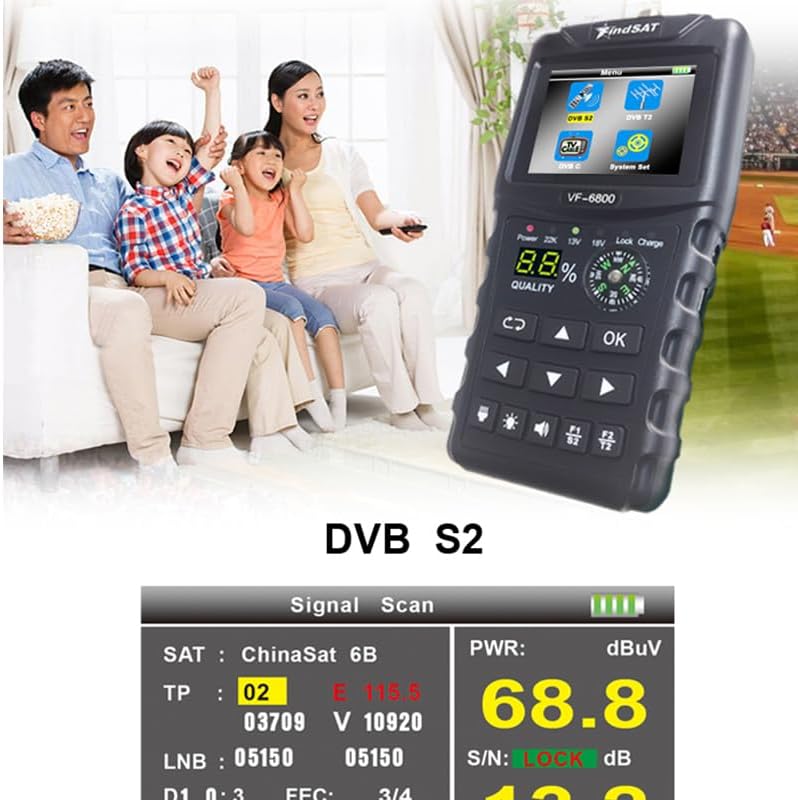
Figure 3.3: Connection Diagram. This diagram illustrates how to connect the VF-6800P to various antenna types, including satellite dishes (DVB-S2) and terrestrial antennas (DVB-T2), along with other accessories like a USB cable and power adapter.
4. Setup
4.1 Charging the Device
Before first use, fully charge the VF-6800P using the provided power adapter. Connect the adapter to the DC IN port on the side of the device and plug it into a power outlet. The 'Charge' indicator will illuminate during charging.
4.2 Initial Power On
Locate the power switch on the side of the device and slide it to the 'ON' position. The device will boot up and display the main menu on the LCD screen.
4.3 Connecting to Antenna/LNB
Connect your satellite LNB cable or terrestrial antenna cable to the appropriate input connector on the VF-6800P. Ensure connections are secure.
5. Operating Instructions
5.1 Main Menu Navigation
Use the arrow buttons (Up, Down, Left, Right) to navigate through the main menu options displayed on the screen. Press the 'OK' button to select an option.
5.2 DVB-S/S2 Signal Measurement
To measure satellite signals:
- From the main menu, select 'DVB S2'.
- Configure satellite parameters such as satellite name, transponder frequency, symbol rate, and polarization.
- Adjust the satellite dish direction while observing the signal strength (S) and quality (Q) bars, as well as PWR (power), S/N (signal-to-noise ratio), and BER (bit error rate) values. Aim for maximum signal quality.

Figure 5.1: DVB S2 Signal Scan. This screen shows the signal measurement interface for DVB-S2, displaying satellite and transponder details, PWR (dBuV), S/N (dB), and visual bars for Signal (S) and Quality (Q).
5.3 DVB-T/T2 Signal Measurement
To measure terrestrial signals:
- From the main menu, select 'DVB T2'.
- Set the channel frequency, bandwidth, and other relevant parameters for your region.
- Adjust the terrestrial antenna direction to maximize signal strength (S) and quality (Q), observing PWR, MER (Modulation Error Ratio), S/N, and BER values.
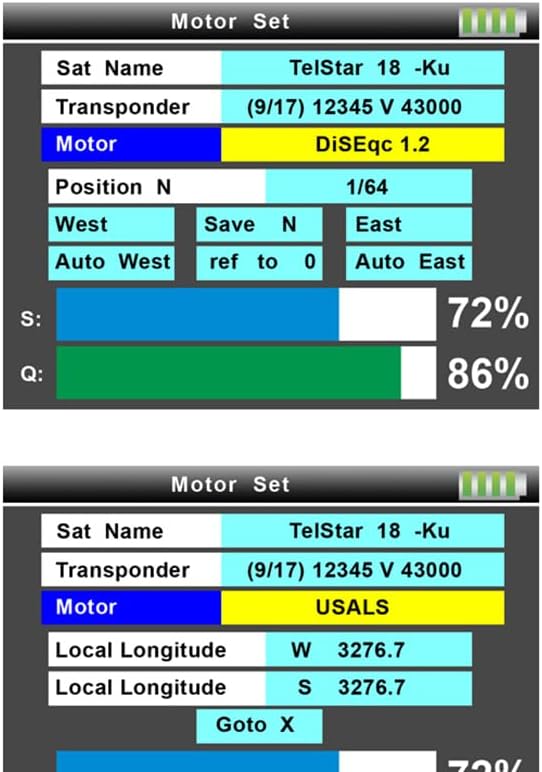
Figure 5.2: DVB T2 Signal Scan. This screen illustrates the signal measurement interface for DVB-T2, showing channel frequency, bandwidth, MER, S/N, and visual bars for Signal (S) and Quality (Q).
5.4 DVB-C/C2 Signal Measurement
The device also supports DVB-C/C2 for cable signal measurement. The procedure is similar to DVB-T/T2, requiring configuration of cable specific parameters like frequency and modulation.
5.5 Spectrum Function
The spectrum function allows for visual analysis of the signal across a frequency range, helping to identify interference or weak signals.
- Select 'Spectrum' from the main menu.
- Observe the graphical representation of signal levels across different frequencies.

Figure 5.3: Spectrum Analysis. This image displays the spectrum analysis screen, showing a graphical plot of signal strength across a frequency range, useful for identifying signal characteristics and interference.
5.6 Motor Set (DiSEqc 1.2 / USALS)
The VF-6800P supports motor control for motorized satellite dishes.
- Select 'Motor Set' from the main menu.
- Choose between DiSEqc 1.2 or USALS protocol.
- Configure motor settings, including satellite name, transponder, and position. For USALS, input local longitude and latitude.
- Use the navigation buttons to move the motor to the desired satellite position.

Figure 5.4: Motor Set Screen. This screen shows the interface for controlling a motorized satellite dish, allowing selection of satellite, transponder, motor type (DiSEqc 1.2 or USALS), and position adjustments.
6. Maintenance
6.1 Cleaning
Wipe the device with a soft, dry cloth. Do not use liquid cleaners or abrasive materials, as they may damage the screen or casing.
6.2 Storage
Store the VF-6800P in a cool, dry place away from direct sunlight and extreme temperatures. If storing for an extended period, ensure the battery is partially charged (around 50%) to prolong its lifespan.
6.3 Battery Care
To maintain battery health, avoid fully discharging the battery frequently. Recharge the device when the battery level is low.
7. Troubleshooting
- Device does not power on: Ensure the battery is charged. Connect the power adapter and try again. Check the power switch position.
- No signal detected: Verify all cable connections are secure. Check LNB or antenna functionality. Ensure correct satellite/transponder or channel parameters are entered.
- Poor signal quality: Adjust antenna/dish alignment incrementally. Check for obstructions. Inspect cables and connectors for damage.
- Screen is blank or frozen: Try restarting the device by holding the power button for a few seconds or sliding the power switch off and on. If the issue persists, contact support.
8. Specifications
| Feature | Description |
|---|---|
| Display | 2.4-inch TFT Color LCD Screen |
| Signal Support | DVB-S/DVB-S2, DVB-T/T2, DVB-C/C2 |
| Video Decoding | MPEG2/MPEG4 Compliant |
| Functions | Spectrum Function, Motor Set (DiSEqc 1.2, USALS) |
| OSD Languages | English, Arabic |
| Dimensions (L x W x H) | 8.66 x 3.15 x 5.91 inches |
| Weight | 430 Grams |
| Included Components | Device, Power Adapter (No other components specified) |
9. Warranty and Support
For warranty information or technical support, please refer to the documentation provided with your purchase or contact WnewTools customer service. Keep your purchase receipt for warranty claims.