
Introduction
Welcome to the instruction manual for your NOUS Zigbee Smart Outdoor Plug IP44. This device is designed to provide intelligent control and energy monitoring for your outdoor appliances. It features Zigbee 3.0 connectivity, IP44 weather resistance, and compatibility with smart home ecosystems like Amazon Alexa and Google Home. Please read this manual carefully before use to ensure safe and optimal operation.
Safety Information
- Ensure the plug is installed in a location protected from direct water jets or submersion. The IP44 rating protects against splashing water.
- Do not exceed the maximum load capacity of 16A / 3840W.
- Do not disassemble or modify the device.
- Keep out of reach of children.
- Operate within the specified temperature range of -20°C to 40°C.
- This device does not include an earth pin opening and may not be suitable for all socket types (e.g., Type E sockets with an earth pin). Verify compatibility with your local electrical standards before use.
Product Overview
The NOUS A6Z-2 Smart Outdoor Plug is a compact and robust device designed for outdoor use.
Package Contents
- NOUS Zigbee Smart Outdoor Plug (A6Z-2)
- Instruction Manual (this document)
Device Features
- Zigbee 3.0 Protocol: For fast and stable wireless connection.
- Energy Monitoring: Track and control power consumption in real-time.
- IP44 Weather Resistance: Protected against splashing water, suitable for outdoor environments.
- Voice Control: Compatible with Amazon Alexa and Google Home.
- App Control: Manage via the NOUS Smart Home app.
- Timer and Schedule Functions: Automate your outdoor devices.
- Group Control: Manage multiple devices simultaneously.
- Heat-Resistant Material: Durable plastic construction.


Specifications
| Feature | Detail |
|---|---|
| Model Number | A6Z-2 |
| Connectivity | Zigbee 3.0 |
| Maximum Power | 3840 W |
| Maximum Current | 16 A |
| Operating Voltage | 220 Volts |
| Ingress Protection (IP) Rating | IP44 (Splash-proof) |
| Operating Temperature | -20°C to 40°C |
| Material | Heat-resistant Plastic |
| Dimensions (L x W x H) | 5.8 x 5.8 x 10 cm |
| Weight | 250 grams |
| Standby Power | 1.3 W |
| Certifications | CE, RoHS, RED |
Setup
Before You Begin
- Ensure you have a Zigbee hub or gateway compatible with Zigbee 3.0.
- Download the NOUS Smart Home app from your device's app store.
- Ensure your Wi-Fi network is stable and accessible.
Installation Steps
Step 1: Plug In the Device. Insert the NOUS Smart Outdoor Plug into a suitable outdoor power socket. Ensure the socket is protected from direct weather exposure and meets local electrical safety standards.

Image: The NOUS Smart Outdoor Plug correctly installed in an outdoor wall socket, ready for use. Step 2: Open the NOUS Smart Home App. Launch the NOUS Smart Home app on your smartphone or tablet.
Step 3: Add Device. Follow the in-app instructions to add a new device. You will typically need to select "Add Device" or a similar option, then choose the "Smart Plug" or "Electrical" category. The app will guide you through the pairing process with your Zigbee hub.
Step 4: Pair with Zigbee Hub. Put your Zigbee hub into pairing mode. The plug's indicator light will typically flash to indicate it is in pairing mode. Once successfully paired, the indicator light will become solid.
Step 5: Name the Device. Assign a descriptive name to your smart plug (e.g., "Garden Lights," "Patio Fan") for easy identification and voice control.

Operating
Basic On/Off Control
You can manually turn the plug on or off using the physical button on the device, or remotely via the NOUS Smart Home app.
Energy Monitoring
The NOUS Smart Home app provides real-time energy consumption data.
- Open the NOUS Smart Home app.
- Select your NOUS Smart Outdoor Plug.
- Navigate to the "Energy Monitoring" or "Statistics" section to view current and historical power usage (in Watts, Amperes, Volts, and kWh).

Setting Timers and Schedules
Automate your outdoor devices by setting schedules and timers.
- In the NOUS Smart Home app, select your smart plug.
- Tap on "Timer" or "Schedule."
- Set desired on/off times, repeat days, and countdown timers.

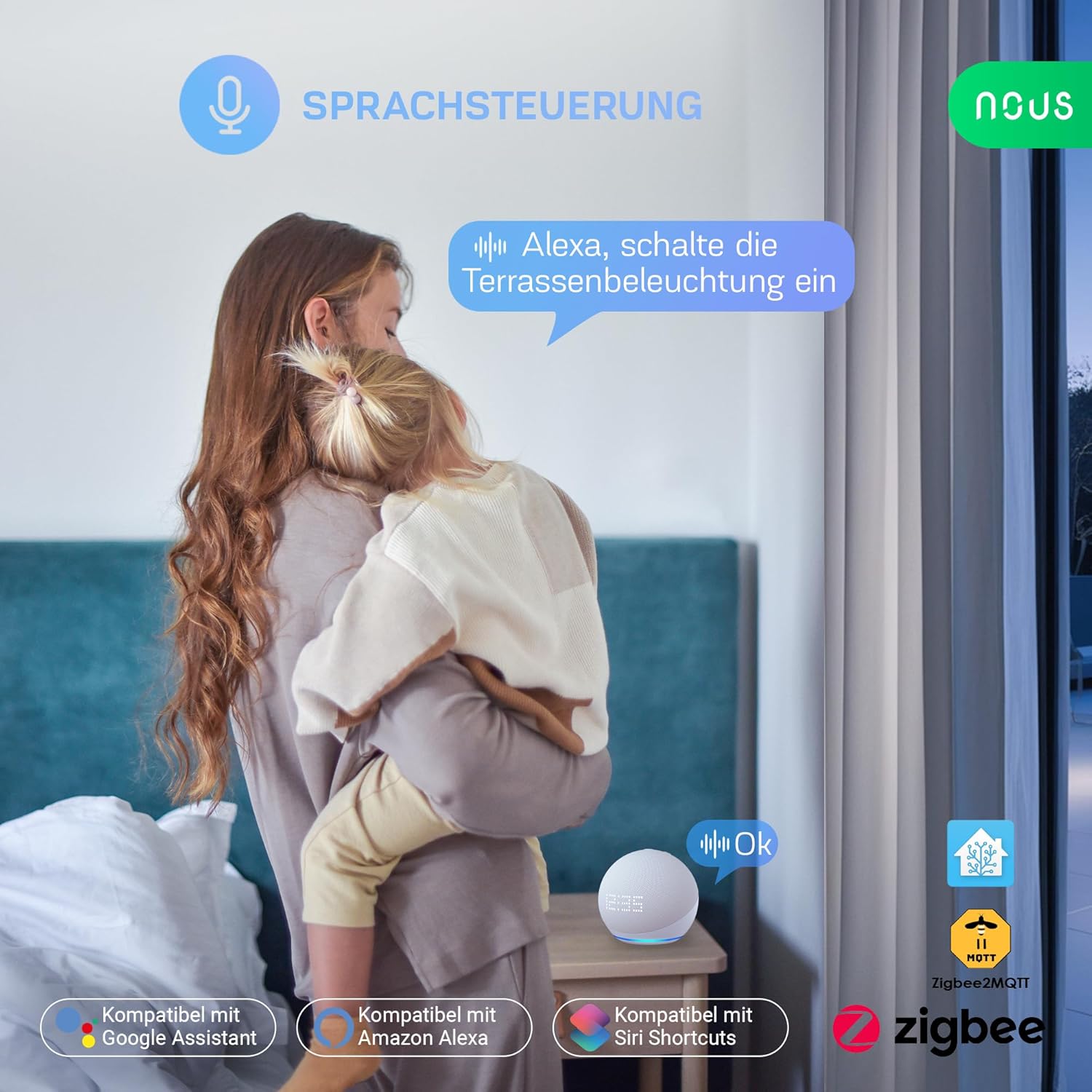
Voice Control Integration
Integrate your smart plug with Amazon Alexa or Google Home for convenient voice control.
- Ensure your smart plug is successfully paired with the NOUS Smart Home app.
- Open the Alexa or Google Home app.
- Enable the "NOUS Smart" skill (for Alexa) or link the "NOUS Smart" service (for Google Home).
- Discover devices. Your smart plug should appear.
- Use voice commands such as:
- "Alexa, turn on [Device Name]."
- "Hey Google, turn off [Device Name]."
Maintenance
- Cleaning: Disconnect the plug from the power outlet before cleaning. Wipe the device with a soft, dry cloth. Do not use harsh chemicals or abrasive cleaners.
- Inspection: Periodically check the plug and connected cables for any signs of damage or wear.
- Storage: If storing the device for an extended period, ensure it is clean, dry, and stored in a cool, protected environment.
Troubleshooting
- Device not pairing:
- Ensure your Zigbee hub is powered on and in pairing mode.
- Make sure the smart plug is within range of your Zigbee hub.
- Check if the plug's indicator light is flashing, indicating pairing mode. If not, try resetting the device (refer to the app for specific reset instructions).
- Verify that your Zigbee hub is compatible with Zigbee 3.0.
- No power to connected device:
- Check if the smart plug is securely plugged into the wall socket.
- Ensure the smart plug is turned on (via app or physical button).
- Verify that the connected appliance is working correctly when plugged directly into a standard socket.
- Check if the total power consumption of the connected devices exceeds the plug's maximum load (16A / 3840W).
- Voice control not working:
- Confirm that the smart plug is successfully integrated with the NOUS Smart Home app.
- Ensure the "NOUS Smart" skill/service is enabled and linked in your Alexa or Google Home app.
- Check your internet connection.
- Verify the device name used in voice commands matches the name set in the app.
- Energy monitoring data is incorrect or missing:
- Ensure the device is connected and actively powering an appliance.
- Check your app's data refresh rate or try restarting the app.
Warranty and Support
The NOUS Zigbee Smart Outdoor Plug (Model A6Z-2) comes with a 24-month warranty from the date of purchase, covering manufacturing defects. This warranty does not cover damage caused by misuse, unauthorized modifications, or failure to follow the instructions in this manual.
For technical support, warranty claims, or further assistance, please contact NOUS customer service through their official website or the NOUS Smart Home app. Please have your product model number (A6Z-2) and proof of purchase ready.
