
Insta360 CINSBBGA
Insta360 Ace Pro 2 Bike Pack - User Manual
Model: CINSBBGA
Introduction
The Insta360 Ace Pro 2 is a state-of-the-art waterproof action camera, co-engineered with Leica, designed to capture your adventures in stunning 8K resolution. Featuring a large 1/1.3" sensor and a dual AI chip, it delivers unparalleled image quality, exceptional low-light performance, and superior audio. This Bike Pack variant comes with specialized accessories to enhance your cycling videography experience.
This manual provides comprehensive instructions for setting up, operating, maintaining, and troubleshooting your Insta360 Ace Pro 2 Bike Pack.
What's in the Box
Verify that all the following items are included in your package:
- 1x Insta360 Ace Pro 2 Camera
- 1x Wind Cover (pre-installed)
- 2x Batteries
- 1x Standard Mount
- 1x Microphone Protector
- 1x USB-C Cable
- 1x 128GB MicroSD Card
- 1x Bike Kit (Flexible Handlebar Mount, Chest Strap)

Image: Contents of the Insta360 Ace Pro 2 Bike Pack, including the camera, two batteries, USB-C cable, standard mount, and bike kit accessories.

Image: Detailed view of the Bike Pack components: Ace Pro 2 camera, 128GB MicroSD card, and bike kit.
Product Features
Leica SUMMARIT Lens & 1/1.3" Sensor
Co-engineered with Leica, the Ace Pro 2 features a 1/1.3" sensor and Leica SUMMARIT lens, providing unparalleled imaging with 13.5 stops of dynamic range and 2.4 µm equivalent pixel size. This collaboration sets a new standard for action camera image quality.

Image: A cityscape captured with the Leica SUMMARIT lens, showcasing exceptional image quality.

Image: Close-up of the Leica lens, highlighting the co-engineering for superior image quality.

Image: Diagram illustrating the 1/1.3 inch sensor, indicating improved performance.
8K Video & Active HDR
Record breathtaking videos in 8K at 30fps, capturing every detail with unmatched clarity. The innovative Active HDR mode enhances colors in both highlights and shadows, ensuring balanced exposure in diverse lighting conditions.
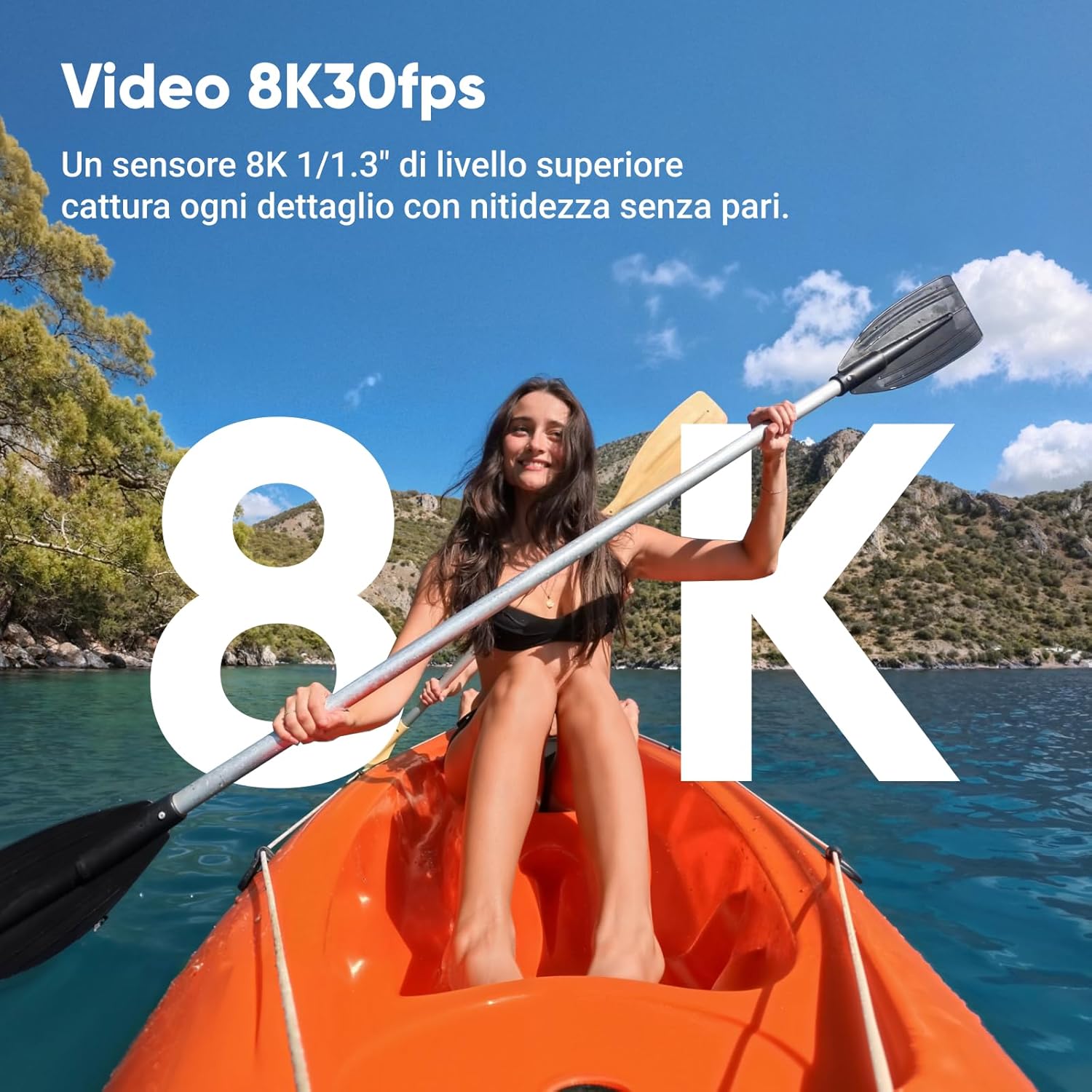
Image: A person kayaking, demonstrating the crisp detail of 8K video capture.
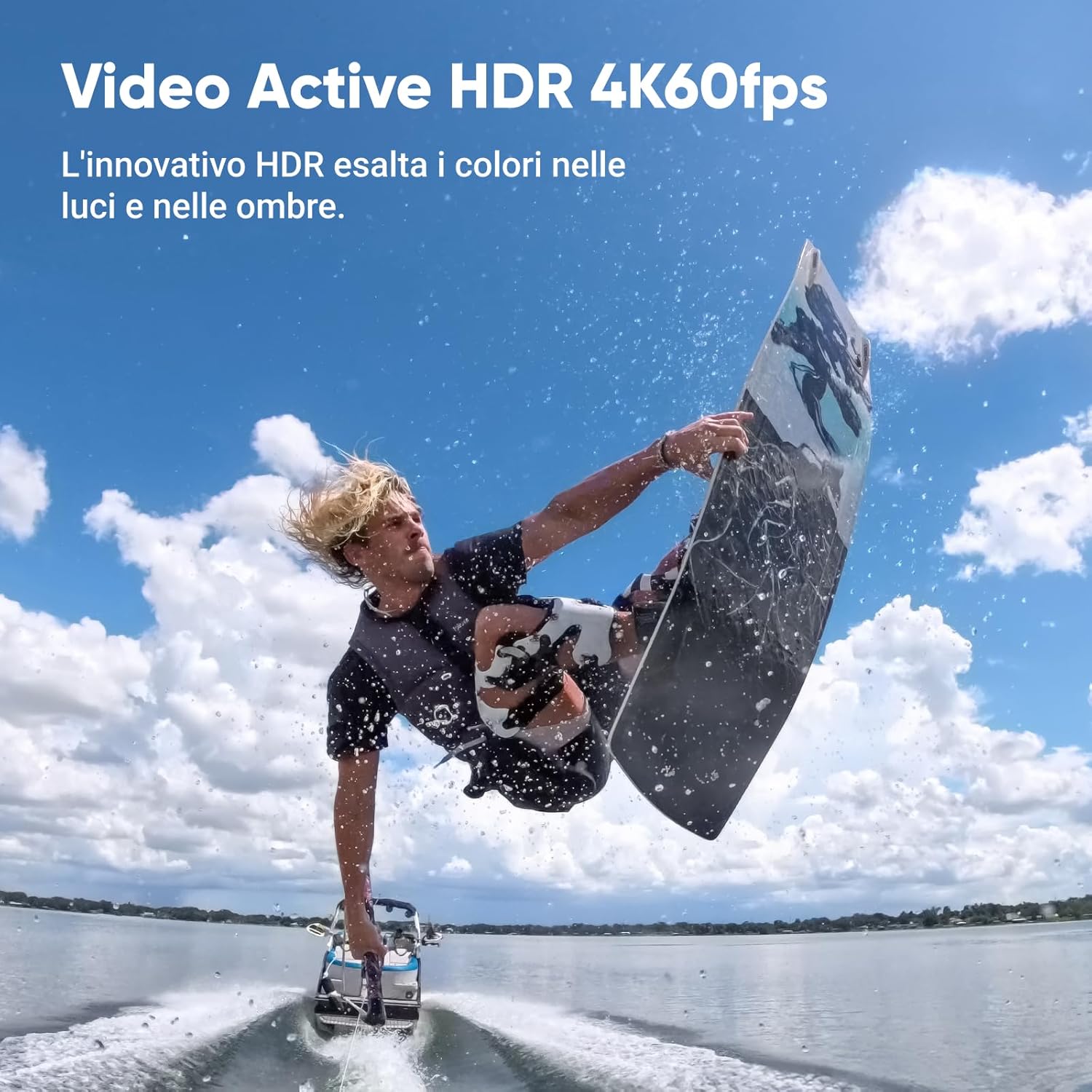
Image: A person wakeboarding, illustrating the vibrant colors and balanced exposure achieved with Active HDR.

Image: Side-by-side comparison of a motocross rider with HDR off and HDR on, showing improved detail in shadows and highlights with HDR.
Superior Low-Light Performance with PureVideo
The advanced dual-chip design and large sensor deliver extraordinary clarity. With PureVideo in 4K 60fps, you'll experience significantly reduced image noise and enhanced brightness in low-light conditions.

Image: Side-by-side comparison of a night scene, showing the superior low-light performance of PureVideo compared to other cameras.

Image: Another comparison demonstrating the enhanced clarity and reduced noise in low-light conditions using PureVideo.
FlowState Stabilization & 360° Horizon Lock
Achieve rock-solid stability and perfect leveling with integrated FlowState Stabilization and 360° Horizon Lock, ensuring smooth footage even in the most dynamic environments.

Image: Comparison showing the effect of FlowState Stabilization, transforming shaky footage into perfectly level and smooth video.
2.5" Flip Touchscreen
The large, robust, and flexible 2.5" directional touchscreen provides full control over every perspective and super-fast playback of your footage, ensuring visibility even in bright sunlight.
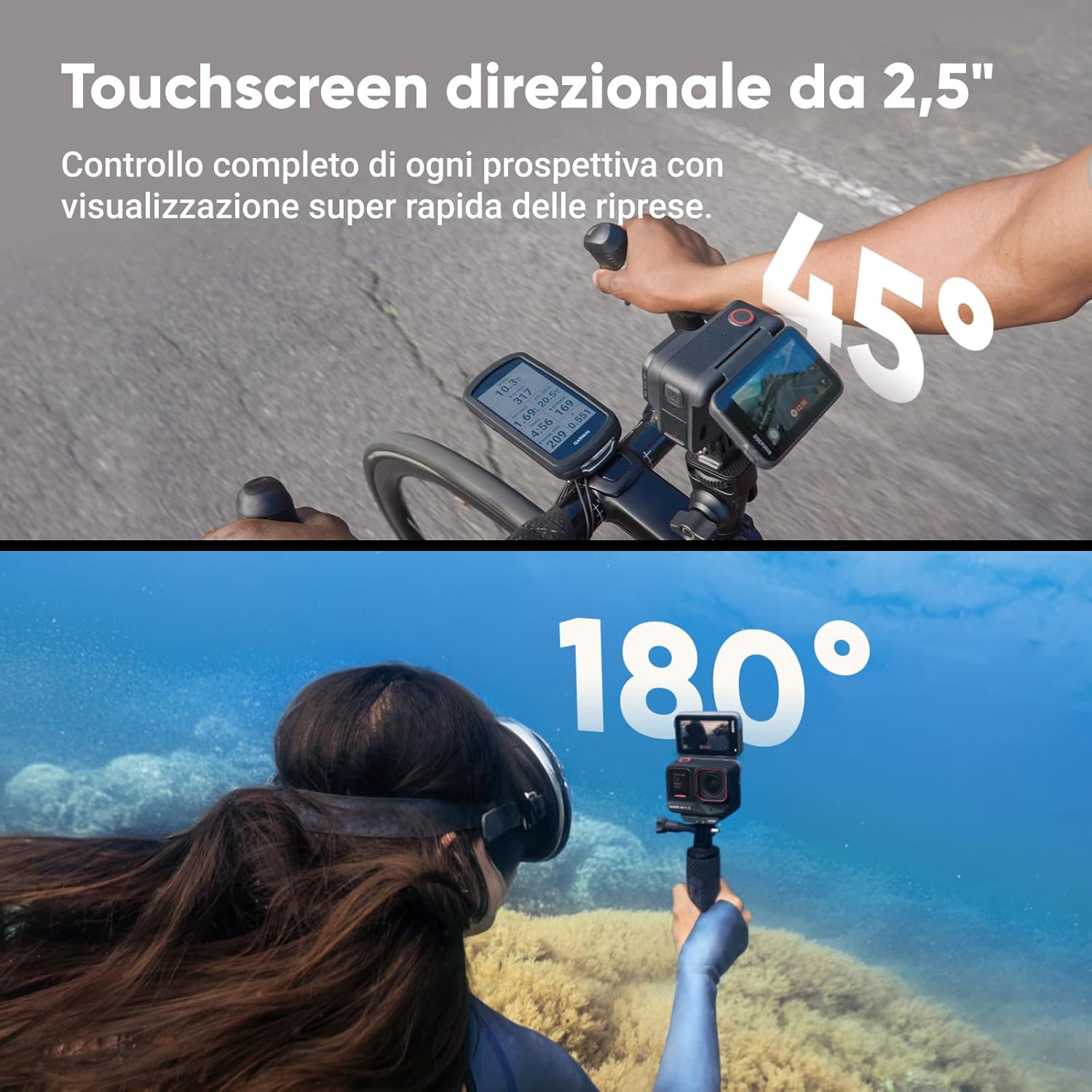
Image: The camera's 2.5-inch flip touchscreen in use, showing its versatility for different shooting angles, including a 45-degree tilt for bike mounting and 180-degree flip for vlogging.

Image: Visual representation of the touchscreen's flexibility, showing 45-degree and 180-degree rotation for various shooting scenarios.
Clarity Zoom & Wide FOV
Zoom in and out 2x without losing quality in 4K. The camera also offers a 157° ultra-wide FOV and MegaView for less distortion and sharper edges, providing a more immersive POV experience.

Image: Comparison showing 2x Clarity Zoom in 4K without quality loss, ideal for capturing distant subjects.

Image: Demonstrates both slow motion capabilities and Clarity Zoom, highlighting extreme sharpness and ease of use.

Image: Illustrates the 157-degree ultra-wide field of view and MegaView, which reduces distortion for a more realistic image.
Waterproof Design
The camera is waterproof up to 33ft (10m) without additional housing, making it ready for aquatic adventures. With the optional Dive Case, it can go even deeper.

Image: The Insta360 Ace Pro 2 submerged in water, demonstrating its waterproof capability up to 12 meters (39 feet) without a case.
Long Battery Life & Fast Charging
The 1800mAh battery provides up to 180 minutes of recording time. Fast charging allows the battery to reach 80% in just 18 minutes and 100% in 47 minutes.

Image: Graphic illustrating the 180-minute battery life and the fast charging capability, reaching 80% in 18 minutes.
AI-Powered Features
Leverage AI for advanced image processing, noise reduction, and smart editing. Features include AI Highlights Assistant, Auto Editing, and Invisible Selfie Stick.

Image: Diagram showing the Pro Imaging Chip and AI Chip, indicating up to 100% increase in processing power and low-light detail.

Image: Visual representation of the AI Assistant generating automatic edits and the Auto Editing feature bringing footage to life with a single tap.

Image: Comparison showing how the AI removes the selfie stick from footage, creating a seamless third-person perspective.
Versatile Mounting System
The magnetic mounting system allows for quick and easy attachment and detachment of accessories, keeping you focused on the action.

Image: The standard mount with its magnetic structure and universal two-prong attachment, showing how it quickly attaches and detaches.

Image: Demonstrates the magnetic mounting system, allowing quick transitions between accessories like helmet mounts and bike mounts.
Setup Guide
1. Charging the Battery
Before first use, fully charge the included batteries. Connect the USB-C cable to the camera and a power source. The indicator light will show charging status.
2. Inserting the MicroSD Card
Open the battery compartment cover. Insert the 128GB MicroSD card into the designated slot with the contacts facing the correct direction until it clicks into place. Ensure the card is properly formatted (exFAT recommended) for optimal performance.
3. Attaching Accessories (Bike Kit)
The Bike Pack includes a Flexible Handlebar Mount and a Chest Strap for versatile cycling shots.
- Flexible Handlebar Mount: Attach the mount to your bicycle's handlebars. Secure the Insta360 Ace Pro 2 to the mount using its magnetic base. Adjust the camera angle using the flexible arm and the camera's flip screen for optimal framing.
- Chest Strap: Wear the chest strap securely. Attach the camera to the chest strap's mounting point. This provides an immersive first-person perspective (POV) for your rides.
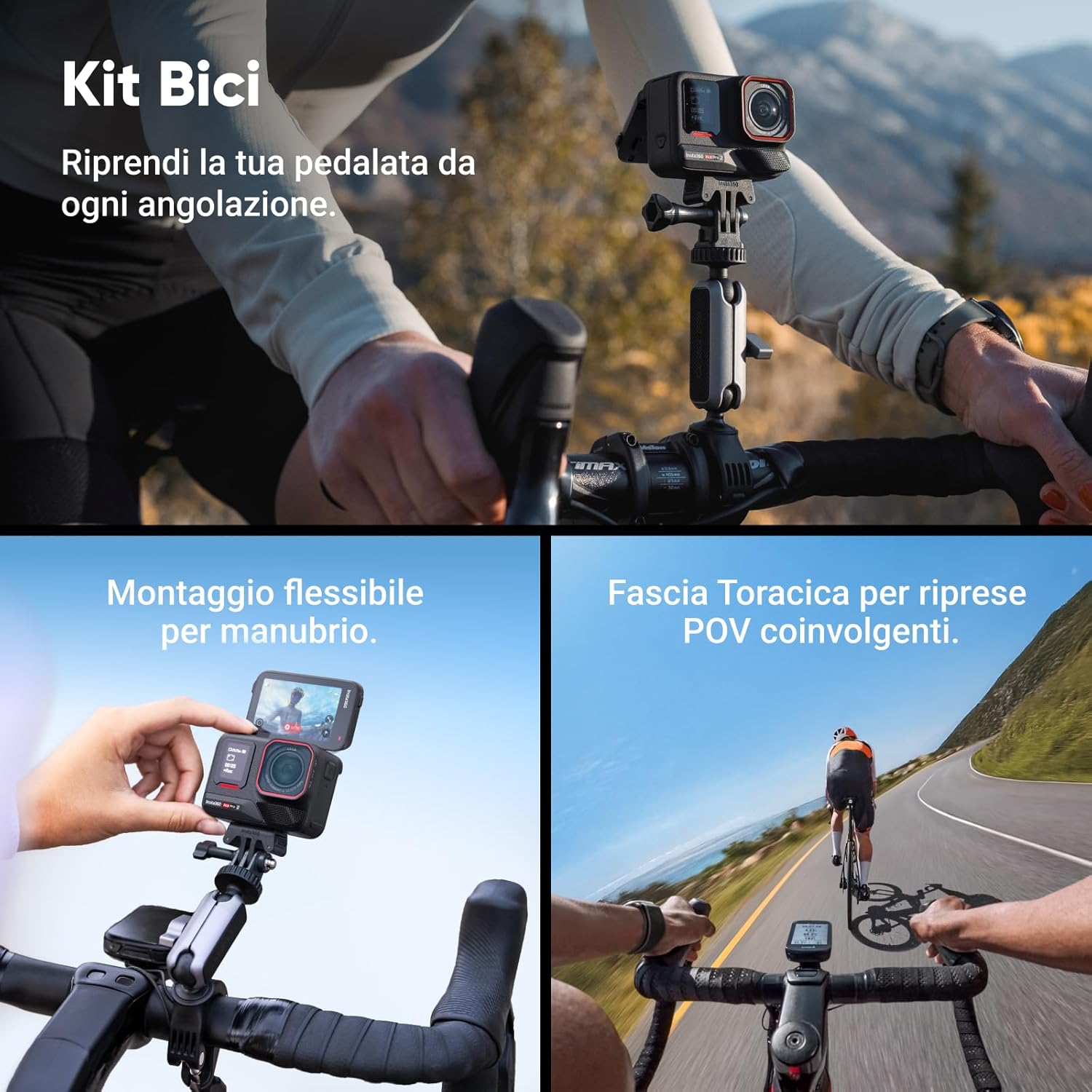
Image: The Bike Kit in use, showing the flexible handlebar mount and chest strap for capturing cycling footage from various angles.
Operating Instructions
1. Power On/Off
Press and hold the Power button (usually on the side) to turn the camera on or off.
2. Basic Recording
Once powered on, tap the record button to start recording. Tap again to stop. Use the touchscreen to navigate modes (Video, Photo, Timelapse, etc.) and adjust settings.
3. Using the Touchscreen
Swipe left/right to switch between shooting modes. Swipe up/down to access settings and playback. Tap on the screen to adjust exposure, white balance, and other parameters.
4. Voice Control & Gesture Control
The camera supports voice commands for hands-free operation. Simply pronounce commands like "Start recording" or "Take a photo." Gesture control allows you to initiate actions with specific hand movements, even with gloves on.

Image: Demonstrates gesture control (hand wave to start recording) and voice control ("Start recording") for convenient camera operation.
5. Dashcam Functionality
Transform your camera into a dashcam. It automatically saves footage based on set storage space, preventing storage issues and ensuring a secure drive.

Image: A view from a motorcycle, illustrating the camera's use as a dashcam, automatically saving footage.
6. Connecting to the Insta360 App
Download the Insta360 app on your smartphone. Connect the camera via Wi-Fi or Bluetooth for remote control, live preview, and advanced editing features. The app allows for AI-powered editing and multi-cam synchronization.

Image: Displays how the Insta360 app can overlay statistics from third-party sports brands like Garmin, Apple, and COROS in real-time onto your footage.

Image: Illustrates perfect multi-cam synchronization for efficient and precise workflows, supporting Final Cut Pro and Adobe Premiere Pro.

Image: Shows how a single shot can be exported in various formats (9:16, 16:9, 1:1) for different social media platforms.

Image: Examples of creative shooting modes: Starlapse for star trails, TimeShift for speeding up time and space, and Timelapse for accelerated video.
Maintenance
1. Cleaning the Camera
Wipe the camera body with a soft, damp cloth. For the lens, use a specialized lens cleaning cloth and solution. Avoid abrasive materials or harsh chemicals.
2. Battery Care
Store batteries in a cool, dry place. Do not expose them to extreme temperatures. If storing for extended periods, charge them to about 50% to prolong their lifespan.
3. MicroSD Card Management
Regularly back up your footage and format the MicroSD card in the camera to maintain optimal recording performance.
4. Waterproof Seal Inspection
Before each use in water, inspect the battery compartment and port covers to ensure they are clean and properly sealed. Remove any debris that might compromise the waterproof integrity.
Troubleshooting
Camera Not Turning On
Ensure the battery is fully charged. Try a different battery if available. If the issue persists, perform a hard reset by holding the power button for 10 seconds.
Recording Stops Unexpectedly
Check the MicroSD card. Ensure it is a high-speed card (UHS-I Speed Class 3 or V30 recommended) and has sufficient free space. Format the card if necessary. Overheating can also cause recording to stop; allow the camera to cool down.
Poor Image Quality / Blurry Footage
Clean the lens thoroughly. Ensure proper lighting conditions. Check if the camera settings (resolution, frame rate) are appropriate for your environment. Verify that FlowState Stabilization is enabled for smooth footage.
Wi-Fi / Bluetooth Connection Issues
Ensure the Insta360 app is updated to the latest version. Restart both the camera and your smartphone. Try resetting the camera's Wi-Fi/Bluetooth settings.
Audio Distortion / Wind Noise
Ensure the pre-installed wind cover is properly in place. For very windy conditions, consider using an external microphone with the microphone adapter (sold separately) for clearer audio.

Image: A motorcycle rider with the camera, illustrating how the wind cover reduces noise for superior audio quality.
Specifications
| Feature | Detail |
|---|---|
| Brand | Insta360 |
| Model Number | CINSBBGA |
| Sensor Technology | CMOS (1/1.3" sensor) |
| Video Capture Resolution | 8K |
| Max Focal Length | 30 Millimeters |
| Max Aperture | f/2.6 |
| Flash Memory Type | Micro SD |
| Video Capture Format | MP4 |
| Supported Audio Format | AAC |
| Screen Size | 2.5 Inches (directional touchscreen) |
| Connectivity Technology | USB, HDMI |
| Waterproof Depth | Up to 10m (33ft) without case |
| Battery Type | AAA (2 required, included) - Note: This seems incorrect based on battery life and typical action cam batteries. Assuming it's a typo in source data and it's a rechargeable Li-ion battery. |
| Battery Capacity | 1800mAh |
| Dimensions | 30.4 x 20.4 x 16.21 cm; 1.53 kg |
| Country of Origin | China |
Note: The specification for "Pile" (Batteries) states "2 AAA pile necessarie. (incluse)". This is likely an error in the source data, as action cameras typically use rechargeable lithium-ion batteries, and the battery capacity is listed as 1800mAh.
Warranty and Support
Warranty Information
If you wish to return a product within 30 days of receipt because you have changed your mind, please consult the return policy on the retailer's website. If you have received a defective or damaged product, please refer to the retailer's help page on defective or damaged products. For specific information on purchases made on the Marketplace, consult the retailer's help page on Marketplace purchases.
The product is verified by Transparency, meaning each item has a unique code verified before shipment.
Software Updates
Guaranteed software updates are available, though the specific end date is unknown. Please check the official Insta360 website or app for the latest firmware updates to ensure optimal performance and access to new features.
Customer Support
For further assistance, technical support, or service inquiries, please visit the official Insta360 support website or contact their customer service directly. You can also visit the Insta360 Store on Amazon for product information and resources.
Related documentsCINSBBGA


Ask a question about this manual
Ask about setup, troubleshooting, compatibility, parts, safety, or missing instructions. Manuals+ will review the question and use this page’s manual context to help answer it.