
1. Introduction
This manual provides essential information for the setup, operation, and maintenance of your Fujitsu Esprimo P758 E85+ desktop PC. This unit is a professional business tower PC, reconditioned and thoroughly tested to ensure optimal performance.
Key features include an Intel Six Core i7 8700 processor, 16 GB DDR4 RAM, a 256 GB SSD for fast boot times, a 2 TB HDD for ample storage, and Microsoft Windows 10 Pro pre-installed.
2. Setup
2.1 Unpacking and Initial Connection
- Carefully remove the PC from its packaging.
- Place the PC on a stable, flat surface with adequate ventilation.
- Connect the provided power cable to the PC's power input and then to a grounded electrical outlet.
- Connect your monitor(s) to the available DisplayPort or DVI-D ports on the rear of the PC.
- Connect your keyboard and mouse to the USB ports (USB 2.0 or USB 3.1) or PS/2 ports on the rear.
- For network access, connect an Ethernet cable from your router or modem to the Gigabit Ethernet LAN port on the rear.

Figure 2.1: Front view of the PC, illustrating the power button, optical drive, and front panel ports including USB 3.1 Type-C, USB 3.1, and USB 2.0.
3. Operating Instructions
3.1 Powering On and First Use
- Ensure all peripherals are connected and powered on.
- Press the power button located on the front of the PC.
- The system will boot into Microsoft Windows 10 Pro 64-bit, which is pre-installed and fully configured.
- Follow any on-screen prompts for initial Windows setup, if applicable.
3.2 Using the Optical Drive
The PC is equipped with a DVD-ROM drive. To use it, press the eject button on the drive bay, insert a compatible disc, and close the tray. Windows will typically detect the disc automatically.
3.3 Connecting Peripherals
Utilize the various USB ports for connecting external devices such as external hard drives, printers, or other accessories. The front panel offers convenient access to USB 3.1 Type-C, USB 3.1, and USB 2.0 ports, while additional USB 3.1 and USB 2.0 ports are available on the rear.

Figure 3.1: Angled view of the PC, providing a perspective of its overall design and port locations.
4. Maintenance
4.1 General Care and Cleaning
- Keep the PC in a clean, dust-free environment.
- Ensure proper airflow around the PC to prevent overheating. Avoid blocking ventilation openings.
- Periodically clean the exterior of the PC with a soft, dry cloth. For stubborn dirt, a slightly damp cloth can be used, ensuring no liquid enters the vents or ports.
- As a reconditioned unit, the internal components have been professionally cleaned and tested. Further internal cleaning by the user is generally not required and should only be performed by qualified personnel if necessary.
4.2 Software Maintenance
- Regularly update your Windows operating system and drivers to ensure optimal performance and security.
- Perform regular antivirus scans to protect against malware.
5. Troubleshooting
This section addresses common issues you might encounter with your PC.
- No Power: Ensure the power cable is securely connected to both the PC and a functional power outlet. Check if the power supply unit has a switch and that it is in the 'On' position.
- No Display: Verify that your monitor cables are securely connected to both the PC's video output ports (DisplayPort, DVI-D) and the monitor. Ensure the monitor is powered on and set to the correct input source.
- System Slowdown: Close unnecessary applications. Check Task Manager for processes consuming excessive resources. Ensure your operating system and drivers are up to date. Consider running a disk cleanup or defragmentation (for HDD).
- Peripheral Not Detected: Try connecting the peripheral to a different USB port. Ensure the peripheral's drivers are installed correctly.
For more complex issues, refer to the Microsoft Windows operating system help documentation or contact technical support.
6. Specifications
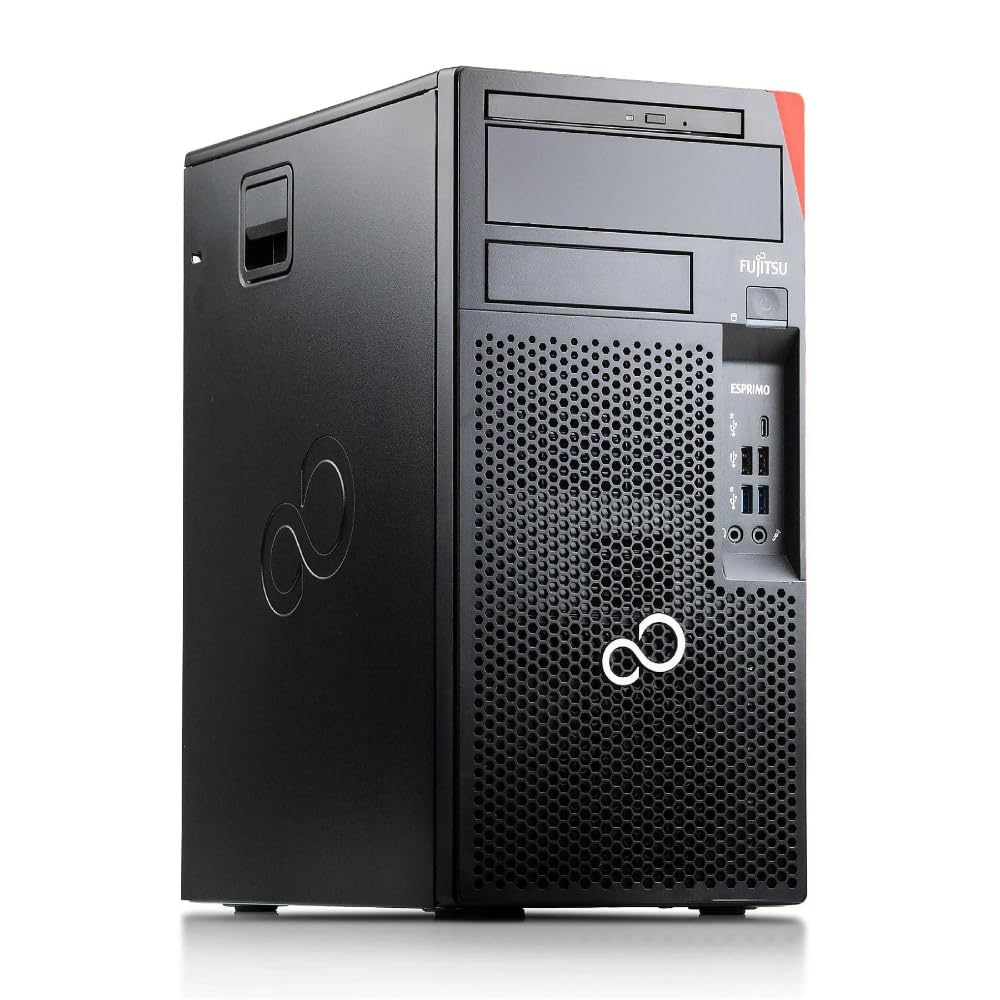
Figure 6.1: General view of the Fujitsu Esprimo P758 E85+ PC.
| Component | Specification |
|---|---|
| Model Name | Fujitsu Esprimo P758/E85+ |
| Processor | Intel Six Core i7 8700 (3.2 GHz, up to 4.6 GHz) |
| RAM | 16 GB DDR4 SDRAM (Max 64 GB) |
| Storage | 256 GB SSD + 2 TB HDD |
| Graphics | Intel UHD Graphics 630 |
| Operating System | Windows 10 Pro 64-bit (Free upgrade to Windows 11 possible) |
| Optical Drive | DVD-ROM |
| Network | Gigabit Ethernet LAN |
| Front Ports | 1x USB 3.1 Type-C (Gen 2), 2x USB 3.1 (Gen 2), 2x USB 2.0 (Gen 1), Audio I/O |
| Rear Ports | 4x USB 3.1 (Gen 1), 2x USB 2.0 (Gen 1), 2x DisplayPort, DVI-D, 2x PS/2, Audio I/O |
| Dimensions (L x W x H) | 30.4 x 18 x 37.5 cm |
| Model Number | 10006071 |
7. Warranty and Support
7.1 Warranty Information
This Fujitsu Esprimo P758 E85+ PC comes with a 12-month warranty provided by the distributor, it-versand-com. The warranty covers technical defects and ensures the device is in proper working order.
7.2 Technical Support
For warranty claims, technical assistance, or any questions regarding your PC, please contact the distributor, it-versand-com, directly. Refer to your purchase documentation for their contact details.


