
Robosen 193734000467
Robosen Buzz Lightyear Interactive Robot User Manual
Model: 193734000467
Introduction
Welcome to the Robosen Buzz Lightyear Interactive Robot user manual. This guide provides essential information for setting up, operating, maintaining, and troubleshooting your new interactive robot. Please read this manual thoroughly to ensure optimal performance and enjoyment of your Buzz Lightyear figure.

Figure 1: The Robosen Buzz Lightyear Interactive Robot.
Important Safety Information
This product is intended for household use only and for persons over the age of 15. Please observe the following safety guidelines:
- Keep away from water or excessive moisture.
- Do not attempt to disassemble or modify the robot.
- Use only the provided power adapter for charging.
- Avoid extreme temperatures.
- Keep out of reach of small children due to potential choking hazards from small parts.
Setup
1. Unboxing and Contents
Carefully remove all components from the packaging. Verify that all items are present:
- Robosen Buzz Lightyear Interactive Robot
- Power Adapter
- Additional interchangeable hands (if included)
- "Andy" sticker (if included)
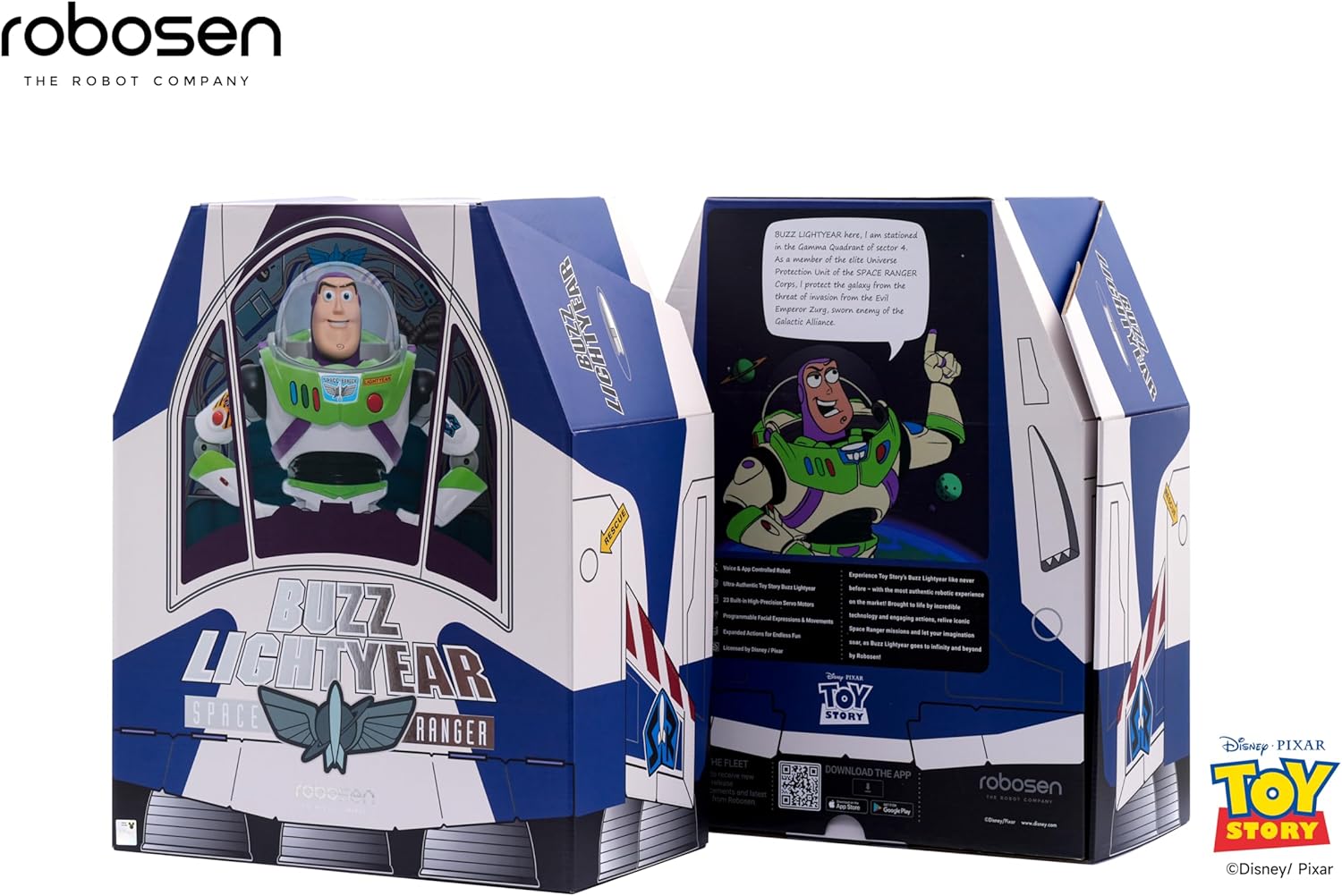
Figure 2: The Robosen Buzz Lightyear in its packaging, alongside the power adapter and other accessories.

Figure 3: Included accessories: various interchangeable hands and an "Andy" sticker.
2. Initial Charge
Before first use, fully charge your Buzz Lightyear robot using the provided power adapter. Connect the adapter to the robot's charging port and plug it into a standard wall outlet. The charging indicator will illuminate.
3. App Download and Connection
To unlock the full interactive capabilities, download the official Robosen Buzz Lightyear app on your smartphone or tablet. The app is available for both Android and iOS devices. Follow the in-app instructions to connect your robot via Bluetooth.
You can download the app from https://download.robosen.com/cartoonBuzz.

Figure 4: Connecting the Buzz Lightyear robot to the mobile application.
Operating Instructions
1. Voice Commands
The Robosen Buzz Lightyear responds to over 34 voice commands and features more than 200 original audio clips. To activate voice command mode, say "Hey Buzz." The robot will respond with "Roger that." You can then issue commands such as:
- "Introduce yourself"
- "Open fire"
- "To infinity and beyond"
- "Scan the terrain"
- "What can you do?"
- "Dance"

Figure 5: Buzz Lightyear demonstrating dynamic actions and sound effects in response to voice commands.
2. Manual Button Controls
Certain actions can also be triggered by pressing buttons on Buzz Lightyear's chest:
- Red Button: Activates jetpack wings and lights.
- Blue/Green Buttons: Trigger various phrases and movements.
- Helmet Button: Opens and closes the helmet visor.

Figure 6: Buzz Lightyear with activated jetpack wings, ready for flight.
3. Mobile App Control
The mobile application provides advanced control options, including:
- Direct movement control (walking, turning).
- Access to a library of pre-programmed actions and poses.
- Custom programming interface for creating unique sequences.
- Language selection (e.g., Spanish mode).

Figure 7: The Robosen Studio platform for advanced programming and customization.
Maintenance
To ensure the longevity and proper functioning of your Robosen Buzz Lightyear robot, follow these maintenance guidelines:
- Cleaning: Wipe the robot with a soft, dry cloth. Do not use harsh chemicals or abrasive materials.
- Storage: Store the robot in a cool, dry place away from direct sunlight and extreme temperatures.
- Battery Care: For extended storage, ensure the battery is partially charged (around 50%). Avoid fully discharging the battery for long periods.
- Joints: The robot features 23 smart joints. Avoid forcing movements that are outside its designed range of motion.
Troubleshooting
| Problem | Possible Cause | Solution |
|---|---|---|
| Robot does not turn on. | Low battery or power switch off. | Ensure the power switch is in the 'ON' position. Charge the robot fully using the provided adapter. |
| Voice commands not responding. | Environmental noise, incorrect command, or microphone issue. | Reduce background noise. Speak clearly and directly to the robot. Ensure you say "Hey Buzz" to activate voice command mode. |
| App connection issues. | Bluetooth not enabled, robot too far, or app glitch. | Ensure Bluetooth is enabled on your device. Keep the robot within close range of your device. Restart the app and/or the robot. |
| Robot movements are stiff or unresponsive. | Low battery or obstruction in joints. | Charge the robot. Gently check for any obstructions in the robot's joints. Do not force movements. |
Specifications
- Brand: Robosen
- Model Number: 193734000467
- Product Dimensions: 13.8 x 5.9 x 14.7 inches
- Item Weight: 8.29 pounds
- Batteries: 1 Lithium Ion battery (included)
- Manufacturer Recommended Age: 5 - 5 years (Note: Safety information recommends 15+ for interactive robot features)
- Key Features: Movable eyes and mouth, walking motion, 23 smart joints, voice interaction (34 commands, 200+ audio clips), app and web platform programming.
Warranty Information
For detailed warranty information, please refer to the warranty card included in your product packaging or visit the official Robosen website. Keep your proof of purchase for any warranty claims.
Customer Support
If you encounter any issues not covered in this manual or require further assistance, please contact Robosen customer support:
- Website: www.robosen.com (Check for support contact details)
- Online Resources: FAQs, video tutorials, and software updates may be available on the official website.
Related documents193734000467


Ask a question about this manual
Ask about setup, troubleshooting, compatibility, parts, safety, or missing instructions. Manuals+ will review the question and use this page’s manual context to help answer it.