
FPD CA43-P3
FPD 43 Inch Smart TV User Manual
Model: CA43-P3 (Palette-Series 2025, Android TV 1080P)
1. Introduction
Thank you for choosing the FPD 43 Inch Smart TV. This manual provides essential information for setting up, operating, and maintaining your new television. Please read this manual thoroughly before using the product to ensure proper and safe operation.

Image: Front view of the FPD 43 Inch Smart TV, showcasing its sleek design and vibrant display.
2. What's in the Box
Before you begin, please check the contents of your product packaging. Ensure all items listed below are present and in good condition.
- FPD 43 Inch Smart TV
- Remote Control with AAA Batteries (x2)
- Base Mounting Accessories (TV Stands and Screws)
- AV Adapter Cable
- User Manual (this document)
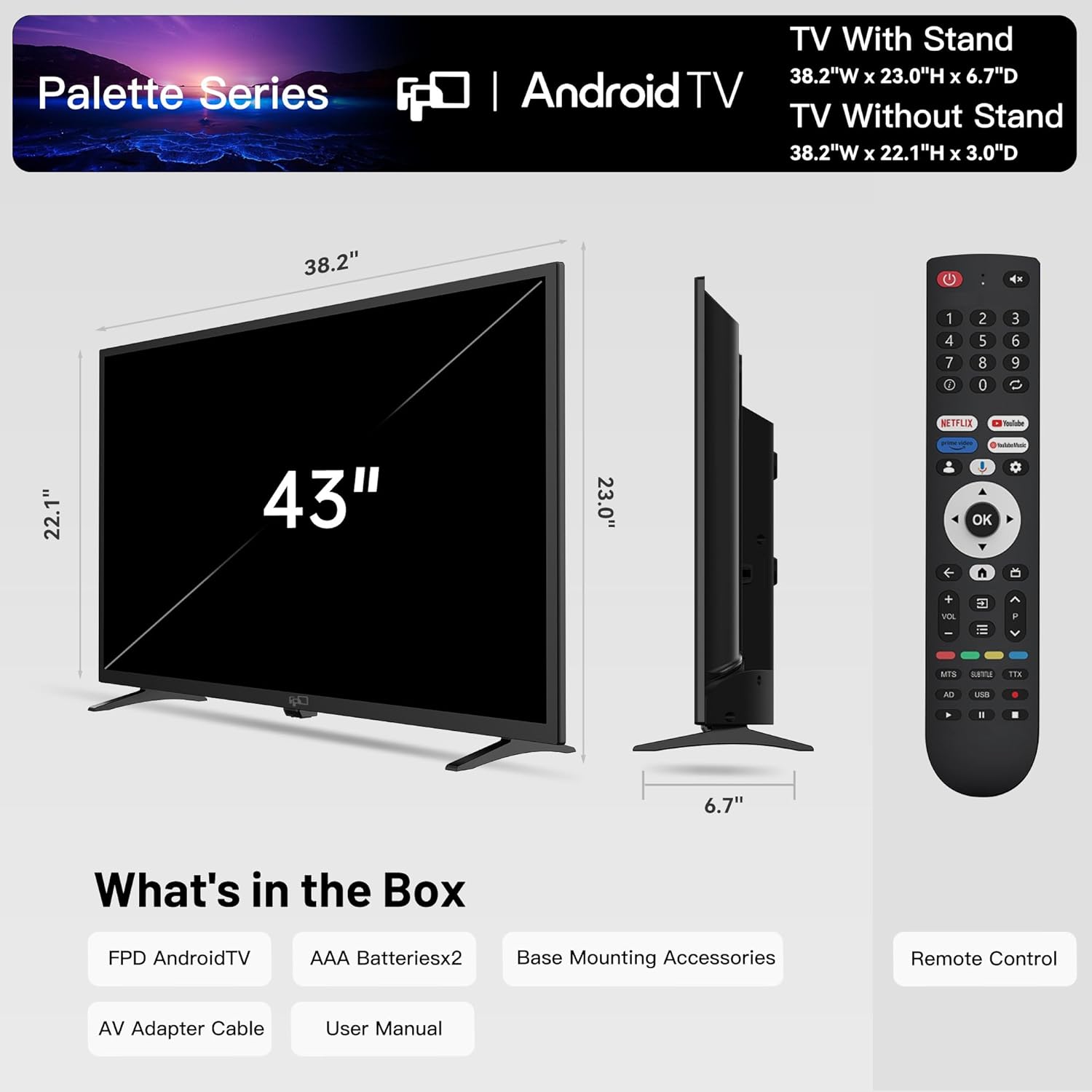
Image: Diagram showing the FPD 43 Inch Smart TV, remote control, and other included accessories.
3. Setup Guide
3.1 Attaching the TV Stands
- Carefully place the TV screen-down on a soft, clean surface to prevent scratches.
- Identify the left and right stands.
- Align each stand with the corresponding screw holes on the bottom of the TV.
- Secure the stands using the provided screws. Do not overtighten.
3.2 Wall Mounting (Optional)
The FPD 43 Inch Smart TV supports VESA wall mounts. Refer to your wall mount's instructions for proper installation. Ensure the wall mount is compatible with the TV's VESA pattern and weight.
- VESA Standard: Refer to the specifications section for VESA dimensions.
- Safety: Always seek professional assistance for wall mounting to prevent injury or damage.
3.3 Connecting Devices
Your FPD Smart TV offers various connectivity options:
- HDMI: Connect Blu-ray players, game consoles, cable boxes, etc.
- USB: Connect USB drives for media playback.
- Ethernet (LAN): For a wired internet connection.
- AV Input: Use the provided AV adapter cable for older devices.
- Wi-Fi: For wireless internet connection.
- Bluetooth: For connecting wireless accessories like headphones or speakers.
3.4 Initial Power On and Setup Wizard
- Plug the power cord into the TV and then into a wall outlet.
- Press the Power button on the remote control or the TV.
- Follow the on-screen instructions for the initial setup, which typically includes:
- Language selection
- Network connection (Wi-Fi or Ethernet)
- Google Account sign-in (recommended for full Android TV features)
- Channel scanning (for antenna/cable connections)
4. Operating Your Smart TV
4.1 Remote Control Functions
Familiarize yourself with the remote control buttons for easy navigation and control.
- Power: Turns the TV on/off.
- Source/Input: Selects input sources (HDMI, AV, TV).
- Navigation Pad (Up/Down/Left/Right/OK): Navigates menus and confirms selections.
- Back/Return: Returns to the previous screen.
- Home: Accesses the Android TV home screen.
- Volume Up/Down: Adjusts volume.
- Channel Up/Down: Changes TV channels.
- App Shortcut Buttons: Direct access to popular streaming services (e.g., Netflix, Prime Video).
- Google Assistant Button: Activates voice commands.
4.2 Android TV Interface
The Android TV home screen provides access to your favorite apps, live TV, movies, and settings.

Image: Screenshot of the Android TV home screen, showing various streaming app icons and content recommendations.
- Apps: Browse and launch installed applications.
- Inputs: Switch between connected devices.
- Settings: Configure TV settings, network, accounts, and more.
- Google Play Store: Download new apps and games.
4.3 Google Cast Functionality
The built-in Google Cast allows you to stream content from your mobile devices, tablets, or computers directly to your FPD Smart TV.

Image: A smartphone displaying content being cast wirelessly to the FPD Smart TV.
- Ensure your mobile device and TV are connected to the same Wi-Fi network.
- Open a compatible app (e.g., YouTube, Netflix) on your mobile device.
- Tap the Cast icon (a square with a Wi-Fi signal in the corner) within the app.
- Select your FPD Smart TV from the list of available devices.
4.4 HDR10 and 1080P FHD Display
Experience stunning visuals with 1080P Full HD resolution and HDR10 support, providing enhanced contrast, brightness, and a wider color gamut for a more immersive viewing experience.

Image: A split screen showing the visual difference with HDR10 enabled, highlighting vibrant colors and contrast.
5. Maintenance
5.1 Cleaning the TV
- Always unplug the TV before cleaning.
- Use a soft, lint-free cloth to gently wipe the screen and cabinet.
- For stubborn marks, dampen the cloth slightly with water or a mild, non-abrasive screen cleaner. Never spray liquid directly onto the TV.
- Avoid using abrasive cleaners, waxes, or solvents.
5.2 Software Updates
Your FPD Smart TV may receive periodic software updates to improve performance and add new features. Ensure your TV is connected to the internet to receive these updates.
- Automatic Updates: Enable automatic updates in the TV settings for convenience.
- Manual Check: You can manually check for updates via Settings > Device Preferences > About > System update.
5.3 Storage and Handling
- Store the TV in a cool, dry place away from direct sunlight and extreme temperatures.
- When moving the TV, always lift it by the bottom and top edges, avoiding pressure on the screen.
6. Troubleshooting
If you encounter issues with your FPD Smart TV, refer to the following common problems and solutions before contacting support.
| Problem | Possible Cause | Solution |
|---|---|---|
| No power | Power cord unplugged; outlet issue; remote batteries dead. | Check power cord connection; test outlet with another device; replace remote batteries. |
| No picture, but sound is present | Incorrect input source; loose HDMI/AV cable. | Press the "Source" button on the remote to select the correct input; ensure cables are securely connected. |
| No sound, but picture is present | Volume muted or too low; external audio system issue. | Unmute volume or increase level; check connections to external audio devices. |
| Cannot connect to Wi-Fi | Incorrect password; router issue; TV too far from router. | Double-check Wi-Fi password; restart router; move TV closer to router or use Ethernet. |
| Remote control not working | Dead batteries; obstruction; remote not paired. | Replace batteries; remove obstructions; re-pair remote if it's a Bluetooth remote (refer to TV settings). |
7. Specifications
Detailed technical specifications for your FPD 43 Inch Smart TV.
| Feature | Detail |
|---|---|
| Brand | FPD |
| Model Number | CA43-P3 |
| Screen Size | 43 Inches (110 cm diagonal) |
| Display Technology | LED |
| Resolution | 1080p Full HD (1920 x 1080) |
| Refresh Rate | 60 Hz |
| HDR Support | HDR10 |
| Operating System | Android TV |
| Processor | Cortex-A55 Quad-Core (as per A+ content) |
| Connectivity | Wi-Fi, Bluetooth, Ethernet, HDMI (multiple ports), USB (multiple ports), AV Input |
| Special Features | Built-In Speaker, Eye Comfort Mode, Flat Screen, Game Mode, Google Cast |
| Audio | Dual 8W Box Speakers, Dolby Audio (as per A+ content) |
| Product Dimensions (with stand) | 38.2"W x 23.0"H x 6.7"D |
| Product Dimensions (without stand) | 38.2"W x 22.1"H x 3.0"D |
| Item Weight | 13.2 Pounds |
| Color | Black |
| Power Consumption | 55 watts |
8. Warranty and Support
FPD is committed to providing excellent customer service and support for your product.
8.1 Manufacturer's Warranty
Your FPD Smart TV comes with an industry-leading 1-year manufacturer's warranty from the date of purchase. This warranty covers defects in materials and workmanship under normal use.
- Coverage: Parts and labor for manufacturing defects.
- Exclusions: Damage due to misuse, accidents, unauthorized repairs, or normal wear and tear.
- Proof of Purchase: Retain your purchase receipt for warranty claims.
8.2 Extended Protection Plans
Extended protection plans may be available for purchase to provide additional coverage beyond the standard manufacturer's warranty. Please check with your retailer for options such as 2-Year or 3-Year Protection Plans.
8.3 Customer Support
For technical assistance, troubleshooting not covered in this manual, or warranty inquiries, please contact FPD customer service. Our team is ready to assist you.
- Support Availability: 24/7 technical assistance.
- Response Time: We aim to reply within 24 hours.
- Contact Information: Refer to the contact details provided on the FPD official website or your purchase documentation.

Image: Illustration of customer service representatives, symbolizing FPD's commitment to support.
Related documentsCA43-P3


Ask a question about this manual
Ask about setup, troubleshooting, compatibility, parts, safety, or missing instructions. Manuals+ will review the question and use this page’s manual context to help answer it.