
Introduction
This user manual provides detailed instructions for the installation, operation, and maintenance of your TMEZON WLAN 2-Family Video Intercom System. Please read this manual thoroughly before using the product to ensure proper functionality and safety. This system is designed to enhance the security and convenience of your home or office with advanced features like remote access, high-definition video, and multiple unlocking methods.
Safety Information
- Ensure all power is disconnected before installation or maintenance.
- Do not expose the outdoor unit to extreme temperatures or direct water immersion. The outdoor unit is IP65 weatherproof, but proper installation is crucial.
- Use only the provided power adapter and cables.
- Keep the device away from strong electromagnetic interference.
- Do not attempt to disassemble or repair the unit yourself. Contact qualified personnel for service.
- Keep small parts and accessories out of reach of children.
Product Overview
The TMEZON WLAN 2-Family Video Intercom System includes an outdoor doorbell unit with a 1080P camera and an indoor 7-inch IP touchscreen monitor. It supports two-way audio, remote unlocking via app, and smart motion detection for enhanced security.

Figure 1: Main components of the TMEZON 2-Family Video Intercom System, showing the outdoor doorbell unit, two indoor monitors, and RFID key cards.
Key Features:
- 2.4G WLAN and Remote App Control: Connect to your home Wi-Fi and manage visitors remotely via the "TuyaSmart" app.
- 1080P Touchscreen and Night Vision Doorbell: High-definition display and a doorbell camera with 145° wide view and infrared light for clear day and night vision.
- 3-in-1 Unlock Method: Unlock the door using the indoor monitor, the mobile app, or included ID cards.
- One-Key Monitor and 2-Way Audio: View outside from the indoor monitor and communicate with visitors before granting access.
- Video Recording and Playback: The camera records video or images upon doorbell press or motion detection, viewable on the monitor or app.
- Smart Motion Detection: Receive notifications or record video when motion is detected near your door.
- IP65 Weatherproof: The outdoor doorbell is designed to withstand rain, dust, and vandalism.
Setup and Installation
This system utilizes a 2-wire technique for simplified installation. Ensure you have the necessary tools and follow local electrical codes.
Wiring Diagram:
Connect the outdoor doorbell unit to the indoor monitor using the provided 2-wire cable. Ensure correct polarity if applicable. Refer to the detailed wiring diagram in the included physical manual for specific connections.
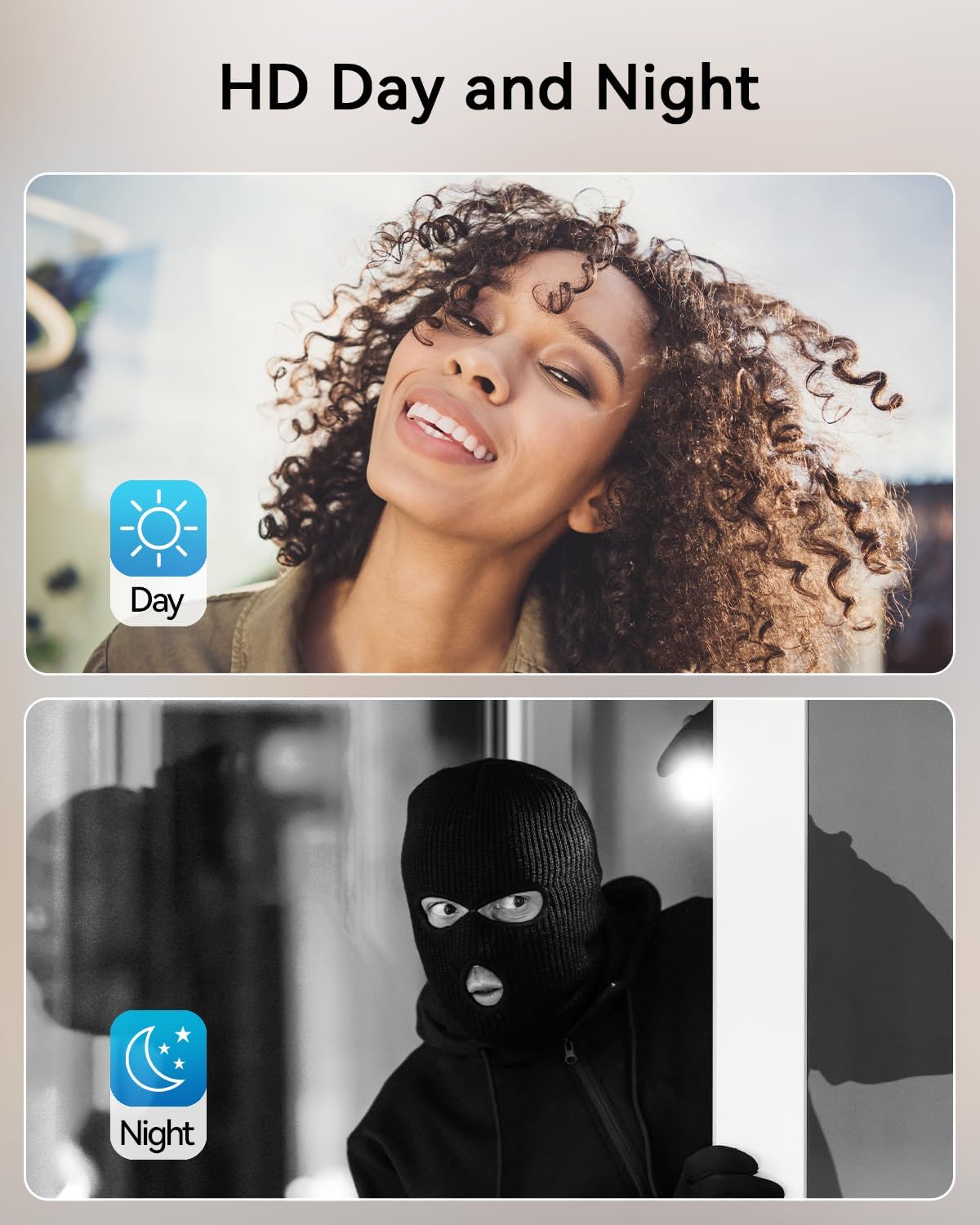
Figure 2: Illustration of the indoor monitor and outdoor doorbell unit, indicating their connection points.
Mounting the Units:
Mount the outdoor doorbell unit at an appropriate height near your entrance, ensuring a clear view of visitors. The indoor monitor should be mounted in a convenient location within your home, preferably near a power outlet.
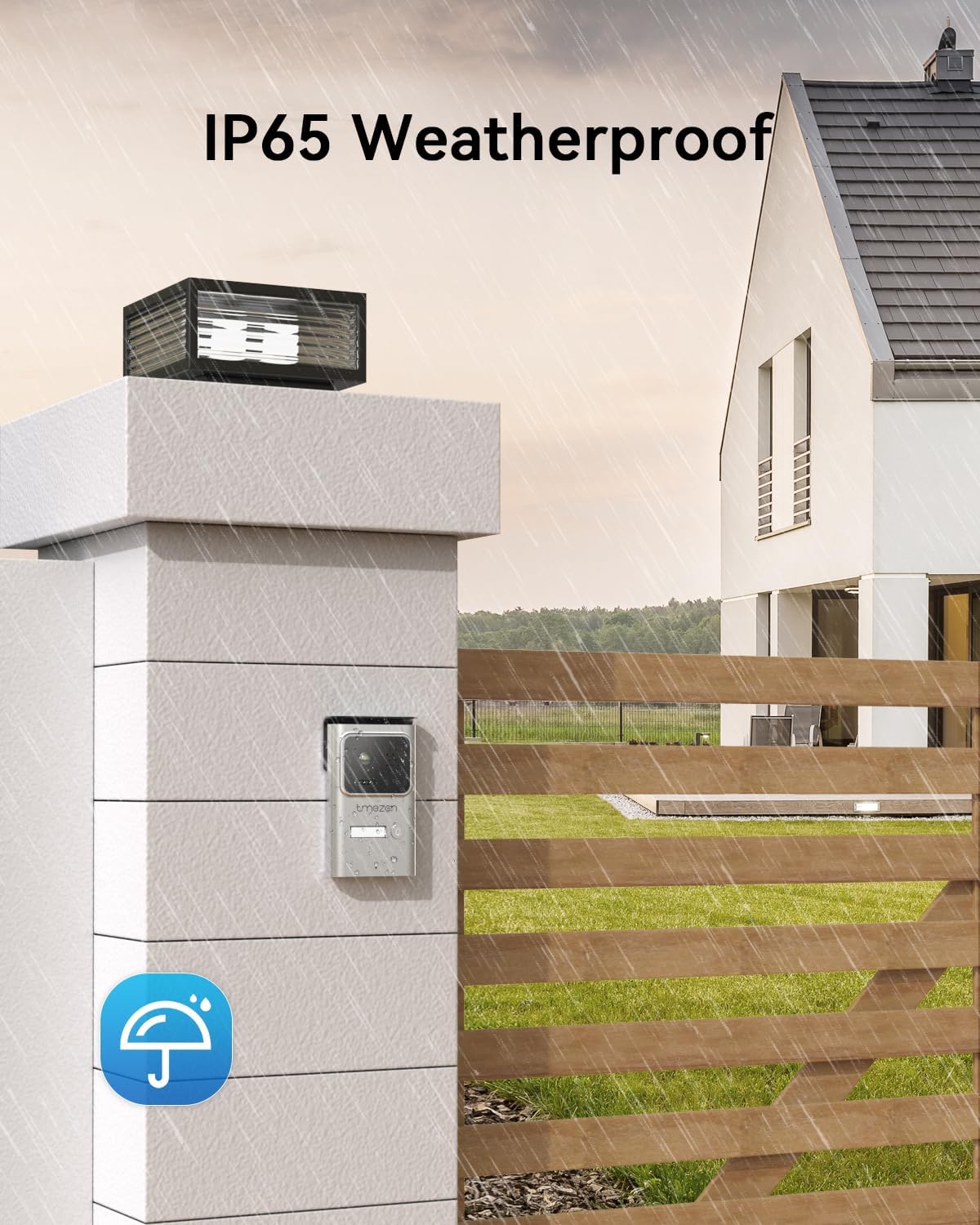
Figure 3: The IP65 weatherproof outdoor doorbell unit installed on an exterior wall, designed to withstand various weather conditions.
Initial Power-On and Network Configuration:
After physical installation, connect the power. The indoor monitor will power on. Follow the on-screen prompts to connect the system to your 2.4G WLAN network. This is essential for app functionality and remote access.
Video 1: A demonstration of the easy installation process and the high-definition video quality of the TMEZON intercom system. This video highlights the simplicity of connecting the system with just one cable and the clear image quality.
Video 2: This video illustrates the ease of installation at the main door and demonstrates key features such as RFID card unlocking and mobile notifications when the doorbell is pressed. It shows how users can configure alerts to their mobile devices.
Operating Instructions
Using the 7'' IP Touchscreen:
The indoor monitor features a responsive touchscreen interface. Navigate through menus to access live view, recorded videos, settings, and communication options. Press the monitor button to view the outdoor camera feed at any time.

Figure 4: The indoor monitor's touchscreen interface, highlighting the two-way audio and one-key unlock functions for convenient interaction with visitors.
App Control (TuyaSmart):
Download the "TuyaSmart" app from your mobile app store. Register an account and add your intercom system. The app allows you to view live video, communicate with visitors, and unlock the door remotely from anywhere with an internet connection.

Figure 5: The TuyaSmart mobile application providing live view from the doorbell camera and remote unlocking capabilities.
Two-Way Audio Communication:
When a visitor presses the doorbell, you can answer from the indoor monitor or the TuyaSmart app. Engage in real-time two-way audio communication to speak with the visitor before deciding to open the door.

Figure 6: A user engaging in two-way audio communication through the outdoor doorbell unit, allowing conversation with visitors.
Door Unlocking (3-in-1 Method):
The system offers three convenient ways to unlock your door:
- Indoor Monitor: Press the unlock icon on the touchscreen.
- TuyaSmart App: Tap the unlock button within the app interface.
- ID Cards: Present a pre-programmed RFID ID card to the outdoor doorbell unit's reader. Eight ID cards are included for your convenience.

Figure 7: Demonstrating the RFID card unlock method at the outdoor doorbell unit, part of the system's versatile access options.
Video Recording and Playback:
The doorbell camera automatically records video clips or captures images when the doorbell is pressed or when motion is detected. These recordings are stored and can be reviewed directly on the indoor monitor or through the TuyaSmart app.

Figure 8: The indoor monitor displaying video playback, indicating the system's ability to record and store footage, likely via an SD card.
Smart Motion Detection:
Configure motion detection settings to receive alerts on your phone or trigger automatic recording when movement is detected in the camera's field of view. This feature provides an additional layer of security by notifying you of activity even if the doorbell isn't pressed.

Figure 9: The smart motion detection feature in action, alerting the user's smartphone when movement is detected near the doorbell.
Night Vision:
The 1080P doorbell camera is equipped with infrared night vision, ensuring clear visibility of visitors even in low-light or complete darkness conditions.

Figure 10: The doorbell camera's ability to provide clear images both during the day and at night using infrared technology.
Maintenance
- Cleaning: Use a soft, dry cloth to clean the indoor monitor and outdoor doorbell unit. Do not use abrasive cleaners or solvents.
- Firmware Updates: Periodically check for firmware updates through the TuyaSmart app or TMEZON's official website to ensure optimal performance and access to new features.
- Cable Inspection: Regularly inspect all cables for any signs of wear or damage. Replace damaged cables immediately.
Troubleshooting
| Problem | Possible Cause | Solution |
|---|---|---|
| No power to indoor monitor. | Power adapter disconnected or faulty; power outlet issue. | Check power connections and outlet. Try a different outlet. |
| No video/audio from outdoor unit. | Wiring issue; outdoor unit faulty. | Verify 2-wire connections are secure and correct. Ensure outdoor unit is powered. |
| Cannot connect to Wi-Fi. | Incorrect Wi-Fi password; router too far; 5Ghz network. | Double-check password. Move monitor closer to router. Ensure you are connecting to a 2.4Ghz network. |
| App not receiving notifications. | App permissions not granted; network issues; notification settings off. | Check app permissions in phone settings. Ensure stable internet connection. Verify notification settings in TuyaSmart app. |
| RFID card not unlocking door. | Card not programmed; card faulty; reader issue. | Ensure the card is properly programmed to the system. Try another card. |
Specifications
| Feature | Detail |
|---|---|
| Brand | TMEZON |
| Model Number | MZ-M730*2 |
| Color | For 2 Families |
| Screen Size | 7-inch IP Touchscreen |
| Camera Resolution | 1080P |
| Connectivity | 2.4G WLAN, 2-Wire Technique |
| Unlock Methods | Indoor Monitor, APP, ID Cards |
| Weatherproof Rating | IP65 (Outdoor Unit) |
| Motion Detection | Yes |
| Video Recording | Yes |
| Item Weight | 2.19 Kilograms |
| Package Dimensions | 27.8 x 19.6 x 13.1 cm |
Warranty and Support
TMEZON products are designed for reliability and performance. For warranty information and technical support, please refer to the warranty card included with your product or visit the official TMEZON website. You can also contact customer service through the details provided on your purchase platform.
For further assistance, please visit the TMEZON Store on Amazon.


