
TMEZON MZ-IP-V728TW
TMEZON WiFi 4-Wire Video Intercom System
Model: MZ-IP-V728TW
1. Introduction
Welcome to your TMEZON WiFi 4-Wire Video Intercom System. This manual provides detailed instructions for installation, operation, and maintenance of your new video intercom. Please read this manual thoroughly before use to ensure proper functionality and safety.
2. Product Overview
2.1 Key Components
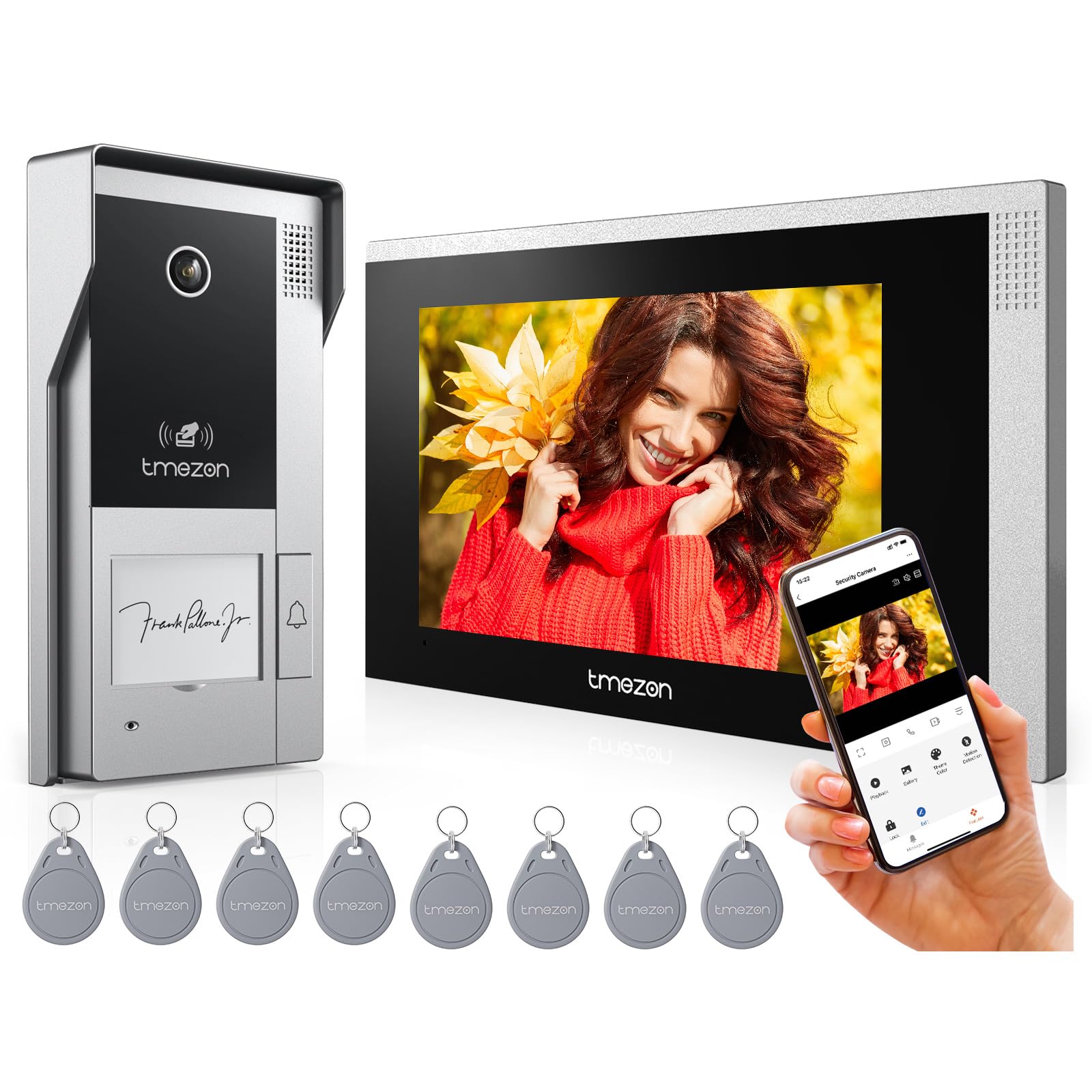
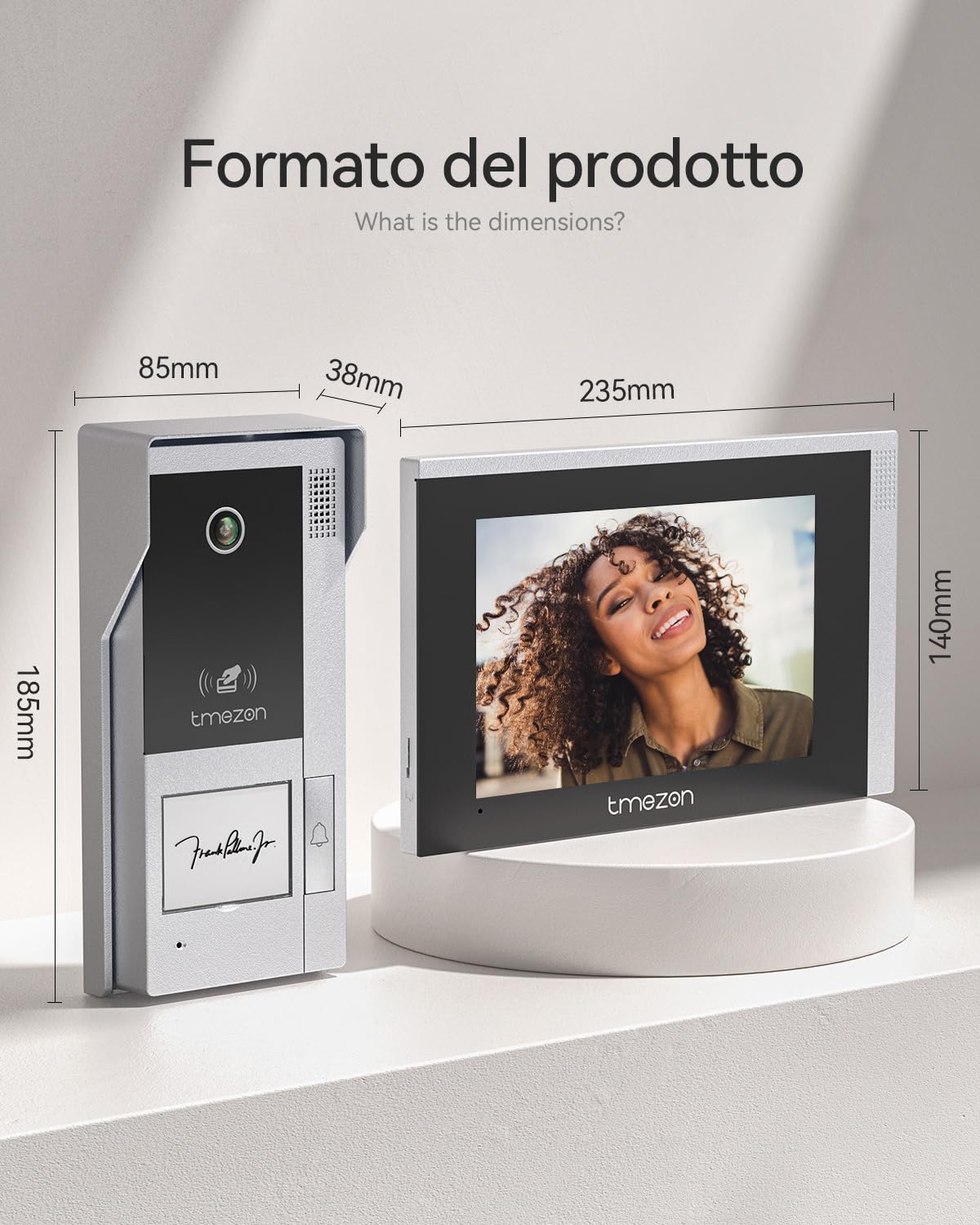
- 7-inch IP Touchscreen Monitor
- 1080P Outdoor Camera Doorbell
- Power Adapter (2-wire for monitor)
- 4-wire connection cable (for monitor to doorbell)
- RFID Cards (8 included)
2.2 Features
- 4-Wire Wired Connection: Ensures stable video and audio transmission. Supports extension up to 80m.
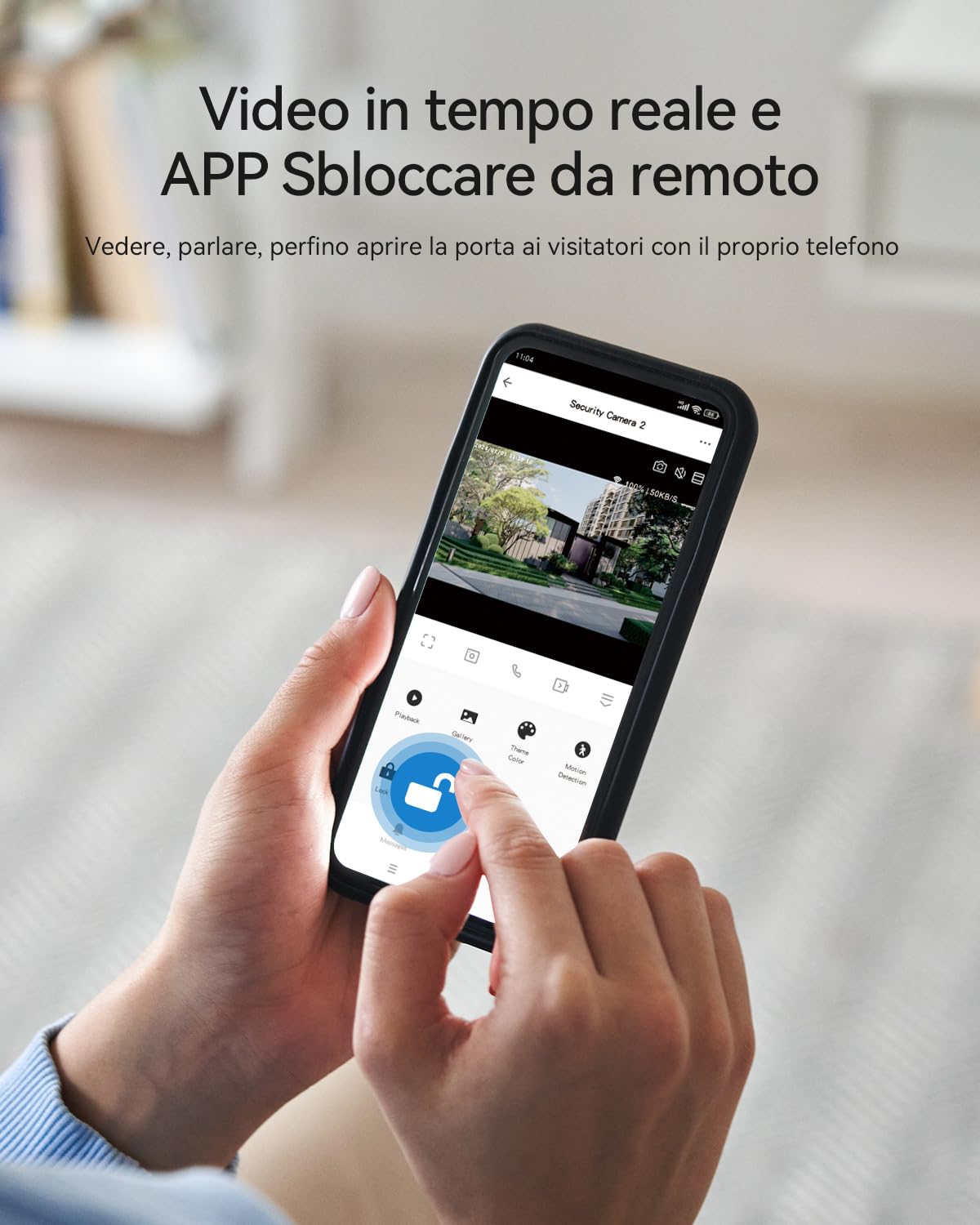
- WiFi Connectivity with TuyaSmart App: Remote viewing, two-way talk, and door unlocking via smartphone.
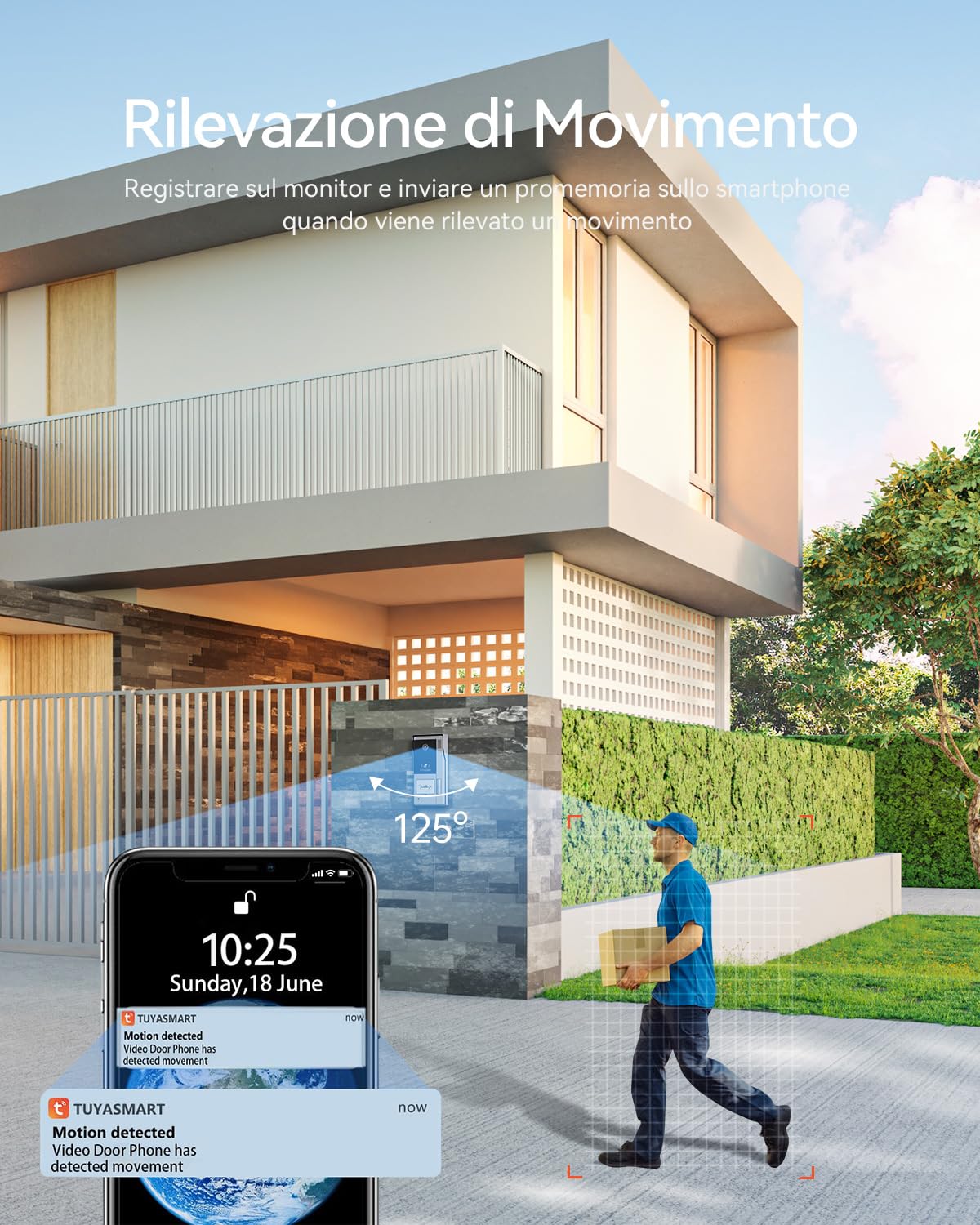
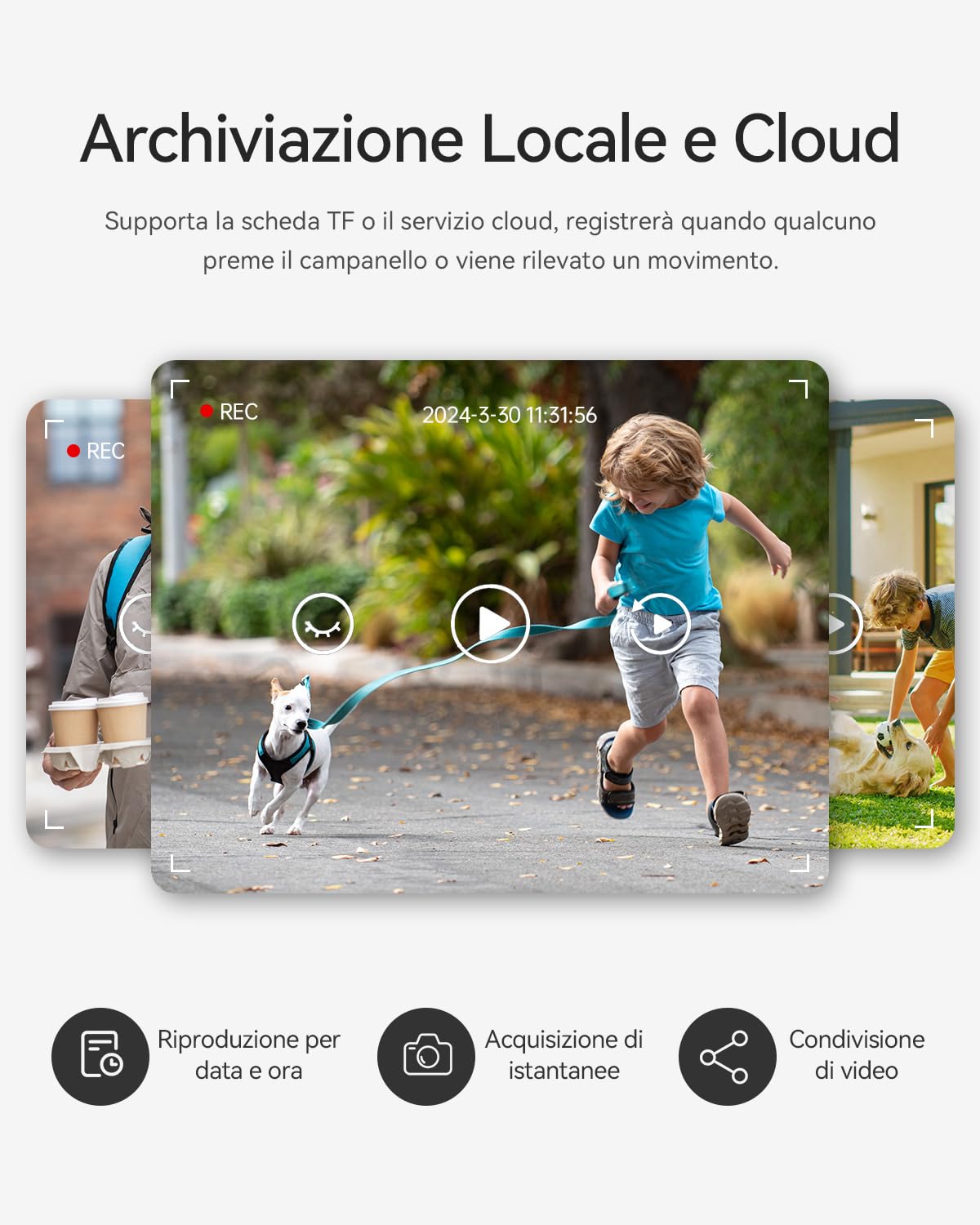
- Motion Detection: Automatic photo capture or video recording when motion is detected.
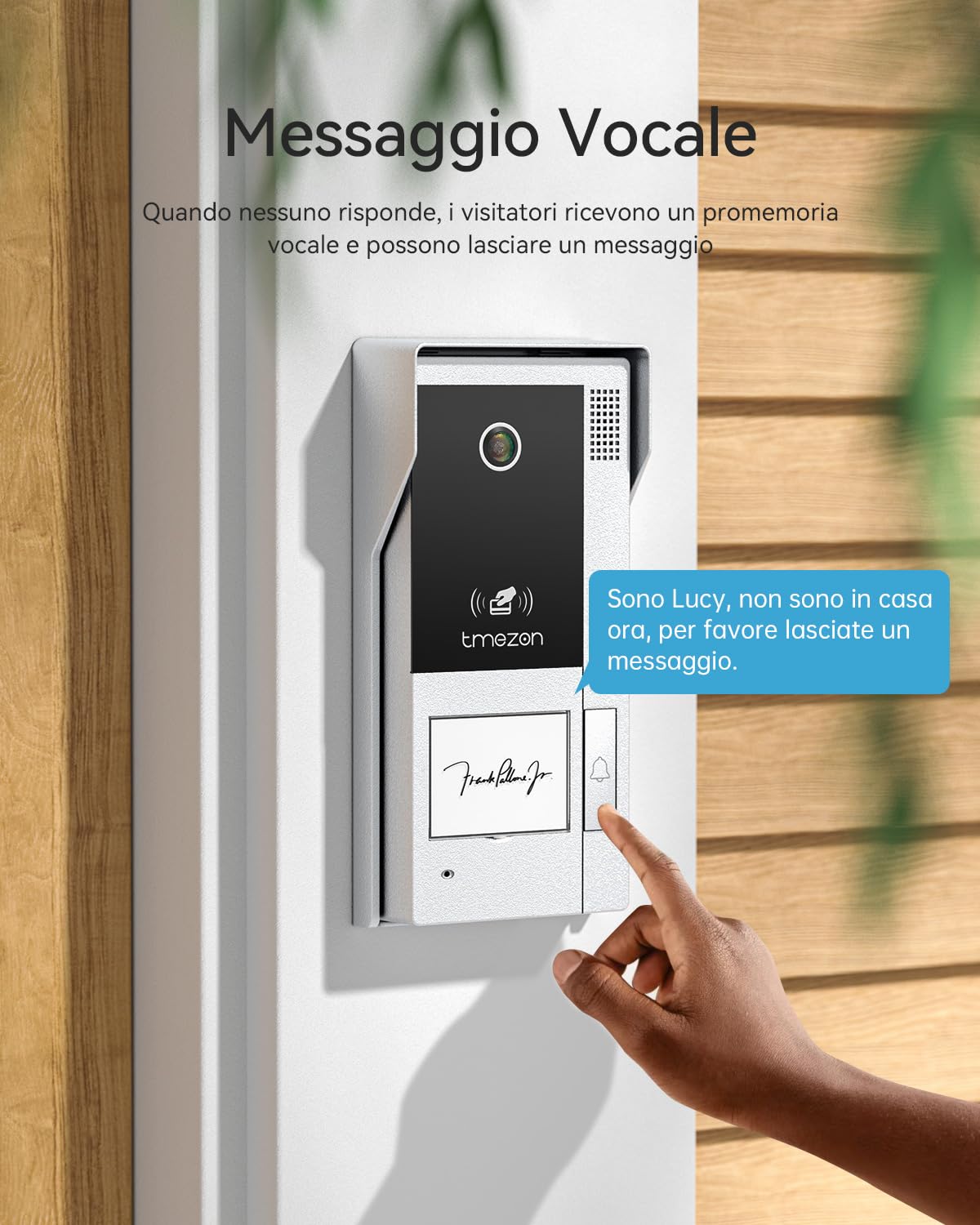
- Two-Way Audio & Voice Message: Communicate with visitors and leave messages if unanswered.
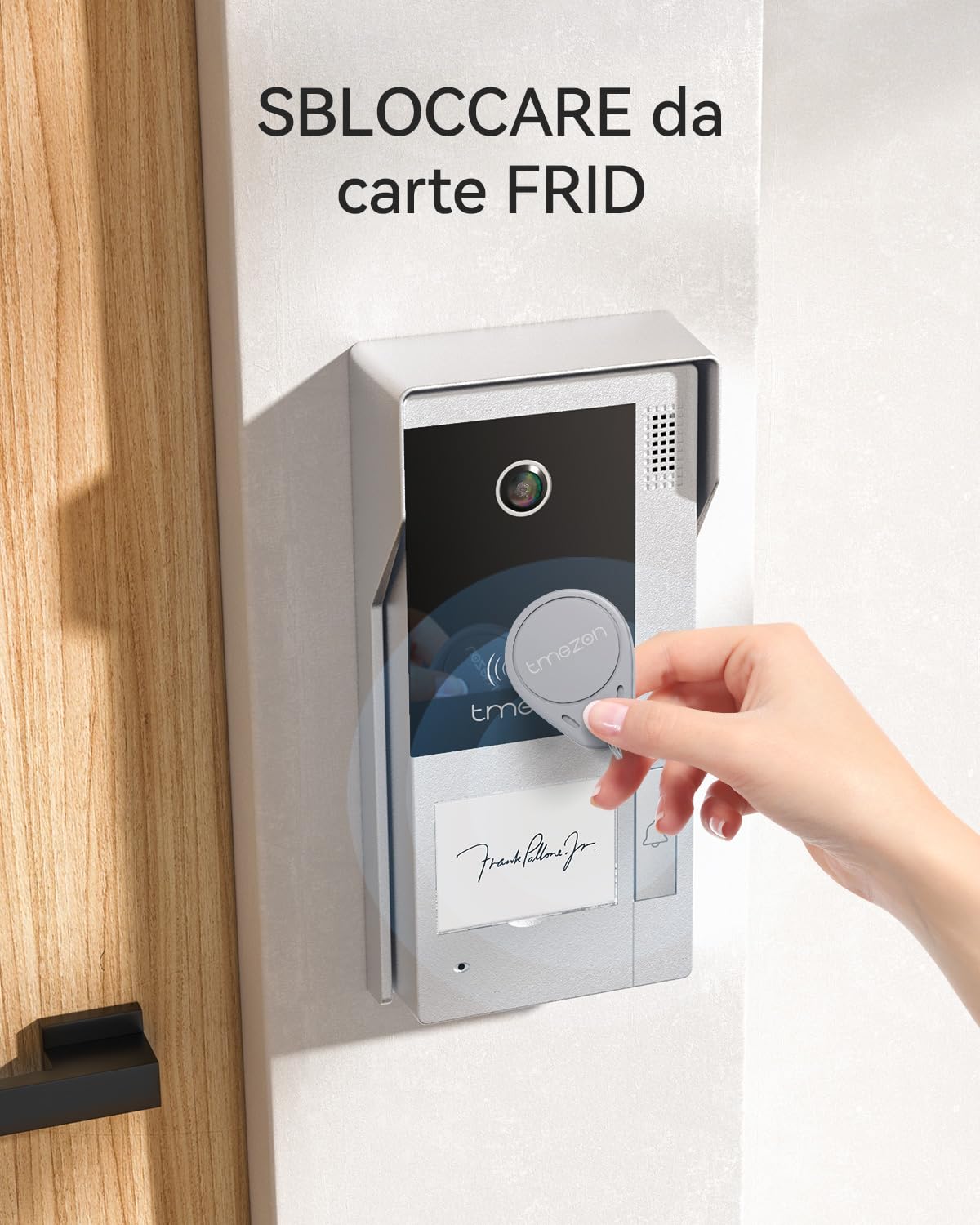
- Multiple Unlock Methods: Unlock via indoor monitor, mobile app, or RFID cards.
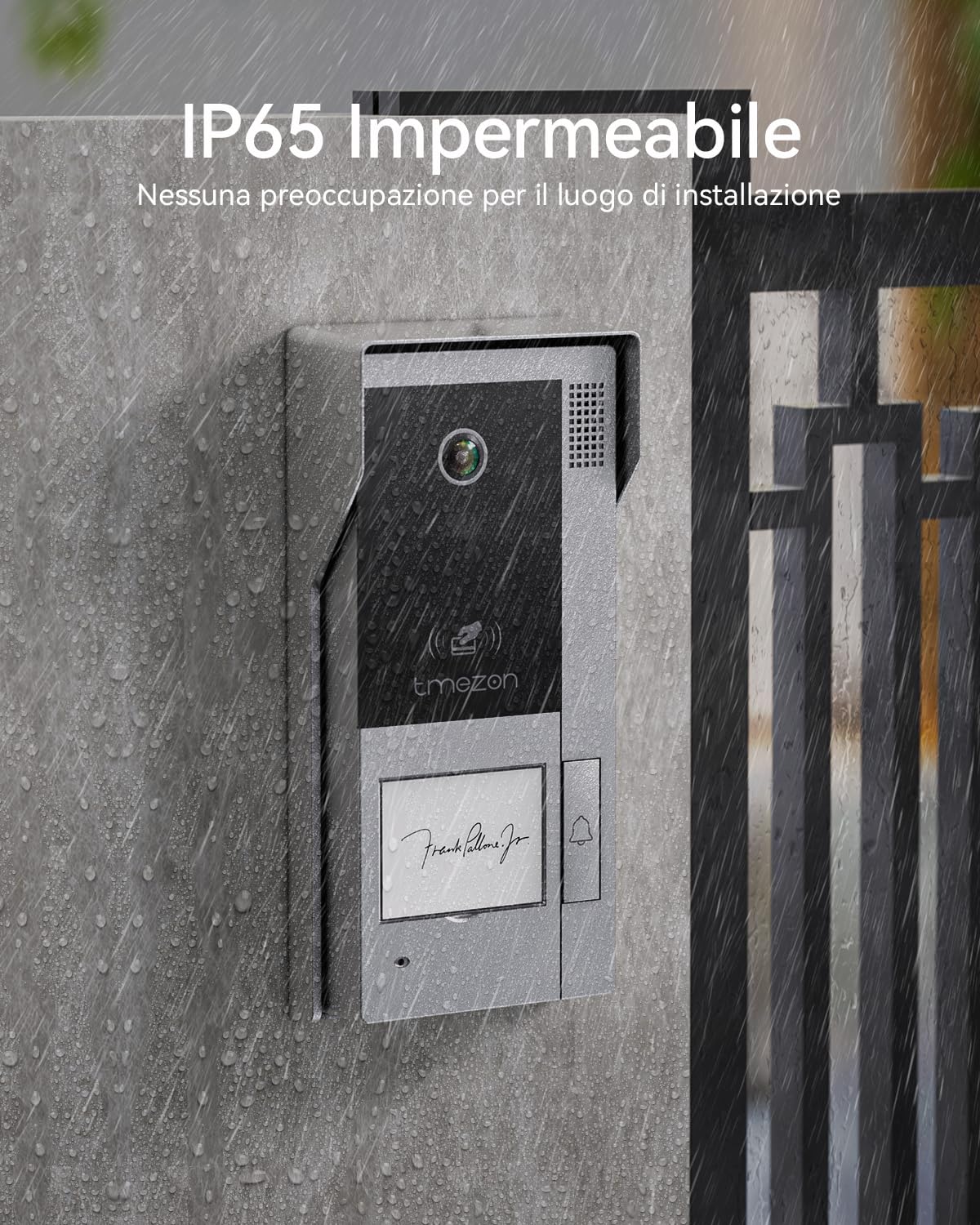
- 1080P Outdoor Doorbell Camera: IP65 waterproof, 125° wide-angle view, infrared night vision.
- Multi-Connection Support: Connects up to 2 doorbells, 5 slave monitors, and 2 1080P CCTV cameras.
2.3 Product Images


3. Setup and Installation
3.1 Wiring Diagram

3.2 Step-by-Step Installation
- Prepare Wiring: Ensure a 4-wire connection from the monitor to the doorbell. The monitor uses a separate 2-wire adapter for power. A 1m test cable is provided for basic connection. For longer distances (up to 80m), use a high-quality extension cable.
- Mount Outdoor Unit: Install the 1080P doorbell camera in a suitable outdoor location, ensuring it is protected from direct heavy rain if possible, despite its IP65 rating.
- Mount Indoor Monitor: Install the 7-inch IP monitor indoors at a convenient height.
- Connect Power: Connect the monitor to its power adapter.
- Initial Test: Before final mounting, test the basic connection using the provided test cable. If video or audio issues occur, replace the extension cable.
- Micro SD Card (Optional): If using a Micro SD card (max 128GB), format it to FAT32 on a computer before installation.
- Electronic Lock Connection: The doorbell supports connection to various electronic locks. Refer to the specific wiring diagram for your lock type.
4. Operating Instructions
4.1 Basic Operation
- Answering Calls: When a visitor presses the doorbell, the indoor monitor will ring, and you will receive a notification on your smartphone via the TuyaSmart app.
- Two-Way Communication: On the monitor or app, you can see and speak with the visitor.
- Unlocking the Door:
- From the indoor monitor: Press the unlock icon on the touchscreen.
- From the TuyaSmart App: Tap the unlock icon in the app interface.
- Using RFID Cards: Present an RFID card to the outdoor doorbell unit to unlock.
4.2 TuyaSmart App Integration
- Adding Monitor to App: Use a 2.4GHz WiFi network to add the monitor to the TuyaSmart mobile app.
- Remote Access: View live feed, communicate, and unlock the door remotely from your smartphone.
- Half-Duplex Communication (App to Doorbell): When speaking via the app, press the microphone button. Release to listen.
4.3 Motion Detection and Recording
- Automatic Capture: When motion is detected or the doorbell is pressed, the camera will automatically capture a photo or record a video (one of the two modes).
- Storage: Recordings are saved to the Micro SD card (not included).
4.4 Voice Message Mode
- If no one answers the doorbell, the system automatically switches to voice message mode, allowing visitors to leave a message.
5. Maintenance
- Cleaning: Use a soft, dry cloth to clean the monitor and doorbell unit. Avoid abrasive cleaners or solvents.
- Cable Inspection: Periodically check all wired connections for wear or damage.
- Software Updates: Check the manufacturer's website or TuyaSmart app for any available firmware updates to ensure optimal performance.
- SD Card Management: Regularly back up important recordings from the Micro SD card and format it periodically to maintain performance.
6. Troubleshooting
| Problem | Possible Cause | Solution |
|---|---|---|
| No video/audio | Loose or damaged wiring; Incorrect cable quality | Check all 4-wire connections. Ensure the cable quality is sufficient for the distance. Replace the extension cable if necessary. |
| App not connecting | Incorrect WiFi network (not 2.4GHz); Poor WiFi signal; Incorrect app setup | Ensure your phone and monitor are connected to a 2.4GHz WiFi network. Check WiFi signal strength. Re-add the monitor to the TuyaSmart app following instructions. |
| Delayed response/unlock | System glitch; Network latency | Perform a system restart from the monitor's menu (System > Restart). Check network stability. |
| Motion detection not working | Incorrect settings; SD card issues | Verify motion detection settings in the monitor menu. Ensure the Micro SD card is correctly inserted and formatted (FAT32). |
| RFID cards not unlocking | Cards not programmed; Incorrect placement | Ensure RFID cards are properly programmed with the system. Present the card directly to the RFID reader area on the doorbell. |
7. Specifications
| Feature | Detail |
|---|---|
| Model Number | MZ-IP-V728TW |
| Monitor Size | 7-inch |
| Monitor Type | IP Touchscreen |
| Doorbell Camera Resolution | 1080P |
| Connection Type | 4-wire wired |
| Max Cable Length | 80m |
| WiFi Frequency | 2.4GHz |
| Outdoor Unit IP Rating | IP65 Waterproof |
| Viewing Angle | 125° |
| Night Vision | Infrared |
| Max SD Card Support | 128GB (FAT32 format) |
| Multi-Device Support | Up to 2 doorbells, 5 slave monitors, 2 1080P CCTV cameras |
| Dimensions (Package) | 26.9 x 17.9 x 9.9 cm |
| Weight (Item) | 1.54 kg |
8. Warranty and Support
For warranty information and technical support, please refer to the official TMEZON website or contact your retailer. Keep your purchase receipt as proof of purchase.
Online resources and FAQs may be available at www.tmezon.com.
Related documentsMZ-IP-V728TW
RELATED DOCUMENTTMEZON MZ-IP-V728TW Smart Video Doorbell Transparency DeclarationTransparency declaration for the TMEZON MZ-IP-V728TW smart video doorbell, detailing data generation, transmission, storage, user access, and deletion policies in compliance with EU data laws and the TuyaSmart platform.View document →RELATED DOCUMENTDichiarazione Trasparenza Dati: TMEZON MZ-IP-V728TW*2 VideocitofonoDettagli sulla gestione dei dati (generazione, archiviazione, trasferimento, cancellazione) per il videocitofono intelligente TMEZON MZ-IP-V728TW*2, in linea con il Data Act.View document →RELATED DOCUMENTTmezon MZ-IP-V728TW + MZ-VDP-NE160 Video Intercom System User ManualComprehensive user manual for the Tmezon MZ-IP-V728TW and MZ-VDP-NE160 video intercom system, covering installation, operation, RFID card management, app connectivity, and troubleshooting.View document →RELATED DOCUMENTTMEZON MZ-IP-V728TW*2 Intelligente Video-Türklingel: EU-DatenschutzerklärungUmfassende Datenschutzerklärung für die TMEZON MZ-IP-V728TW*2 intelligente Video-Türklingel, die Informationen zur Datenerfassung, -nutzung, -speicherung und -zugriff gemäß EU-Gesetzen bereitstellt.View document →RELATED DOCUMENTTransparenzerklärung EU-Datengesetz: Intelligente Video-Türklingel TMEZON MZ-IP-V728TW+MZ-VDP-NE160Erklärung zur Datentransparenz für die intelligente Video-Türklingel TMEZON (Modell MZ-IP-V728TW+MZ-VDP-NE160) kompatibel mit der TuyaSmart App. Informationen zu Datenerzeugung, -übertragung, -aufkommen, -speicherort, -aufbewahrung, Zugriff, Löschung und Support.View document →RELATED DOCUMENTTMEZON MZ-IP-V728TW Intelligent Video Doorbell Data Act Transparency DeclarationDetailed declaration regarding the Data Act transparency for the TMEZON MZ-IP-V728TW intelligent video doorbell, outlining data generation, transfer, storage, retention, and access policies via the TuyaSmart app.View document →RELATED DOCUMENTDeclaración de Transparencia de Datos TMEZON MZ-IP-V728TW - Reglamento UEInformación completa sobre la gestión de datos del Timbre Vídeo Inteligente TMEZON MZ-IP-V728TW, cumpliendo con el Reglamento de la UE y RGPD. Conoce cómo se generan, almacenan y protegen tus datos.View document →RELATED DOCUMENTTMEZON MZ-IP-V728TW*2 Smart Video Doorbell EU Data Transparency DeclarationThis document outlines the EU Data Transparency Declaration for the TMEZON MZ-IP-V728TW*2 Smart Video Doorbell, detailing data generation, transmission, storage, retention, access, and deletion practices in compliance with EU regulations.View document →


Ask a question about this manual
Ask about setup, troubleshooting, compatibility, parts, safety, or missing instructions. Manuals+ will review the question and use this page’s manual context to help answer it.