
BENFEI 000395
BENFEI 7-in-1 USB C Hub (Model 000395) Instruction Manual
Model: 000395 | Brand: BENFEI
1. Introduction
This manual provides detailed instructions for the BENFEI 7-in-1 USB C Hub, designed to expand the connectivity of your USB-C enabled devices. This compact and versatile hub offers multiple ports for data transfer, video output, and power delivery, enhancing your productivity and device capabilities.

Figure 1: BENFEI 7-in-1 USB C Hub overview with technical specifications.
2. Product Features
The BENFEI 7-in-1 USB C Hub is equipped with the following ports and features:
- 1 x HDMI Port: Supports video output up to 4K resolution at 60Hz, including 2K@144Hz, 1080P, 720p, 1600x1200, and 1280x1024 for high-definition monitors or projectors.
- 1 x USB-C Power Delivery (PD) Port: Supports up to 100W pass-through charging to keep your laptop powered. Note: 10W is reserved for hub operations; this port does not support data or video output.
- 2 x USB 3.0 Ports (USB-A): Enables data transfer speeds up to 5Gbps for connecting peripherals like external hard drives, keyboards, and mice.
- 1 x USB-C Data Port: Provides data transfer speeds up to 5Gbps for connecting USB-C devices.
- 1 x SD Card Reader: Supports SD, SDHC, SDXC, RS-MMC, Micro SD, Micro SDHC, Micro SDXC cards.
- 1 x TF Card Reader (Micro SD): Supports Micro SD, Micro SDHC, Micro SDXC cards.
- Simultaneous Card Reading: Both SD and TF card slots can be used concurrently, with transfer rates up to 160MB/sec in UHS-I mode.
- Durable Design: Features a super-soft and tangle-free silicone woven cable (20cm length) for enhanced comfort and reliability, tested for over 25,000 life cycles.

Figure 2: Detailed view of the BENFEI 7-in-1 USB C Hub ports.
3. Compatibility
The BENFEI 7-in-1 USB C Hub is widely compatible with various devices and operating systems:
- Host Devices: iPhone 15 Series, 2023/2022/2021/2020/2019 MacBook Pro/Air, iPad Pro, iMac, Surface Book 2, Surface Go, HP Envy 13, Pixelbook, Galaxy Book, Samsung Galaxy S8/S9/S8 Plus/S9 Plus/Note 8/Note 9, Dell XPS 15/XPS 13, Chromebook, Chromebook Pixel, Intel NUC, and other USB-C enabled laptops and tablets.
- Operating Systems: macOS, iOS, Windows, Linux.
Note: For devices with USB 3.1 Gen 1, and Samsung Galaxy S9/S8, it may take longer to sync. Please allow sufficient time for connection establishment.

Figure 3: Universal compatibility of the BENFEI 7-in-1 USB C Hub.
4. Setup Instructions
- Connect the Hub to Your Device: Plug the USB-C connector of the BENFEI hub directly into an available USB-C port on your laptop, tablet, or smartphone.
- Connect Power (Optional but Recommended): For optimal performance, especially when connecting multiple devices or using power-intensive peripherals, connect your device's original USB-C power adapter to the 100W PD-IN port on the hub. This will provide pass-through charging to your host device.
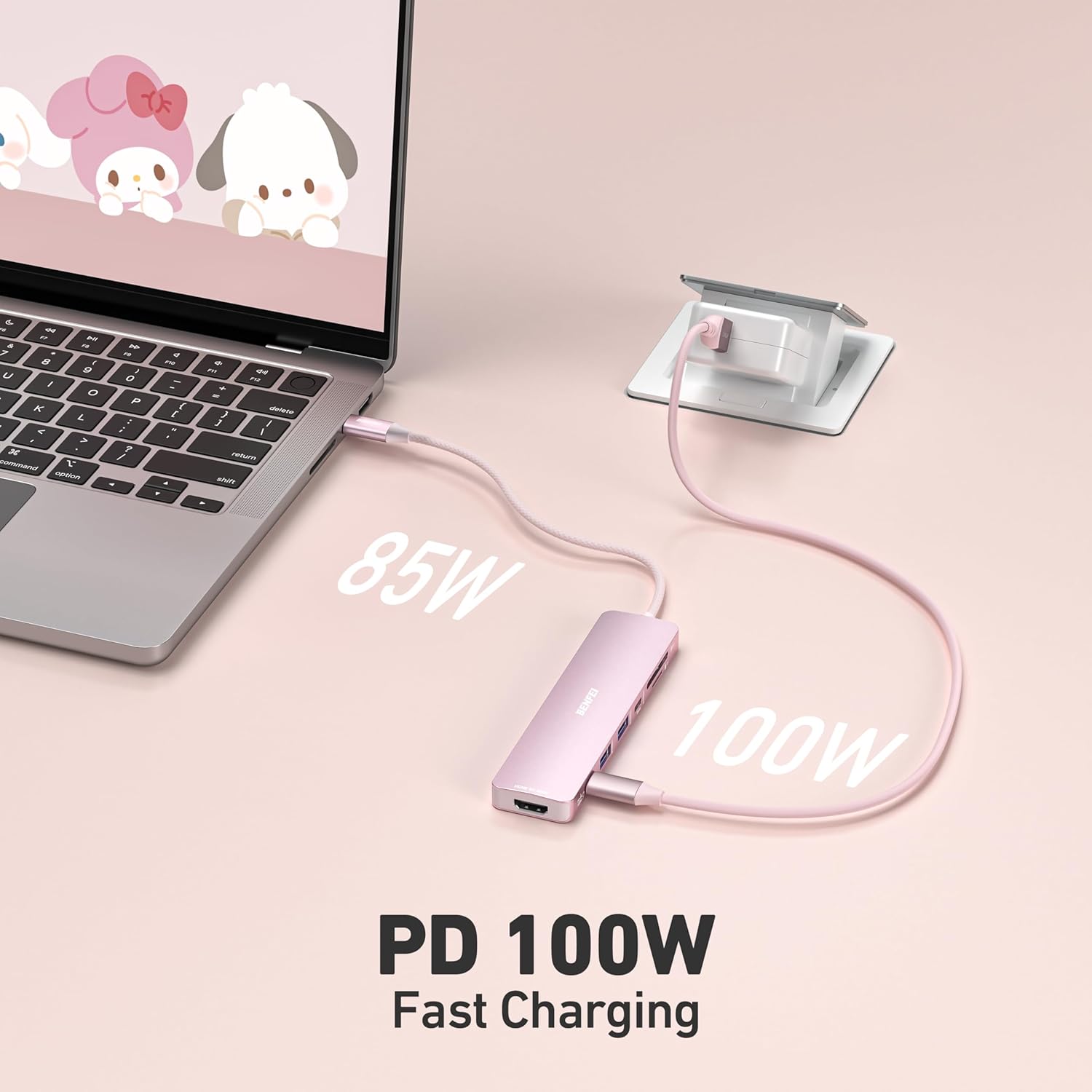
Figure 4: Connecting the hub for power delivery to your laptop.
- Connect External Display (HDMI): To extend or mirror your screen, connect an HDMI cable from your monitor or projector to the HDMI port on the hub. Ensure your display supports the desired resolution (up to 4K@60Hz).
- Connect USB Devices: Plug your USB-A peripherals (e.g., mouse, keyboard, USB flash drive) into the two USB 3.0 ports. Connect USB-C data devices to the dedicated USB-C data port.
- Insert Memory Cards: Insert your SD or TF (Micro SD) cards into the corresponding slots on the hub. The hub supports simultaneous reading and writing for both card types.

Figure 5: Inserting SD/TF cards into the hub.
5. Operating Instructions
Once connected, the BENFEI 7-in-1 USB C Hub operates plug-and-play, requiring no additional drivers for most operating systems. Here's how to utilize its functions:
- Video Output: Your connected HDMI display should automatically detect the signal. You may need to adjust display settings (e.g., extend, mirror, resolution) within your device's operating system.
- Data Transfer: Connected USB-A and USB-C data devices will appear as external storage or peripherals on your host device. You can drag and drop files, use connected keyboards/mice, or access other USB functions normally.
- Card Reader Functionality: Inserted SD and TF cards will appear as removable storage drives. You can access, transfer, and manage files on these cards directly. The hub supports simultaneous reading and writing to both card types.
- Power Delivery: When a power adapter is connected to the hub's PD-IN port, your host device will receive charging power through the hub. This allows you to use all hub functions while keeping your device charged.
Video 1: Demonstration of the BENFEI 7-in-1 USB C Hub's various ports and functionalities, including HDMI, USB-A/C, Power Delivery, and SD/TF card reader.
6. Maintenance and Care
- Keep the hub away from water, moisture, and extreme temperatures.
- Avoid dropping or subjecting the hub to strong impacts.
- Clean the hub with a soft, dry cloth. Do not use liquid cleaners or aerosols.
- Ensure proper ventilation around the hub during extended use to prevent overheating.
- When not in use, store the hub in a cool, dry place, preferably in its protective pouch.
7. Troubleshooting
| Issue | Possible Cause | Solution |
|---|---|---|
| No display on external monitor. | Incorrect cable connection, incompatible device, display settings. | Ensure HDMI cable is securely connected. Verify your device's USB-C port supports video output (DisplayPort Alternate Mode). Adjust display settings on your host device (e.g., extend, mirror). |
| Slow data transfer speeds. | USB 2.0 device connected, power insufficient, host device limitations. | Ensure all connected devices and cables are USB 3.0/3.1 compatible. Connect a power adapter to the hub's PD-IN port. Some older devices (e.g., Samsung S8/S9 with USB 3.1 Gen 1) may have slower sync times. |
| Device not charging via PD port. | Power adapter not connected, insufficient wattage, incompatible charger. | Connect your device's original USB-C power adapter to the hub's 100W PD-IN port. Ensure the power adapter provides sufficient wattage for your device and the hub (up to 100W). |
| SD/TF card not recognized. | Card inserted incorrectly, damaged card, incompatible format. | Reinsert the card correctly. Try a different card to rule out card damage. Ensure the card format is supported by your operating system. |
8. Specifications
| Feature | Detail |
|---|---|
| Brand | BENFEI |
| Model Number | 000395 |
| Color | Pink |
| Hardware Interface | HDMI, SDXC, USB Type C |
| Number of Ports | 7 (1x HDMI, 1x USB-C PD, 2x USB 3.0, 1x USB-C Data, 1x SD, 1x TF) |
| HDMI Resolution | Up to 4K@60Hz |
| Power Delivery | Up to 100W (90W to host, 10W for hub operation) |
| Data Transfer Rate | Up to 5Gbps (USB 3.0/USB-C Data), Up to 160MB/s (UHS-I SD/TF) |
| Compatible Devices | Desktops, Laptops, Tablets (USB-C enabled) |
| Operating System | macOS, iOS, Windows, Linux |
| Enclosure Material | Silicone |
| Item Dimensions (L x W x H) | 5.12" x 4.33" x 0.43" |
| Item Weight | 0.09 Kilograms |
9. Warranty and Support
The BENFEI 7-in-1 USB C Hub comes with an 18-month warranty. For any product inquiries, technical assistance, or warranty claims, please contact BENFEI customer support. We aim to provide a 24-hour response to ensure your satisfaction.
For further support, please visit the official BENFEI website or refer to your purchase documentation for contact details.
Related documents000395

Ask a question about this manual
Ask about setup, troubleshooting, compatibility, parts, safety, or missing instructions. Manuals+ will review the question and use this page’s manual context to help answer it.