
Aiandcc M12
Aiandcc M12 MP3 Player User Manual
Model: M12 | Brand: Aiandcc
1. Introduction
Welcome to the Aiandcc M12 MP3 Player user manual. This guide provides detailed instructions on how to set up, operate, and maintain your new device. The Aiandcc M12 is a versatile portable media player featuring a 4-inch HD full-color touch screen, Bluetooth, Wi-Fi connectivity, and extensive storage capabilities for music, videos, and applications.
2. Package Contents
Please check the box for the following items:
- 1x Aiandcc M12 MP3 Player
- 1x Type-C Charging Cable
- 1x Wired Earphones
- 1x Storage Pouch
- 1x User Manual (this document)
- 1x TF Expansion Card (64GB, pre-installed in the device)

Image: All items included in the Aiandcc M12 MP3 Player package.
3. Device Overview
The Aiandcc M12 MP3 Player features a durable all-metal casing and a 4-inch HD touch screen. Familiarize yourself with the device's physical components:

Image: Front, side, and top/bottom views of the Aiandcc M12 MP3 Player, highlighting the ON/OFF button, Reset pinhole, Card slot, Type-C port, Headphone jack, Recording hole, Back button, Main menu button, and Volume knob.
- Power Button (ON/OFF): Located on the side. Press and hold to power on/off.
- Reset Pinhole: Located near the power button. Use a pin to perform a forced restart if the device becomes unresponsive.
- Volume Knob: Mechanical knob on the top for adjusting audio volume. Rotate left to increase, right to decrease.
- Card Slot: For inserting a TF (microSD) card to expand storage.
- Type-C Port: For charging and data transfer.
- Headphone Jack (3.5mm): For connecting wired earphones or headphones.
- Recording Hole (Microphone): For voice recording.
- Back Button: Navigates back in menus.
- Main Menu Button: Returns to the main screen. Double-click to view recent tasks.
- Speaker: Built-in speaker for audio playback without external devices.
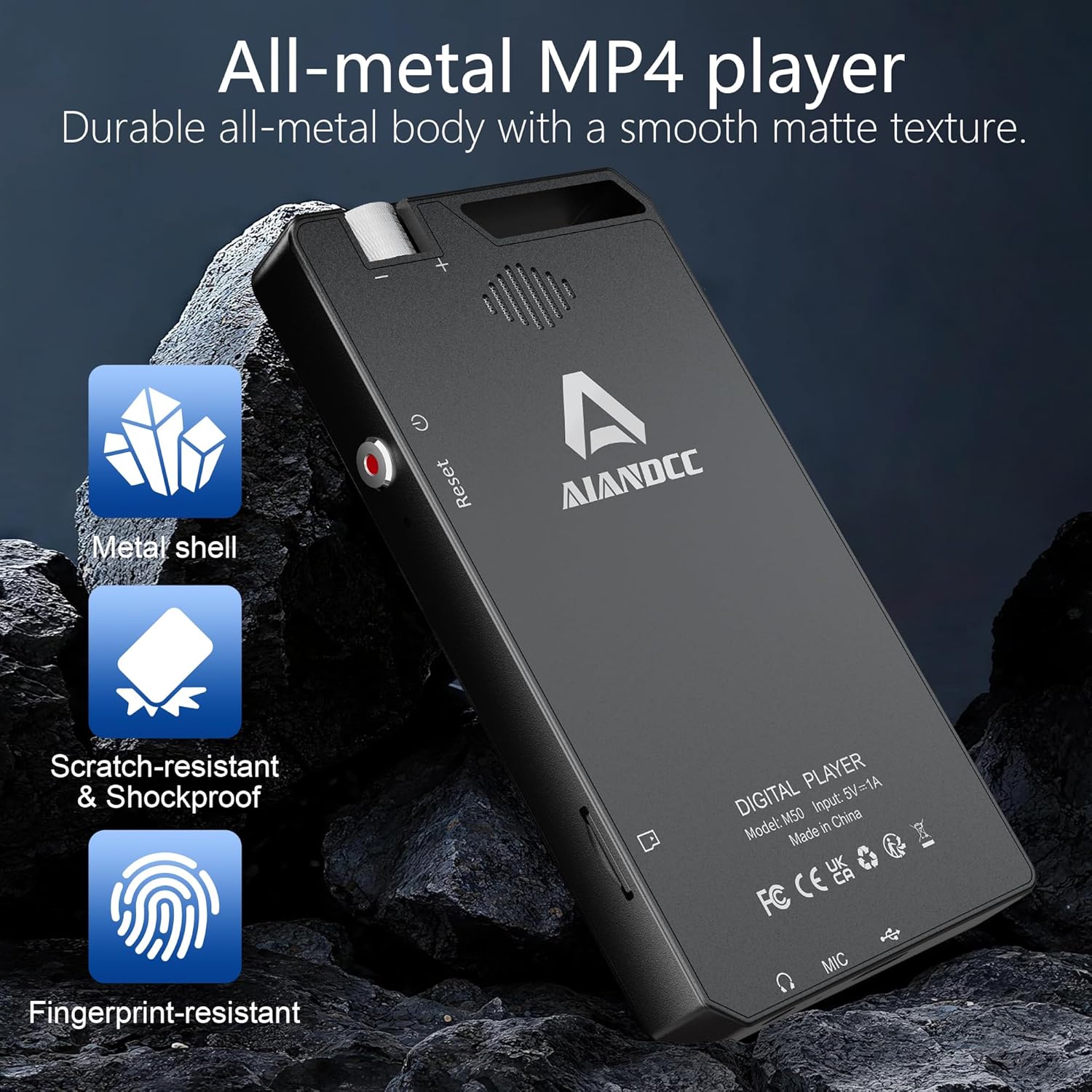
Image: The durable all-metal body of the Aiandcc M12 MP3 Player.
4. Setup
4.1 Initial Power On
- Press and hold the Power Button on the side of the device until the screen lights up.
- Follow the on-screen prompts to select your preferred language and region.
- Connect to a Wi-Fi network (see section 4.2).
4.2 Connecting to Wi-Fi
Connecting to Wi-Fi enables online music streaming, app downloads, and web browsing.
- From the home screen, tap the "Settings" icon.
- Select "Network & Internet" or "Wi-Fi".
- Toggle Wi-Fi to "On".
- Select your desired Wi-Fi network from the list.
- Enter the password if prompted and tap "Connect".

Image: Wi-Fi and Bluetooth connectivity options for the Aiandcc M12 MP3 Player.
4.3 Inserting a TF Card
The device comes with a 64GB TF card pre-installed. If you wish to use a different card (up to 1TB), ensure it is formatted to FAT32 for proper recognition.
- Locate the Card Slot on the side of the device.
- Gently insert the TF card into the slot until it clicks into place.
- The device should automatically detect the card. If prompted to format, proceed with caution as this will erase all data on the card.

Image: The Aiandcc M12 MP3 Player supports expandable storage via TF card up to 1TB.
5. Operating Instructions
5.1 Touch Screen Navigation
The 4-inch HD full-color touch screen allows for intuitive navigation, similar to a smartphone.
- Tap: Select an item or open an application.
- Swipe: Navigate through lists, screens, or pages.
- Pinch-to-Zoom: Zoom in or out on images or web pages.
- Sliding Function Menu: Swipe down from the top of the screen to access quick settings like eye protection mode and power saving mode.

Image: The touch screen and mechanical volume knob provide easy control.
5.2 Music Playback (MP3)
The M12 supports various audio formats and offers multiple ways to enjoy your music.
- Local Music: Transfer music files to the device's internal storage or TF card. Open the "Music" app to browse and play your library.
- Online Streaming: Connect to Wi-Fi and use pre-installed apps like Spotify, Amazon Music, Pandora, or Deezer.
- Bluetooth Connection:
- Go to "Settings" > "Bluetooth".
- Toggle Bluetooth to "On".
- Select your Bluetooth headphones, speaker, or car audio system from the list of available devices to pair.
- Wired Headphones: Plug the included earphones or your own 3.5mm headphones into the headphone jack.
- Built-in Speaker: The device has an internal speaker for audio playback without external devices.
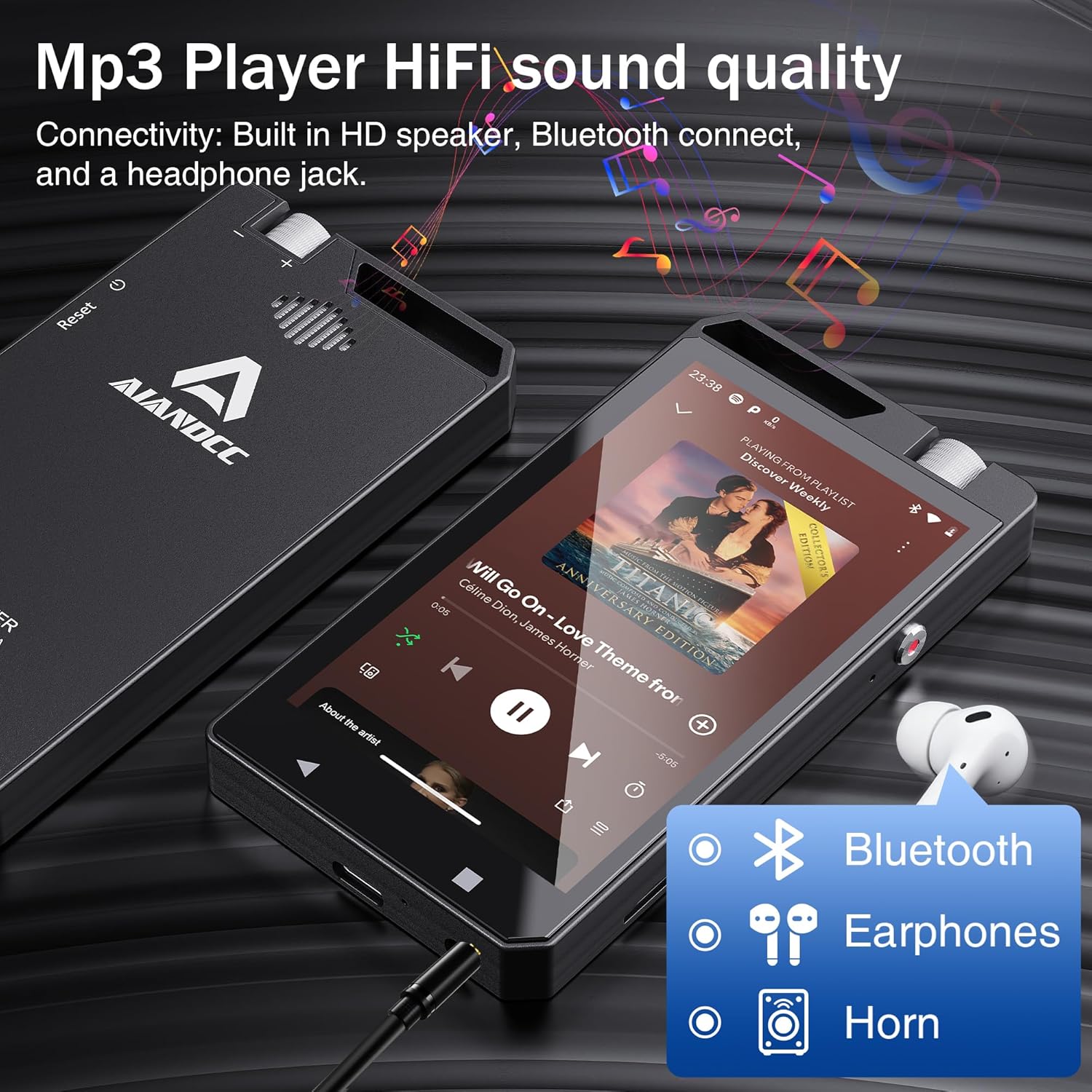
Image: Enjoy HiFi sound quality through Bluetooth, wired earphones, or the built-in speaker.
5.3 Video Playback (MP4)
The M12 supports high-definition 1080p and 720p video playback for various formats (RM, RMVB, FLV, MP4, DAT, MKV, MPG, MOV, TS, etc.). Note: It does not support HEVC or 4K videos.
- Transfer video files to the device's internal storage or TF card.
- Open the "Video Player" app (or a downloaded video app like MX Player Pro) to browse and play your videos.
- Adjust playback settings such as loop, random, resume last playing, variable speed, and viewing angle within the video player application.
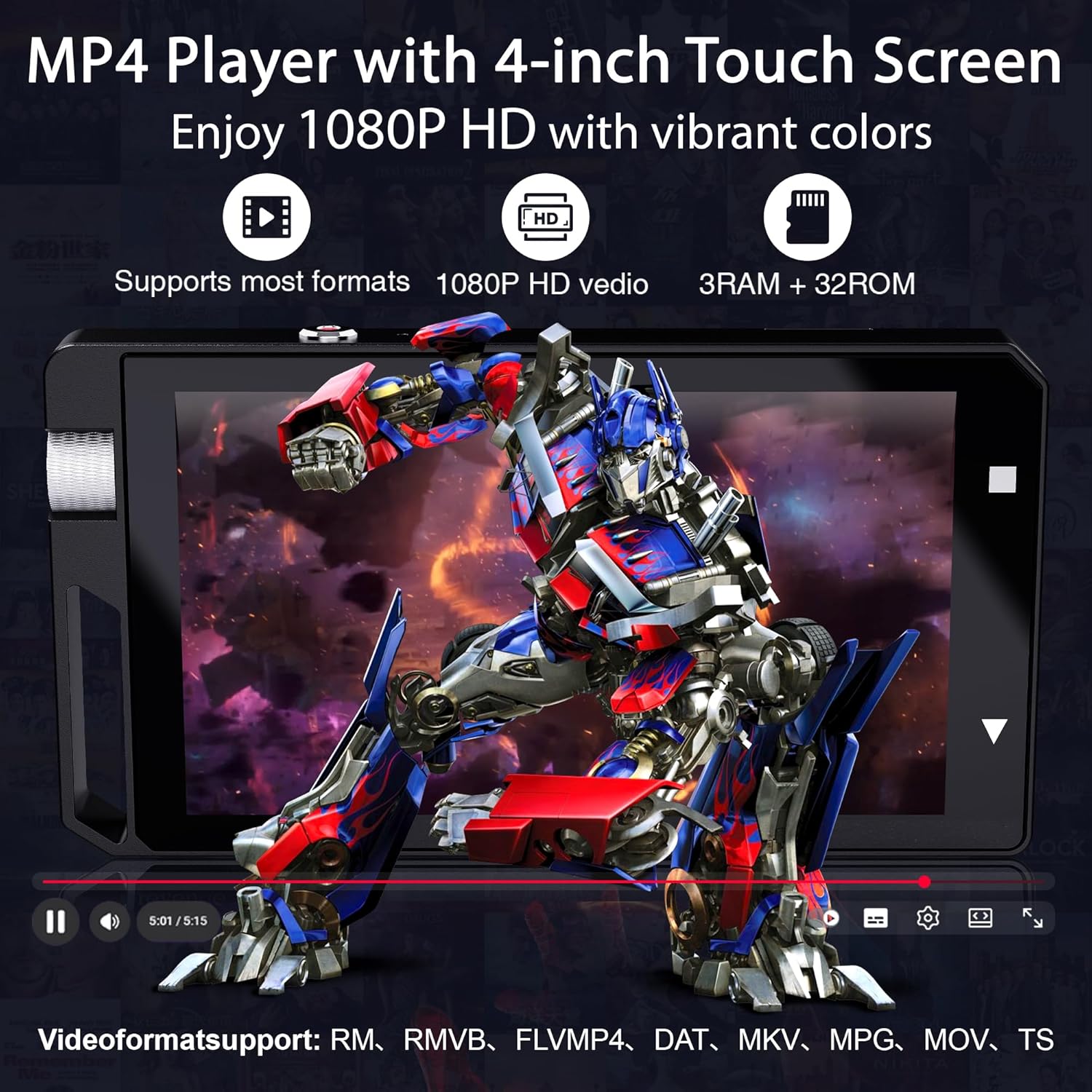
Image: The Aiandcc M12 MP3 Player supports 1080P HD video playback.

Image: MX Player Pro features for enhanced video playback experience.
5.4 Wi-Fi and App Management
The M12 comes with pre-installed applications and allows for further app downloads via Wi-Fi.
- Pre-installed Apps: Spotify, Amazon Music, Pandora, Deezer, YouTube, e-book readers, video players, voice recorder, FM radio, clock, calendar, calculator, gallery, and file manager.
- Downloading New Apps: Connect to Wi-Fi and use the pre-installed app store (e.g., Google Play Store if available or a similar app market) to download additional applications.
- App Management: Access "Settings" > "Apps" to manage installed applications, including uninstalling, clearing data, or adjusting permissions.

Image: The Aiandcc M12 MP3 Player supports various online applications.
Video: Demonstration of the Aiandcc M12 MP3 Player's features, including app usage and connectivity.
5.5 File Management
Organize your media files directly on the device or by connecting to a computer.
- On-Device Management: Use the "File Manager" app to create and name folders, copy, and paste audio or image files. Long-press on a file to select it for actions.
- Connecting to a Computer:
- Connect the M12 to your computer using the provided Type-C charging cable.
- On the M12, swipe down from the top of the screen to open the notification panel.
- Tap the USB connection notification and select "File Transfer" or "MTP".
- Your computer will recognize the device as a removable storage drive, allowing you to drag and drop files, create playlists, and organize content.
- Search and Hide: The file manager also offers features to search for files by name and to hide or show hidden files.
6. Battery and Charging
The M12 MP3 Player is equipped with a large capacity battery designed for extended use.
- Charging: Connect the device to a power source using the provided Type-C charging cable. A full charge typically takes approximately 3 hours.
- Battery Life:
- Up to 22 hours of continuous music playback (via wired headphones).
- Up to 5 hours of video playback.
- Video playback with external speakers can last 3-5 hours, depending on screen brightness and volume settings.
- Energy Saving: The device features an automatic power-off function to conserve battery life. You can also access power saving modes via the sliding function menu.

Image: Battery and performance details of the Aiandcc M12 MP3 Player.
7. Maintenance
- Cleaning: Use a soft, dry cloth to clean the device. Avoid liquid cleaners or abrasive materials.
- Storage: Store the device in a cool, dry place away from direct sunlight and extreme temperatures.
- Software Updates: Periodically check for system updates in the device's settings to ensure optimal performance and access to new features.
- TF Card Care: Always safely eject the TF card from the device or computer before removing it to prevent data corruption.
8. Troubleshooting
| Problem | Possible Solution |
|---|---|
| Device does not power on. | Ensure the battery is charged. Connect the device to a charger for at least 15 minutes before attempting to power on again. |
| Device is unresponsive/frozen. | Use a thin pin to press the Reset Pinhole on the side of the device to perform a forced restart. |
| TF card not recognized. | Ensure the TF card is inserted correctly. Verify that the card is formatted to FAT32. If not, back up data and reformat the card using a computer or the device's settings. |
| Cannot connect to Wi-Fi. | Check if Wi-Fi is enabled in settings. Ensure the password is correct. Try restarting your Wi-Fi router. |
| Bluetooth device not pairing. | Ensure Bluetooth is enabled on both devices and they are in pairing mode. Keep devices within close proximity. Try restarting both devices. |
| Video playback issues (e.g., unsupported format). | Verify that the video format is supported (RM, RMVB, FLV, MP4, DAT, MKV, MPG, MOV, TS). The device does not support HEVC or 4K videos. Consider converting the video to a supported format. |
9. Specifications
| Feature | Detail |
|---|---|
| Model Name | M12 (also referred to as M50 in some contexts) |
| Brand | Aiandcc |
| Product Dimensions | 0.39 x 1.97 x 3.94 inches (10 x 50 x 100 mm approx.) |
| Item Weight | 7.1 ounces (200 Grams) |
| Screen Size | 4 inches (10 Centimeters) HD Full-Color Touch Screen |
| Internal Memory | 32 GB |
| RAM | 3 GB |
| Processor | Octa-core processor |
| Expandable Storage | Supports TF (microSD) cards up to 1 TB (FAT32 format required) |
| Included TF Card | 64 GB |
| Connectivity | Bluetooth 4.0, Wi-Fi, USB Type-C |
| Battery | 1 Lithium Ion battery (included), 2000mAh |
| Charging Time | Approx. 3 hours for a full charge |
| Music Playback Time | Up to 22 hours (wired headphones) |
| Video Playback Time | Up to 5 hours |
| Supported Video Formats | RM, RMVB, FLV, MP4, DAT, MKV, MPG, MOV, TS (Does not support HEVC or 4K) |
| Special Features | FM Radio, Voice Recorder, E-book Reader, Built-in Speaker, Metal Casing |
| Compatible Devices | Personal Computer |
10. Warranty and Support
For warranty information and technical support, please refer to the documentation provided with your purchase or contact Aiandcc customer service through the retailer where the product was purchased. Keep your purchase receipt as proof of purchase for warranty claims.
Ask a question about this manual
Ask about setup, troubleshooting, compatibility, parts, safety, or missing instructions. Manuals+ will review the question and use this page’s manual context to help answer it.