
Topwise G2-B
Topwise G2-B 1D 2D Bluetooth Barcode Scanner
User Manual
Model: G2-B | Brand: Topwise
1. Introduction
This manual provides detailed instructions for the Topwise G2-B 1D 2D Bluetooth Barcode Scanner. Designed for efficiency and versatility, this scanner offers high-speed and accurate barcode reading for various applications. Its ergonomic design ensures comfortable use over extended periods, and its long-lasting battery supports multiple work shifts. The G2-B is compatible with a wide range of devices and barcode types, including 1D, 2D, and QR codes.

Figure 1.1: Topwise G2-B Barcode Scanner with its adjustable stand.
2. Setup Guide
2.1 Unboxing and Components
Upon opening the package, verify that all components are present:
- Topwise G2-B Barcode Scanner
- Adjustable Holder/Stand
- USB Charging Cable
- 2.4G Wireless USB Dongle
- User Manual (this document)
Video 2.1: Unboxing the Topwise G2-B Barcode Scanner and its contents.
2.2 Charging the Scanner
Before first use, fully charge the scanner using the provided USB cable. Connect the small end of the USB cable to the scanner's charging port and the other end to a USB power adapter (not included) or a computer's USB port. The charging indicator light will show the charging status.

Figure 2.2: The scanner features a 2000mAh Lithium-Ion battery, providing approximately 24 hours of working time, 3-4 hours for a full charge, and up to 150 days of standby time.
2.3 Connection Methods
The Topwise G2-B scanner supports three primary connection methods:
- Bluetooth Wireless Connection: Ideal for mobile devices like smartphones and tablets, offering flexibility and portability.
- 2.4G Wireless Connection: Utilizes the included USB dongle for a stable wireless connection to computers and POS systems.
- USB Wired Connection: Connects directly via USB cable for reliable data transmission and simultaneous charging.

Figure 2.3: The scanner offers versatile 3-in-1 connection options, supporting various operating systems including Windows, Linux, Mac OS, Android, and iOS.
2.4 Upload Modes
The scanner supports two data upload modes:
- Instant Upload Mode: Data is synchronously uploaded to your computer immediately after scanning a barcode.
- Offline Storage Mode: Barcodes are stored internally within the scanner's memory. You can then upload the stored data to your computer when needed.


Figure 2.4: Visual representation of Instant Upload Mode and Offline Storage Mode.
3. Operating Instructions
3.1 Scanning Modes
The G2-B scanner offers three distinct scanning modes to suit different operational needs:
- Manual Trigger Mode: Press the trigger button once for each scan.
- Continuous Scanning Mode: The scanner remains in scanning mode continuously, eliminating the need to press the trigger for each scan.
- Auto-sensing Scanning Mode: The scanner automatically detects and scans barcodes when they are presented within its scanning range, optimizing power usage.

Figure 3.1: Choose the scanning mode that best fits your workflow for optimal efficiency.
3.2 Barcode Compatibility and Performance
The Topwise G2-B is engineered for superior performance, capable of reading a wide variety of barcode types, including 1D, 2D, and QR codes. It can even accurately scan barcodes that are damaged, fuzzy, dirty, or long, expanding its utility by 20% compared to standard scanners.
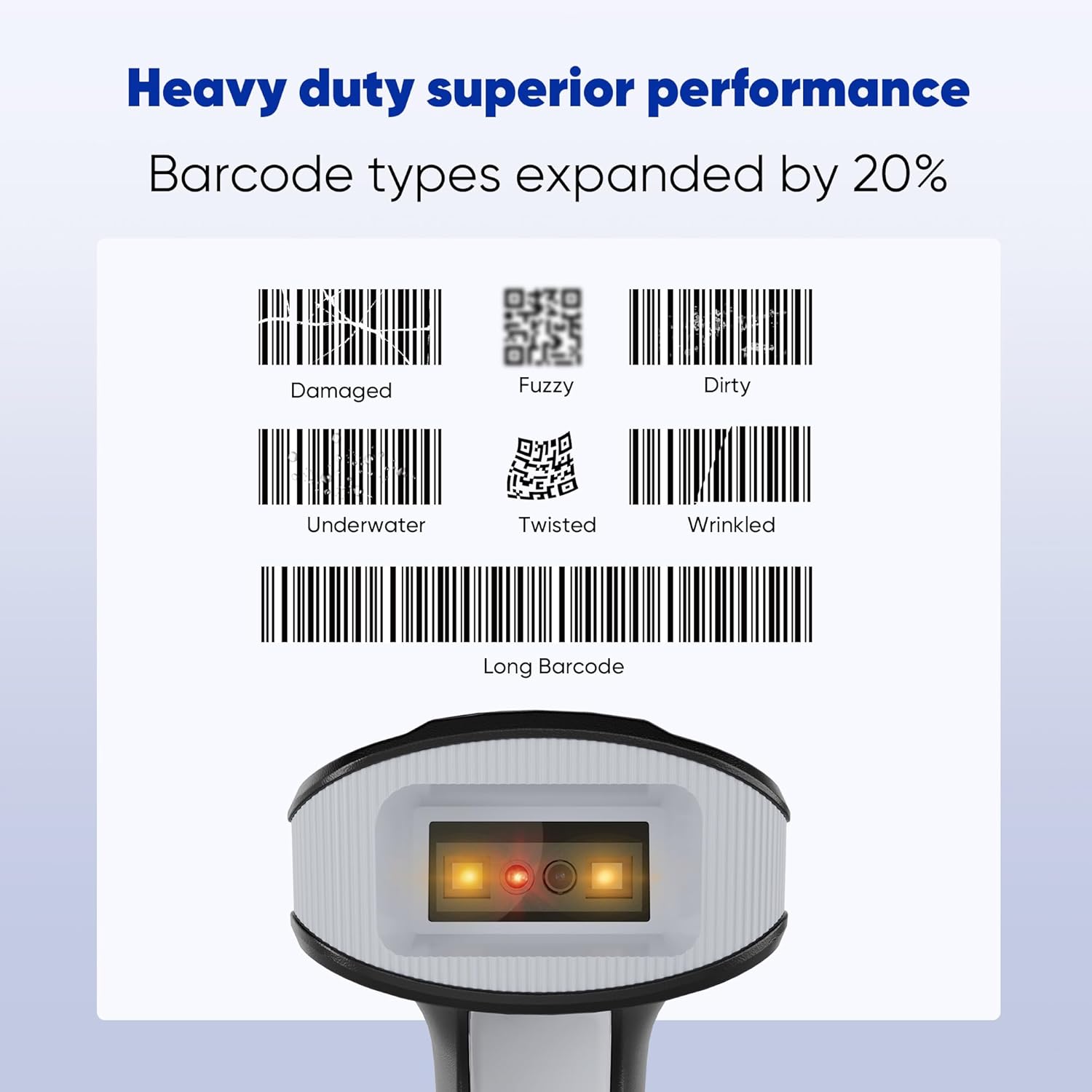
Figure 3.2: The scanner's robust performance ensures reliable reading even under challenging conditions.
3.3 Advanced Function Settings
The scanner offers customizable settings to enhance data output and user experience:
- Support Prefix & Suffix: Add custom characters before or after scanned data.
- Turn on/off the Buzzer: Control the audible feedback for scans.
- Turn on/off the Vibration: Control the haptic feedback for scans.

Figure 3.3: Customize data output with prefix/suffix options and manage feedback settings.
3.4 Multiple Scanner Configuration
The G2-B supports both one-to-one and multiple-to-one receiver configurations, allowing for flexible deployment in various environments.

Figure 3.4: Flexible configurations for single or multiple scanner setups.
Video 3.5: Demonstration of the Topwise G2-B Barcode Scanner in operation, showcasing its scanning capabilities.
4. Maintenance
To ensure the longevity and optimal performance of your Topwise G2-B Barcode Scanner, follow these maintenance guidelines:
- Cleaning: Regularly wipe the scanner's exterior with a soft, damp cloth. For the scanning window, use a lint-free cloth and a mild, non-abrasive cleaner. Avoid harsh chemicals or abrasive materials that could scratch the lens.
- Storage: Store the scanner in a cool, dry place away from direct sunlight, extreme temperatures, and high humidity. When not in use, place it in its stand or a protective case to prevent damage.
- Battery Care: To prolong battery life, avoid fully discharging the battery frequently. If storing for an extended period, ensure the battery is partially charged (around 50%) and recharge it every few months.
- Firmware Updates: Check the manufacturer's website periodically for any available firmware updates. Updates can improve performance, add new features, or fix bugs.
5. Troubleshooting
If you encounter issues with your Topwise G2-B Barcode Scanner, refer to the following common problems and solutions:
| Problem | Possible Cause | Solution |
|---|---|---|
| Scanner not connecting via Bluetooth/2.4G | Out of range, low battery, incorrect pairing mode, dongle not properly inserted. | Ensure scanner is charged and within range. Re-pair the scanner according to the manual's instructions. Verify the USB dongle is securely connected. |
| Scanner not reading barcodes | Barcode damaged/unreadable, incorrect scanning mode, dirty scanning window, insufficient lighting. | Try scanning a different, known-good barcode. Adjust scanning mode (e.g., Manual Trigger). Clean the scanning window. Ensure adequate lighting. |
| Data not transmitting to computer | Incorrect upload mode, software/driver issue (rare for plug-and-play), application not in focus. | Verify the scanner is in Instant Upload Mode if real-time transmission is desired. Ensure the cursor is in the correct text field of your application. Restart the computer/application. |
| Scanner beeps excessively or unexpectedly | Default beep settings, power on/off notification. | Refer to the manual's advanced function settings (Section 3.3) to adjust or disable the buzzer and vibration feedback. |
| Short battery life | Frequent use, aging battery, continuous scanning mode. | Ensure full charge before use. Consider using Auto-sensing mode for power saving. If battery performance significantly degrades, contact support. |
6. Specifications
| Feature | Detail |
|---|---|
| Model Number | G2-B |
| Brand | Topwise |
| Connectivity Technology | Bluetooth, 2.4G Wireless, USB Wired |
| Compatible Devices | Laptop, Desktop, POS, Tablet, Smartphone |
| Power Source | Battery Powered |
| Battery Type | 1 Lithium Ion battery (included) |
| Item Weight | 1.01 pounds |
| Package Dimensions | 7.44 x 4.33 x 3.7 inches |
| Manufacturer | Topwise |
| Country of Origin | China |
7. Warranty and Support
For warranty information and technical support, please contact Topwise US directly. Details regarding specific warranty periods and service procedures are typically provided with your purchase documentation or can be found on the official Topwise website.
For additional protection, third-party protection plans may be available through your retailer at the time of purchase.
Related documentsG2-B


Ask a question about this manual
Ask about setup, troubleshooting, compatibility, parts, safety, or missing instructions. Manuals+ will review the question and use this page’s manual context to help answer it.