
1. Product Overview
The NETGEAR Nighthawk WiFi 7 Router (BE9300) is designed to provide blazing-fast wireless speeds and extensive coverage for modern homes. Leveraging WiFi 7 technology, it offers speeds up to 9.3 Gbps, significantly faster than WiFi 6, and utilizes 320 MHz high-capacity channels to support up to 100 concurrent devices. Its tri-band WiFi capabilities, including the ultra-fast 6 GHz band, ensure peak performance with minimal interference.
This router is ideal for demanding applications such as 4K/8K video streaming, online gaming, video conferencing, and managing a multitude of smart home devices. It features a high-performance antenna design for up to 2,500 sq. ft. of WiFi coverage and includes two 2.5 Gig and two 1 Gig LAN ports for ultra-fast wired connections.

Figure 1: NETGEAR Nighthawk WiFi 7 Router (BE9300)
Key Features:
- Blazing-fast WiFi 7 speeds up to 9.3Gbps for gaming, smooth streaming, video conferencing and entertainment.
- 2.4x faster speeds than WiFi 6 to maximize performance across all devices.
- Sleek new body with smaller footprint and high-performance antennas for up to 2,500 sq. ft. of WiFi coverage.
- 2.5 Gig internet port enables multi-gig speeds with the latest cable or fiber internet service plans.
- Supports up to 100 concurrent devices.
- Built-in VPN capabilities.
- USB 3.0 port for network storage.
2. What's in the Box
Verify that all items are present in your package:
- One (1) WiFi 7 Tri-Band Router (BE9300)
- One (1) 2m Ethernet cable
- One (1) 12V/3.5A power adapter
- Quick start guide
3. Setup Guide
3.1 Before You Begin
Ensure your internet service plan and existing modem are compatible with the Nighthawk BE9300 router. For optimal performance, your modem and router connection should match your internet speed plan. This router does not have a coax input and is not a cable modem; a separate modem is required for cable or fiber internet service.
3.2 Connecting Your Router
- Power Off Modem: Disconnect power from your existing modem.
- Connect Router: Connect one end of the provided Ethernet cable to the 2.5 Gig internet port (usually yellow) on your Nighthawk router and the other end to your modem's Ethernet port.
- Power On Modem: Power on your modem and wait for it to fully initialize (usually indicated by stable indicator lights).
- Power On Router: Connect the 12V/3.5A power adapter to your Nighthawk router and plug it into a power outlet. Wait for the router to power on and its indicator lights to stabilize.
- Connect Devices: Connect your computer or mobile device to the router's WiFi network using the default WiFi name (SSID) and password found on the router's label. Alternatively, use an Ethernet cable to connect your computer to one of the router's LAN ports.

Figure 2: Router Ports (2.5Gbps Internet, 2.5Gbps LAN, 1Gbps LAN, USB 3.0)
3.3 Using the Nighthawk App for Setup
The easiest way to set up and manage your WiFi is with the Nighthawk app. Download the app from your mobile device's app store and follow the on-screen instructions for guided setup.
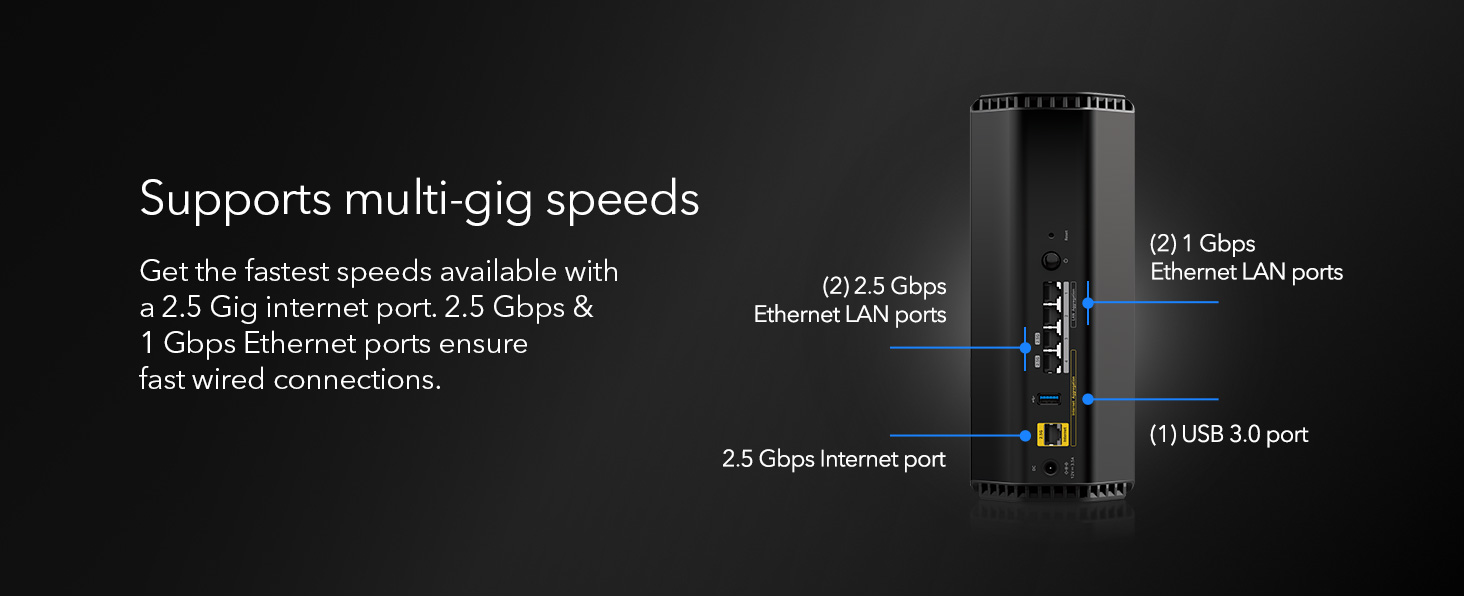
Figure 3: Easy setup and management with the Nighthawk app
4. Operating Your Router
4.1 Wireless Connectivity
The Nighthawk BE9300 provides tri-band WiFi, including 2.4 GHz, 5 GHz, and 6 GHz bands. For devices supporting WiFi 7, the 6 GHz band offers the fastest speeds and lowest latency. Ensure your devices are connected to the appropriate band for optimal performance.

Figure 4: WiFi 7 offers 2.4x faster speeds and 2x max bandwidth compared to WiFi 6
4.2 Wired Connections
Utilize the 2.5 Gig and 1 Gig LAN ports for high-speed wired connections to devices like gaming consoles, desktop PCs, and network-attached storage (NAS) for maximum performance and stability.
4.3 Optimizing Performance
- Placement: Position the router in a central location in your home, away from obstructions and interference sources (e.g., microwaves, cordless phones).
- Device Prioritization: Use the Nighthawk app to prioritize bandwidth for specific devices or applications (e.g., gaming, video streaming) to ensure a smooth experience.
- Antenna Design: The router's patented antenna design enhances WiFi performance and coverage across your home.

Figure 5: Enhanced WiFi power and coverage
5. Maintenance
Regular maintenance ensures your router operates at peak performance and maintains optimal security.
- Firmware Updates: Periodically check for and install firmware updates through the Nighthawk app or the router's web interface. Firmware updates often include performance improvements, new features, and critical security patches.
- Rebooting: Occasionally reboot your router (power off, wait 10 seconds, then power on) to clear its memory and resolve minor connectivity issues.
- Cleaning: Keep the router clean and free of dust to prevent overheating and ensure proper ventilation.
6. Troubleshooting
6.1 Common Issues and Solutions
- No Internet Connection:
- Check all cable connections between the modem, router, and power outlets.
- Reboot both your modem and router.
- Verify your internet service is active with your provider.
- Slow WiFi Speeds:
- Ensure your devices are connected to the optimal WiFi band (e.g., 6 GHz or 5 GHz for faster speeds).
- Relocate the router to a more central position, away from interference.
- Check for active firmware updates.
- Apple Devices Connectivity Issues (Smart Connect):
- Some Apple devices (e.g., Apple TV, iPads) may experience issues with the router's "Smart Connect" feature, which automatically assigns devices to WiFi bands.
- Solution: Turn off "Smart Connect" in the Nighthawk app or router's web interface. This allows you to manually select the 2.4 GHz, 5 GHz, or 6 GHz band for your Apple devices.
- Limited WiFi Coverage:
- Ensure the router is centrally located and not obstructed.
- Consider adding a WiFi extender or mesh system if your home is larger than 2,500 sq. ft.
7. Specifications
| Feature | Detail |
|---|---|
| Brand | NETGEAR |
| Model Name | BE9300 |
| Item Model Number | BE9300-1AZPAS |
| Wireless Communication Standard | 802.11.be (WiFi 7) |
| Frequency Band Class | Tri-Band (2.4 GHz, 5 GHz, 6 GHz) |
| Max Wireless Speed | Up to 9.3 Gbps |
| WiFi Coverage | Up to 2,500 sq. ft. |
| Concurrent Devices | Up to 100 |
| Internet Port | One (1) 2.5 Gig Ethernet Port |
| LAN Ports | Two (2) 2.5 Gig Ethernet LAN ports, Two (2) 1 Gig Ethernet LAN ports |
| USB Port | One (1) USB 3.0 |
| Special Feature | Internet Security (NETGEAR Armor) |
| Compatible Devices | Gaming Console, Personal Computer, Security Camera, Smart Television, Smartphone |
| Item Weight | 3.01 pounds |
| Package Dimensions | 10.87 x 7.17 x 7.13 inches |
8. Warranty and Support
NETGEAR devices come with built-in security measures and enhanced safety features. For comprehensive protection, the Nighthawk BE9300 includes NETGEAR Armor, a powerful suite of tools powered by Bitdefender, designed to keep you safe online at home or on the go. A 30-day trial is included with your purchase.

Figure 6: NETGEAR Armor provides smart security and powerful privacy
Easily set up and manage your WiFi, including security features, with the Nighthawk app. For further assistance, refer to the quick start guide included in your package or visit the official NETGEAR support website.


