
Introduction
This manual provides detailed instructions for the setup, operation, and maintenance of your SHIWAKOTO 9.8" Portable DVD Player. Please read this manual thoroughly before using the device to ensure proper function and longevity.

Image: The SHIWAKOTO 9.8" Portable DVD Player, shown with its remote control and an indicator for its 4000mAh battery capacity.
Package Contents
Verify that all items listed below are included in your package:
- Portable DVD Player
- Charger
- Remote Control
- User Manual

Image: An illustration of the SHIWAKOTO Portable DVD Player package contents, including the player, remote control, and user manual.
Specifications
| Feature | Detail |
|---|---|
| Product Dimensions | 7.09 x 6.69 x 3.35 inches |
| Item Weight | 2.13 pounds |
| Batteries | 1 Lithium Ion battery required (included) |
| Brand | SHIWAKOTO |
| Media Type Support | DVD/DVD+R/DVD+RW/DVD-R/DVD-RW/VCD/CD/CD-R/CD-RW/CD-G/MP3/WMA (Excludes Blu-ray/MP4) |
| Color | White |
| Screen Size | 7 Inches (1024 x 600 resolution) |
| Display Type | LED |
| Battery Capacity | 4000mAh |
| Playing Time | Up to 7 hours (after full charge) |
Setup
1. Charging the Device
Before first use, fully charge the portable DVD player. Connect the provided charger to the DC-12V Power Interface on the device and plug it into a standard wall outlet. The 4000mAh battery provides up to 7 hours of playback on a full charge.

Image: The portable DVD player connected to a charger, illustrating its 4000mAh battery, 7 hours of playing time, and 5 hours of charging time.
2. Inserting a DVD/CD
Gently open the disc cover on the side of the player. Place your DVD or CD onto the spindle, ensuring it is seated correctly. Close the disc cover firmly.
Video: A demonstration of inserting a DVD into the portable player and its various functions.
3. Connecting to a TV (AV Output)
To view content on a larger screen, connect the player to a TV using an AV cable (not included). Insert one end of the AV cable into the AV Output port on the player and the other end into the corresponding AV input ports on your television. Select the correct input source on your TV.

Image: The portable DVD player connected to a television, demonstrating video output to a larger screen via AV connection.
4. Connecting USB Devices
Insert a USB flash drive into the USB Port to play compatible media files (music, pictures, videos). The player supports various formats without requiring an internet connection.
Image: A close-up of the portable DVD player's side panel, highlighting the USB port and listing supported media formats for USB input.
Operating Instructions
1. Power On/Off
Press the Power Switch located on the side of the device to turn it on or off.
2. Controls and Ports Overview
Familiarize yourself with the buttons and ports on your player:
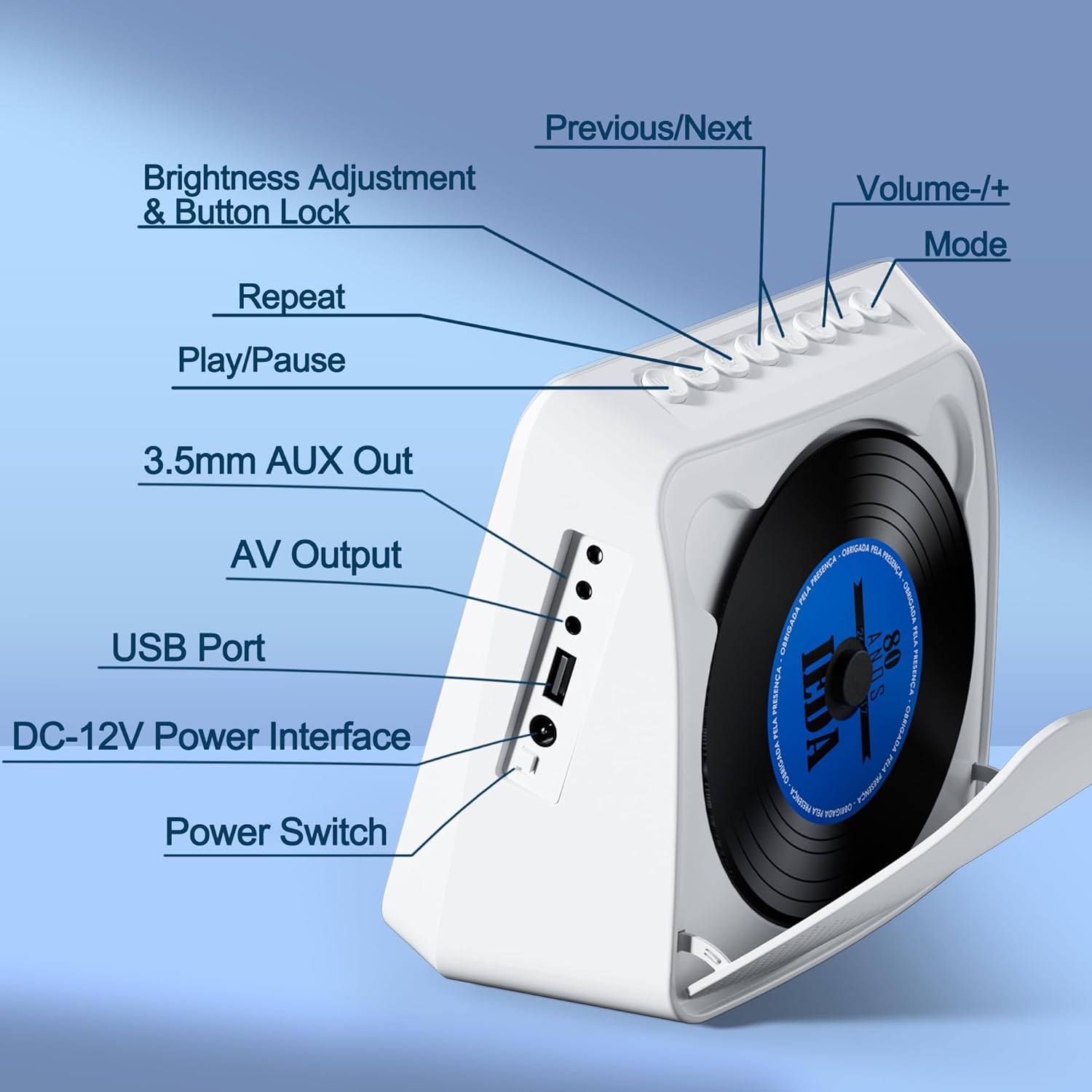
Image: A detailed view of the portable DVD player's side panel, labeling all buttons and input/output ports for user reference.
- Brightness Adjustment & Button Lock: Adjust screen brightness and lock buttons.
- Previous/Next: Navigate tracks or chapters.
- Volume -/+: Adjust audio volume.
- Mode: Switch between DVD/CD, USB, Bluetooth, AV, and AUX modes.
- Repeat: Repeat playback.
- Play/Pause: Start or pause playback.
- 3.5mm AUX Out: Connect headphones or external speakers.
- AV Output: Connect to a TV for video and audio output.
- USB Port: Connect USB flash drives for media playback.
- DC-12V Power Interface: Connect the power adapter for charging and operation.
- Power Switch: Turn the device on or off.
3. DVD/CD Mode
After inserting a disc, the player will automatically detect and begin playback. Use the navigation buttons on the device or remote control to manage playback (play, pause, skip tracks/chapters).

Image: The portable DVD player screen showing a list of supported media formats for both disc (DVD, VCD, CD, MP3, WMA, CD-R, DVD-R, CD-RW) and USB (JPG, PNG, JPEG, VOB, MPG, AVI, MP3, MOV, VOB).
4. USB Mode
Insert a USB drive. Use the "Mode" button to select USB mode. Navigate through your files using the remote or device buttons to select and play music, videos, or view pictures.
5. Bluetooth Mode
The player supports both Bluetooth reception and transmission.
- Bluetooth Reception: Connect your smartphone, tablet, or laptop to the player to use its built-in HiFi speakers for audio playback.
- Bluetooth Transmission: Connect Bluetooth headphones or external Bluetooth speakers to the player for private listening or enhanced audio.
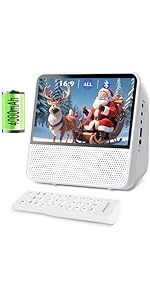
Image: The portable DVD player showing a Bluetooth connection icon, with a smartphone nearby, illustrating its Bluetooth functionality.
6. AUX Mode
Connect external audio devices via the 3.5mm AUX Out port. This allows you to output audio to headphones or external speakers.
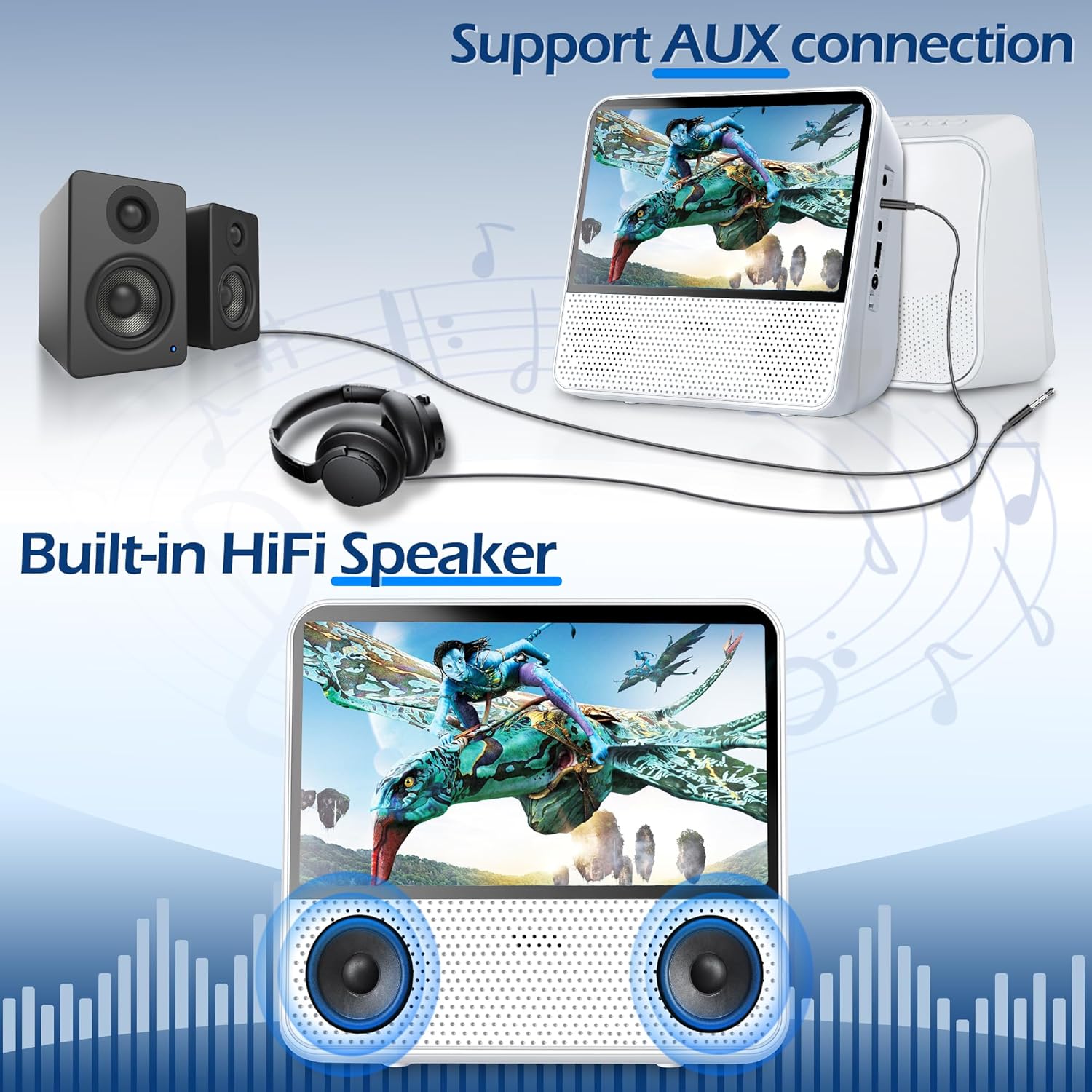
Image: The portable DVD player demonstrating AUX connection to headphones and external speakers, highlighting its built-in HiFi speakers.
7. Screen Settings and Eye Protection
The 7-inch HD screen (1024 x 600 resolution) offers adjustable brightness for eye comfort. Use the "Brightness Adjustment" button or remote control to modify screen settings. The device features an eye protection screen.

Image: A child wearing headphones using the portable DVD player, illustrating the eye protection screen and timer function (30-180 minutes).
8. Timer Function
Set a playback timer (e.g., 30-180 minutes) to automatically turn off the device, useful for children or timed viewing sessions.
9. A-B Repeat Playback
This function allows you to repeat a specific segment of audio or video. Press the A-B repeat button at the start point (A) and again at the end point (B) of the desired segment.
10. Memory Playback
The player features memory playback, which resumes content from the last stopped point when the device is turned back on. This avoids starting from the beginning of a disc or file.
Maintenance
- Cleaning: Use a soft, dry cloth to clean the exterior of the player. For the screen, use a screen-specific cleaning solution and a microfiber cloth. Do not use abrasive cleaners or solvents.
- Disc Care: Handle discs by their edges. Keep them clean and free of scratches to ensure optimal playback.
- Storage: Store the player in a cool, dry place away from direct sunlight and extreme temperatures when not in use.
- Battery Care: To prolong battery life, avoid fully discharging the battery frequently. Charge the device regularly, even if not in constant use.
Troubleshooting
- No Power / Device Not Turning On:
- Ensure the device is fully charged or connected to the power adapter.
- Check if the power adapter is securely plugged into both the device and the wall outlet.
- Disc Not Playing / Disc Error:
- Verify the disc is clean and free of scratches or smudges.
- Ensure the disc is inserted correctly into the disc tray.
- Check if the disc format is supported (e.g., Blu-ray discs are not supported).
- No Sound:
- Increase the volume using the device buttons or remote control.
- If using headphones or external speakers, ensure they are properly connected and their volume is adjusted.
- If connected to a TV, check the TV's volume and input settings.
- Bluetooth Connection Issues:
- Ensure Bluetooth is enabled on both the player and the external device.
- Place devices within close range for pairing.
- If connecting to a new device, ensure the player is in pairing mode.
- Remote Control Not Working:
- Check and replace the batteries in the remote control if necessary.
- Ensure there are no obstructions between the remote and the player's IR receiver.
Warranty and Support
For warranty information and technical support, please refer to the contact details provided on the SHIWAKOTO official website or contact your retailer. Keep your purchase receipt as proof of purchase.