
TFA Dostmann 35.8103.02
TFA Dostmann WiFi Gateway TFA.me ID-01 User Manual
Model: 35.8103.02
Introduction
This manual provides comprehensive instructions for the setup, operation, and maintenance of your TFA Dostmann WiFi Gateway TFA.me ID-01. This device serves as a central receiving unit for TFA-ID radio transmitters, allowing you to monitor various environmental data globally via the TFA.me online portal. It also functions as a standalone indoor thermometer and hygrometer.
The TFA.me ID-01 is designed for both home and professional use, offering reliable monitoring of temperature and humidity. Its compact design and versatile features make it an essential tool for maintaining optimal environmental conditions.
Product Overview
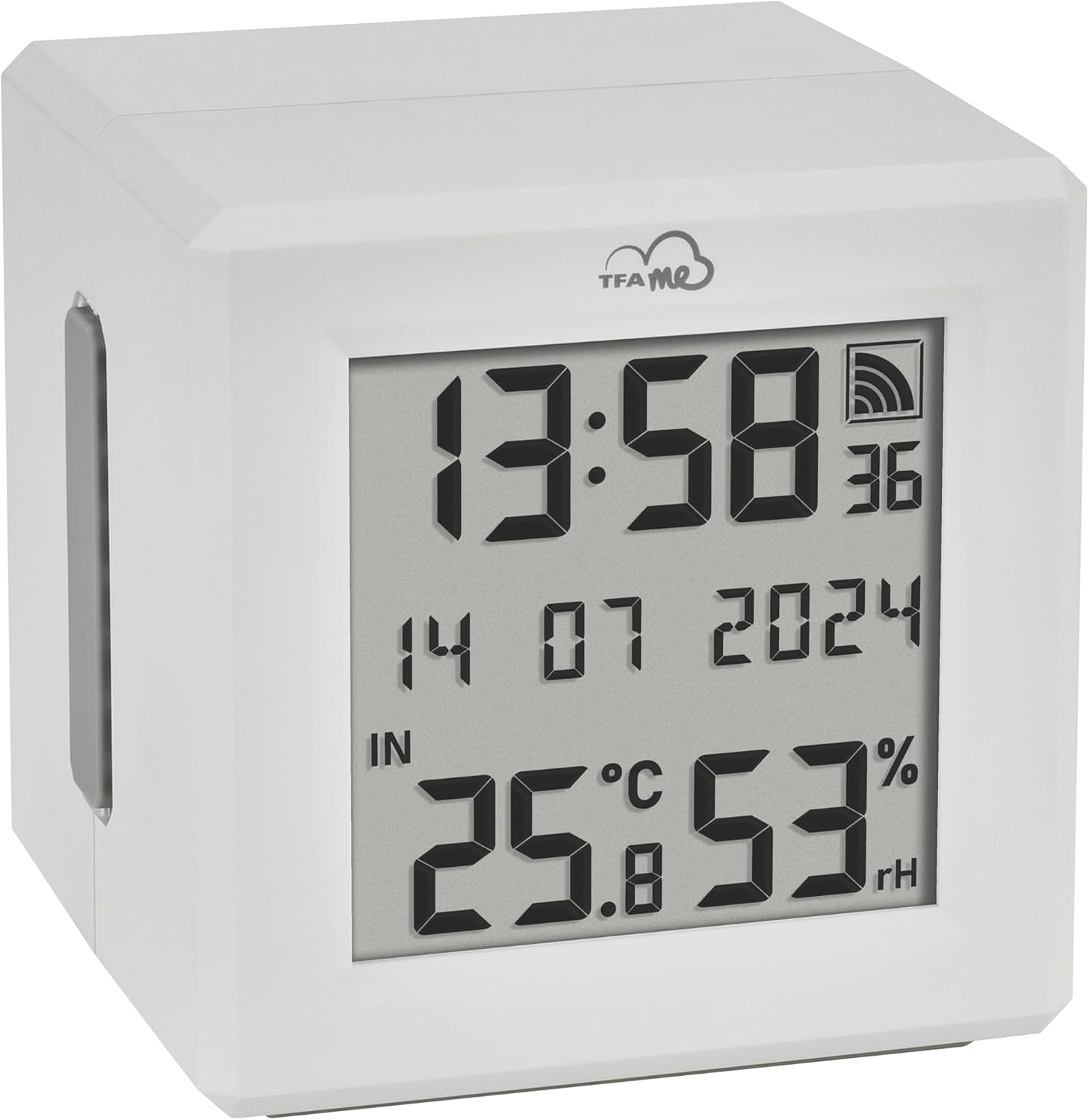
Figure 1: Front view of the TFA.me ID-01 WiFi Gateway, displaying time, date, indoor temperature, and humidity.

Figure 2: Rear view of the TFA.me ID-01 WiFi Gateway, showing the control buttons (CH, SET, +) and the battery compartment/power input area.

Figure 3: The TFA.me online portal interface on various devices (laptop, desktop, tablet, smartphone), demonstrating data visualization and monitoring capabilities.
Package Contents
- TFA.me ID-01 WiFi Gateway
- Power Adapter (EU plug)
- User Manual (in 6 languages)
Note: 3 x 1.5V AAA batteries are required for backup power and are not included.
Setup
1. Powering the Device
- Connect the provided power adapter to the gateway and plug it into a power outlet.
- For backup power, open the battery compartment on the rear of the device and insert 3 x 1.5V AAA batteries (not included), observing polarity.
2. Initial Setup and WiFi Connection
- Upon first power-up, the gateway will enter setup mode.
- Ensure your smartphone, tablet, or PC is connected to a WiFi network.
- Open a web browser and navigate to the TFA.me portal (www.tfa.me).
- Create a new account or log in if you already have one.
- Follow the on-screen instructions on the TFA.me portal to add your gateway using its individual identification number. This process will guide you through connecting the gateway to your home WiFi network.
3. Adding TFA-ID Transmitters (Optional)
The gateway can receive data from up to 50 TFA-ID radio transmitters (sold separately) for online monitoring, and display data from up to 5 on its screen.
- Ensure your TFA-ID transmitters are powered on and within range of the gateway.
- On the TFA.me portal, follow the instructions to add your transmitters using their individual identification numbers.
- The gateway's display can cycle through up to 5 connected thermo-hygro transmitters. Use the "CH" button on the back of the gateway to manually switch between channels.
Operating the Device
1. On-Device Display
The gateway's LCD screen displays the following information:
- Current Time
- Full Date or Day of the Week (in 6 languages)
- Indoor Temperature (0 to 50°C)
- Indoor Humidity (10 to 99%)
- Readings from connected TFA-ID thermo-hygro transmitters (up to 5 channels)
2. Using the TFA.me Online Portal
The TFA.me portal provides comprehensive monitoring and data management features:
- Global Access: View all your measured values from anywhere in the world via PC, tablet, or smartphone.
- Data Visualization: All sensor measurements (up to 50 online) are clearly displayed with graphs and trend charts.
- Alert Function: Configure email notifications to be sent when defined temperature or humidity limits are exceeded or fall below a threshold.
- Data Export: Manually or automatically export measured values (daily, weekly, or monthly) via email in diagram or table format.
3. Control Buttons (Rear of Device)
- CH (Channel): Press to cycle through the display of connected thermo-hygro transmitters.
- SET: Used for initial setup and configuration of time/date settings. Refer to the detailed manual for specific steps.
- + (Plus): Used for adjusting values during setup or for specific functions as outlined in the detailed manual.
Maintenance
- Cleaning: Wipe the device with a soft, dry cloth. Do not use abrasive cleaners or solvents.
- Battery Replacement: If using backup batteries, replace them when the low battery indicator appears on the display. Ensure correct polarity.
- Firmware Updates: Periodically check the TFA.me portal for any available firmware updates for your gateway to ensure optimal performance and new features.
Troubleshooting
| Problem | Possible Cause | Solution |
|---|---|---|
| No display/Device not powering on | No power from adapter; dead backup batteries. | Check power adapter connection. Replace AAA batteries. |
| Cannot connect to WiFi | Incorrect WiFi password; gateway too far from router; router issues. | Double-check WiFi password. Move gateway closer to router. Restart router. Ensure 2.4GHz network is used if applicable. |
| Transmitter data not appearing on portal/display | Transmitter out of range; transmitter battery low; transmitter not added to portal. | Move transmitter closer to gateway. Replace transmitter batteries. Ensure transmitter is correctly added to your TFA.me account. |
| Email alerts not received | Incorrect email settings; spam filter; alert thresholds not met. | Verify email address and alert settings on TFA.me portal. Check spam folder. Adjust alert thresholds. |
Specifications
| Feature | Detail |
|---|---|
| Model Number | 35.8103.02 |
| Dimensions (L x W x H) | 6.9 x 7 x 7 cm |
| Weight | 103 grams |
| Material | Plastic |
| Power Source | Electric cable (included), 3 x 1.5V AAA batteries (backup, not included) |
| Indoor Temperature Range | 0°C to +50°C |
| Indoor Humidity Range | 10% to 99% |
| Transmission Frequency | 868 MHz (for TFA-ID sensors) |
| Connectivity | Wi-Fi, 868 MHz |
| Max. Transmitters (On-device display) | 5 thermo-hygro transmitters |
| Max. Transmitters (TFA.me Online Portal) | 50 transmitters |
| Special Features | Large display, Clock, Wireless, Online monitoring, Email alerts |
Warranty and Support
Warranty Information
This product comes with a 1-year availability of spare parts from the date of purchase. For detailed warranty terms and conditions, please refer to the warranty card included in your package or visit the official TFA Dostmann website.
Customer Support
For technical assistance, troubleshooting, or inquiries regarding your TFA.me ID-01 WiFi Gateway, please visit the official TFA.me online portal at www.tfa.me. The portal offers extensive resources, FAQs, and contact options for support.
You can also find additional information and support on the TFA Dostmann website: www.tfa-dostmann.de.
Ask a question about this manual
Ask about setup, troubleshooting, compatibility, parts, safety, or missing instructions. Manuals+ will review the question and use this page’s manual context to help answer it.