
CHORTAU B-T50CH
CHORTAU 2.5K+1080P Dash Cam Front and Rear User Manual
Model: B-T50CH | Brand: CHORTAU
1. Introduction
This user manual provides comprehensive instructions for the installation, operation, and maintenance of your CHORTAU 2.5K+1080P Dash Cam Front and Rear. Please read this manual thoroughly before using the device to ensure proper functionality and to maximize your driving safety and recording experience. Keep this manual for future reference.
2. Package Contents
Please verify that all items listed below are included in your package:
- 1 x 4K Dash Cam Front and 1080P Rear Camera
- 1 x 11.5ft Car Charger Power Cord
- 1 x 18ft Rear Cam and Cable
- 1 x Suction Cup Mount
- 1 x 64GB Memory Card
- 1 x User Manual
- 1 x Pin (for reset)
- 2 x 2.5ft USB Data Cable
- 5 x 3M Stickers
3. Product Overview
The CHORTAU Dash Cam system consists of a main front camera unit and a separate rear camera, designed for comprehensive vehicle surveillance.
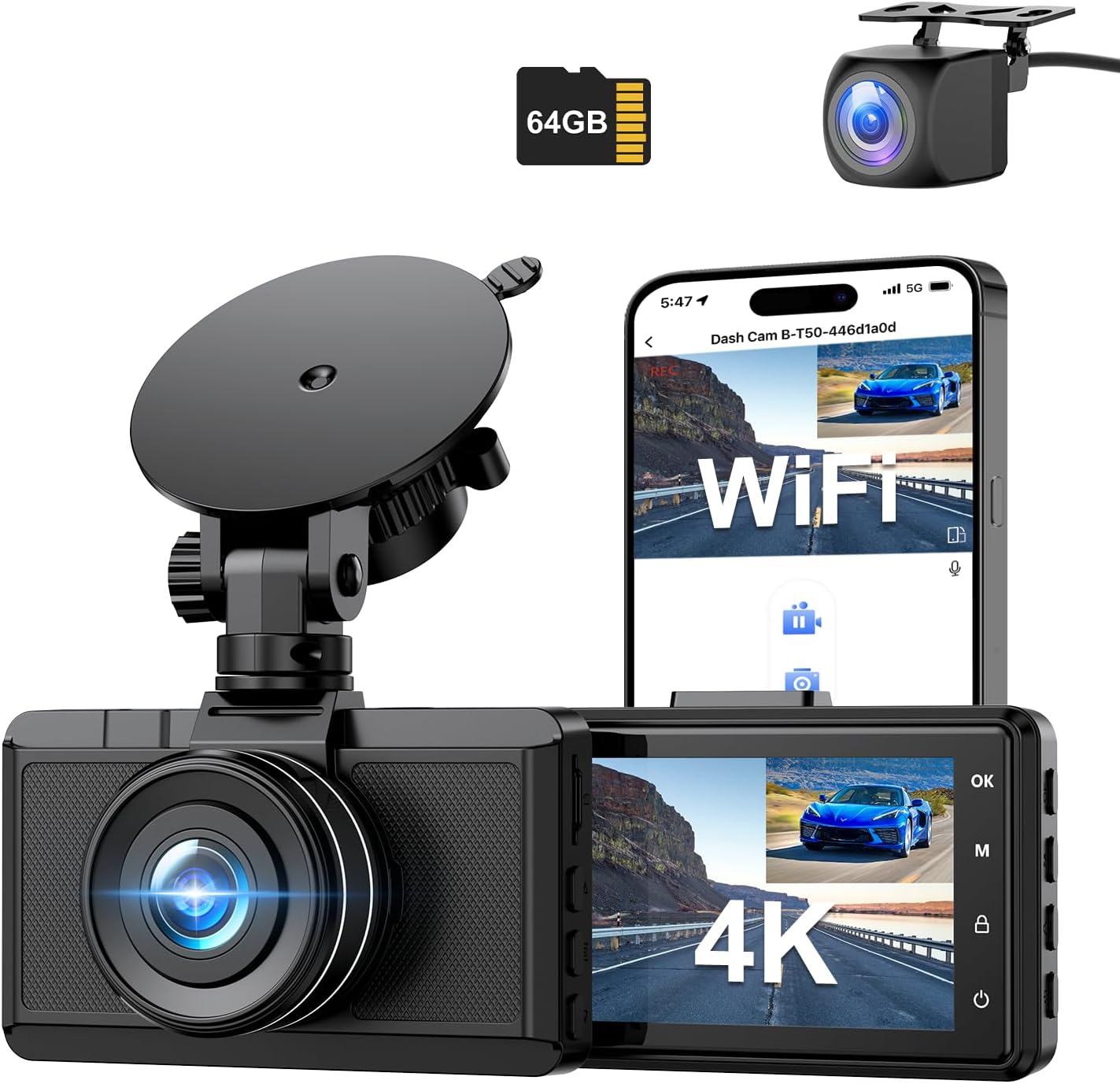
Figure 3.1: Main components of the CHORTAU Dash Cam system, including the front camera, rear camera, and 64GB memory card.
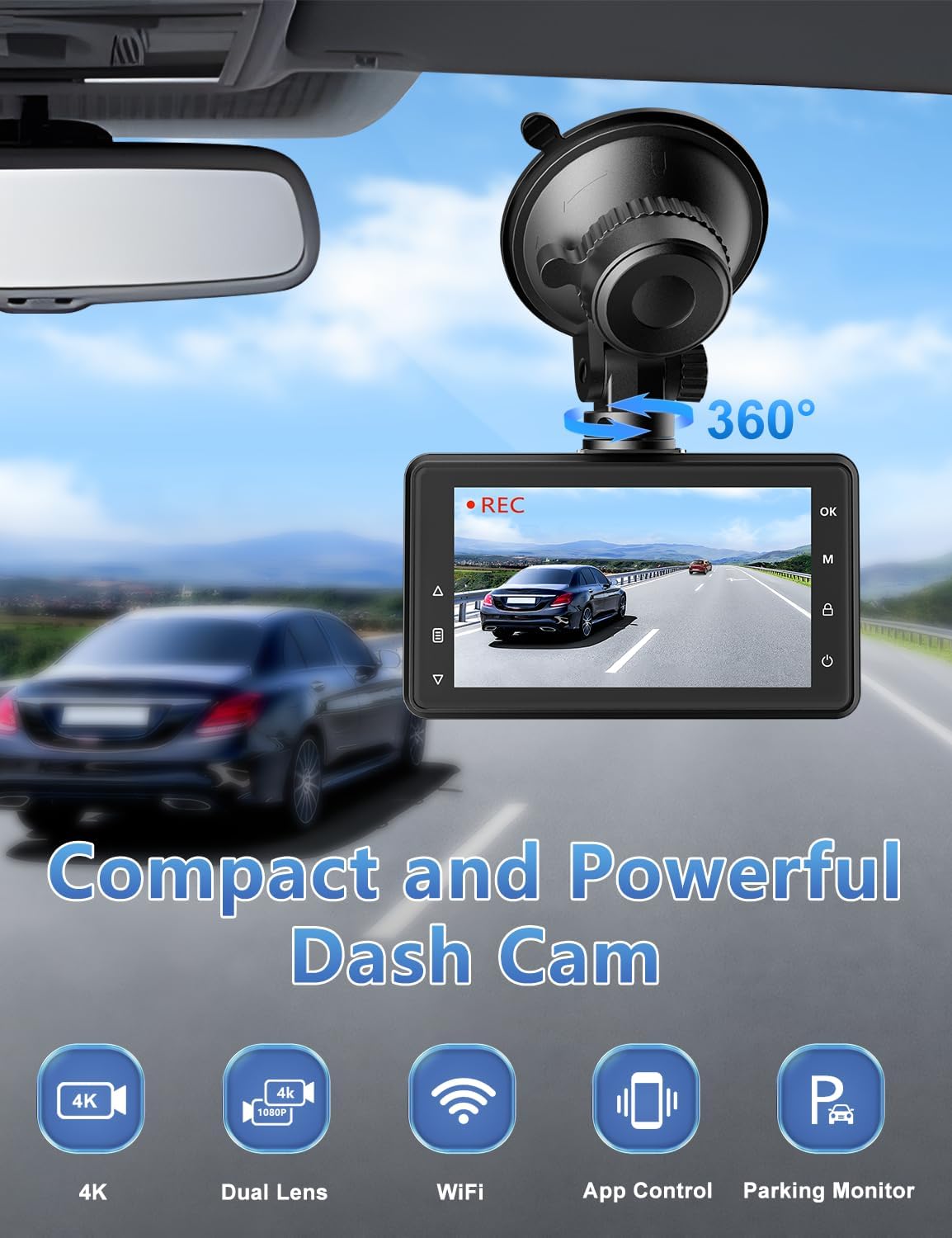
Figure 3.2: The compact design of the dash cam mounted on a windshield, illustrating its adjustable viewing angle.
4. Setup and Installation
4.1 Inserting the Memory Card
Locate the memory card slot on the side of the dash cam. Insert the provided 64GB Class 10, U3 microSD card with the gold contacts facing the front of the camera until it clicks into place. Ensure the card is fully inserted.

Figure 4.1: Illustration of inserting the 64GB SD card into the dash cam.
4.2 Mounting the Front Dash Cam
- Clean the windshield area where you intend to mount the dash cam.
- Attach the suction cup mount to the dash cam.
- Press the suction cup firmly against the windshield and flip the lever to secure it. Position the camera to ensure a clear view of the road without obstructing your driving vision.

Figure 4.2: Step-by-step guide for attaching the dash cam to the windshield using the suction cup.
4.3 Connecting Power and Rear Camera
- Connect the 11.5ft car charger power cord to the Type-C port on the dash cam and plug the other end into your vehicle's cigarette lighter socket.
- Connect the 18ft rear camera cable to the main dash cam unit.
- Route the rear camera cable to the back of your vehicle and mount the rear camera (e.g., on the rear windshield or near the license plate) using the provided 3M stickers or screws. Ensure the rear camera has a clear view.

Figure 4.3: Detail of the Type-C power port on the dash cam.

Figure 4.4: The waterproof rear camera, suitable for external mounting.
5. Operating Instructions
5.1 Power On/Off and Basic Recording
The dash cam will automatically power on and begin recording when your vehicle's ignition is turned on (and power is supplied to the cigarette lighter socket). It will automatically power off when the ignition is turned off.
The dash cam simultaneously records 4K video from the front camera and 1080P video from the rear camera, providing comprehensive coverage with a 170° wide-angle front view and a 140° wide-angle rear view.

Figure 5.1: Dual-channel recording capability, capturing both front (4K) and rear (1080P) views.
5.2 Wi-Fi and Smart APP Control
The dash cam features built-in Wi-Fi, allowing you to connect to it via the free Viidure APP (available for Android and iOS devices). Through the app, you can:
- View real-time video footage.
- Playback recorded videos.
- Download videos directly to your smartphone.
- Share your travel scenery and moments on social media.

Figure 5.2: Smartphone interface showing the Viidure app for easy Wi-Fi control and video management.
5.3 Super Night Vision
Equipped with an F1.8 aperture lens and WDR (Wide Dynamic Range) technology, the dash cam captures clear and detailed video even in low-light conditions, ensuring license plates and road signs are legible at night.

Figure 5.3: Enhanced night vision capability for clear recordings in dark environments.
5.4 24-Hour Parking Monitor and G-Sensor
When your vehicle is parked, the dash cam's parking monitor function will automatically detect collisions and lock the current video to save evidence. For continuous 24/7 monitoring, a hardwire kit (sold separately) is recommended.
The built-in G-sensor automatically detects sudden shakes or collisions and locks the current video footage to prevent it from being overwritten, ensuring critical event recordings are protected.

Figure 5.4: The 24-hour parking monitor feature, providing continuous surveillance for your vehicle.

Figure 5.5: G-Sensor, Motion Detection, and Loop Recording functionalities explained.
5.5 Loop Recording
The dash cam supports loop recording, which automatically overwrites the oldest video files when the memory card is full. This ensures continuous recording without the need for manual deletion of old files. Locked videos (due to G-sensor activation or manual locking) will not be overwritten.
6. Maintenance
- Cleaning the Lens: Use a soft, lint-free cloth to gently wipe the camera lenses. Avoid using abrasive cleaners that could scratch the lens.
- SD Card Formatting: It is recommended to format the microSD card periodically (e.g., once a month) within the dash cam's settings to ensure optimal performance and prevent data corruption. Back up any important videos before formatting.
- Temperature: Avoid exposing the dash cam to extreme temperatures for prolonged periods, as this can affect battery life and device performance.
7. Troubleshooting
| Problem | Possible Cause / Solution |
|---|---|
| Dash cam does not power on. |
|
| "Card Error" or recording stops. |
|
| App connectivity issues (Wi-Fi). |
|
| Suction cup not holding. |
|
| Time stamp resets after power loss. |
|
8. Specifications
| Feature | Detail |
|---|---|
| Model Name | B-T50CH |
| Brand | CHORTAU |
| Video Capture Resolution | Front: 4K (UHD), Rear: 1080P |
| Front Camera Angle | 170° Wide Angle |
| Rear Camera Angle | 140° Wide Angle |
| Display Size | 3 Inch |
| Connectivity Technology | Wi-Fi |
| Special Features | Loop Recording, 24H Parking Monitor, Super Night Vision, Built-In WiFi, G-Sensor, WDR |
| Memory Card Support | Up to 256GB (64GB card included), Class 10, U3 |
| Power Port | Type-C |
| Mounting Type | Windshield Mount (Suction Cup) |
| Product Dimensions | 0.5 x 3.4 x 2 inches |
| Item Weight | 1.1 pounds |
| Batteries | 1 Lithium Metal battery required |
9. Warranty and Support
Your CHORTAU Dash Cam comes with an extendable 2-Year Repairation Warranty and a Full Refund within 30 days of purchase. For any questions, missing accessories, or technical assistance, please contact CHORTAU customer support. We are committed to providing technical support and aim to respond within 24 hours to ensure 100% satisfaction.
Please refer to the contact information provided on the product packaging or the official CHORTAU website for support details.
10. Important Notes
No official product videos from the seller were available in the provided data for embedding in this manual.
Related documentsB-T50CH


Ask a question about this manual
Ask about setup, troubleshooting, compatibility, parts, safety, or missing instructions. Manuals+ will review the question and use this page’s manual context to help answer it.