
Introduction
Thank you for choosing the Salter Smart Scale SA00656FEU6. This smart scale is designed to help you monitor your health and fitness progress by measuring 17 essential body metrics. For optimal performance and accurate readings, please read this instruction manual thoroughly before use and keep it for future reference.
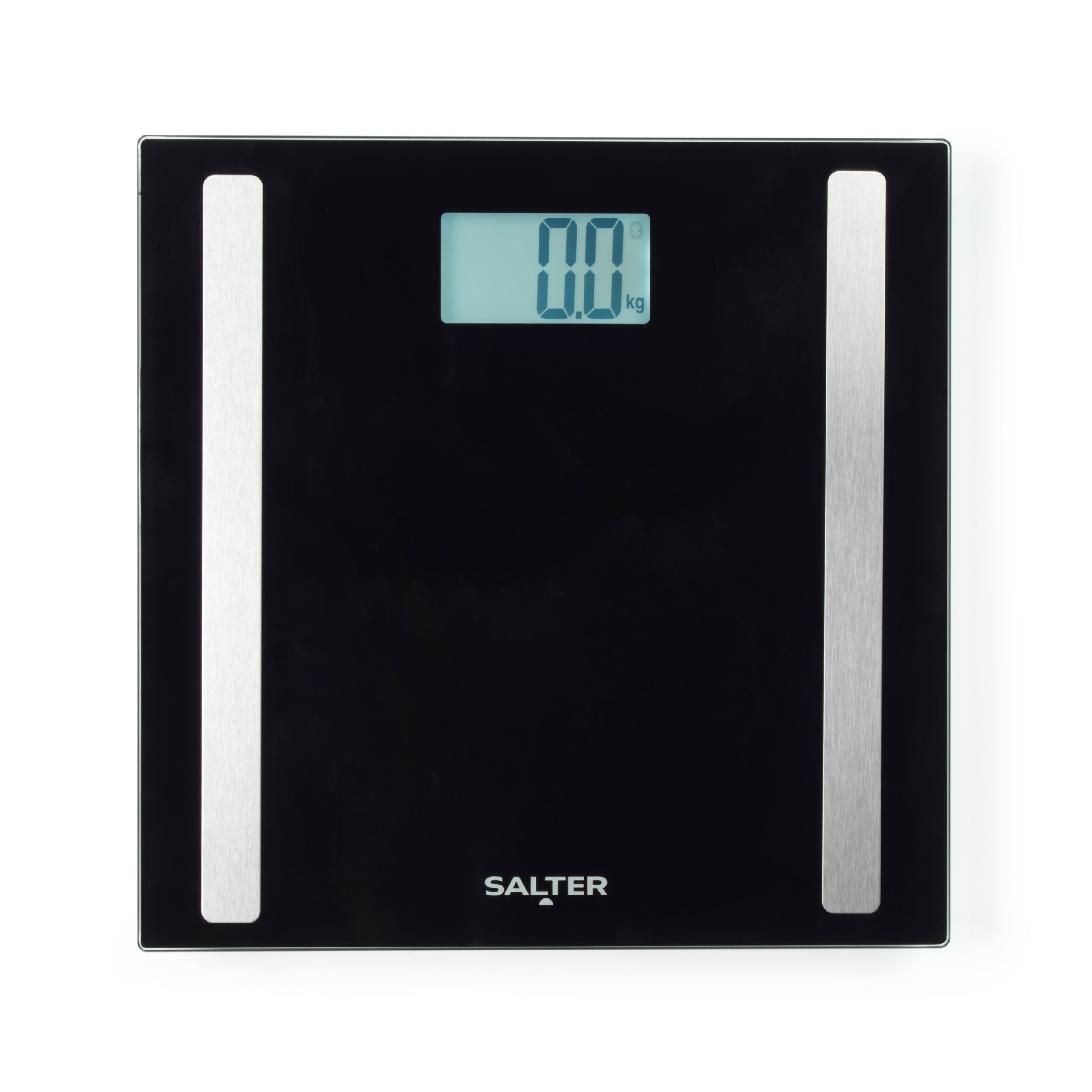
Image: The Salter Smart Scale SA00656FEU6, black with silver electrodes, displayed on a light-colored tiled floor next to a pair of jeans and a white towel.
Important Safety Information
- Consult your doctor or medical professional before making changes to your diet, exercise plan, or physical activities.
- This scale is not intended for use by individuals with pacemakers or other internal medical devices.
- Pregnant women should use the scale for weight measurement only. Body composition readings may not be accurate.
- Do not use on wet or slippery surfaces. Ensure the scale is placed on a hard, flat surface for accurate readings.
- Do not jump on the scale.
- Keep out of reach of children.
- This scale is for household use only and not for medical diagnosis or treatment.
Package Contents
Please check the box for the following items:
- Salter Smart Scale SA00656FEU6
- Instruction Manual
- Batteries (if included, check packaging)
Setup Guide
1. Battery Installation
- Open the battery compartment on the underside of the scale.
- Insert the required batteries, ensuring correct polarity (+/-).
- Close the battery compartment securely.
2. Download the Salter Health App
The Salter Smart Scale requires the Salter Health App for full functionality and tracking of body metrics. Download the free app from your device's app store.

Image: Graphic promoting the free download of the Salter Health App, showing the Salter logo and "Free Download" text.
3. Pair the Scale with the App
- Enable Bluetooth on your smartphone or tablet.
- Open the Salter Health App and follow the on-screen instructions to create your user profile.
- Step onto the scale to activate it. The app should detect the scale and prompt you to pair.
- Confirm the pairing within the app.
4. Initial User Profile Setup
During setup, you will be asked to enter personal details such as age, gender, height, and activity level. This information is crucial for the accurate calculation of body composition metrics.
Operating Instructions
1. Taking a Weight Measurement
- Place the scale on a hard, flat surface.
- Step onto the scale with bare feet. Ensure your feet are positioned correctly on the electrodes.
- The display will show your weight.
2. Taking a Full Body Composition Measurement
For body composition analysis, ensure your feet are bare and clean, making good contact with the metal electrodes on the scale surface.
- Open the Salter Health App on your paired device.
- Step onto the scale with bare feet.
- Remain still until the measurements are complete. The scale will display your weight, and the app will show all 17 body metrics.

Image: A graphic illustrating the 17 body metrics tracked by the Salter Smart Scale, including Weight, Body Water, Body Fat, Bone Mass, Athlete Mode, Body Mass Index, Basal Metabolic Rate, Muscle Mass, 8 Users, and Child Mode.
3. Understanding Display Readings
The scale's backlit LCD display provides clear weight readings. All 17 body metrics, including body fat, body water, muscle mass, bone mass, BMI, and BMR, are accessible and tracked within the Salter Health App.
4. Child and Athlete Modes
The Salter Health App allows you to select specific modes for different users:
- Child Mode: Provides accurate weight tracking for children. Body composition analysis is typically not performed in this mode.
- Athlete Mode: Recommended for individuals who engage in intense physical activity regularly. This mode adjusts the body composition algorithm for more accurate results for athletes.
5. Multi-User Functionality (8 User Memory)
The scale supports up to 8 user profiles within the Salter Health App. Each user can have their own profile to track individual progress. The app will automatically recognize the user based on their weight and previous measurements, or you can manually select your profile.
Salter Health App Features
The Salter Health App is your central hub for tracking and managing your health data. It offers a range of features to help you achieve your wellness goals.
- Dashboard: View your progress over time with easy-to-read charts and graphs for all 17 body metrics.
- Goals: Set personal health and fitness goals and monitor your progress towards them.
- Linked Accounts: Share your data with family, friends, or a personal trainer to support your journey.
- Data Export: Export your health data in PDF or CSV formats for detailed analysis or sharing.
- Challenges & Groups: Participate in group challenges to make tracking fun and motivating.
- Automatic Weigh-in Reminder: Set reminders to ensure consistent tracking.

Image: Screenshots of the Salter Health App showing the Dashboard for setting goals, Linked Accounts for sharing profiles, and Data Export options (PDF/CSV).

Image: Screenshots of the Salter Health App displaying the Dashboard with historical data, a detailed Metrics view, and the Groups feature for shared challenges.
Syncing Data
Ensure your device's Bluetooth is enabled and the Salter Health App is open when you step on the scale. Your measurements will automatically sync to your profile in the app. The app also supports syncing with Apple Health and Google Fit.

Image: A graphic showing the Salter Smart Scale with a smartphone displaying the Salter Health App, indicating features like setting personal goals, sharing challenges, automatic weigh-in reminders, sharing profiles, and exporting data, along with icons for Google Play and App Store downloads.
Compatibility with Salter Bluetooth Blood Pressure Monitor
The Salter Health App is compatible with the Salter Bluetooth Blood Pressure Monitor (sold separately). This allows you to track and manage your blood pressure readings alongside your body composition data within the same app for a comprehensive health overview.

Image: A Salter Bluetooth Blood Pressure Monitor displaying a reading, with text indicating its compatibility with the Salter Health App.
Maintenance
Cleaning
- Wipe the scale surface with a damp cloth and mild detergent.
- Do not use abrasive cleaners or immerse the scale in water.
- Ensure the scale is dry before storage or next use.
Storage
Store the scale in a cool, dry place, away from direct sunlight and extreme temperatures.

Image: The Salter Smart Scale SA00656FEU6 stored upright in a white bathroom cabinet, demonstrating compact storage.
Battery Replacement
When the battery indicator appears on the display, replace the batteries as described in the "Battery Installation" section. Dispose of old batteries responsibly.
Troubleshooting
| Problem | Possible Cause | Solution |
|---|---|---|
| Scale does not turn on. | Batteries are dead or incorrectly installed. | Check battery polarity or replace batteries. |
| "Err" message on display. | Overload, unstable surface, or measurement error. | Ensure weight is within capacity (180kg). Place scale on a hard, flat surface. Step off and on again. |
| Body composition readings are inconsistent or unavailable. | Bare feet not making good contact with electrodes, incorrect user profile, or dry skin. | Ensure bare, clean feet are centered on electrodes. Check user profile settings in the app. Lightly moisten feet if skin is very dry. |
| Scale not connecting to Salter Health App. | Bluetooth is off, app not open, or scale not activated. | Ensure Bluetooth is enabled on your device. Open the Salter Health App. Step on the scale to activate it. Try restarting your device and the app. |
Specifications
- Model: SA00656FEU6
- Capacity: 180 kg (396 lb / 28 st 5 lb)
- Measurement Units: Kilograms (kg), Pounds (lb), Stones (st)
- Body Metrics Measured: 17 (including Body Fat, Body Water, Muscle Mass, Bone Mass, BMI, BMR)
- User Memory: 8 users
- Display Type: Backlit LCD
- Material: Tempered Glass
- Connectivity: Bluetooth
- App Compatibility: Salter Health App (iOS & Android)
- Power Source: Batteries (type not specified in input, usually AAA or CR2032)
- Item Weight: 1.23 Kilograms
Warranty and Support
For warranty information, product registration, or technical support, please visit the official Salter website or contact their customer service department. Details can typically be found on the product packaging or Salter's official online resources.
Website: www.salter.com


