1. Introduction
This manual provides essential information for the setup, operation, and maintenance of your VIZIO VFD32M 32 inch Class 1080p HDR Smart TV. Please read these instructions carefully before using your television to ensure proper functionality and to maximize your viewing experience.
The VIZIO VFD32M offers a Full HD display with HDR10 support, integrated smart features, and various connectivity options for a comprehensive entertainment experience.

Image: The VIZIO VFD32M television showcasing its Full HD display, built-in smart platform, and Bluetooth headphone compatibility.
2. What's in the Box
Upon unpacking your VIZIO VFD32M TV, ensure all the following components are present:
- VIZIO VFD32M 32 inch Smart TV
- Remote Control
- Power Cable
- TV Stand (2 legs)
- Documentation (Quick Start Guide, Safety Information)

Image: Diagram illustrating the VIZIO VFD32M TV and its included accessories: the TV unit, remote control, and stand legs. Key dimensions are also shown.
3. Setup
3.1. Attaching the Stand or Wall Mounting
If placing the TV on a surface, attach the included stand legs to the bottom of the television using the provided screws. Ensure the legs are securely fastened. If wall-mounting, refer to your wall mount's instructions and ensure proper ventilation around the TV.
Important Note:
Some VIZIO TV models require the stand to be attached or the TV to be upright for initial setup and sensor functionality. If you encounter issues during initial power-on or setup while the TV is lying flat, please ensure it is in its intended viewing position (on stand or wall-mounted).
3.2. Connecting Power and Devices
- Connect the power cable to the TV's power input and then to a wall outlet.
- Connect any external devices (e.g., cable box, gaming console, Blu-ray player) to the HDMI ports on the back of the TV.
- For antenna reception, connect your antenna to the coaxial input.
3.3. Initial Power On and Network Connection
- Press the power button on the remote control or on the TV itself.
- Follow the on-screen prompts to select your language, country, and time zone.
- When prompted, connect your TV to a Wi-Fi network. A stable internet connection is required to access smart features and receive updates.
- You will be guided to create or log in to a VIZIO Account. This account is necessary for full Smart TV functionality and product updates.
4. Operating Instructions
4.1. Remote Control Functions
The included remote control allows you to navigate the TV's interface and control various functions. Familiarize yourself with the buttons:
- Power Button: Turns the TV on or off.
- Input Button: Cycles through available input sources (HDMI 1, HDMI 2, etc.).
- Navigation Pad (Arrow Buttons): Moves selection up, down, left, or right.
- OK/Select Button: Confirms a selection.
- Back Button: Returns to the previous screen or menu.
- Volume Up/Down: Adjusts the audio volume.
- Channel Up/Down: Changes channels (for antenna/cable TV).
- App Shortcut Buttons: Direct access to popular streaming services.
- WatchFree+ Button: Launches the VIZIO WatchFree+ service.
Image: A detailed view of the VIZIO remote control, highlighting its various buttons for power, input, navigation, volume, channel, and direct app access.
4.2. Accessing SmartCast Home
Press the VIZIO Home button on your remote to access the SmartCast Home screen. From here, you can:
- Browse and launch installed applications.
- Access WatchFree+ for free streaming content.
- Manage inputs and settings.
4.3. Bluetooth Headphone Pairing
To pair Bluetooth headphones for private listening:
- Ensure your Bluetooth headphones are in pairing mode.
- On your VIZIO TV, navigate to the Settings menu.
- Select Bluetooth or Audio Devices.
- Choose Pair New Device and select your headphones from the list.
- Follow any on-screen prompts to complete the pairing process.
5. Key Features
5.1. Smart TV Capabilities (VIZIO Home)
Your VIZIO VFD32M TV comes equipped with VIZIO Home, providing instant access to a wide array of streaming services and content. The platform automatically updates with new apps and features.
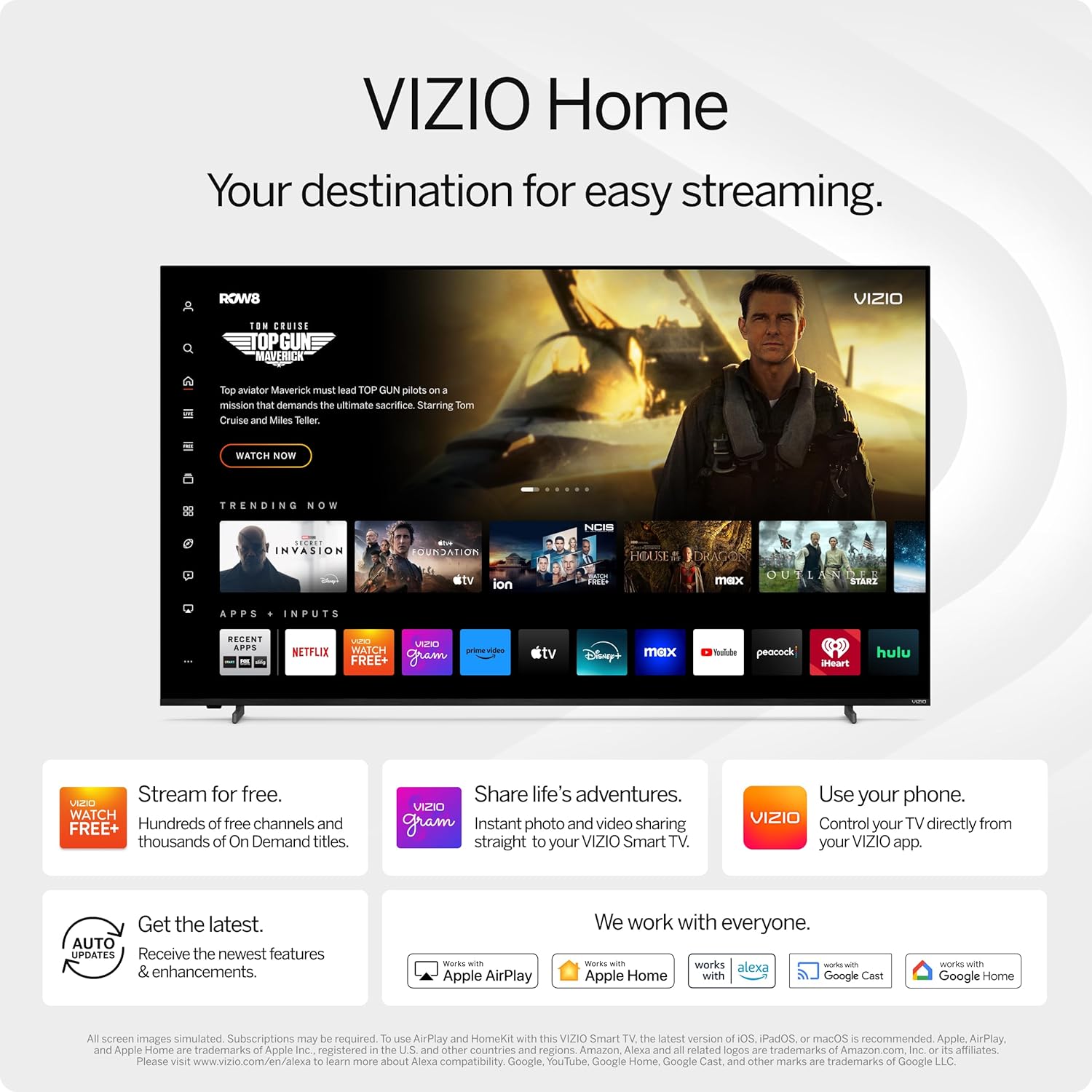
Image: The VIZIO Home screen displaying trending content, recently used apps, and input options, along with icons for Apple AirPlay, Google Cast, Apple Home, and Google Assistant integration.
VIZIO Account: A VIZIO Account is required to unlock the full potential of your Smart TV, including app management, subscriptions, and product updates.

Image: A smartphone screen showing the VIZIO Account interface with various streaming app icons, emphasizing the convenience of managing entertainment.
WatchFree+: Enjoy over 300 free channels and more than 15,000 on-demand movies and shows directly through the built-in WatchFree+ app.

Image: The VIZIO WatchFree+ interface on the TV screen, showcasing a selection of free channels and on-demand movies, with the remote control visible.
App Catalog: Access a wide range of popular streaming applications directly from your TV.
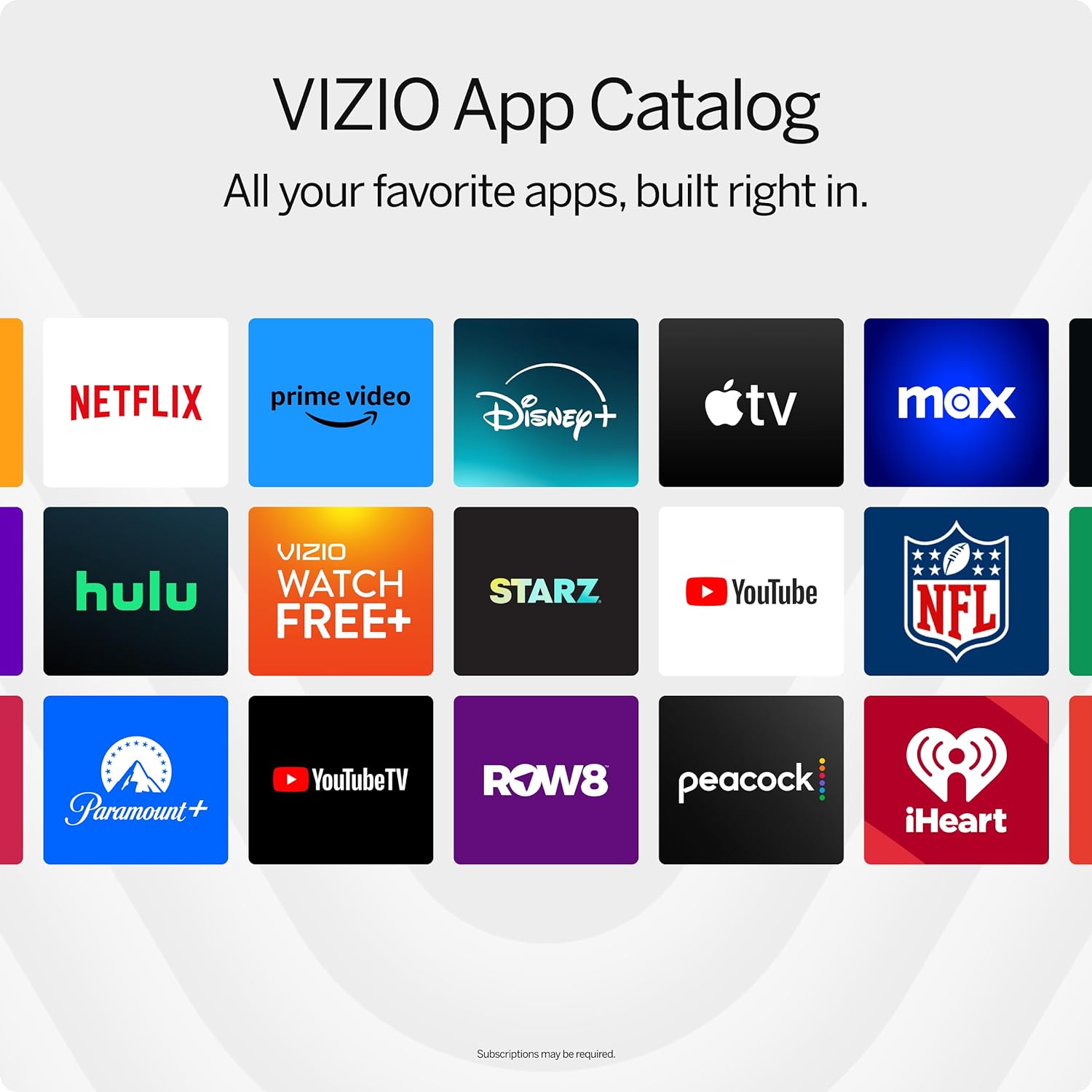
Image: A grid display of various streaming service logos within the VIZIO App Catalog, including Netflix, Prime Video, Disney+, Apple TV, HBO Max, Hulu, and more.
Smart Home Integration: The TV integrates seamlessly with Apple AirPlay 2, Google Chromecast, Apple Home, Google Assistant, and Amazon Alexa-enabled devices, allowing you to stream content and control your TV using voice commands or other smart devices.
5.2. Gaming Features
The VFD32M is designed for an enhanced gaming experience:
- HDR10 Support: Experience striking in-game details and vibrant colors with HDR10 compatibility on HDMI inputs.
- Auto Low Latency Mode (ALLM): When a gaming console or PC is detected, FHD models automatically enable ALLM to reduce input lag for smoother gameplay.
- Integrated Gaming Menu: Access specific gaming settings for optimal performance.

Image: A split-screen comparison of a gaming scene, showing the difference between "No HDR" and "HDR10 Gaming," with HDR10 offering richer detail and color.
5.3. Audio Features
Enhance your audio experience with:
- DTS Virtual:X: Experience cinema-inspired audio that creates the illusion of sound all around you.
- Bluetooth Headphone Compatibility: Pair your Bluetooth headphones for private listening without disturbing others.

Image: An illustration depicting a person watching TV with sound waves emanating from the screen, representing the immersive audio experience provided by DTS Virtual:X.
6. Maintenance
To ensure the longevity and optimal performance of your VIZIO VFD32M TV, follow these maintenance guidelines:
- Cleaning the Screen: Gently wipe the screen with a soft, dry, lint-free cloth. For stubborn smudges, lightly dampen the cloth with water or a specialized screen cleaner (never spray directly onto the screen).
- Cleaning the Cabinet: Use a soft, dry cloth to wipe the TV's cabinet. Avoid abrasive cleaners or solvents.
- Ventilation: Ensure the TV's ventilation openings are not blocked. Adequate airflow prevents overheating.
- Power Cord: Regularly check the power cord for any damage. If damaged, discontinue use and contact VIZIO support.
7. Troubleshooting
If you encounter issues with your VIZIO VFD32M TV, refer to the following common solutions:
7.1. No Power / TV Not Turning On
- Ensure the power cable is securely connected to both the TV and a working electrical outlet.
- Test the outlet with another device to confirm it has power.
- Try pressing the power button directly on the TV, not just the remote.
- If the TV was lying flat during initial setup, ensure it is upright on its stand or wall-mounted, as some sensors may require this orientation.
7.2. No Picture / Black Screen
- Verify the correct input source is selected (e.g., HDMI 1, HDMI 2). Press the "Input" button on your remote to cycle through inputs.
- Check all cable connections between the TV and external devices.
- Ensure the external device (e.g., cable box, gaming console) is powered on and functioning correctly.
7.3. No Sound
- Increase the volume using the remote control.
- Check if the TV is muted. Press the Mute button on the remote.
- If using external audio devices (soundbar, receiver), ensure they are powered on and correctly connected, and the TV's audio output settings are configured appropriately.
- If Bluetooth headphones are connected, sound will route to them. Disconnect them if you want sound from the TV speakers.
7.4. Network Connection Issues
- Ensure your Wi-Fi router is powered on and functioning.
- Restart your router and modem by unplugging them for 30 seconds and then plugging them back in.
- Go to the TV's Settings > Network menu and try reconnecting to your Wi-Fi network.
- Verify the Wi-Fi password is entered correctly.
- If using a mobile hotspot, ensure it is broadcasting and compatible with the TV's Wi-Fi standards.
7.5. Remote Control Not Working
- Replace the batteries in the remote control.
- Ensure there are no obstructions between the remote and the TV's IR sensor.
- If the remote uses Bluetooth, try re-pairing it according to the TV's on-screen instructions (usually found in Settings).
8. Specifications
| Feature | Detail |
|---|---|
| Model Name | VIZIO VFD32M |
| Screen Size | 32 Inches |
| Display Technology | LED |
| Resolution | 1080p (Full HD) |
| Refresh Rate | 60 Hz |
| Aspect Ratio | 16:9 |
| Special Features | Apple AirPlay, Bluetooth Headphone compatibility, Built-in apps with VIZIO Home, Google Chromecast, Hundreds of free channels, ThinFrame Design, Voice Assistance Integration |
| Connectivity Technology | Wi-Fi |
| Supported Internet Services | Apple TV, Disney Plus, HBO Max, Hulu, Netflix, Prime Video, YouTube, Peacock, iHeartRadio |
| Product Dimensions (with stand) | Approximately 32 x 20 x 5 inches (W x H x D) |
| Item Weight | Approximately 11.97 pounds |
| Included Components | Remote, Power Cable, Stand |
9. Warranty and Support
This VIZIO VFD32M TV is a renewed product. For specific warranty details, please refer to the documentation provided with your purchase or contact the seller directly. Amazon Renewed products typically come with a 90-day refund or replacement policy.
For technical support, software updates, or further assistance, please visit the official VIZIO support website or contact their customer service. You may also refer to the Amazon Renewed support page for information regarding your renewed product.
- VIZIO Support: support.vizio.com
- Amazon Renewed Support: Refer to your Amazon order details for specific return and support information.


