
HoloSpin F65
HoloSpin 25.6-inch 3D Hologram Fan Instruction Manual
Model: F65
Introduction
The HoloSpin 25.6-inch 3D Hologram Fan is an advanced holographic display device designed for creating stunning 3D visual effects. It features high-brightness LEDs, Wi-Fi and Bluetooth connectivity, and supports various content formats. This manual provides comprehensive instructions for the safe and effective use of your HoloSpin 3D Hologram Fan.
Setup
1. Unboxing and Components
Carefully unpack all items from the box. Verify that all components are present and undamaged. The package typically includes:
- HoloSpin 3D Hologram Fan Base
- LED Blades (4 pieces)
- Power Adapter
- Remote Control
- Mounting Buckle
- Screws and Expansion Screws
- User Manual
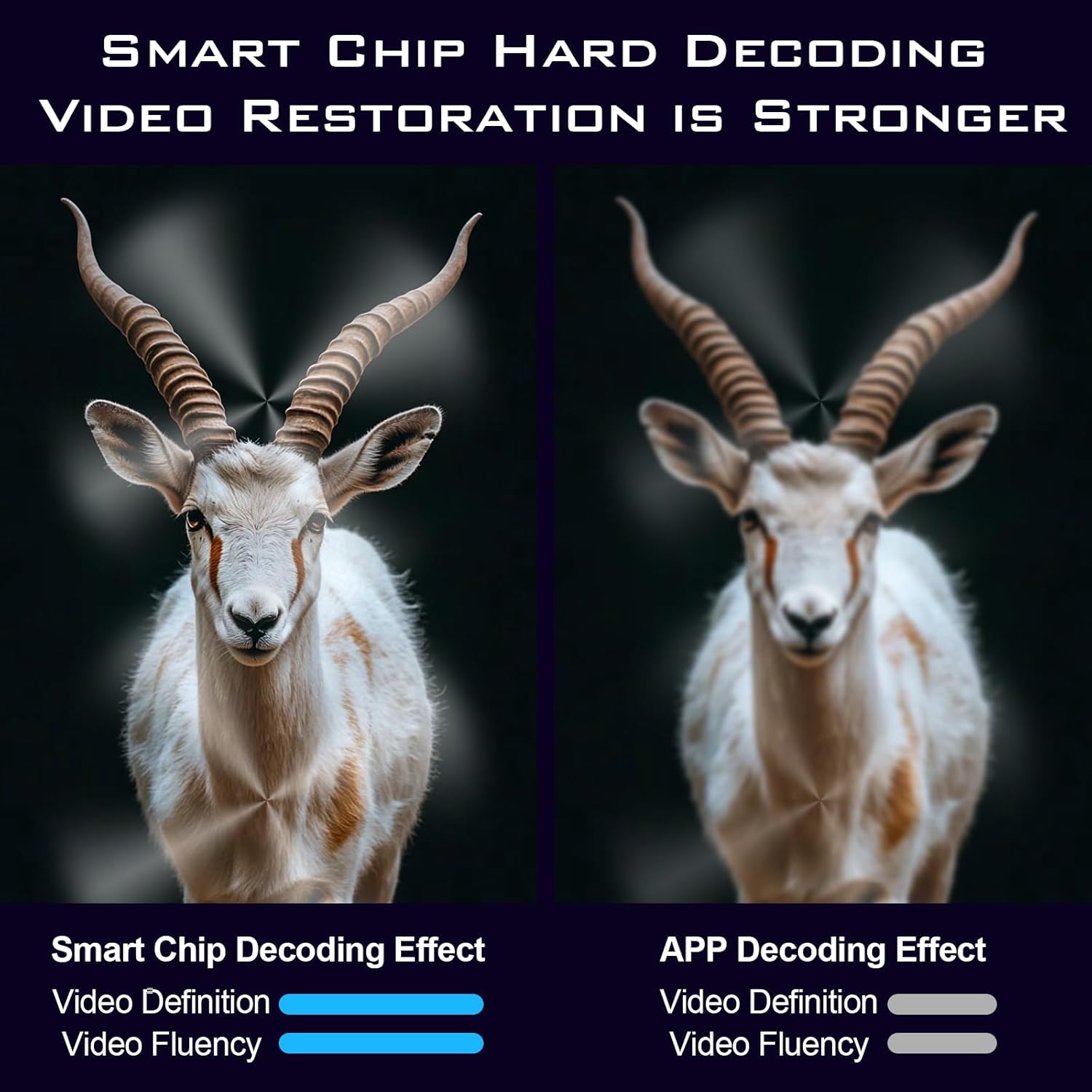
Figure 1: Contents of the HoloSpin 3D Hologram Fan package. This image displays the main fan unit, four LED blades, power adapter, remote control, mounting buckle, and various screws, all neatly arranged in their packaging.
2. Assembly
Assemble the LED blades onto the fan base. Ensure that the light board number on each blade corresponds to the base number. Press down the buckles on both sides of the base and insert the light board until it clicks securely into place. Verify all buckles are rebounded to ensure a firm connection.

Figure 2: Top-down view of the fully assembled HoloSpin 3D Hologram Fan, showing the central unit and its four radiating LED blades.
3. Mounting
Secure the mounting buckle to a stable surface using the provided screws. Once the buckle is firmly attached, slide the assembled HoloSpin fan onto the mount from the top down. A small set screw is provided to further secure the fan to the mount, preventing accidental dislodgement.
4. Power Connection
Connect the power adapter to the fan and then plug it into a suitable power outlet. The device is ready for operation once powered.
Video 1: HoloSpin Holographic Advertising Machine Series Introduction. This video demonstrates the unboxing, assembly process of the LED blades onto the fan base, and the mounting of the device. It also shows the fan in operation displaying various 3D content.
Operating
1. Powering On/Off
The HoloSpin fan powers on automatically when connected to power. It can be started or stopped using the included remote control or through the mobile application.
2. Content Upload
Content can be uploaded to the HoloSpin fan using three primary methods:
- Mobile Application: Download the dedicated app by scanning the QR code in the manual. Connect your phone to the fan's Wi-Fi network (note: the fan creates its own Wi-Fi network and does not connect to your home router). Upload videos directly from your phone.
- PC Application: Install the application on your computer. Connect your PC to the fan's Wi-Fi network. This method allows for direct upload of content and offers advanced features like splicing multiple fans for larger displays.
- Micro SD Card: The fan comes with a pre-installed micro SD card. You can remove this card, insert it into your PC (using an adapter if necessary), and transfer content directly. Reinsert the card into the fan to play content.
Supported file types include: FTLV, JPG, JPEG, PNG, BMP, MP4, AVI, MOV, WMV, MKV, RM, RMVB, MPG, MPEG, and FLV. No prior file conversion is required.

Figure 3: Illustration of Smart Chip Hard Decoding, showing improved video definition and fluency compared to APP decoding. This highlights the internal processing capabilities of the fan.
3. App and PC Application Features
Both the mobile and PC applications offer extensive control over the HoloSpin fan:
- Content Management: Select and play uploaded videos.
- Display Adjustment: Adjust video angle if content appears crooked. Control brightness levels.
- Projection Mode: Live stream your phone's or PC's screen to be displayed on the fan in real-time (available on Android and PC apps).
- Scheduling: Set specific start and stop times for the fan to power on and off automatically. Individual videos can also be scheduled to run at certain times.
- 3D Animation (Mobile App): Create 3D animated text and pictures, including spinning cubes with different images on each side.
- Splicing (PC App): Connect multiple fans and synchronize them to act as one unit, displaying a larger, cohesive picture.
4. Bluetooth Connectivity
The HoloSpin fan supports Bluetooth 5.0, allowing connection to external Bluetooth speakers for enhanced audio output. Volume can be controlled via the mobile application.

Figure 4: The HoloSpin 3D Hologram Fan demonstrating Bluetooth 5.0 connectivity for higher and better sound quality, shown with an external speaker.
Maintenance
To ensure the longevity and optimal performance of your HoloSpin 3D Hologram Fan, follow these maintenance guidelines:
- Cleaning: Gently wipe the LED blades and fan base with a soft, dry cloth. Avoid using abrasive cleaners or solvents that could damage the surface or electronic components.
- Storage: When not in use for extended periods, store the fan in its original packaging or a protective case in a cool, dry place away from direct sunlight and extreme temperatures.
- Handling: Always handle the fan with care, especially the LED blades, to prevent bending or breaking.
Troubleshooting
If you encounter issues with your HoloSpin 3D Hologram Fan, refer to the following common problems and their solutions:
| Problem | Possible Cause | Solution |
|---|---|---|
| Fan does not power on. | No power supply; loose connection. | Ensure the power adapter is securely connected to the fan and a working power outlet. Check the power switch if available. |
| Content appears distorted or crooked. | Incorrect video angle; low content resolution. | Use the mobile or PC application to adjust the video angle. Ensure your uploaded content is of high resolution for optimal display. |
| Cannot connect to the fan's Wi-Fi. | Incorrect Wi-Fi selection; interference. | Ensure you are connecting to the fan's dedicated Wi-Fi network (not your home router). Try restarting the fan and your device. Move closer to the fan to reduce interference. |
| Content not playing from SD card. | Incorrect file format; card not properly inserted. | Verify content is in a supported format (FTLV, MP4, etc.). Ensure the micro SD card is fully and correctly inserted into the fan's slot. |
Specifications
| Feature | Specification |
|---|---|
| Brand | HoloSpin |
| Model Number | F65 |
| Item Weight | 3.3 pounds |
| Product Dimensions | 25.6 x 25.6 x 3.15 inches |
| Batteries | 1 CR2032 batteries required (included) |
| Color | Black |
| Special Feature | 3D-Ready |
| Connectivity Technology | USB, WiFi, Bluetooth |
| Display Resolution | 1024 x 720 |
| LED Quantity | 768 pcs |
| Brightness | Up to 2500 cd/m² |
Warranty and Support
This product comes with standard manufacturer's warranty. For detailed warranty information, please refer to the warranty card included in your package or contact HoloSpin customer support.
Optional protection plans are available for purchase:
- 2-Year Protection Plan
- 3-Year Protection Plan
- Complete Protect (monthly subscription)
For technical support, troubleshooting assistance, or inquiries regarding your HoloSpin 3D Hologram Fan, please visit the official HoloSpin website or contact their customer service team directly. Contact details can typically be found on the product packaging or the official website.
Ask a question about this manual
Ask about setup, troubleshooting, compatibility, parts, safety, or missing instructions. Manuals+ will review the question and use this page’s manual context to help answer it.