
1. Introduction
This manual provides detailed instructions for the safe and effective operation of your HoloSpin 3D Hologram Fan X5. Please read this manual thoroughly before installation and use, and retain it for future reference. The HoloSpin 3D Hologram Fan is designed to create stunning 3D visual effects for various display purposes.
2. Safety Information
WARNING: Rotating blades can cause injury. Always ensure the device is powered off and unplugged before handling or maintenance.
- Installation: Mount the device securely in a location where it cannot be easily touched or interfered with by people or objects. Ensure sufficient clearance around the rotating blades.
- Power Supply: Use only the provided power adapter. Ensure the power source matches the device's requirements.
- Operation: Do not touch the blades while the device is operating or powered on. Keep hands, hair, and loose clothing away from the fan.
- Environment: Avoid exposing the device to water, moisture, extreme temperatures, or direct sunlight. Operate in a well-ventilated area.
- Maintenance: Disconnect power before cleaning or performing any maintenance.
- Children and Pets: Keep the device out of reach of children and pets.
3. Package Contents
Verify that all items listed below are included in your package:

Image: HoloSpin 3D Hologram Fan X5 Package Contents
- HoloSpin 3D Hologram Fan Main Unit
- Fan Blades (4 pieces)
- Power Adapter
- Remote Control (1 CR2032 battery included)
- Mounting Bracket
- Screws and Wall Plugs
- Screwdriver
- User Manual
4. Product Overview and Features
The HoloSpin 3D Hologram Fan X5 is a high-performance holographic display device featuring advanced technology for vivid 3D visuals.
Key Features:
- High-Resolution Display: Equipped with 560 highlight LEDs (16*15mm beads) and a resolution of approximately 640px, delivering clear and bright holographic images.
- High Brightness: Features 2000 cd/m² brightness for visibility in various lighting conditions.
- Advanced Hardware: Utilizes high-quality brushless motors and smart chips for stable performance and efficient video decoding.
- Connectivity: Supports WiFi for content management and Bluetooth 5.0 for audio synchronization with external speakers.
- Multiple Control Methods: Manage content and settings via a dedicated mobile application (Android/Apple), PC software, or the included remote control.
- Content Library: Access to a library of over 1500 free 3D videos.
- Durable Construction: Body constructed from ABS, glass fiber nylon, and aluminum alloy for heat resistance and durability.

Image: Visual representation of the 3D Hologram Fan's brightness and LED density.

Image: Internal hardware components and their functions.
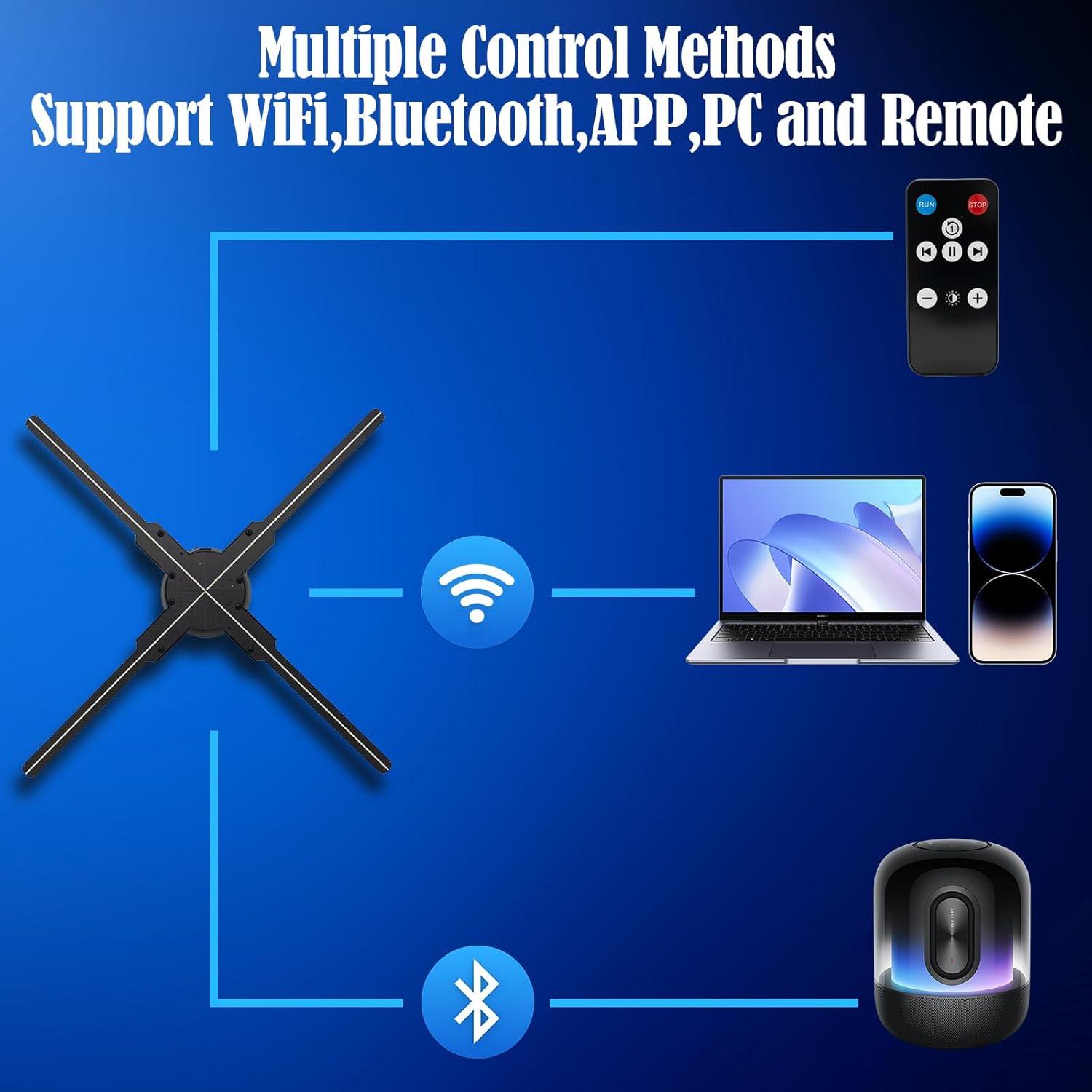
Image: Overview of available control methods for the device.
5. Setup Instructions
Follow these steps to set up your HoloSpin 3D Hologram Fan:
5.1 Mounting the Device
- Choose a suitable location for installation, ensuring it is a stable surface or wall and provides adequate clearance for the rotating blades.
- Use the provided mounting bracket as a template to mark drilling points on the wall or surface.
- Drill holes and insert wall plugs if necessary.
- Secure the mounting bracket using the provided screws and screwdriver.
- Attach the main unit of the hologram fan to the secured mounting bracket. Ensure it is firmly in place.
5.2 Installing the Fan Blades
- Carefully align each fan blade with its corresponding slot on the main unit.
- Gently push and secure each blade into place. Ensure all blades are properly seated and locked.

Image: Assembled HoloSpin 3D Hologram Fan X5.
5.3 Power Connection
- Connect the power adapter to the power input port on the hologram fan.
- Plug the power adapter into a suitable electrical outlet.
6. Operating Instructions
Learn how to operate your HoloSpin 3D Hologram Fan and manage its content.
6.1 Powering On/Off
- To power on, ensure the device is plugged in. The fan will typically start automatically or can be activated via the remote/app.
- To power off, use the remote control or the mobile application/PC software. Alternatively, unplug the device from the power source.
6.2 Content Management via WiFi (App/PC)
The HoloSpin 3D Hologram Fan supports WiFi connectivity for easy content upload and management.
- Download the App/Software: Download the official HoloSpin mobile application (for Android/iOS) or PC software from the provided links in the manual or product packaging.
- Connect to WiFi: Turn on the hologram fan. On your smartphone or computer, connect to the fan's WiFi network (SSID and password usually found on the device or in the manual).
- Upload Content: Open the HoloSpin app or PC software. You can upload 3D videos and images directly from your device. The app allows for managing playlists, adjusting brightness, changing display angles, and setting timers.
- SD Card Upload: Alternatively, you can upload videos to the device via an SD card. Insert the SD card with your content into the designated slot on the fan.
6.3 Bluetooth Audio Connection
The device features Bluetooth 5.0 for connecting to external Bluetooth speakers for synchronized audio.
- Ensure your Bluetooth speaker is in pairing mode.
- The HoloSpin fan will automatically attempt to connect to nearby Bluetooth speakers. No manual key or return receipt is required for connection.

Image: Bluetooth 5.0 connectivity for enhanced sound quality.
6.4 Using the Remote Control
The included remote control provides basic functions for operating the hologram fan:
- Power Button: Turns the device on or off.
- Play/Pause: Controls content playback.
- Next/Previous: Navigates through the content playlist.
- Brightness Adjustment: Increases or decreases display brightness.
7. Maintenance
Regular maintenance ensures the longevity and optimal performance of your HoloSpin 3D Hologram Fan.
- Cleaning: Ensure the device is powered off and unplugged. Use a soft, dry cloth to gently wipe the blades and main unit. Do not use liquid cleaners or abrasive materials.
- Blade Inspection: Periodically check the fan blades for any signs of damage or looseness. If any damage is observed, contact customer support for replacement parts.
- Storage: If storing the device for an extended period, ensure it is clean, dry, and stored in its original packaging or a protective case.
8. Troubleshooting
If you encounter issues with your HoloSpin 3D Hologram Fan, refer to the following troubleshooting guide:
| Problem | Possible Cause | Solution |
|---|---|---|
| Device does not power on. | No power supply; faulty adapter. | Check power connection. Ensure adapter is securely plugged in. Try a different outlet. |
| Cannot connect to WiFi. | Incorrect WiFi password; app/software glitch; file name issues. | Verify WiFi password. Restart the app/software and the hologram fan. Ensure video filenames do not contain spaces when uploading via mobile app. |
| 3D image appears choppy or unclear. | Low-quality video file; incorrect file format; insufficient LED density for desired effect. | Ensure video files are optimized for holographic display. Use recommended file formats. The device's smart chip hard decoding provides better video reproduction compared to app soft decoding. |
| Remote control not working. | Dead battery; obstruction; out of range. | Replace the CR2032 battery in the remote. Ensure no obstructions between the remote and the fan. Operate within effective range. |
| Bluetooth speaker not connecting. | Speaker not in pairing mode; too far from device. | Ensure the Bluetooth speaker is discoverable. Move the speaker closer to the hologram fan. |
9. Specifications
| Feature | Specification |
|---|---|
| Brand | HoloSpin |
| Model Number | X5 |
| Display Size | 19.3 Inch / 50cm |
| LEDs | 560 Highlight LEDs (16*15mm beads) |
| Brightness | 2000 cd/m² |
| Display Resolution | Approximately 640px (based on LED density) |
| Connectivity | WiFi, Bluetooth 5.0, USB (for SD card content transfer) |
| Control Methods | Mobile App (Android/iOS), PC Software, Remote Control |
| Product Dimensions | 19.3 x 19.3 x 2.36 inches |
| Item Weight | 2.1 pounds |
| Special Features | 3D-Ready, Smart Chip Hard Decoding |
| Body Material | ABS + Glass fiber nylon + Aluminum alloy |
| Remote Battery | 1 CR2032 battery (included) |
10. Warranty and Support
HoloSpin provides comprehensive support for its products.
10.1 Technical Support
For any technical assistance, questions, or issues not covered in this manual, HoloSpin offers 24/7 technical support. Please refer to the contact information provided with your product or visit the official HoloSpin website for support details.
10.2 Tutorial Videos
A complete set of tutorial videos is available to assist with setup, operation, and content management. These videos are integrated into the instruction manual (refer to the digital version) or can be accessed via the HoloSpin support channels.
10.3 Warranty Information
Please refer to the warranty card included with your product for specific warranty terms and conditions. HoloSpin offers long-term professional tech support and replacement of parts.