
1. Introduction
The MeLE PCG02 N100 Mini PC Stick is a compact, fanless computer designed for various applications including business, office, IoT, and industrial use. This device offers efficient performance in a small form factor, supporting 4K display output and multiple connectivity options.
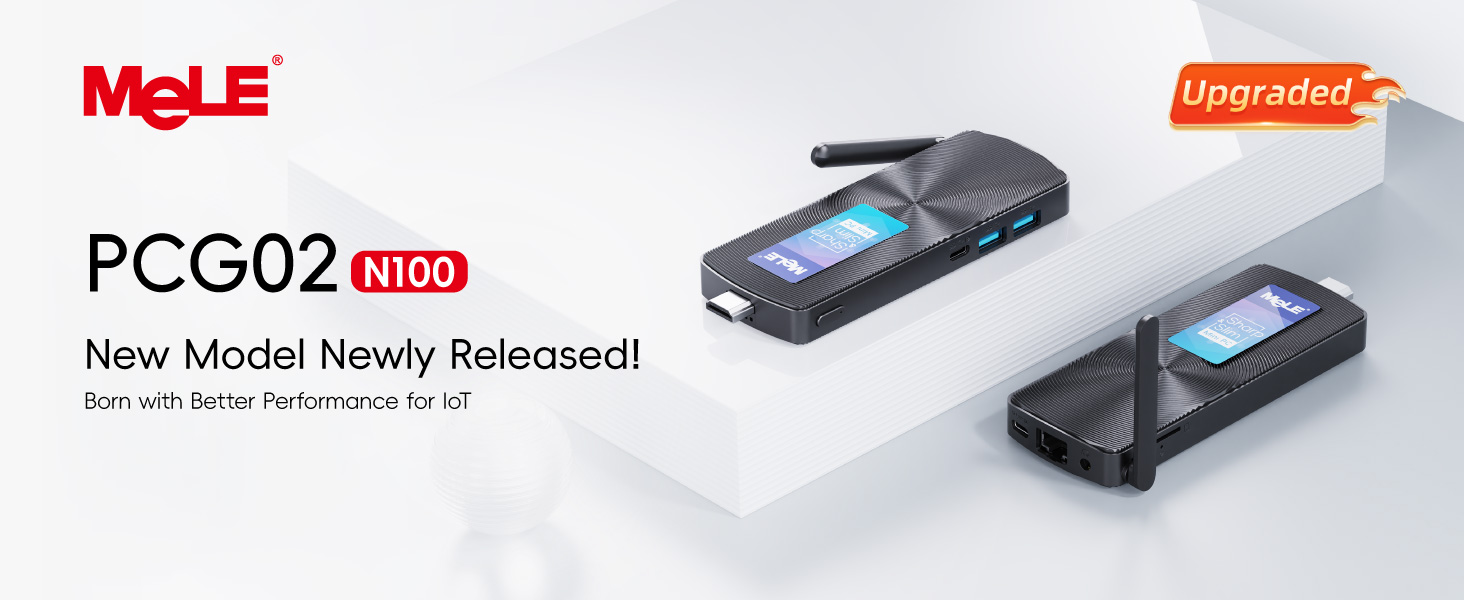
Image: MeLE PCG02 N100 Mini PC Stick, showcasing its compact design and typical usage scenarios.
Key Features:
- Processor: Intel Celeron N100 Quad-Core (0.8GHz to 3.4GHz)
- Memory: 8GB LPDDR4 RAM
- Storage: 128GB eMMC, expandable via Micro SD card (up to 1TB)
- Connectivity: Dual-band Wi-Fi (802.11ac), Bluetooth 5.1, Gigabit Ethernet
- Ports: 2x USB-A 3.0, 1x Full-function USB-C 3.2 (data, DP, power), HDMI 2.0 (4K@60Hz), 3.5mm audio jack
- Display Support: Dual 4K display output
- Cooling: Fanless design for silent operation
- Operating System: Supports mainstream operating systems like Windows 11 Pro and various Linux distributions.
2. Setup Guide
Follow these steps to set up your MeLE PCG02 N100 Mini PC Stick.
2.1 Package Contents
Ensure all items are present in the package:
- MeLE PCG02 N100 Mini PC Stick
- Power Adapter (12V/2A)
- HDMI Extender Cable (25cm)
- VESA Mount Kit (bracket and screws)
- User Manual (this document)

Image: The MeLE PCG02 N100 Mini PC Stick shown with its included accessories, including the power adapter, HDMI extender, and VESA mount.
2.2 Connecting to a Display
- Connect the HDMI Extender Cable to the HDMI port on the Mini PC Stick.
- Connect the other end of the HDMI Extender Cable to an available HDMI input on your monitor or TV.
- Alternatively, use a USB-C to DisplayPort (DP) cable to connect to a compatible display via the full-function USB-C port for a second display.
2.3 Connecting Peripherals
- USB Devices: Plug your keyboard, mouse, or other USB devices into the USB-A 3.0 ports.
- Bluetooth Devices: Pair Bluetooth-enabled devices like keyboards, mice, or headphones via the operating system's Bluetooth settings.
- Network: For a wired connection, connect an Ethernet cable to the Gigabit Ethernet port. For wireless, ensure the external antenna is attached and positioned for optimal signal.
- Audio: Connect headphones or external speakers to the 3.5mm audio jack if needed.

Image: Detailed diagram of the MeLE PCG02 N100 Mini PC Stick's ports, including USB, HDMI, Ethernet, and audio connections.
2.4 Powering On
- Connect the power adapter to the DC-IN port on the Mini PC Stick.
- Plug the power adapter into a wall outlet.
- Press the Power Button on the device. The power indicator light will illuminate.
2.5 VESA Mounting (Optional)
To save space and keep your desktop tidy, you can mount the Mini PC Stick behind a monitor using the included VESA mount kit.
- Attach the VESA bracket to the back of your monitor using the provided screws.
- Slide the Mini PC Stick onto the bracket until it clicks into place.

Image: The MeLE PCG02 N100 Mini PC Stick mounted on the back of a monitor using the VESA bracket, demonstrating a clean setup.
3. Operating Instructions
This section covers basic operation and advanced features of your Mini PC Stick.
3.1 Initial Boot and OS Setup
Upon first power-on, the device will guide you through the operating system (e.g., Windows 11 Pro) setup process. Follow the on-screen prompts to configure language, region, network, and user accounts.
3.2 Everyday Use
The MeLE PCG02 N100 is suitable for web browsing, office applications, media playback (including 4K video), and light multitasking. Its fanless design ensures quiet operation.

Image: The MeLE PCG02 N100 Mini PC Stick being used for various tasks such as office work, media consumption, and presentations.
3.3 BIOS Features
Access the BIOS settings by pressing the Delete key during startup. The BIOS offers advanced configuration options:
- Auto Power On: Configures the device to automatically power on when power is supplied.
- Wake on LAN (WoL): Allows the device to be powered on remotely via a network signal.
- PXE Boot: Enables network booting for operating system deployment.
- RTC Wake: Schedules the device to wake up at a specific time.
- Boot Order: Adjusts the boot device priority.
- CMOS Reset/BIOS Reset: Resets BIOS settings to default.
- Disable LAN/WiFi/BT/USB Ports: Allows disabling specific ports or wireless functions for security or specific application needs.
3.4 Storage Expansion
Insert a Micro SD card into the Micro SD card slot to expand storage capacity up to 1TB. The card will be recognized by the operating system as an additional drive.
4. Maintenance
The MeLE PCG02 N100 is designed for low maintenance due to its fanless operation.
4.1 Cleaning
- Use a soft, dry cloth to wipe the exterior of the device.
- Avoid using liquid cleaners or abrasive materials.
- The fanless design minimizes dust accumulation inside the device.
4.2 Heat Management
While designed to dissipate heat efficiently, ensure the device is placed in a well-ventilated area. Avoid covering the device or placing it in enclosed spaces to prevent potential overheating during prolonged use.
5. Troubleshooting
If you encounter issues with your MeLE PCG02 N100, refer to the following common problems and solutions.
5.1 No Display Output
- Ensure the HDMI cable is securely connected to both the Mini PC Stick and the display.
- Verify the display is set to the correct HDMI input source.
- If using the HDMI extender, try connecting the Mini PC Stick directly to the display's HDMI port (if feasible) or try a different HDMI cable.
- If using USB-C for display, ensure your cable and monitor support DisplayPort Alt Mode via USB-C.
- Try connecting to a different display to rule out monitor issues.
5.2 Device Does Not Power On
- Check that the power adapter is correctly connected to the DC-IN port and a working power outlet.
- Ensure the power button has been pressed firmly.
- Try a different power outlet.
5.3 Wi-Fi or Bluetooth Connectivity Issues
- Ensure the external Wi-Fi antenna is securely attached.
- Check the operating system's network and Bluetooth settings to ensure they are enabled.
- Restart the device and your router/modem.
- Update wireless drivers if available.
5.4 Device Runs Hot
- Ensure the device is in a well-ventilated area and not covered.
- Avoid placing the device in direct sunlight or near heat sources.
- Reduce heavy workload if possible, as sustained high CPU usage can increase temperature.
6. Specifications
Detailed technical specifications for the MeLE PCG02 N100 Mini PC Stick.
| Feature | Specification |
|---|---|
| Model | PCG02 N100 |
| Processor | Intel Celeron N100 (0.8GHz base, up to 3.4GHz turbo), 4 Cores, 4 Threads, 6MB Cache |
| Graphics | Intel UHD Graphics 610 |
| RAM | 8GB LPDDR4 (4266 MHz) |
| Storage | 128GB eMMC, Micro SDXC slot (up to 1TB) |
| Operating System | OS (e.g., Windows 11 Pro) |
| Video Output | 1x HDMI 2.0 (4K@60Hz), 1x USB-C (DP1.4, 4K@60Hz) |
| USB Ports | 2x USB-A 3.0 (10Gbps), 1x USB-C 3.2 (Full-function: Data, DP, Power) |
| Network | Gigabit Ethernet (10/100/1000Mbps), Wi-Fi 5 (802.11ac, 2.4G/5.8GHz Dual Band), Bluetooth 5.1 |
| Audio | 3.5mm Earphone & Mic Jack |
| Cooling Method | Fanless |
| Dimensions | 140 x 60 x 19.5 mm (5.1 x 2.0 x 0.52 inches) |
| Weight | 120g (0.26 lbs) |
| Power Input | 12V/2A DC-IN (Operating voltage range: 12V-20V) |
| Security Features | Kensington Security Lock Slot |
7. Warranty and Support
MeLE is committed to providing quality products and customer service.
7.1 Warranty Information
Your MeLE PCG02 N100 Mini PC Stick comes with a 12-month warranty. MeLE also offers lifetime service for its products. Please retain your proof of purchase for warranty claims.
7.2 Customer Support
For technical assistance, troubleshooting, or warranty inquiries, please contact MeLE customer support:
- Email: service@mele.cn
- Phone: +86-0755-8636 3200
You can also log into your Amazon account, go to 'Your Account' then 'Your Orders', and select 'Ask Product Question' for support related to your purchase.

Image: MeLE customer support contact details, including email and phone number.


