
Introduction
This manual provides essential instructions for setting up, operating, maintaining, and troubleshooting your weelikeit 10.1'' Android 14 Tablet P16. Designed for optimal performance, this tablet features an Octa-Core processor, a 2K display, 128GB internal storage expandable up to 1TB, 12GB RAM (6+6GB expanded), 4G LTE and 5G WiFi connectivity, Bluetooth 5.0, and a 6000mAh battery. Please read this manual thoroughly to ensure proper use and longevity of your device.

Image: The weelikeit 10.1 inch Android 14 Tablet P16, showcasing its sleek design and display.
Setup
What's in the Box
- 1x Weelikeit P16 Tablet
- 1x Type-C Cable
- 1x Adaptor
- 1x Protective film (pre-applied)
- 1x User Manual
Initial Power On and Charging
Before first use, fully charge your tablet using the provided Type-C cable and adaptor. Connect the Type-C cable to the tablet's charging port and the adaptor to a power outlet. The battery indicator on the screen will show charging status. Press and hold the power button located on the side of the tablet for a few seconds to turn it on.
SIM Card and TF Card Installation
The tablet supports dual Nano SIM cards and one TF (Micro SD) card for expanded storage. Use the provided SIM ejector tool to open the SIM/TF card tray. Carefully place the Nano SIM card(s) and/or TF card into their respective slots, ensuring correct orientation. Gently push the tray back into the tablet until it clicks into place.

Image: Close-up view of the SIM card and TF card tray, illustrating proper insertion of Nano SIM cards and a Micro SD card.
Initial Android Setup
Upon first power-on, the tablet will guide you through the initial Android 14 setup process. This includes selecting your language, connecting to a Wi-Fi network, setting up your Google account, and configuring basic security settings. Follow the on-screen prompts to complete the setup.
Operating Your Tablet
Basic Navigation
Navigate the Android 14 interface using touch gestures. Tap to select, swipe to scroll, pinch to zoom, and long-press for contextual menus. The navigation bar at the bottom of the screen typically includes Back, Home, and Recent Apps buttons.
Connectivity
Wi-Fi Connection
To connect to a Wi-Fi network, go to Settings > Network & internet > Wi-Fi. Turn Wi-Fi on, select your desired network from the list, and enter the password if required. The tablet supports both 2.4G and 5G Wi-Fi bands for faster and more stable connections.
4G LTE Cellular Data
If you have installed a Nano SIM card, you can use 4G LTE cellular data. Go to Settings > Network & internet > Mobile network to enable mobile data and configure APN settings if necessary. This allows for internet access and phone contact functionality wherever 4G coverage is available.
Bluetooth Pairing
To pair Bluetooth 5.0 devices, navigate to Settings > Connected devices > Bluetooth. Turn Bluetooth on, and the tablet will scan for available devices. Select your device from the list and follow any pairing instructions.
GPS Navigation
The tablet includes built-in GPS for location services and navigation. Ensure location services are enabled in Settings > Location for optimal performance with mapping applications.
Camera Usage
The tablet is equipped with a 13MP rear camera and an 8MP front-facing camera. Open the Camera application to capture photos and videos. Switch between front and rear cameras, adjust settings, and apply filters as desired. The front camera is ideal for video calls, while the rear camera is suitable for capturing daily moments.

Image: Visual representation of the tablet's 13MP rear and 8MP front cameras, with examples of captured images.
Storage Management
Your tablet comes with 128GB of internal storage for apps, games, and media. This can be expanded up to 1TB using a TF (Micro SD) card. To manage storage, go to Settings > Storage. Here you can view storage usage and free up space.

Image: An illustration highlighting the tablet's 12GB RAM (6+6GB expanded), 128GB internal storage, and 1TB TF card expansion capability.
Battery Management
The 6000mAh battery provides extended usage times. To optimize battery life, adjust screen brightness, close unused applications, and enable battery saver mode when needed. Charging is done via the Type-C port.
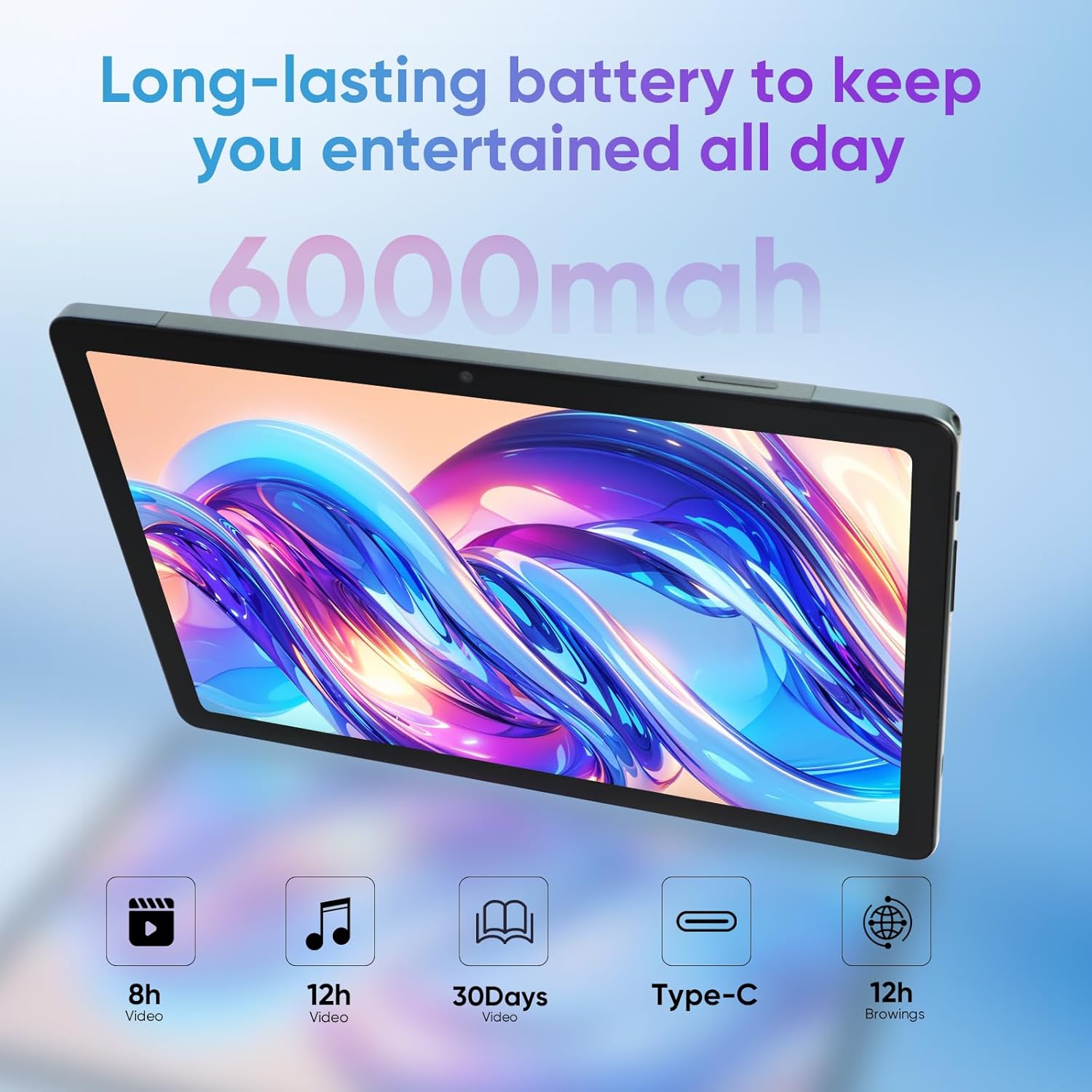
Image: Depiction of the tablet's 6000mAh battery, showing estimated usage times for video, music, and browsing, along with Type-C charging.
Maintenance
Cleaning Your Tablet
Use a soft, lint-free cloth to clean the screen and body of your tablet. Avoid using harsh chemicals or abrasive materials, which can damage the display or finish. For stubborn smudges, slightly dampen the cloth with water or a screen-cleaning solution.
Software Updates
Regularly check for and install software updates to ensure your tablet has the latest features, security patches, and performance improvements. Go to Settings > System > System update to check for available updates.
Battery Care
To prolong battery lifespan, avoid extreme temperatures and do not let the battery completely drain frequently. It is recommended to keep the battery charge between 20% and 80% for optimal long-term health.
Troubleshooting
| Problem | Possible Solution |
|---|---|
| Tablet does not power on | Ensure the battery is charged. Connect the charger and try again. If unresponsive, press and hold the power button for 10-15 seconds to force a restart. |
| Wi-Fi connection issues | Check if Wi-Fi is enabled in settings. Restart your router and the tablet. Ensure you are within range of the Wi-Fi signal. |
| Apps are crashing or freezing | Clear the cache for the problematic app (Settings > Apps > [App Name] > Storage & cache > Clear cache). If the issue persists, uninstall and reinstall the app. Ensure sufficient free storage space. |
| Slow performance | Close unused background apps. Clear unnecessary files and cache. Consider performing a factory reset as a last resort (backup data first). |
| SIM card not detected | Ensure the SIM card is correctly inserted into the tray. Restart the tablet. Verify that the SIM card is active with your carrier. |
Technical Specifications
| Feature | Specification |
|---|---|
| Brand | weelikeit |
| Model Name | Weelikeit P16 Tablet |
| Operating System | Android 14 |
| Screen Size | 10.1 Inches |
| Screen Resolution | 1920 x 1200 Pixels (2K IPS In-cell) |
| Processor | Unisoc Octa-Core (T616, up to 2 GHz) |
| RAM | 12GB (6GB + 6GB Expansion) |
| Internal Storage | 128 GB |
| Expandable Storage | Up to 1TB via TF Card (sold separately) |
| Rear Camera | 13 MP |
| Front Camera | 8 MP |
| Battery Capacity | 6000 mAh |
| Average Battery Life | Up to 18 Hours |
| Wireless Type | 802.11ax (2.4G/5G WiFi) |
| Bluetooth | Bluetooth 5.0 |
| Cellular Connectivity | 4G LTE (Dual Nano SIM support) |
| GPS | Yes |
| Charging Port | Type-C |
| Item Weight | 15.5 ounces |
| Product Dimensions | 9.45 x 6.28 x 0.31 inches |
| Color | Dark Gray |
Warranty and Support
Your weelikeit P16 Tablet comes with a 24-month warranty and lifetime technical service. If you encounter any issues or require assistance, please contact weelikeit customer support. Refer to the contact information provided in your product packaging or on the official weelikeit website for support details.