
1. Introduction
This manual provides comprehensive instructions for the setup, operation, and maintenance of your typecase Folio Keyboard Case. This product is designed to enhance your iPad experience by offering protection, a comfortable typing solution, and versatile viewing angles.
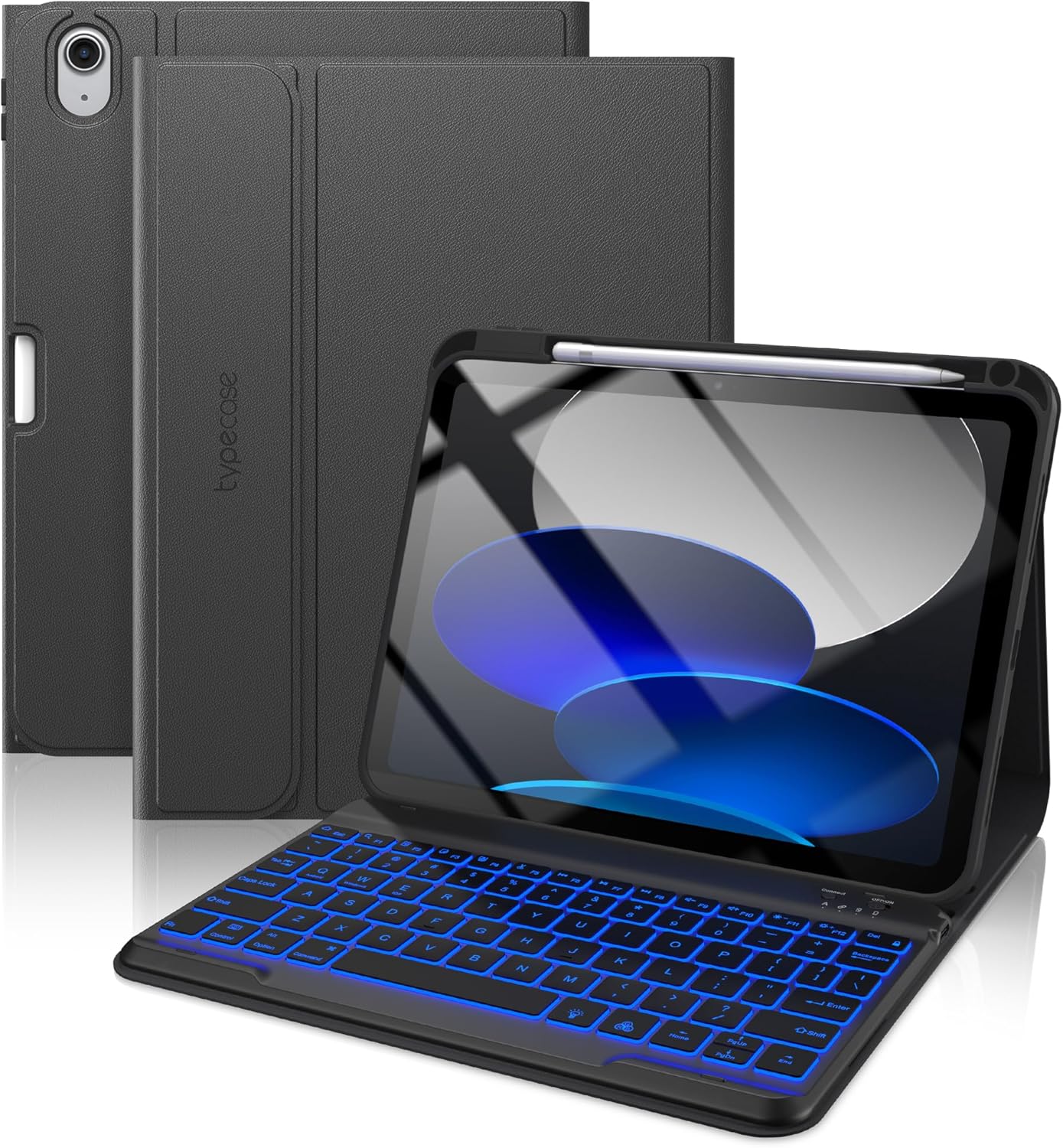
Image 1.1: The typecase Folio Keyboard Case with an iPad, showcasing the backlit keyboard and integrated pencil holder.
2. Compatibility
The typecase Folio Keyboard Case is specifically designed for the following iPad models:
- iPad 10th Generation (2022) 10.9-inch (Models: A2696, A2757, A2777)
- iPad 11th Generation (A16, 2025) (Models: A3354, A3355, A3356)
To ensure proper fit, please verify your iPad's model number on the back of the device or within the iPad's settings under General > About > Model Number. This case is not compatible with other iPad models.

Image 2.1: Visual guide for verifying iPad model numbers and confirming compatibility with the typecase Folio Keyboard Case.
3. Package Contents
Upon opening your package, please ensure all the following items are present:
- 1 x iPad case (Folio)
- 1 x Wireless Keyboard (detachable)
- 1 x Type-C Charging Cable
- 1 x User Manual (this document)
Note: iPad and Apple Pencil are not included.
4. Setup Instructions
4.1. Charging the Keyboard
Before initial use, fully charge the wireless keyboard. The keyboard features a 420mAh battery, providing extended usage time.
- Locate the Type-C charging port on the keyboard.
- Connect the included Type-C charging cable to the keyboard and a compatible USB power adapter (not included).
- The charging indicator light will illuminate. A full charge typically takes approximately 2 hours.
- Once fully charged, the indicator light may change color or turn off, depending on the keyboard model.

Image 4.1: The keyboard's Type-C charging port, illustrating the charging process.
4.2. Attaching Your iPad to the Case
The case is designed for a secure fit, protecting your iPad from drops and scratches.
- Gently align your iPad with the protective shell of the case.
- Press firmly around the edges until the iPad is securely seated within the case. Ensure all ports and buttons are accessible through the precise cutouts.
4.3. Pairing the Wireless Keyboard via Bluetooth
The keyboard connects wirelessly to your iPad via Bluetooth.
- Turn on the keyboard using the power switch, usually located on the side or top edge.
- Press the 'Connect' button on the keyboard (often indicated by a Bluetooth symbol) to enter pairing mode. The Bluetooth indicator light will flash.
- On your iPad, go to Settings > Bluetooth.
- Ensure Bluetooth is turned On.
- Look for 'typecase Keyboard' or a similar name in the 'Other Devices' list and tap on it to connect.
- Once paired, the Bluetooth indicator light on the keyboard will stop flashing and remain solid or turn off.
5. Operating Instructions
5.1. Using the Detachable Magnetic Keyboard
The keyboard attaches magnetically to the folio case, allowing for flexible positioning or complete removal.
- Attachment: Simply place the keyboard onto the magnetic strip within the case. It will snap into position.
- Detachment: Gently lift the keyboard from the magnetic strip to remove it for standalone use.
5.2. Adjusting Viewing Angles
The folio case offers multiple viewing angles for typing, drawing, or media consumption.
- Position the iPad within the case to stand upright.
- Adjust the iPad's angle by moving it along the magnetic grooves or folds in the case. Common angles include 110°, 120°, and 130°.

Image 5.1: The case's ability to adjust to various viewing angles for optimal comfort.
5.3. Backlit Keyboard Functionality
The keyboard features 7-color backlighting with 3 levels of brightness adjustment.
- Turn On/Off Backlight: Press the Light Bulb key (often near the spacebar or function keys).
- Change Color: Press the Light Bulb key repeatedly to cycle through the 7 available colors.
- Adjust Brightness: Use the Fn key in combination with the Light Bulb key or dedicated brightness keys (if present) to cycle through brightness levels.
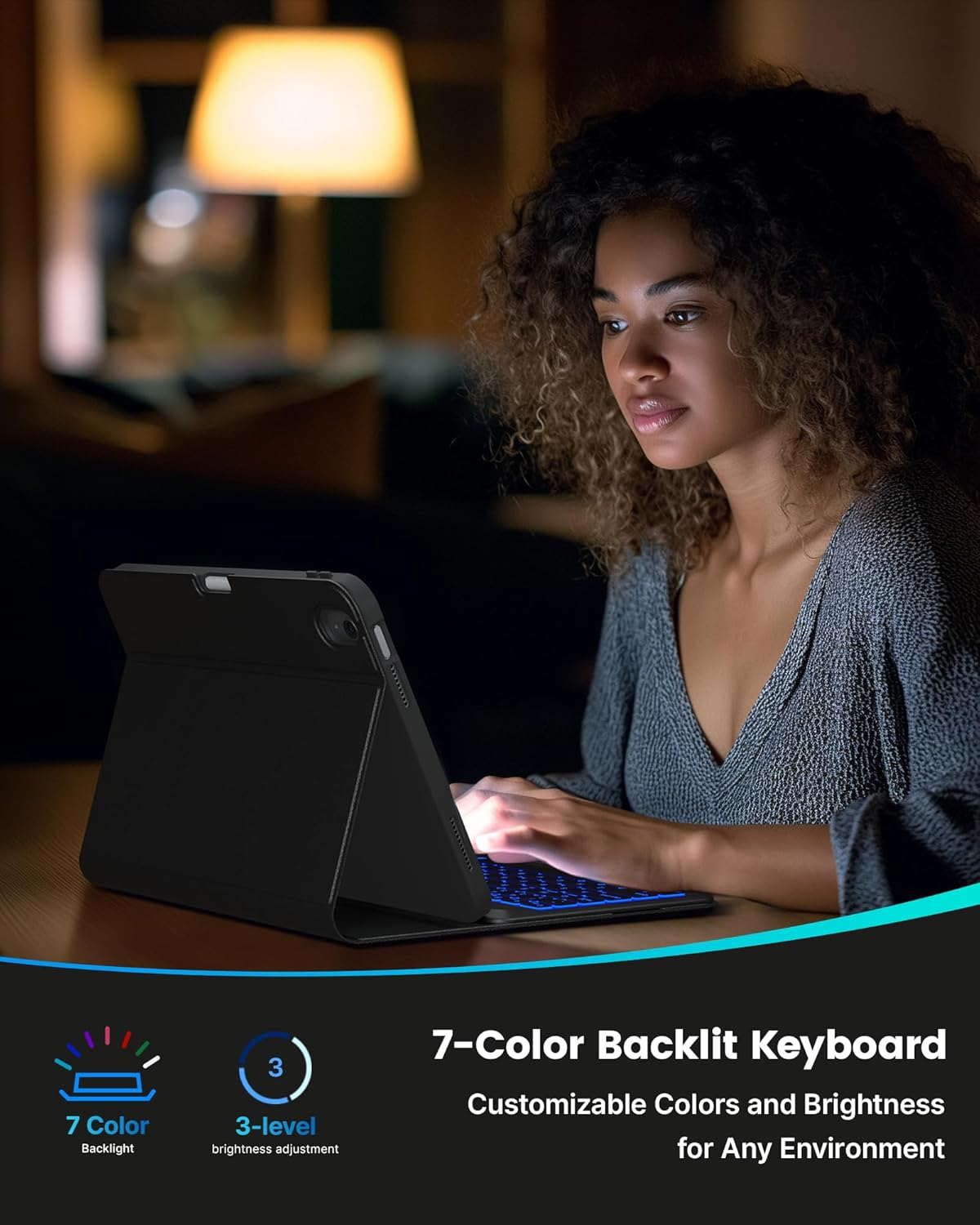
Image 5.2: The 7-color backlit keyboard in use, providing visibility in low-light conditions.
5.4. Pencil Holder
The case includes a dedicated holder for your Apple Pencil or similar stylus.
- A top pencil holder secures your stylus when not in use.
- A back cutout allows for quick and easy access to retrieve the stylus.
6. Maintenance
6.1. Cleaning the Case and Keyboard
To maintain the appearance and functionality of your typecase product:
- Wipe the exterior of the case with a soft, damp cloth. Avoid harsh chemicals or abrasive cleaners.
- For the keyboard, use a soft, dry cloth. For stubborn dirt between keys, a can of compressed air can be used.
- Ensure the keyboard is powered off before cleaning.
6.2. Battery Care
To prolong the battery life of your keyboard:
- Charge the keyboard regularly, even if not in constant use.
- Avoid fully discharging the battery frequently.
- Store the keyboard in a cool, dry place when not in use for extended periods.
7. Troubleshooting
7.1. Keyboard Not Connecting to iPad
- Check Power: Ensure the keyboard is turned on and has sufficient battery charge.
- Bluetooth On: Verify that Bluetooth is enabled on your iPad (Settings > Bluetooth).
- Re-pair: Forget the device in iPad's Bluetooth settings and attempt to pair again.
- Restart Devices: Turn off and restart both your iPad and the keyboard.
7.2. Backlight Not Working
- Check Battery: Low battery can affect backlight functionality. Charge the keyboard.
- Brightness Adjustment: Ensure the brightness is not set to the lowest level. Press the backlight key to cycle through brightness settings.
7.3. Keys Not Responding
- Re-establish Connection: Disconnect and reconnect the Bluetooth connection.
- Restart: Power cycle the keyboard and iPad.
- Clean Keys: Ensure no debris is lodged under the keys.
8. Specifications
| Feature | Detail |
|---|---|
| Model Name | Typecase Folio Keyboard Case for iPad 10th Generation / 11th Generation |
| Compatible Devices | iPad 10th Gen (2022) 10.9-inch (A2696, A2757, A2777), iPad 11th Gen (A16, 2025) (A3354, A3355, A3356) |
| Connectivity Technology | Bluetooth |
| Keyboard Description | Flexible, Scissor-switch keys, 78-key layout |
| Special Features | Backlit (7-color, 3-level brightness), Detachable Keyboard, Ergonomic, Integrated Stand, Lightweight, Pencil Holder |
| Battery Type | 1 Lithium Polymer battery (included) |
| Battery Capacity | 420mAh |
| Charging Time | Approx. 2 hours |
| Usage Time | Up to 240 hours (without backlight) |
| Item Weight | 1.5 pounds (approx. 0.68 kg) |
| Material | High-quality PU leather, flexible TPU, honeycomb grid |
9. Warranty and Support
typecase products are manufactured to high standards and are designed for durability. Should you encounter any issues or require assistance with your Folio Keyboard Case, our customer service team is available to help.
- For support, please refer to the contact information provided on the typecase official website or the packaging.
- Assistance with necessary replacements is available to ensure your purchase remains a reliable choice.
For more information about typecase products, visit the official typecase Store.


