
Introduction
This manual provides essential information for setting up, operating, maintaining, and troubleshooting your HP Pavilion 16 Business Laptop, Model 16-AF0065. Please read this guide thoroughly to ensure proper use and to maximize the performance and longevity of your device.

Image: The HP Pavilion 16 Business Laptop in a closed position, displaying its sleek design and the HP logo on the lid.
What's in the Box
Upon unboxing your HP Pavilion 16 Business Laptop, verify that all components are present:
- HP Pavilion 16 Laptop
- 65W AC Power Adapter
- COU 32GB USB Drive
- Setup Instructions

Image: An illustration showing the HP Pavilion 16 Laptop, a 100W USB Type-C power adapter, and setup instructions, representing the typical contents of the product box.
Setup
1. Initial Power and Charging
Before first use, connect the laptop to a power outlet using the provided AC power adapter. The battery will begin charging automatically. It is recommended to fully charge the battery before initial use.
2. Powering On
Open the laptop lid. Press the power button, typically located on the keyboard deck or side of the device. The laptop will boot up, and the HP logo will appear.
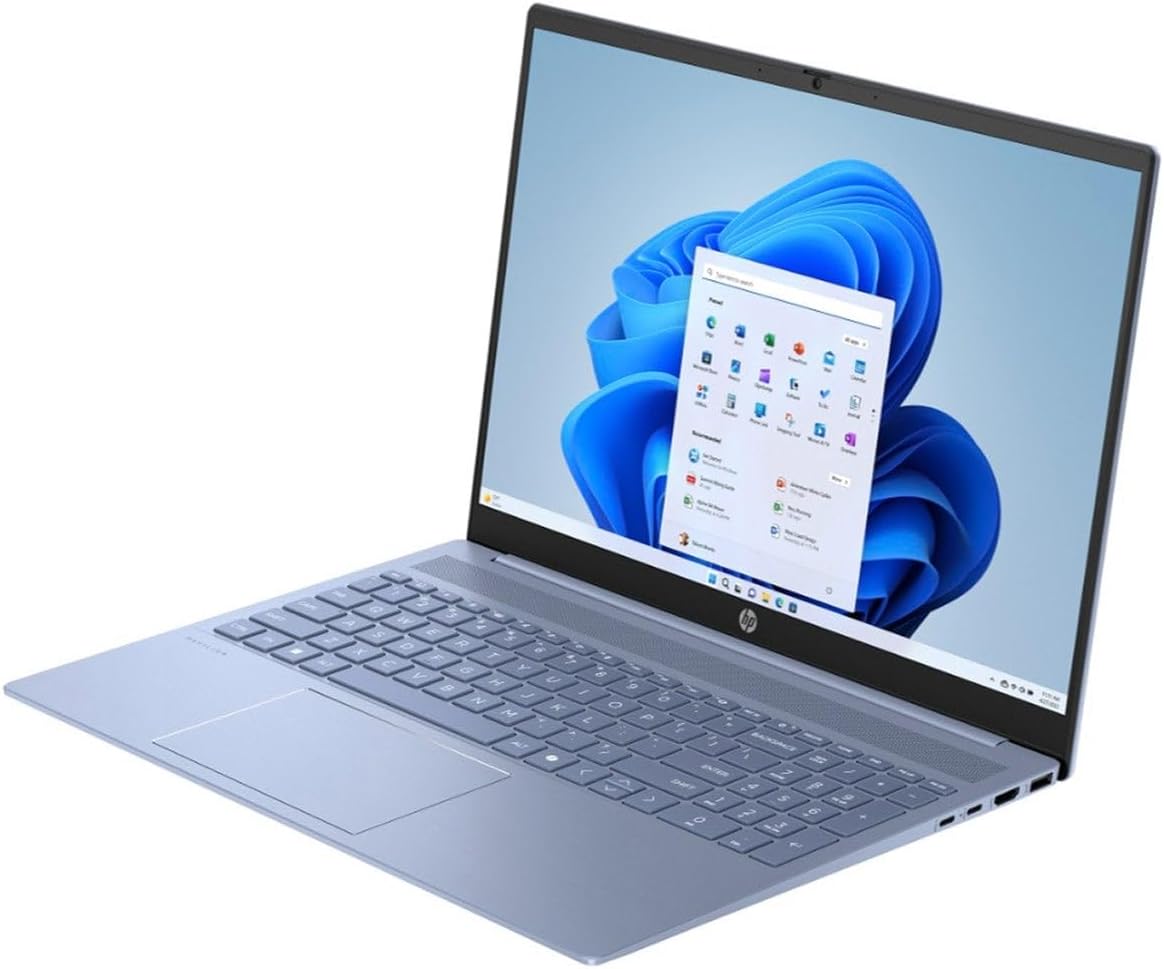
Image: The HP Pavilion 16 Business Laptop shown open, revealing its 16-inch display and full-size keyboard with numeric pad.
3. Windows 11 Home Setup
Follow the on-screen prompts to complete the Windows 11 Home setup process. This includes selecting your region, connecting to a Wi-Fi network, creating a user account, and accepting the license agreement.
4. Connecting to Wi-Fi
During the Windows setup, you will be prompted to connect to a wireless network. Select your network from the list and enter the password if required. If setting up later, navigate to Settings > Network & internet > Wi-Fi.
Operating Instructions
Power Management
- Power On: Press the power button.
- Sleep Mode: Close the lid or press the power button briefly.
- Shut Down: Click the Start button, then Power > Shut down.
- Restart: Click the Start button, then Power > Restart.
Using the Touchscreen
The 16-inch WUXGA IPS touchscreen supports multi-touch gestures for intuitive navigation:
- Tap: Select an item or open an application.
- Tap and Hold: Access context menus.
- Pinch/Stretch: Zoom in or out on content.
- Swipe: Scroll through pages or lists.
Keyboard and Touchpad
The laptop features a full-size backlit keyboard with a numeric pad and a precision touchpad.
- Backlit Keyboard: Use the dedicated function key (Fn + F key, typically F5 or F4) to adjust or toggle the keyboard backlight.
- Touchpad Gestures: Refer to Windows settings for customizable multi-finger gestures (e.g., two-finger scroll, three-finger swipe for task view).
Connecting Peripherals
The HP Pavilion 16 offers various ports for connecting external devices:
- USB-C 3.2 Gen 2 (x2): Supports Power Delivery, DisplayPort 1.4, Power-off Charging, and data transfer up to 10Gbps. Use for external displays, charging compatible devices, or high-speed data transfer.
- USB 3.2 Gen 2 Type-A (x1): For data transfer up to 10Gbps.
- USB 3.2 Gen 1 Type-A (x1): For data transfer up to 5Gbps.
- HDMI v2.1 (x1): Connect to external monitors or TVs for video and audio output.
- Headphone / Microphone Combo Jack (x1): Connect headphones, external speakers, or a headset with a microphone.

Image: A side view of the HP Pavilion 16 Business Laptop, highlighting the various input/output ports available for connecting peripherals.
Wireless Connectivity
- Wi-Fi 6 (802.11AX): Provides fast and reliable wireless internet connection. Ensure your router supports Wi-Fi 6 for optimal performance.
- Bluetooth 5.3: Connect wireless accessories such as headphones, mice, or keyboards. To pair a device, go to Settings > Bluetooth & devices.
Maintenance
Cleaning Your Laptop
- Screen: Use a soft, lint-free cloth slightly dampened with water or a screen cleaner. Avoid harsh chemicals.
- Keyboard and Chassis: Use a soft, dry cloth. For stubborn dirt, a slightly damp cloth with mild soap solution can be used, ensuring no liquid enters openings.
- Vents: Periodically clean dust from the ventilation openings using compressed air to prevent overheating.
Battery Care
- Avoid fully discharging the battery frequently.
- Store the laptop in a cool, dry place if not used for extended periods.
- Use only the original HP power adapter.
Software Updates
Regularly check for and install operating system updates (Windows Update) and driver updates (HP Support Assistant) to ensure optimal performance, security, and compatibility.
Troubleshooting
Laptop Does Not Power On
- Ensure the power adapter is securely connected to both the laptop and a working power outlet.
- Verify the power outlet is functional by plugging in another device.
- If the battery is completely drained, allow it to charge for at least 15-30 minutes before attempting to power on.
No Display on Screen
- Check if the laptop is powered on (power indicator light).
- Try adjusting the screen brightness using the function keys (e.g., Fn + F2/F3).
- Connect an external monitor via HDMI to check if the issue is with the laptop's internal display.
Wi-Fi Connectivity Issues
- Ensure Wi-Fi is enabled in Windows settings (Settings > Network & internet > Wi-Fi).
- Restart your router and modem.
- Forget the network and reconnect, entering the password again.
- Update Wi-Fi drivers through HP Support Assistant or Device Manager.
Slow Performance
- Close unnecessary applications running in the background.
- Check for and install any pending Windows updates.
- Run a disk cleanup and defragmentation (for HDD, not necessary for SSD).
- Scan for malware or viruses.
Specifications
Detailed technical specifications for the HP Pavilion 16 Business Laptop (Model 16-AF0065):
| Feature | Specification |
|---|---|
| Model Name | HP Pavilion 16 (16-AF0065) |
| Display | 16" WUXGA (1920 x 1200) IPS Touchscreen, Anti-glare, 300 nits, 45% NTSC, Thin Bezel |
| Processor | Intel 7 150U 10-Core (Up to 5.4 GHz, 12 MB Intel Smart cache) |
| Graphics | Intel Graphics (Integrated) |
| RAM | 32GB LPDDR5 SDRAM 4800 MHz |
| Storage | 2TB NVMe M.2 SSD |
| Operating System | Windows 11 Home |
| Keyboard | Full-size Backlit Keyboard with Numpad |
| Wireless Connectivity | Realtek Wi-Fi 6 (2x2) 802.11AX, Bluetooth 5.3 |
| Camera | 1080p FHD Camera with Privacy Shutter |
| Ports | 2x USB-C 3.2 Gen 2 (PD, DP 1.4, Power-off Charging, 10Gbps), 1x USB 3.2 Gen 2 (10Gbps), 1x USB 3.2 Gen 1 (5Gbps), 1x HDMI v2.1, 1x Headphone / microphone combo jack |
| Battery | 59Wh Lithium-Ion (up to 6 hours average battery life) |
| Dimensions (L x W x H) | 14.08" x 10.03" x 0.73" inches |
| Weight | 3.97 lbs |
| Color | Sky Blue |

Image: A diagram illustrating the physical dimensions of the HP Pavilion 16 Business Laptop: 16 inches (diagonal screen), 14.08 inches (width), 10.03 inches (depth), and 0.73 inches (height). The laptop weighs 3.97 lbs.
Warranty Information
Your HP Pavilion 16 Business Laptop is covered by a standard manufacturer's warranty. For specific details regarding warranty duration, coverage, and terms, please refer to the warranty documentation included with your product or visit the official HP support website. Keep your proof of purchase for warranty claims.
Support
For technical assistance, driver downloads, or further information, please visit the official HP Support website. You can also contact HP customer service through the channels provided on their website.
HP Support Website: support.hp.com


