
KTC H25B7
KTC H25B7 24.5-inch FHD 100Hz IPS Computer Monitor User Manual
Model: H25B7
Introduction
This manual provides essential information for setting up, operating, and maintaining your KTC H25B7 24.5-inch FHD 100Hz IPS Computer Monitor. Please read this manual thoroughly before use to ensure optimal performance and safety.
What's in the Box
Verify that all components are present in the packaging:
- 1 x 24.5 inch FHD 100Hz Monitor
- 1 x Tilt Adjustable Stand
- 1 x Quick Start Guide (QSG)
- 1 x HDMI Cable
- 1 x Power Adapter
- 1 x Screwdriver
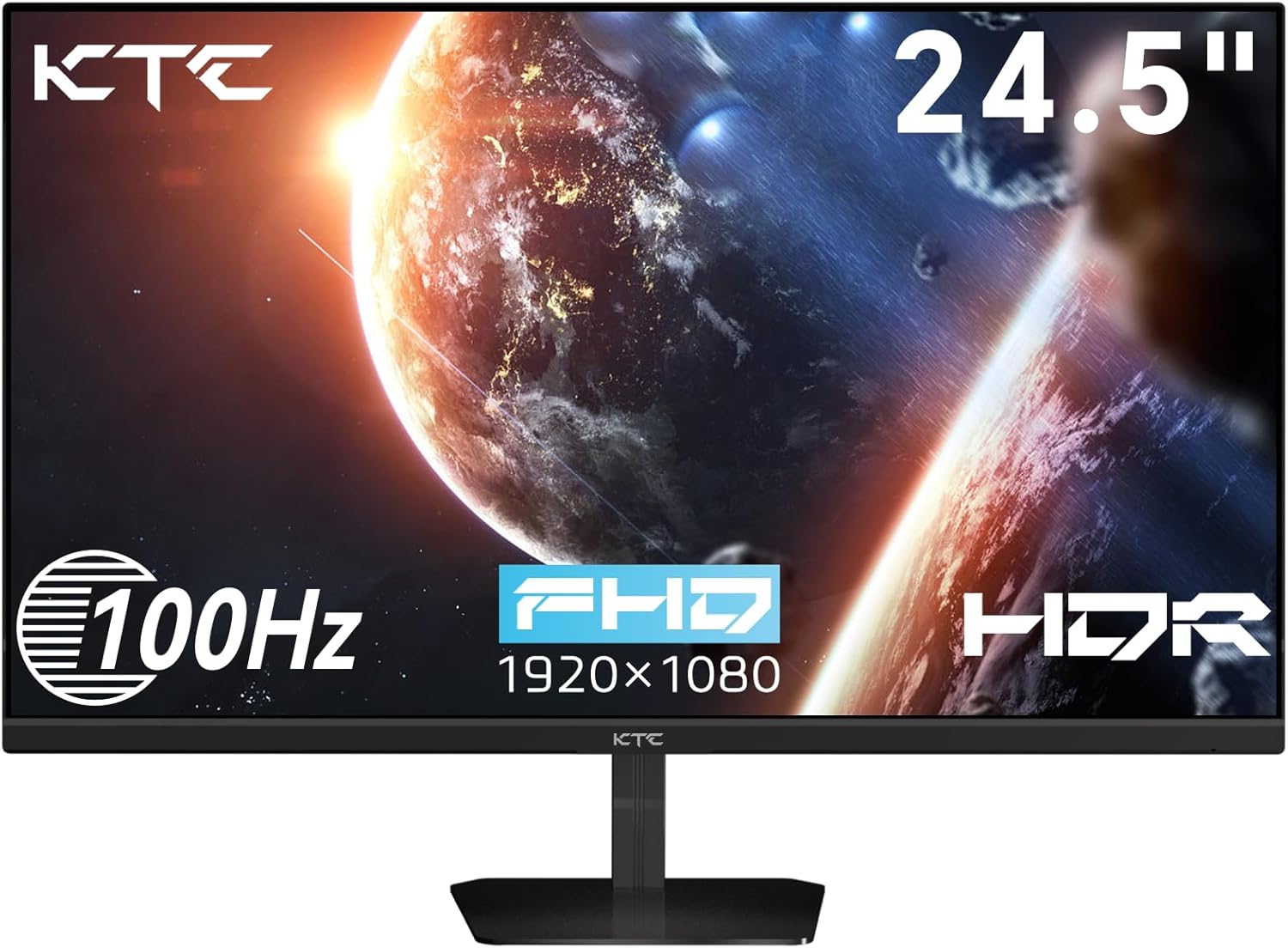
Image: The KTC H25B7 monitor with its stand and various cables, representing the contents of the box.
Setup
Monitor Assembly
To assemble the monitor stand:
- Carefully remove the monitor and stand components from the packaging.
- Attach the stand base to the stand neck.
- Align the stand neck with the mounting slot on the back of the monitor and slide it in until it clicks securely into place.
The monitor also supports VESA 100mm x 100mm mounting for alternative setups, such as wall mounts or monitor arms. To use a VESA mount, remove the pre-attached stand by pressing the release button and then secure your VESA mount to the designated screw holes on the back of the monitor.
Video: An overview of the KTC H25B7 monitor, demonstrating its features including the stand assembly and VESA mount compatibility.

Image: The rear view of the monitor highlighting the VESA 100x100mm mounting holes and the tilt adjustment range of -5° to +15°.
Connecting to Devices
The KTC H25B7 monitor offers versatile connectivity options:
- HDMI: Connect your computer or gaming console using the provided HDMI cable. The monitor features one HDMI 1.4 port supporting up to 1080p resolution at 100Hz.
- VGA: For older devices, a VGA port is available supporting up to 1080p resolution at 75Hz.
- Earphone Jack: An earphone output port is available for connecting headphones or external speakers.

Image: A close-up of the monitor's rear ports, including DC power input, HDMI 1.4, VGA, and a 3.5mm earphone jack.
Operating
Basic Operation and OSD Navigation
The monitor features a single joystick-style button located on the back for power control and On-Screen Display (OSD) navigation. Press the button to power on/off or to access the OSD menu. Use the joystick to navigate through menu options (up, down, left, right) and press to select.
Video: A demonstration of the monitor's physical controls and the On-Screen Display (OSD) menu, showing navigation and various settings.
Display Settings
Adjust various display parameters through the OSD menu:
- Brightness: Adjust the overall luminance of the screen.
- Contrast: Control the difference between the brightest and darkest areas of the image.
- Black Equalize: Enhance visibility in dark scenes by adjusting black levels.
- Preset Modes: Select from various pre-configured display modes (e.g., Standard, Game, Movie, Reading) for optimized viewing experiences.
- Aspect Ratio: Choose between Full, 16:9, or 4:3 aspect ratios.
- Sharpness: Adjust the clarity of image details.
- Professional Modes: Access advanced color and display settings for specific professional applications.

Image: The monitor showcasing its vivid image capabilities with 126% sRGB wide color gamut, 16.7 million display colors, and HDR technology support.
Gaming Features
The KTC H25B7 is designed to enhance your gaming experience:
- 100Hz Refresh Rate: Provides smoother motion and reduced input lag compared to standard 60Hz monitors.
- Adaptive-Sync (FreeSync/G-Sync Compatible): Synchronizes the monitor's refresh rate with your graphics card's frame rate to eliminate screen tearing and stuttering.
- HDR (High Dynamic Range): Supports HDR content for enhanced contrast and color vibrancy, bringing games and movies to life.
Eye Care Features
The monitor incorporates features to reduce eye strain during prolonged use:
- Low Blue Light: Reduces harmful blue light emissions to minimize eye fatigue.
- Flicker-Free: Eliminates screen flickering, which can cause discomfort and headaches.
- Anti-Glare: The matte screen surface reduces reflections from ambient light, improving visibility.

Image: The monitor in an office setting, illustrating its Low Blue Light and Flicker-free technologies designed to reduce visual fatigue.
Maintenance
To ensure the longevity and optimal performance of your monitor, follow these maintenance guidelines:
- Cleaning the Screen: Gently wipe the screen with a soft, lint-free cloth. For stubborn marks, dampen the cloth slightly with water or a screen-cleaning solution. Avoid using harsh chemicals or abrasive materials.
- Cleaning the Casing: Use a soft, dry cloth to wipe the monitor's casing.
- Ventilation: Ensure proper airflow around the monitor by keeping vents clear of obstructions.
- Power Off: Always power off the monitor when not in use for extended periods.
Troubleshooting
If you encounter any issues with your monitor, refer to the following common troubleshooting steps:
| Problem | Possible Cause | Solution |
|---|---|---|
| No image on screen | Power cable disconnected; Video cable disconnected; Incorrect input source. | Ensure power cable is securely connected. Check video cable (HDMI/VGA) connections. Select the correct input source via the OSD menu. |
| Image is blurry or distorted | Incorrect resolution; Loose video cable. | Set the display resolution to 1920x1080. Reconnect the video cable securely. |
| Screen flickering | Refresh rate issue; External interference. | Ensure refresh rate is set to 100Hz. Check for nearby electronic devices causing interference. |
| No sound from earphone jack | Volume too low; Incorrect audio output setting on device. | Increase volume on the connected device. Ensure audio output is set to the monitor on your computer/console. |
Specifications
| Feature | Detail |
|---|---|
| Screen Size | 24.5 Inches |
| Resolution | 1920 x 1080 Pixels (FHD 1080p) |
| Refresh Rate | 100Hz |
| Panel Type | IPS |
| Aspect Ratio | 16:9 |
| Viewing Angle | 178° |
| Brightness | 300 Candela (cd/m²) |
| Contrast Ratio | 1300:1 |
| Color Gamut | 126% sRGB |
| Display Colors | 16.7 Million (8-bit) |
| Connectivity | 1 x HDMI 1.4, 1 x VGA, 1 x Earphone |
| VESA Mount | 100mm x 100mm |
| Tilt Adjustment | -5° to 15° |
| Power Input | 12 Volts |
| Product Dimensions | 4 x 24 x 18 inches |
| Item Weight | 10.28 pounds |
Warranty and Support
For warranty information and technical support, please refer to the official KTC website or contact their customer service. Keep your purchase receipt for warranty claims.
Related documentsH25B7


Ask a question about this manual
Ask about setup, troubleshooting, compatibility, parts, safety, or missing instructions. Manuals+ will review the question and use this page’s manual context to help answer it.