
Introduction
This manual provides comprehensive instructions for the safe and efficient operation of your Phomemo T02 Mini Sticker Printer. Please read this manual thoroughly before use and retain it for future reference.
What's in the Box
- Phomemo T02 Mini Sticker Printer
- 3 Rolls Transparent Color Papers
- USB Charging Cable
- User Manual (this document)

The Phomemo T02 Mini Sticker Printer package includes the compact printer unit, three rolls of transparent thermal paper for immediate use, a USB charging cable for convenient power, and a user manual to guide you through setup and operation.
Key Features
- Inkless Thermal Printing: Utilizes advanced thermal technology, eliminating the need for ink cartridges.
- Compact & Portable Design: Small and lightweight (4.53 x 3.46 x 3.27 inches, 12 ounces) for easy carrying and storage.
- Bluetooth Connectivity: Seamlessly connects to iOS and Android devices via the "Phomemo" app.
- Versatile Printing: Ideal for study notes, to-do lists, DIY stickers, photos, labels, and more.
- High Resolution: Prints at 300 x 300 dpi for clear and crisp output.
- Diverse Paper Compatibility: Works with various thermal papers, including colored and transparent options.

The Phomemo T02 Mini Sticker Printer is shown actively printing a vibrant butterfly design. Surrounding the printer are various examples of its output, including a festive deer and a cheerful Santa Claus, demonstrating its versatility for creative and practical uses.
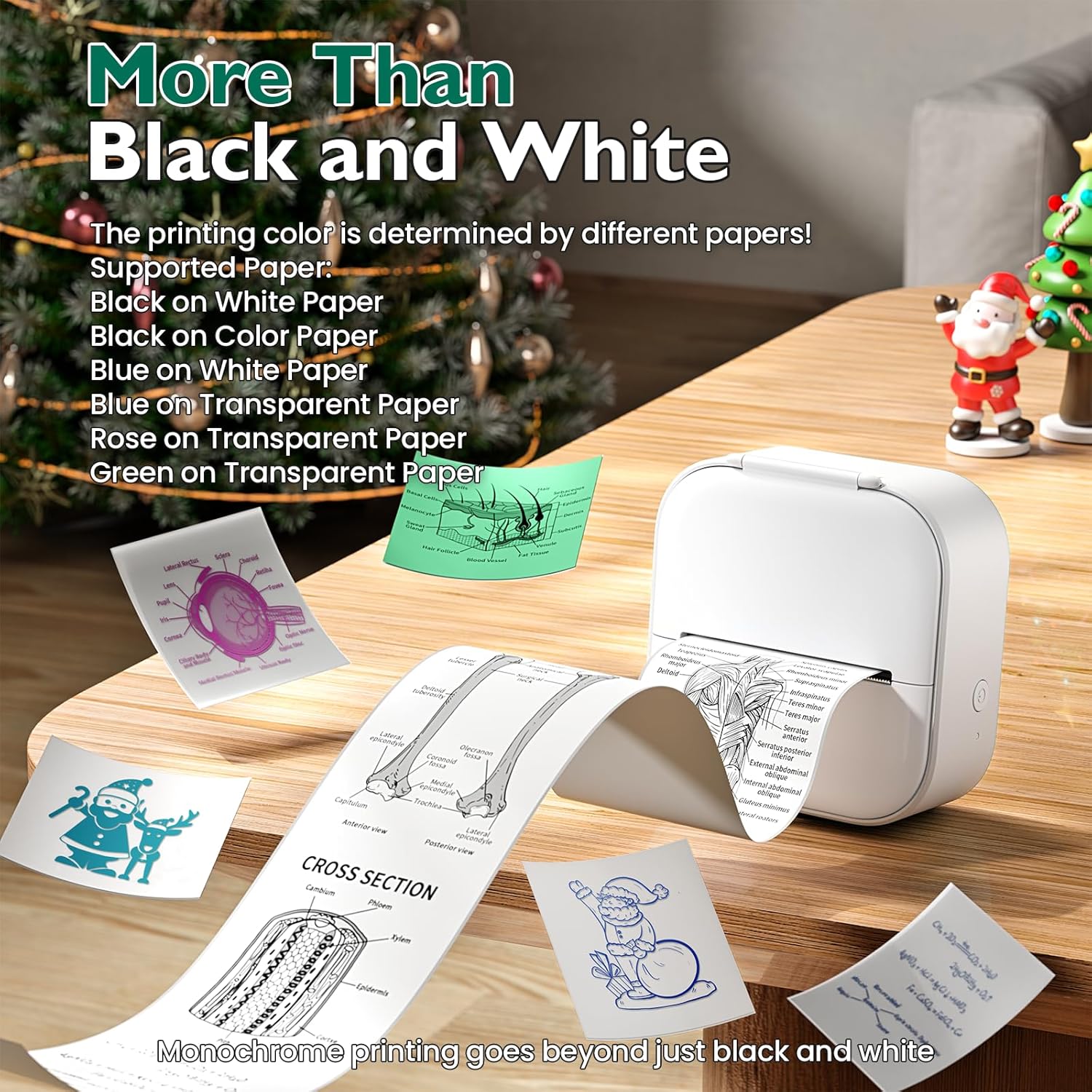
This image highlights the Phomemo T02's ability to print in various colors by using different types of thermal paper, such as black on white, blue on white, blue on transparent, rose on transparent, and green on transparent, showcasing its adaptability beyond standard monochrome printing.
Setup Guide
1. Charging the Printer
Connect the provided USB charging cable to the TYPE-C charging port on the printer and a suitable power source. The indicator light will show charging status.

The image displays the side of the Phomemo T02 Mini Sticker Printer, clearly indicating the TYPE-C charging port. Ensure the printer is fully charged before initial use for optimal performance.
2. Loading Paper Roll
- Press the printer lid button to open the upper cover.
- Remove the used paper roll holder and any empty tube core.
- Take a new paper roll. Ensure the print-facing side is downwards and place it in the perforated baffle.
- Merge the perforated baffle onto the other side baffle to secure the roll.
- Install the paper roll into the machine.
- Before closing the lid, pull the end of the paper out to the machine's paper outlet position.
- Close the lid firmly.
This video demonstrates the correct procedure for loading a new thermal paper roll into the Phomemo T02 Mini Sticker Printer, including opening the lid, inserting the roll into the holder, and positioning the paper for printing.

A visual guide illustrating the four simple steps to prepare the Phomemo T02 Mini Sticker Printer for use: turning on the printer, installing the paper roll correctly, pulling the paper outside the printer heat, and connecting Bluetooth via the app.
3. Connecting to the Phomemo App
Download the "Phomemo" app from your device's app store (iOS or Android).
Turn on the printer by pressing the power button. The indicator light should be green.
Open the Phomemo app and enable Bluetooth on your device. The app will guide you to select and connect to your T02 printer. A successful connection is typically indicated by a steady green light on the printer.

Phomemo T02 Mini Sticker Printer connected via Bluetooth to a smartphone displaying the Phomemo app, with app store icons for download.
Operating Instructions
Printing Text and Images
Within the Phomemo app, you can select various options for printing:
- Notes: Create and print text notes, to-do lists, or study materials.
- Print Images: Select photos from your gallery to print. Note that the printer uses thermal technology, so images will be printed in monochrome (black and white) or the color of the thermal paper used.
- Templates: Access a wide variety of pre-designed templates for stickers, labels, and creative projects.
- OCR Text Recognition: Use the scan function to convert printed text into editable digital text for printing.

The image showcases the diverse applications of the Phomemo T02 Mini Sticker Printer, from printing personal photos and practical checklists to enhancing bullet journals and creating custom gift cards, highlighting its versatility for both personal and organizational needs.

The Phomemo app offers an extensive library of over 1000 templates and various fonts, allowing users to freely customize their prints for different purposes, from decorative stickers to anatomical diagrams for study.
This video demonstrates the Phomemo T02 Printer's capabilities for various DIY printing needs, including creating custom stickers, labels, and decorative elements for personal projects and organization.
This video highlights the portability and convenience of the Phomemo T02 Mini Sticker Printer, showcasing its ability to print anytime, anywhere for various creative and practical applications.
Maintenance
Cleaning the Print Head
Regularly clean the rubber roller and print head with a cotton swab lightly dampened with alcohol to ensure optimal printing quality and prevent smudges.
Battery Care
The printer is powered by a Lithium Polymer battery. For best battery life, avoid fully discharging the battery frequently and store the printer in a cool, dry place when not in use for extended periods.
An internal view of the Phomemo T02 Mini Sticker Printer, pointing out key components such as the rubber roller, which should be regularly cleaned with alcohol to maintain print quality, and the charging port for battery maintenance.
Troubleshooting
Paper Shortage Sensor Calibration
If the printer does not recognize the paper roll or the indicator light remains red after correct installation:
- Remove the paper roll from the machine.
- Press and hold the power button for 10 seconds until the green light flashes continuously 3 times, then release.
- Reinstall the paper roll correctly and close the cover.
- Power on the printer. The green light should remain on, indicating successful sensor calibration.
This video provides a step-by-step guide on how to calibrate the paper shortage sensor of the Phomemo T02 Mini Sticker Printer, a common troubleshooting step if the printer fails to recognize the paper roll.
Font Size Too Small for Text Printing
If the printed text appears too small, you can adjust the font size directly within the Phomemo app. The app allows for font size adjustments up to 60 points.
Additionally, for documents or images with small text, consider rotating the content for horizontal printing. This can often enlarge the text effectively. You can also crop the image before zooming in to focus on specific text areas for better readability.
This video demonstrates methods to address small font sizes when printing with the Phomemo T02 Mini Sticker Printer, including adjusting font size in the app and utilizing horizontal printing or cropping for better readability.
Specifications
| Feature | Detail |
|---|---|
| Model Name | T02 |
| Brand | Phomemo |
| Printing Technology | Thermal |
| Connectivity Technology | Bluetooth |
| Maximum Print Resolution (Color/B&W) | 300 x 300 dpi |
| Maximum Media Size | 3x3 inches (53mm continuous paper) |
| Product Dimensions | 4.53 x 3.46 x 3.27 inches |
| Item Weight | 12 ounces |
| Battery | 1 Lithium Polymer (included) |
| Included Components | Printer, 3 Rolls Transparent Color Papers |
Warranty and Support
Phomemo products are designed for reliability and performance. For warranty information, technical support, or service inquiries, please refer to the official Phomemo website or contact customer support through the Phomemo app.
Keep your purchase receipt as proof of purchase for warranty claims.


