
1. Important Compatibility Notes
This ISUDAR Android 13 car stereo is designed for compatibility with Honda Civic models manufactured between 2006 and 2011. Before proceeding with installation, it is crucial to verify the shape and size of your vehicle's center console to ensure a proper fit.
Important: This car stereo is not compatible with Honda Civic vehicles originally equipped with an amplifier or a large factory screen. Please confirm your vehicle's original configuration to avoid compatibility issues.
2. Package Contents
Please ensure all items listed below are present in your package:
- Car Radio with Frame
- Power Cable
- GPS Module
- USB Cable (x2)
- RCA Cable
- Camera Input Cable
- Removal Tools
- Rear Camera (Gift)

Image: The ISUDAR car radio unit with its custom frame, alongside all included cables and installation accessories, including the complimentary rear camera and removal tools.
3. Installation Guide
The ISUDAR car stereo is designed for a 'Plug and Play' installation, simplifying the process by utilizing existing vehicle wiring harnesses. However, professional installation is recommended for optimal results and to prevent damage to your vehicle or the unit.
General Installation Steps:
- Preparation: Disconnect the vehicle's battery before starting any electrical work.
- Remove Original Unit: Carefully remove the existing car stereo and surrounding dash panels. Specialized removal tools are provided. Refer to vehicle-specific guides or online resources (e.g., YouTube tutorials) for detailed instructions on dash panel removal for your Honda Civic model.
- Connect Wiring: Connect the provided wiring harnesses to the vehicle's corresponding connectors. Ensure all connections are secure.
- Antenna and GPS: Connect the radio antenna and position the GPS module in a location with a clear view of the sky (e.g., on the dashboard).
- Test Functionality: Before fully reassembling the dashboard, temporarily reconnect the battery and test the stereo's basic functions (power, audio, touch screen, CarPlay/Android Auto, backup camera).
- Reassemble: Once all functions are verified, carefully reassemble the dash panels and secure the new stereo unit.
Note on Passenger Airbag Light: Some Honda Civic models may have a passenger airbag indicator light integrated into the original dash panel. The ISUDAR unit's frame may not include a dedicated slot for this light. If this is the case, the original airbag light module may need to be reconnected and secured within the dash cavity, even if not visible, to prevent dashboard warning lights.
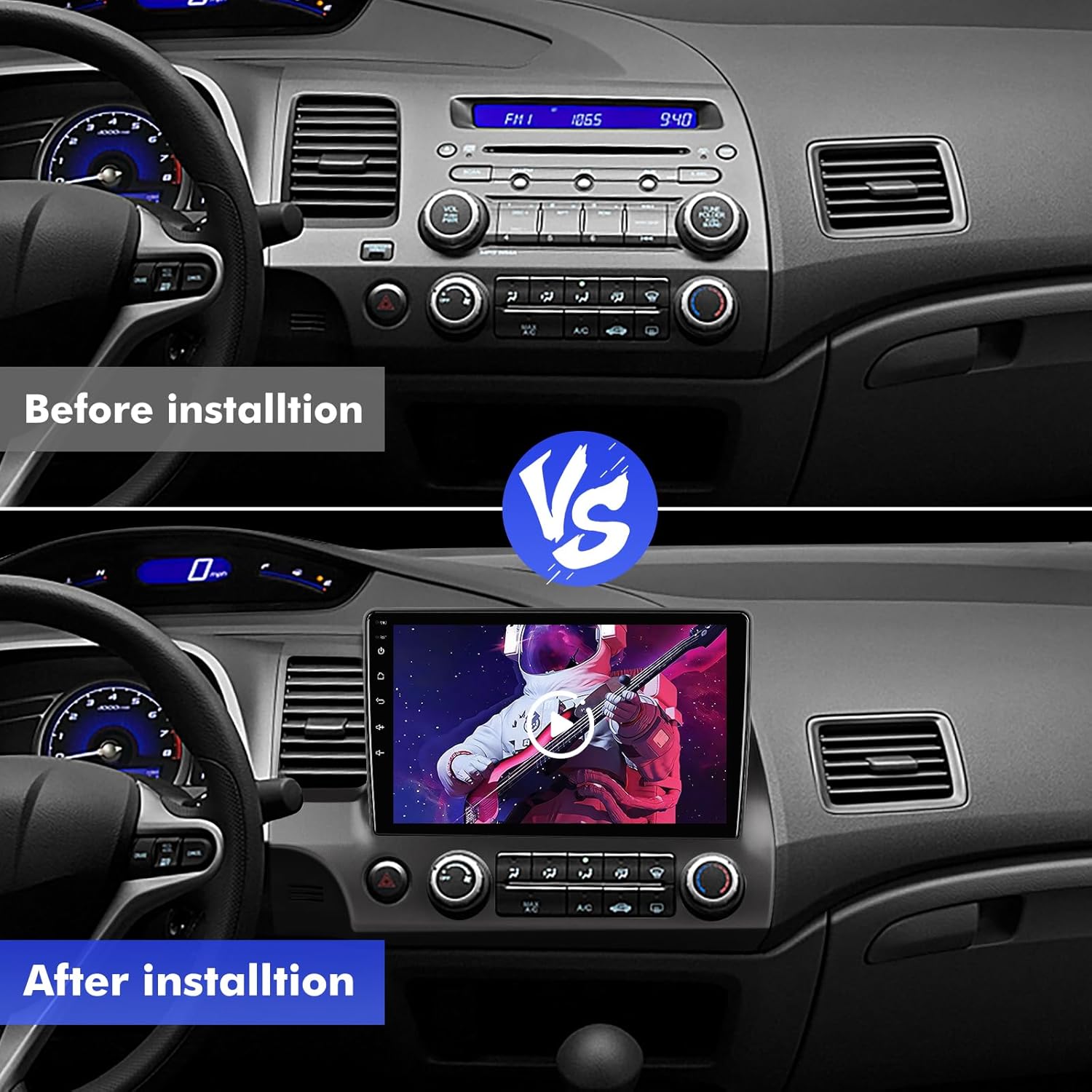
Image: Visual comparison of the dashboard before and after installation, demonstrating the integrated fit of the ISUDAR stereo.

Image: Diagram illustrating the 'Plug and Play' connection system for simplified installation.
4. Operating Instructions
4.1 Android 13 System Overview
The ISUDAR car stereo operates on a customized Android 13 system, featuring 4GB RAM for smooth performance and 64GB ROM for application storage. The 1280*720P HD IPS touchscreen display offers clear visuals and vibrant colors.
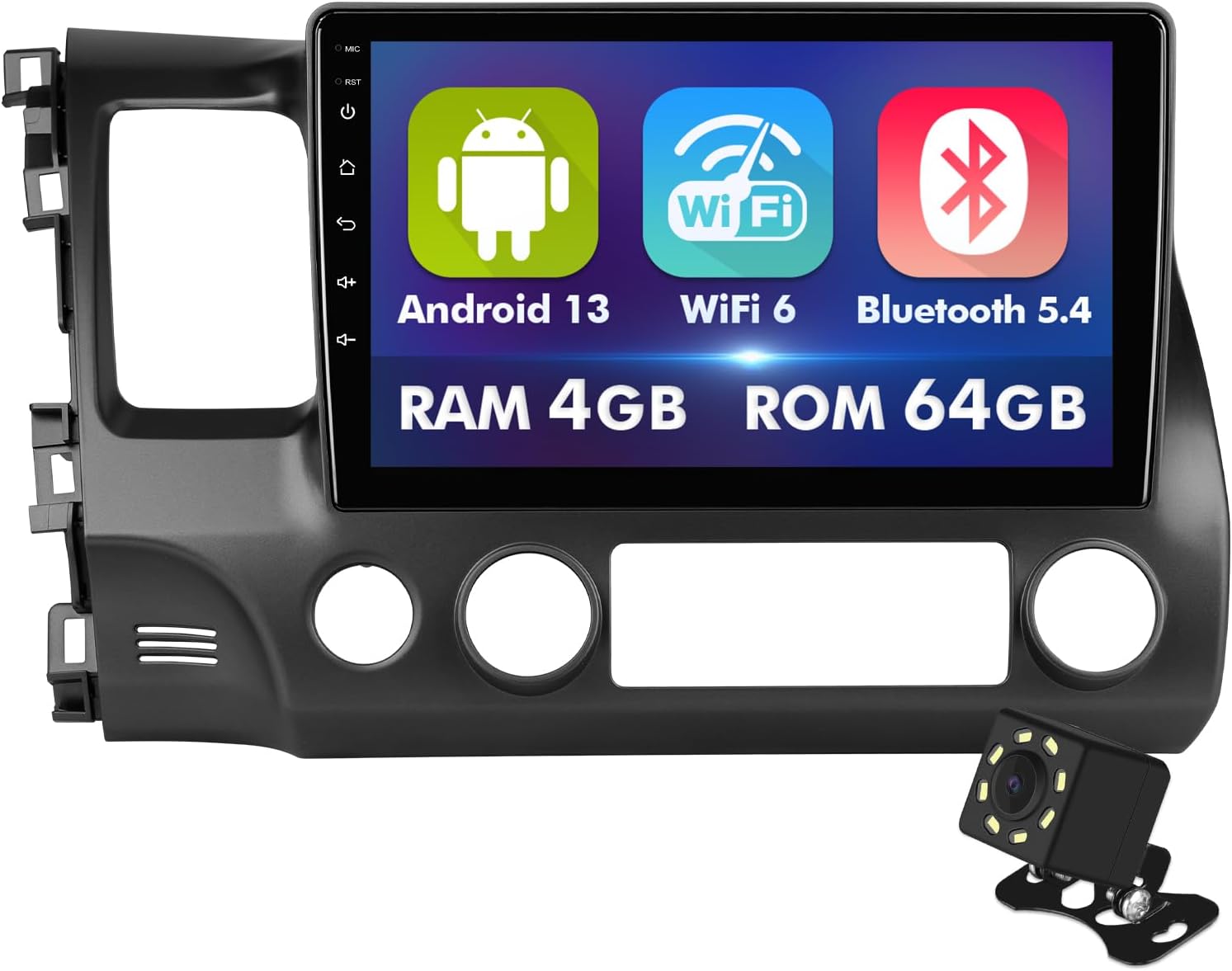
Image: The main interface of the ISUDAR Android 13 car stereo, highlighting key features and specifications.
4.2 Wireless CarPlay & Android Auto
Connect your smartphone wirelessly via CarPlay (for iPhone) or Android Auto (for Android devices) for seamless integration. This feature allows access to navigation, music, calls, and messages directly from the stereo's display. Voice control via Siri or Google Assistant is supported.

Image: Demonstrates the wireless CarPlay and Android Auto functionality, showing phone mirroring and voice assistant integration.
Video: Demonstrates the functionality of CarPlay and Android Auto, including navigation and music playback. (Starts at 0:18)
4.3 Bluetooth 5.4 Connectivity
The unit features Bluetooth 5.4 for stable and fast wireless connections. Enjoy hands-free calling with the built-in microphone and stream audio from your device. Bluetooth 5.4 offers improved transmission rates and range compared to older versions.

Image: Highlights the enhanced performance of Bluetooth 5.4, including improved range, stability, and transfer rates.
Video: Shows how to pair a device, play music, and make calls using the Bluetooth function. (Starts at 0:11)
4.4 GPS Navigation
Utilize the integrated GPS for navigation. The system supports various mapping applications, allowing you to find destinations and receive turn-by-turn directions.
Video: Demonstrates searching for a destination and displaying a route on the GPS navigation system. (Starts at 0:40)
4.5 FM Radio
The built-in FM radio allows you to tune into your favorite stations. It includes 18 preset stations for quick access.
Video: Shows the FM radio interface, scanning frequencies, and setting presets. (Starts at 1:01)
4.6 App Store
Access the integrated App Store to download and install various applications, expanding the functionality of your car stereo.
Video: Demonstrates browsing and installing applications from the App Store. (Starts at 0:52)
4.7 Mirror Link
The Mirror Link function allows you to mirror your smartphone's screen directly onto the car stereo display, enabling you to view content from your phone on a larger screen.

Image: Shows the Mirror Link feature in action, displaying a phone's content on the car stereo screen.
Video: Illustrates the Mirror Link functionality, mirroring a phone's display to the car stereo. (Starts at 0:34)
4.8 Backup Camera Support
The system supports a backup camera, providing an HD image with a 170° wide-angle view. The included camera is waterproof and assists with safe parking and reversing.
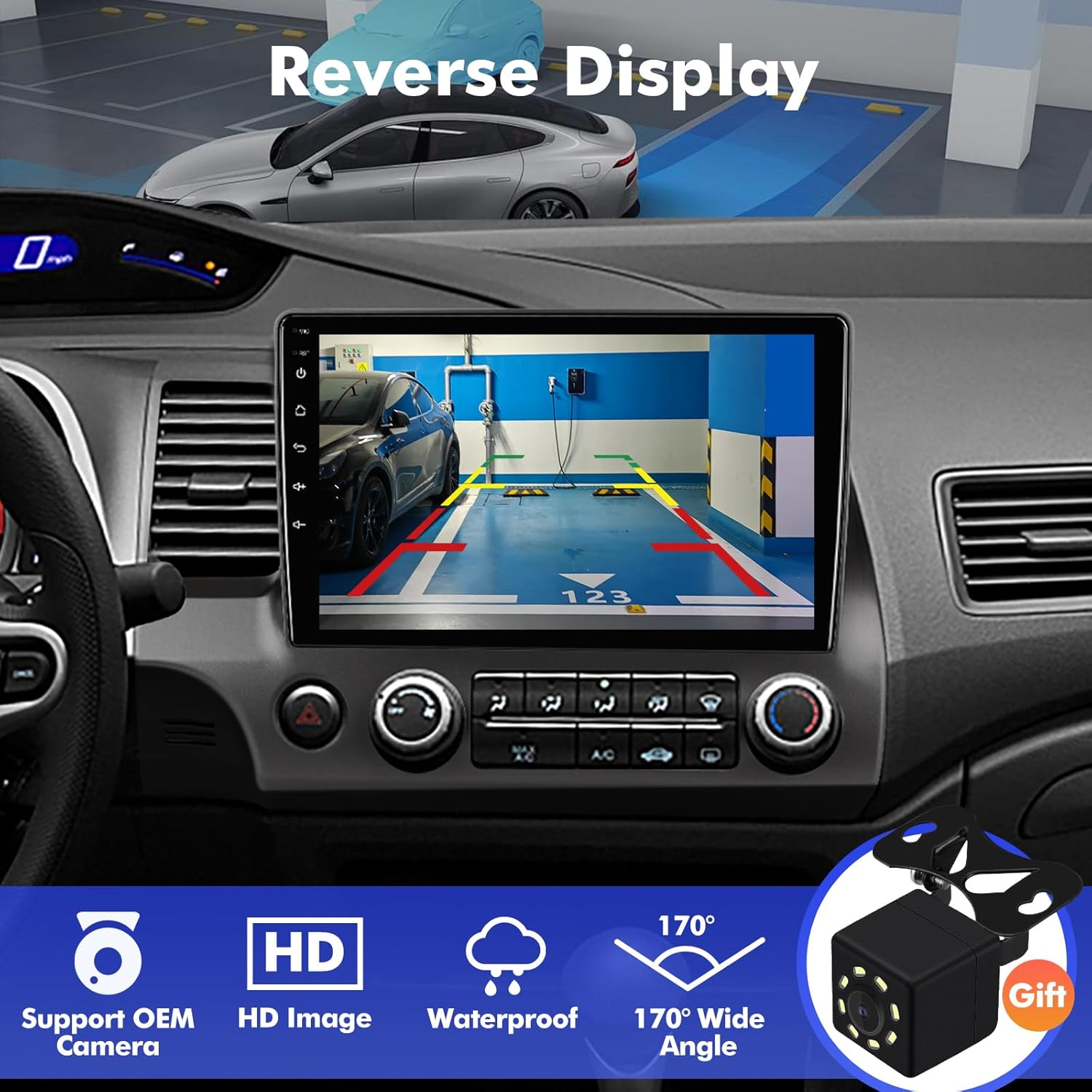
Image: Displays the reverse camera view on the stereo screen, highlighting its features.
Video: Shows the AHD 720P backup camera in operation, displaying parking lines. (Starts at 0:06)
4.9 Steering Wheel Controls (SWC)
The unit supports integration with your vehicle's existing steering wheel controls, allowing you to manage audio, calls, and navigation functions without taking your hands off the wheel. The system provides an interface for mapping these controls.
Video: Demonstrates the setup and use of steering wheel controls for various functions. (Starts at 1:08)
4.10 Media Playback
The stereo supports 4K HD video playback, offering a high-quality visual experience. You can play local video files, stream online music, and watch online videos through various applications.

Image: Illustrates the 4K HD video playback capability and high-resolution display.
Video: Shows local video playback on the car stereo. (Starts at 1:31)
Video: Demonstrates online music streaming through the system. (Starts at 1:24)
Video: Illustrates online video playback from platforms like YouTube. (Starts at 1:37)
4.11 Sound Quality
The unit features a built-in HiFi system with a 12-band equalizer (EQ), allowing for detailed audio customization to suit your preferences and vehicle acoustics.

Image: Depicts the high sound quality and customizable equalizer settings.
Video: Shows the equalizer settings for audio customization. (Starts at 1:05)
4.12 Cooling System
The car stereo is equipped with a cooling fan to enhance heat dissipation, ensuring stable performance during extended use.

Image: Diagram illustrating the integrated cooling fan for heat management.
4.13 Real-time Weather
The system can display real-time weather information and forecasts, providing useful data for your journeys.
Video: Shows the real-time weather display and forecast feature. (Starts at 1:18)
5. Maintenance
To ensure the longevity and optimal performance of your ISUDAR car stereo, follow these maintenance guidelines:
- Screen Cleaning: Use a soft, lint-free cloth specifically designed for electronics to clean the touchscreen. Avoid abrasive materials or harsh chemical cleaners, which can damage the screen coating.
- Software Updates: Periodically check for and install available software updates to ensure the system runs efficiently and has the latest features and security patches.
- Avoid Extreme Temperatures: While designed for automotive use, prolonged exposure to extreme heat or cold can affect electronic components.
- Cable Connections: Periodically check all cable connections to ensure they are secure and free from corrosion or damage.
- System Reset: If the unit becomes unresponsive or experiences minor glitches, a soft reset (usually a small reset button or a menu option) can often resolve the issue. Refer to the device settings for specific reset procedures.
6. Troubleshooting
This section addresses common issues you might encounter with your ISUDAR car stereo.
- No Power / Unit Not Turning On:
- Check all power connections to ensure they are securely plugged in.
- Verify the vehicle's fuse for the stereo is intact.
- Ensure the vehicle's battery is properly connected and charged.
- No Sound:
- Check speaker wire connections.
- Ensure the volume is not muted or set too low.
- Verify audio output settings in the stereo's menu.
- Wireless CarPlay/Android Auto Connectivity Issues:
- Ensure your phone's Bluetooth and Wi-Fi are enabled.
- Forget the device from both your phone and the stereo, then attempt to re-pair.
- For Android Auto, ensure the 'tlink5' app has background connection permissions enabled.
- If switching between multiple phones, temporarily disable Bluetooth on the previously connected device to facilitate a new connection.
- Backup Camera Not Displaying:
- Check the camera input cable connection at the back of the stereo.
- Verify the camera's power supply and ground connections.
- Ensure the reverse trigger wire is correctly connected to the vehicle's reverse light circuit.
- Confirm the camera itself is functional (if possible, test with an alternative display).
- GPS Signal Loss / Inaccurate Navigation:
- Ensure the GPS antenna is securely connected and placed in a location with an unobstructed view of the sky.
- Update mapping software if available.
- Internet Connectivity (Wi-Fi) Issues:
- Verify your Wi-Fi hotspot (e.g., smartphone hotspot) is active and providing internet access.
- Check the Wi-Fi settings on the stereo to ensure it's connected to the correct network.
- Restart both the stereo and the Wi-Fi hotspot device.
- Screen Brightness / Auto Screen Saver Issues:
- Adjust brightness settings manually in the display menu.
- If 'auto screen saver' is not functioning as expected, ensure the setting is enabled and check for any conflicting display options.
- Wireless Audio Quality (Compression):
- If experiencing severe audio compression via wireless connections (Bluetooth/Android Auto), try playing audio from a USB drive to compare quality.
- Ensure your phone's audio settings are optimized for streaming.
- Check for firmware updates for the stereo, as this may be a software-related issue.
7. Specifications
| Feature | Specification |
|---|---|
| Display Size | 10.1 Inches |
| Display Resolution | 1280*720P QLED HD |
| Operating System | Android 13 |
| RAM | 4GB |
| Memory Storage Capacity (ROM) | 64GB |
| Bluetooth Version | 5.4 |
| Wi-Fi Support | Wi-Fi 6 (2.4G & 5GHz dual-band) |
| Connectivity Technology | Bluetooth, Wi-Fi, USB |
| Special Features | Touchscreen, Wireless CarPlay, Android Auto, GPS, FM Radio, Backup Camera Support, Steering Wheel Control (SWC) |
| Audio Output Mode | Stereo, Surround |
| Item Weight | 4.55 pounds |
| Package Dimensions | 17.99 x 12.24 x 6.93 inches |
| Model Number | 5b227269-0cf6-43c5-92b7-3160634e6a84 |
8. Warranty and Support
ISUDAR offers a comprehensive 12-month warranty for this touchscreen car radio. This warranty covers manufacturing defects and ensures the product's advanced processing power, superior performance, enhanced anti-interference capabilities, and exceptional stability.
For any inquiries or concerns regarding the installation or usage process, a dedicated 24/7 professional after-sales team is available to assist you. Please do not hesitate to contact ISUDAR customer support for assistance.