
Introduction
Experience your music in style with the Hello Kitty Bluetooth Wireless Earbuds! These adorable earbuds feature a cute Cinnamoroll design with a blue and white finish, perfect for fans of all ages. Whether you’re listening to your favorite playlist or taking an important call, these earbuds deliver high-quality sound while showcasing your love for Hello Kitty.
What's in the Box
- Hello Kitty Bluetooth Wireless Earbuds
- Cinnamoroll-themed Charging Case
- USB Charging Cable
- User Manual (this document)
Product Overview

The Hello Kitty Cinnamoroll Bluetooth Wireless Earbuds, shown with their unique Cinnamoroll-themed charging case. The earbuds are white and designed for a comfortable in-ear fit.

The charging case is open, revealing the two white earbuds nestled inside their respective charging slots. The case features the Cinnamoroll design on the front.

Front view of the product packaging, showcasing the Hello Kitty and Friends branding, the earbuds, and the Cinnamoroll charging case. Key features like "Built-in Mic" and "Easy Pairing" are highlighted.
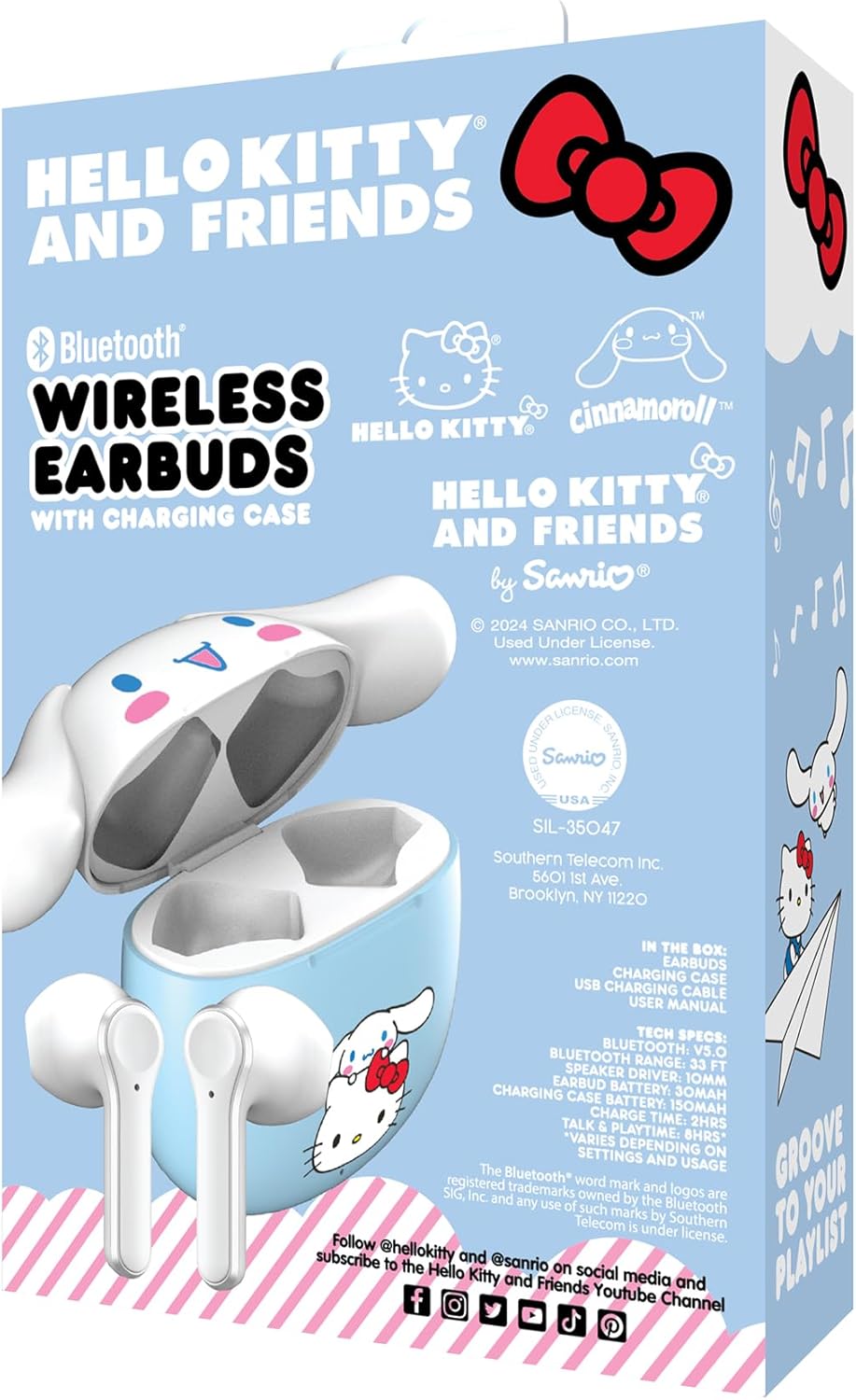
Back view of the product packaging, displaying detailed technical specifications and contents of the box. It also shows licensing information and social media handles.
Setup
1. Initial Charging
Before first use, fully charge the earbuds and the charging case. Connect the provided USB charging cable to the charging port on the case and plug the other end into a USB power source (e.g., computer, wall adapter). The indicator light on the case will show charging status and turn off when fully charged. The portable charging case provides up to 30 hours of playback.
2. Powering On/Off
- Power On: Open the charging case, and the earbuds will automatically power on.
- Power Off: Place the earbuds back into the charging case and close the lid. They will automatically power off and begin charging.
Operating Instructions
1. Bluetooth Pairing
- Ensure the earbuds are fully charged.
- Open the charging case. The earbuds will enter pairing mode, and an indicator light on the earbuds will flash.
- On your device (smartphone, tablet, computer), go to the Bluetooth settings.
- Search for "Hello Kitty Earbuds" or a similar name in the list of available devices.
- Select the earbuds to connect. Once connected, the indicator light will stop flashing, and you may hear a confirmation tone.
- The earbuds will automatically reconnect to the last paired device when taken out of the case, if Bluetooth is enabled on the device.
2. Call Handling
The earbuds feature a built-in microphone for hands-free calls.
- Answer/End Call: Tap either earbud once.
- Reject Call: Press and hold either earbud for 2 seconds.
3. Music Playback
- Play/Pause: Tap either earbud once.
- Next Track: Double-tap the right earbud.
- Previous Track: Double-tap the left earbud.
- Volume Control: Volume is controlled via your connected device.
Maintenance
- Cleaning: Use a soft, dry cloth to clean the earbuds and charging case. Do not use harsh chemicals or abrasive materials.
- Storage: When not in use, store the earbuds in their charging case to protect them and keep them charged.
- Avoid Water: These earbuds are not waterproof. Avoid exposure to water or excessive moisture.
Troubleshooting
| Problem | Solution |
|---|---|
| Earbuds not pairing. |
|
| Only one earbud working. |
|
| No sound or low volume. |
|
Specifications
| Feature | Detail |
|---|---|
| Model Name | Hello Kitty Bluetooth Wireless Earbuds with Charging Case - Built-in Mic, Easy Pairing, Cute Cinnamoroll Design, Blue and White, Perfect for Kids, Teens, and Hello Kitty Fans |
| Model Number | HKTWSMD-CR-MFN |
| Brand | Hello Kitty |
| Connectivity Technology | Wireless (Bluetooth) |
| Earpiece Shape | Bud |
| Ear Placement | In Ear |
| Form Factor | In Ear |
| Noise Control | None |
| Frequency Range | 20 Hz - 20,000 Hz |
| Impedance | 32 Ohm |
| Item Weight | 7.2 ounces |
| Package Dimensions | 6 x 4 x 1.5 inches |
| Manufacturer | Southern Telecom |
| UPC | 680079035372 |
| Date First Available | October 14, 2024 |
Warranty and Support
For warranty information and technical support, please refer to the documentation included with your product or contact the manufacturer, Southern Telecom, directly. Keep your proof of purchase for any warranty claims.
For additional assistance, you may visit the product page on Amazon.


