
BNETA F14-W
Bneta F14-W Pet Automatic Wi-Fi Smart Feeder Instruction Manual
Model: F14-WiFi
Brand: BNETA
1. Introduction
The Bneta F14-W Automatic Wi-Fi Smart Pet Feeder is designed to provide a convenient and reliable feeding solution for your pet. With its smart app control, you can manage feeding schedules, portion sizes, and even record voice messages from anywhere. This manual will guide you through the setup, operation, and maintenance of your new pet feeder.
Key Features:
- Smart app-controlled remote feeding
- Timing and quantitative feeding (up to 9 portions per meal, 4 meals per day)
- Customizable 10-second voice recording
- Food outlet sealed design for insect protection
- Easy-to-clean dispensing mechanism
- Dual power supply (AC adapter and D-sized batteries)
2. Safety Information
Please read all safety instructions before operating the feeder. Failure to follow these instructions may result in product damage or injury.
- This appliance is for indoor use only.
- Do not immerse the main unit in water or other liquids.
- Use only dry pet food with a kibble size appropriate for the feeder's dispenser.
- Keep out of reach of children and pets when not in use or during assembly.
- Ensure the power adapter cable is not chewed by pets. The feeder features a nylon braided data cable to help prevent this.
- Always unplug the feeder before cleaning.
3. Package Contents
Verify that all items are present in the package:
- Bneta F14-W Smart Pet Feeder Main Unit
- Food Storage Container
- Stainless Steel Food Bowl
- Power Adapter (DC 5V1A)
- User Manual (this document)
4. Setup
4.1 Assembly
1. Place the main feeder unit on a flat, stable surface.
2. Attach the stainless steel food bowl to the designated slot at the base of the feeder.
3. Secure the food storage container onto the top of the main unit, ensuring it clicks into place.

Figure 4.1: Assembled Bneta F14-W Smart Pet Feeder.
4.2 Power Supply
The feeder supports dual power supply options:
- AC Adapter: Plug the provided power adapter into the DC 5V1A port on the back of the feeder and then into a wall outlet.
- Batteries: For backup power during outages, insert 3*D sized batteries into the battery compartment located at the bottom of the feeder. (Batteries are included).

Figure 4.2: Dual Power Supply options for the feeder.
4.3 App Download and Wi-Fi Connection
1. Download the companion app (e.g., 'Smart Life' or 'Tuya Smart') from your smartphone's app store (iOS or Android).
2. Open the app and register or log in to your account.
3. Follow the in-app instructions to add a new device. Select 'Pet Feeder' or similar category.
4. Ensure your feeder is powered on and the Wi-Fi indicator light is blinking (refer to the feeder's control panel for light status). If not blinking, press and hold the Wi-Fi reset button (often labeled 'LINK' or 'RESET') until it blinks rapidly.
5. Connect your smartphone to a 2.4GHz Wi-Fi network (5GHz networks are not supported).
6. Enter your Wi-Fi password in the app to connect the feeder to your home network.

Figure 4.3: Feeder control panel with status indicators.
4.4 Filling the Food Tank
1. Open the lid of the food storage container.
2. Pour dry pet food into the container. The feeder has a 3-liter capacity.
3. Close the lid securely to maintain food freshness and prevent pests.
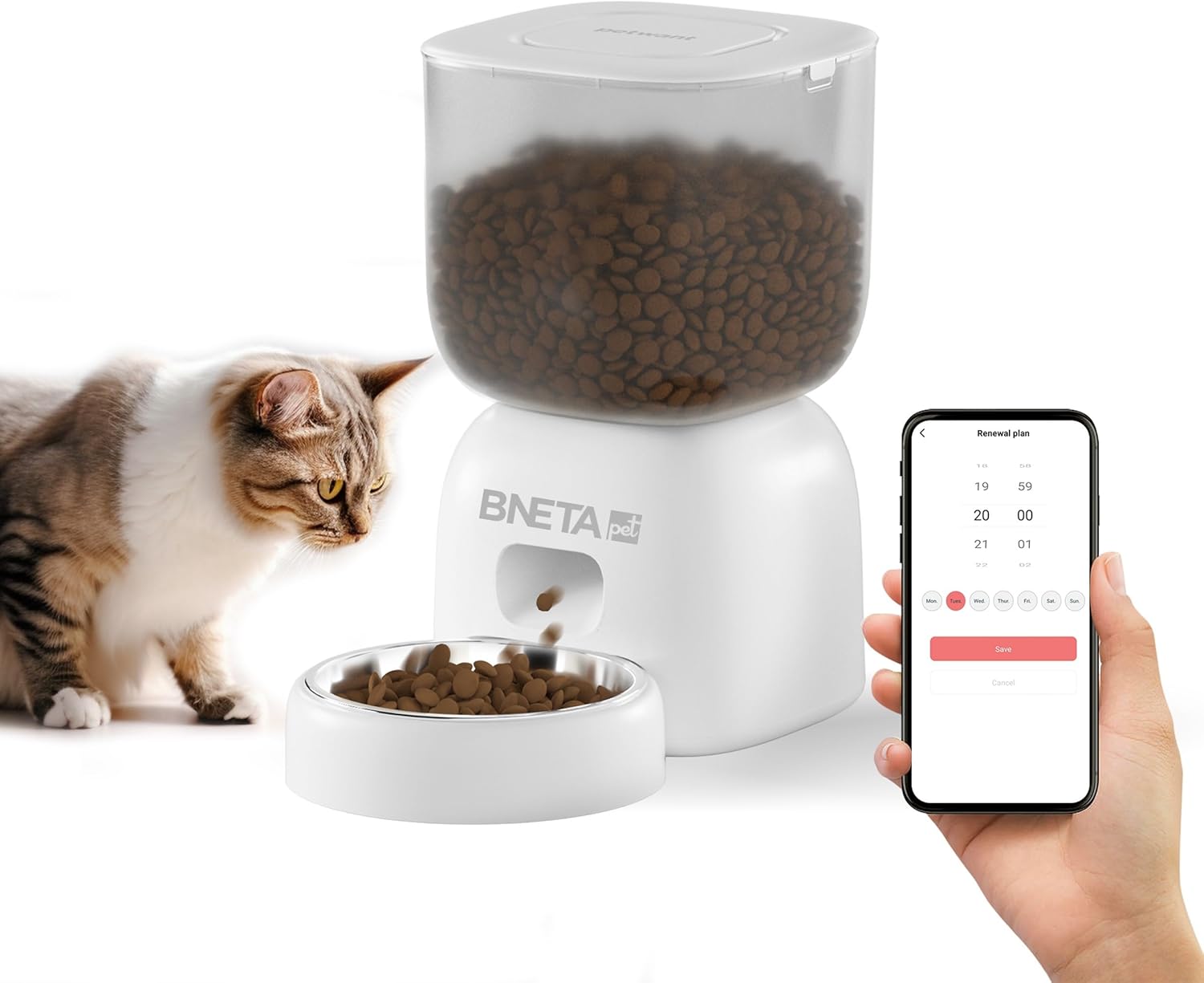
Figure 4.4: Feeder ready for use with food and app control.
5. Operating the Feeder
5.1 App Control Overview
Once connected to the app, you can remotely control various aspects of the feeder:
- Remote Feeding: Dispense food instantly with a tap on your smartphone.
- Scheduled Feeding: Set up to 4 meals per day, with 1 to 9 portions per meal. Customize the time and portion size for each feeding.
- Voice Recording: Record a 10-second voice message that will play during food dispensing to call your pet.
- Status Monitoring: Check the feeder's status, including food levels and feeding history.

Figure 5.1: Overview of feeder features controlled via the app.

Figure 5.2: Flexibility of app control for various user scenarios.
5.2 Setting Feeding Schedules
1. Open the Bneta app and select your F14-W feeder.
2. Navigate to the 'Schedule' or 'Feeding Plan' section.
3. Tap 'Add Schedule' to set a new feeding time.
4. Choose the desired time for the meal.
5. Select the number of portions (1-9) for this meal.
6. Repeat for up to 4 meals per day.

Figure 5.3: App interface for setting feeding schedules.
5.3 Voice Recording
1. In the app, find the 'Voice Recording' or 'Record Message' option.
2. Tap the record button and speak your message (up to 10 seconds).
3. Save the recording. It will play automatically before each scheduled feeding.
6. Maintenance
6.1 Cleaning
Regular cleaning ensures hygiene and proper functioning of the feeder.
- Food Bowl: The stainless steel food bowl is removable and can be washed with soap and water. Rinse thoroughly and dry completely before reattaching.
- Food Storage Container: Remove the container from the main unit. It can be wiped clean with a damp cloth. For deeper cleaning, it can be washed with mild soap and water, ensuring it is completely dry before refilling with food.
- Main Unit: Wipe the exterior of the main unit with a dry or slightly damp cloth. Do not submerge the main unit in water.
- Dispensing Mechanism: The feeder features an easy-cleaning dispensing mechanism and an anti-jam design. Periodically check for any food residue buildup and clear it carefully.
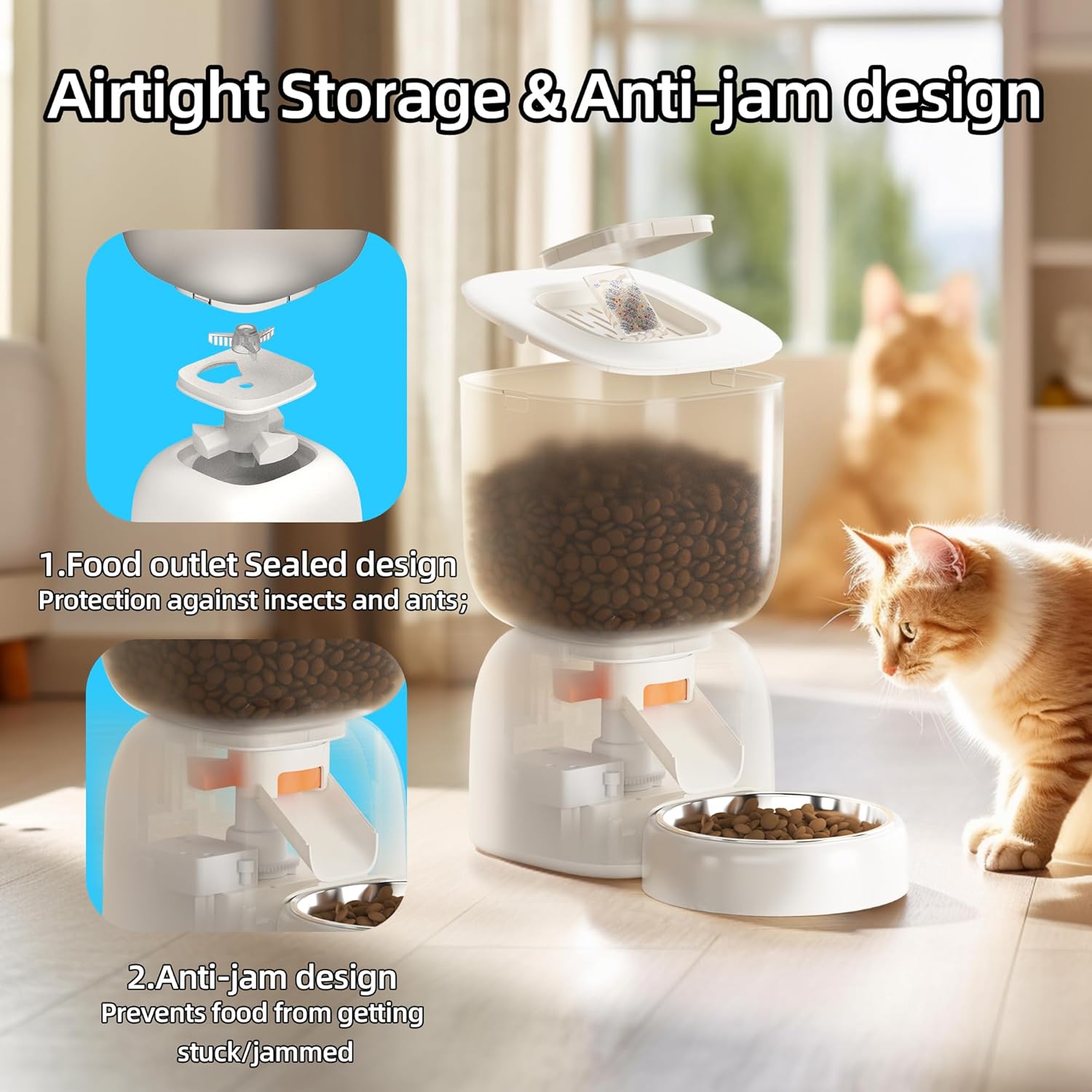
Figure 6.1: Airtight storage and anti-jam design for easy maintenance.
6.2 Food Storage
Ensure the food container lid is always securely closed to maintain food freshness and prevent moisture or pests from entering. The sealed design of the food outlet also provides protection against insects.
7. Troubleshooting
If you encounter issues with your Bneta F14-W feeder, refer to the following common problems and solutions:
| Problem | Possible Cause | Solution |
|---|---|---|
| Feeder not dispensing food. | Food tank empty; Food jammed; Dispensing mechanism blocked; Low battery; Power disconnected. | Refill food tank; Clear any food blockages; Ensure power adapter is connected or replace batteries; Check for foreign objects in the dispenser. |
| Cannot connect to Wi-Fi. | Incorrect Wi-Fi password; Feeder too far from router; Router is 5GHz only; Wi-Fi signal weak. | Double-check Wi-Fi password; Move feeder closer to router; Ensure your router supports 2.4GHz and connect to it; Reset feeder Wi-Fi (press LINK button) and try again. |
| Voice recording not playing. | No recording saved; Volume too low. | Record a voice message via the app; Ensure feeder volume is not muted or too low in app settings. |
| App notifications not received. | App notification settings disabled; Phone's notification settings disabled. | Enable notifications within the feeder app; Check your phone's system settings for app notifications. |
If the problem persists, please contact customer support.
8. Specifications
| Feature | Detail |
|---|---|
| Model Number | F14-WiFi |
| Capacity | 3 Liters |
| Power Supply | DC 5V1A (Adapter) / 3*D sized batteries |
| Connectivity | Wi-Fi (2.4GHz only) |
| Max Meals per Day | 4 |
| Portions per Meal | 1-9 |
| Voice Recording Length | 10 seconds |
| Dimensions (approx.) | 20.4 x 17.2 x 17 cm |
| Weight (approx.) | 1.1 kg |
| Color | White |
| UPC | 759649255868 |
9. Warranty and Support
9.1 Limited Warranty
The Bneta F14-W Pet Automatic Wi-Fi Smart Feeder comes with a limited warranty. Please refer to the warranty card included in your package or contact the seller for specific terms and conditions.
9.2 Customer Support
For technical assistance, troubleshooting beyond this manual, or warranty claims, please contact Bneta International customer support or the authorized seller from whom you purchased the product. Contact information can typically be found on the product packaging or the brand's official website.
Related documentsF14-W


Ask a question about this manual
Ask about setup, troubleshooting, compatibility, parts, safety, or missing instructions. Manuals+ will review the question and use this page’s manual context to help answer it.