
1. Introduction
Thank you for choosing the Skyworth 65Q7700G 65-inch QLED Google TV. This television combines advanced QLED+ display technology with a high 144Hz refresh rate and the intuitive Google TV operating system to deliver an exceptional viewing and gaming experience. This manual provides essential information for setting up, operating, maintaining, and troubleshooting your new television.
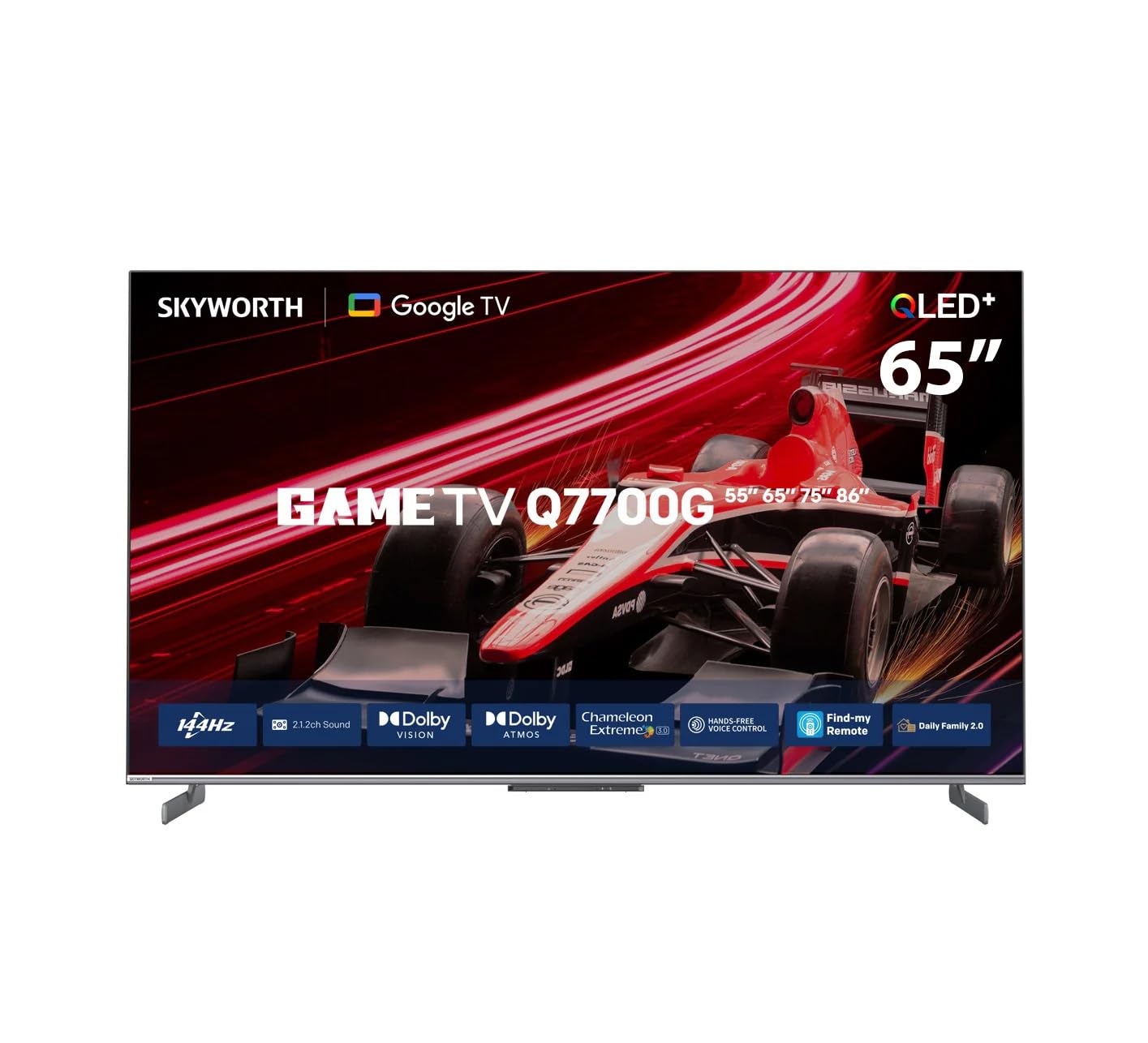
Image 1.1: Front view of the Skyworth 65Q7700G QLED Google TV. This image displays the television's sleek design and vibrant screen, showcasing its QLED display capabilities.
2. Safety Information
Please read all safety instructions carefully before using your television and retain them for future reference. Incorrect installation or use may result in electric shock, fire, or damage to the device.
- Power Supply: Ensure the TV is connected to an AC 100-240V, 50/60Hz power source. Do not overload power outlets.
- Ventilation: Maintain adequate space around the TV for proper ventilation. Do not block ventilation openings.
- Placement: Place the TV on a stable, level surface or mount it securely to a wall. Avoid placing it in direct sunlight, near heat sources, or in environments with high humidity or dust.
- Water and Moisture: Do not expose the TV to rain or moisture. Do not place objects filled with liquids, such as vases, on the TV.
- Cleaning: Unplug the TV before cleaning. Use a soft, dry cloth. Do not use liquid cleaners or aerosol cleaners.
- Children: Supervise children to prevent them from climbing on the TV or playing with the remote control.
- Servicing: Do not attempt to service the TV yourself. Refer all servicing to qualified service personnel.
3. Package Contents
Verify that all the following items are included in your TV package:
- Skyworth 65Q7700G 65-inch QLED Google TV
- Remote Control
- Power Cable
- TV Stand (with screws)
- User Manual (this document)
4. Setup
4.1. Unpacking
Carefully remove the TV from its packaging. It is recommended to keep the original packaging for future transportation or servicing needs.
4.2. Stand Installation
If you are not wall-mounting the TV, attach the included stand:
- Place the TV face down on a soft, flat surface to prevent screen damage.
- Align the stand brackets with the corresponding holes on the bottom of the TV.
- Secure the stand using the provided screws. Ensure the stand is firmly attached before placing the TV upright.

Image 4.1: This diagram illustrates the TV's dimensions and indicates the attachment points for the stand, providing a visual guide for installation.
4.3. Wall Mounting
The Skyworth 65Q7700G supports VESA mounting standard 400 x 600 mm. Use a compatible wall mount bracket (sold separately) and follow the instructions provided with the wall mount. Ensure professional installation for safety.
4.4. Connections
Connect your external devices to the TV using the appropriate ports. The TV features multiple HDMI 2.1 ports, USB ports, Ethernet, and built-in Wi-Fi and Bluetooth 5.1.
- HDMI: For high-definition audio and video devices like gaming consoles, Blu-ray players, or set-top boxes. The TV has 3 HDMI ports.
- USB: For connecting USB storage devices to play media files. The TV has 1 USB 3.0 port.
- Ethernet (LAN): For a wired internet connection.
- Antenna/Cable (DVB-T2/S2): For connecting to a terrestrial or satellite antenna.

Image 4.2: Rear view of the television, highlighting the various input and output ports for connecting external devices.
Image 4.3: Side view of the television, illustrating the conveniently located side input ports for easy access.
5. Operating
5.1. Power On/Off
Connect the power cable to the TV and a power outlet. Press the power button on the remote control or on the TV itself to turn it on or off.
5.2. Initial Setup
Upon first power-on, the TV will guide you through the initial setup process, including language selection, network connection, and Google account sign-in. Follow the on-screen instructions.
5.3. Google TV Interface
The Google TV interface organizes your favorite content from various streaming services into one personalized home screen. Use the remote control's navigation buttons to browse content, launch apps (Google Play Store, Netflix, YouTube, Amazon Prime, Disney+), and access settings.
5.4. Voice Control
The TV supports hands-free voice control via Google Assistant. Simply say "Hey Google" or "Ok Google" followed by your command to search for content, control smart home devices, or adjust TV settings.
5.5. Gaming Features
The 65Q7700G is optimized for gaming with a 144Hz variable refresh rate (VRR) and Auto Low Latency Mode (ALLM). These features reduce input lag and screen tearing, providing a smoother and more responsive gaming experience when connected to compatible gaming consoles or PCs via HDMI 2.1.
5.6. Picture and Sound Settings
Access the settings menu to customize picture and sound. The TV supports advanced picture technologies like QLED+, HDR10, HLG, HDR10+, Dolby Vision, and Local Dimming for enhanced contrast and color. For audio, it features 2.1 channel, 50-watt speakers with Dolby Atmos support for immersive sound.
5.7. Chromecast Built-in
Easily cast content from your smartphone, tablet, or computer directly to your TV using the built-in Chromecast functionality.
6. Maintenance
6.1. Cleaning the Screen
Gently wipe the screen with a soft, lint-free cloth. For stubborn marks, slightly dampen the cloth with water or a specialized screen cleaner. Never spray liquid directly onto the screen.
6.2. Cleaning the Cabinet
Use a soft, dry cloth to wipe the TV cabinet. Do not use abrasive cleaners, waxes, or solvents.
6.3. Software Updates
Ensure your TV's software is up to date for optimal performance and security. The TV will typically notify you of available updates, or you can check manually in the settings menu.
7. Troubleshooting
If you encounter issues with your TV, refer to the following common problems and solutions:
| Problem | Possible Cause | Solution |
|---|---|---|
| No power | Power cable disconnected; Power outlet issue | Check power cable connection; Try a different outlet |
| No picture, but sound is present | Incorrect input source; Loose HDMI cable | Select correct input source; Reconnect HDMI cable |
| No sound, but picture is present | Volume muted or too low; External audio device issue | Unmute or increase volume; Check external audio connections |
| Remote control not working | Dead batteries; Obstruction between remote and TV | Replace batteries; Remove obstructions; Re-pair remote if Bluetooth |
| Network connection issues | Wi-Fi signal weak; Router issue | Move TV closer to router; Restart router; Check network settings |
If the problem persists, please contact Skyworth customer support.
8. Specifications
| Feature | Description |
|---|---|
| Brand | Skyworth |
| Model Name | 65Q7700G |
| Screen Size | 65 inches |
| Display Technology | QLED |
| Resolution | 4K |
| Refresh Rate | 144 Hz |
| Operating System | Google TV |
| Special Features | Local Dimming, Game Mode, Dolby Vision, HDR10/HLG/HDR10+, Chromecast, Google Assistant, Dolby Atmos, VRR, ALLM |
| Included Components | Power cable, Remote control, Stand |
| Connectivity Technology | HDMI, USB, Bluetooth, Wi-Fi |
| Total HDMI Ports | 3 (HDMI 2.1) |
| Total USB Ports | 1 (USB 3.0) |
| Speaker Description | 2.1 Channel, 50 Watt, Dolby Atmos |
| Product Dimensions (D x W x H) | 8.7 cm x 145.3 cm x 84.6 cm |
| VESA Mounting Standard | 400 x 600 mm |
| Color | Black |
| Manufacturing Year | 2024 |
9. Warranty and Support
9.1. Warranty Information
This Skyworth television comes with a manufacturer's limited warranty for two years from the date of purchase. Please retain your proof of purchase for warranty claims. The warranty covers manufacturing defects under normal use. It does not cover damage caused by misuse, accidents, unauthorized modifications, or external factors.
9.2. Customer Support
For technical assistance, troubleshooting beyond this manual, or warranty inquiries, please contact Skyworth customer support. Refer to the contact information provided on the Skyworth official website or your purchase documentation.


