
ACASIS AC-DM0203
ACASIS 14-in-1 Triple Display USB-C Docking Station User Manual
Model: AC-DM0203 | Brand: ACASIS
1. Product Overview
The ACASIS 14-in-1 Triple Display USB-C Docking Station (Model: AC-DM0203) is a versatile connectivity solution designed to expand the capabilities of your laptop. It provides a wide array of ports, including multiple USB ports, HDMI outputs for triple display setups, Ethernet, and card readers, all while delivering power to your device. This docking station is ideal for enhancing productivity in various environments, from office work to home entertainment.
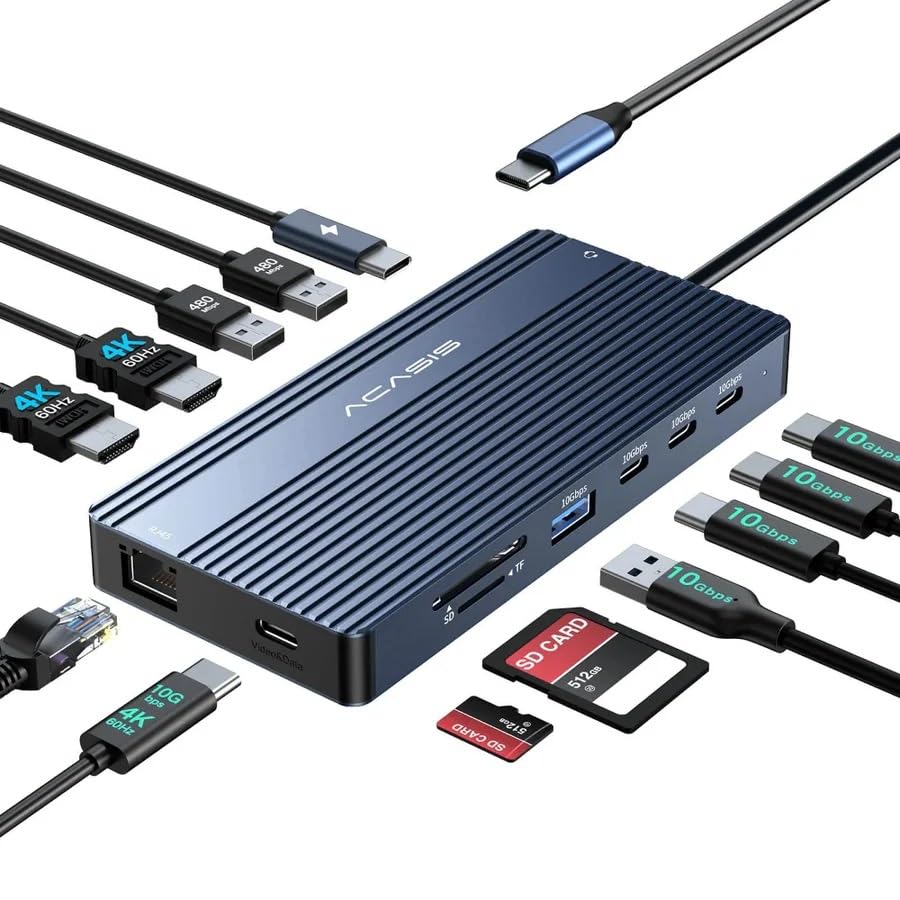
Image: The ACASIS 14-in-1 docking station, showcasing its compact design and the array of connectivity options it provides, including USB, HDMI, and Ethernet cables.
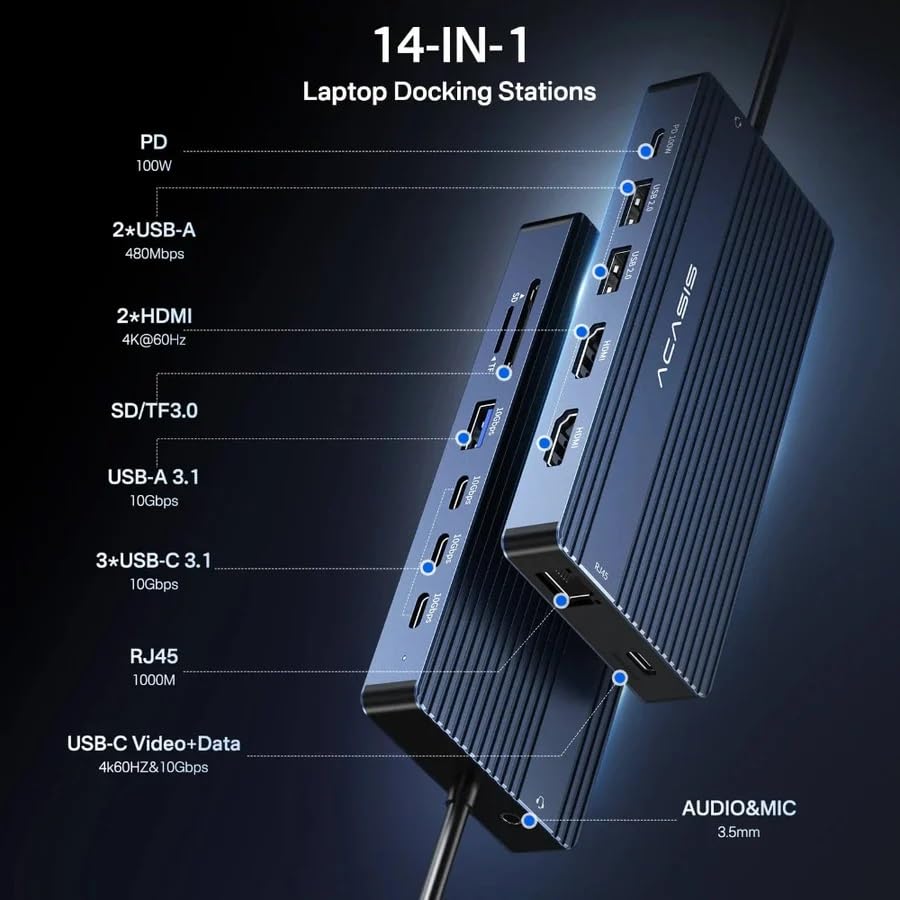
Image: A detailed diagram illustrating the location and type of each of the 14 ports on the ACASIS docking station, including PD, USB-A, HDMI, SD/TF, USB-C, RJ45, and Audio/Mic ports.
2. Features
The ACASIS 14-in-1 Docking Station offers comprehensive connectivity with the following features:
- 1 x USB-C Video+Data Port: Supports 4K@60Hz video output and 10Gbps data transfer.
- 2 x HDMI 2.0 Ports: Supports 4K@60Hz video output for dual or triple display setups.
- 3 x USB-C 3.1 Ports: Provides 10Gbps high-speed data transmission.
- 1 x USB-A 3.1 Port: Offers 10Gbps high-speed data transmission.
- 2 x USB-A Ports: Provides 5Gbps data transmission.
- 1 x USB-C PD 100W Port: Supports up to 100W power delivery to charge your laptop (85W pass-through charging).
- 1 x Gigabit Ethernet (RJ45) Port: Ensures stable and fast wired network connection up to 1000MB/s.
- 1 x SD 3.0 Card Reader: Supports UHS-I speeds up to 104MB/s.
- 1 x Micro SD 3.0 Card Reader: Supports UHS-I speeds up to 104MB/s.
- 1 x Audio In & Out (3.5mm TRRS) Port: For headphones or microphones.

Image: A detailed view of the ACASIS docking station from top and bottom, highlighting the placement of all ports.
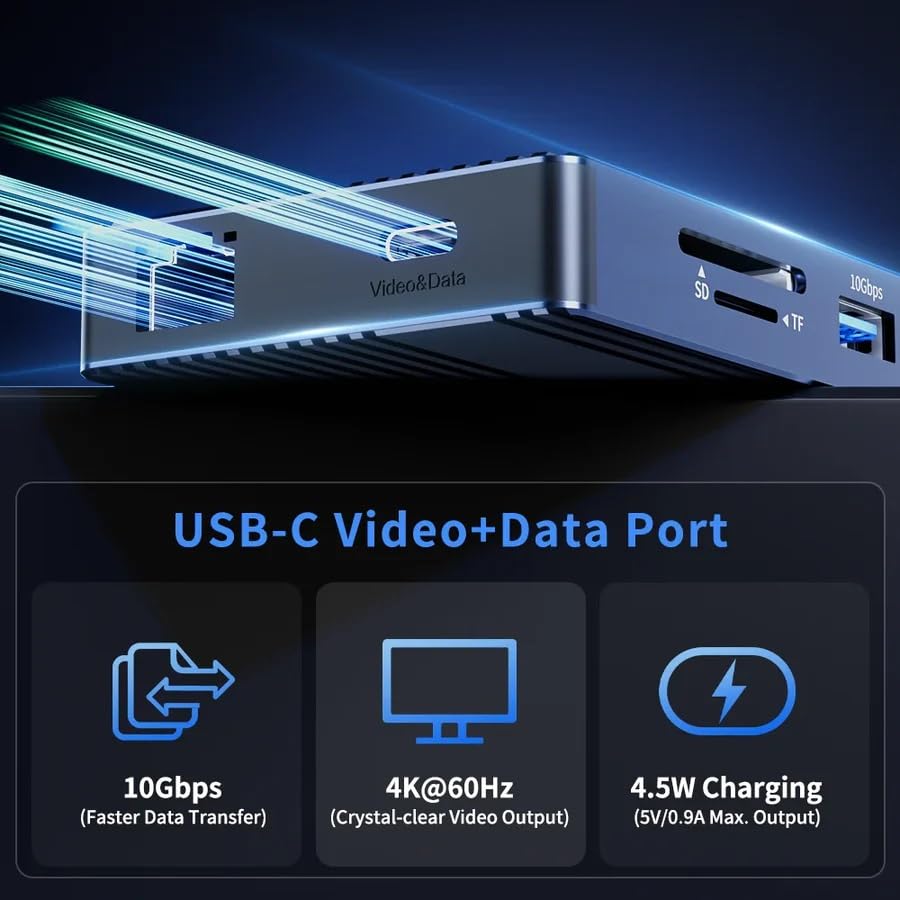
Image: A graphic detailing the capabilities of the USB-C Video+Data port, showing 10Gbps data transfer, 4K@60Hz video output, and 4.5W charging.
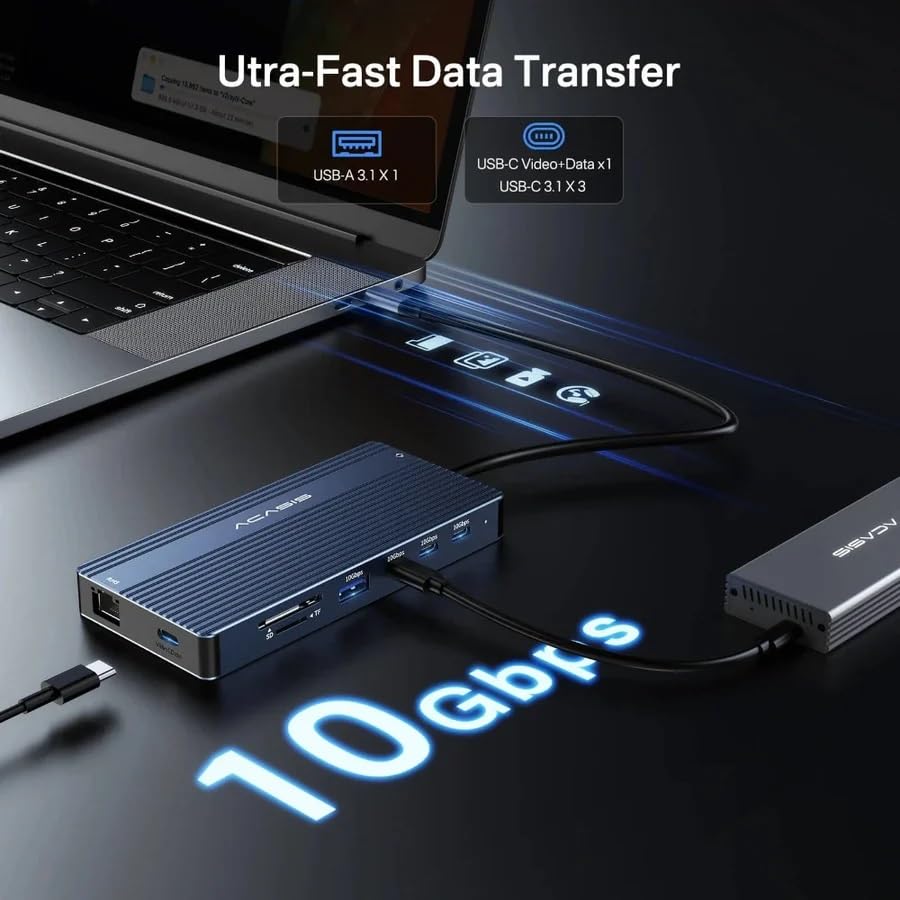
Image: A visual representation of the 10Gbps ultra-fast data transfer capability, showing data flowing from the laptop through the docking station.
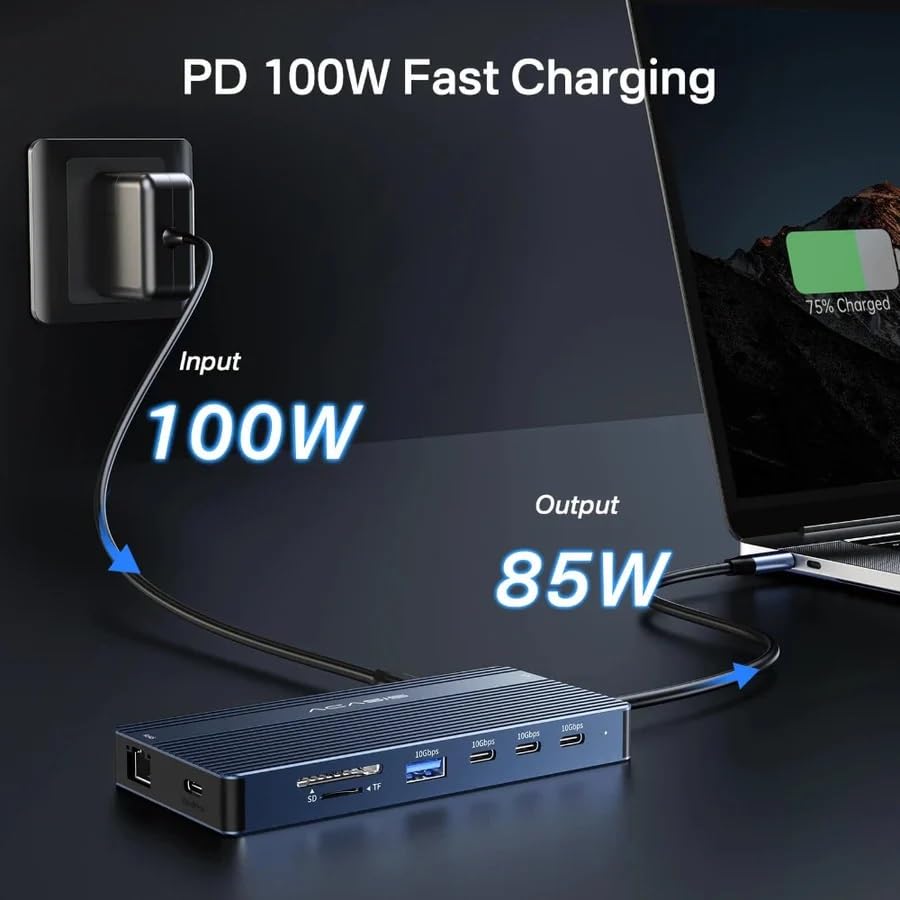
Image: A diagram illustrating the 100W Power Delivery input and 85W output charging capability of the docking station, connected to a laptop.
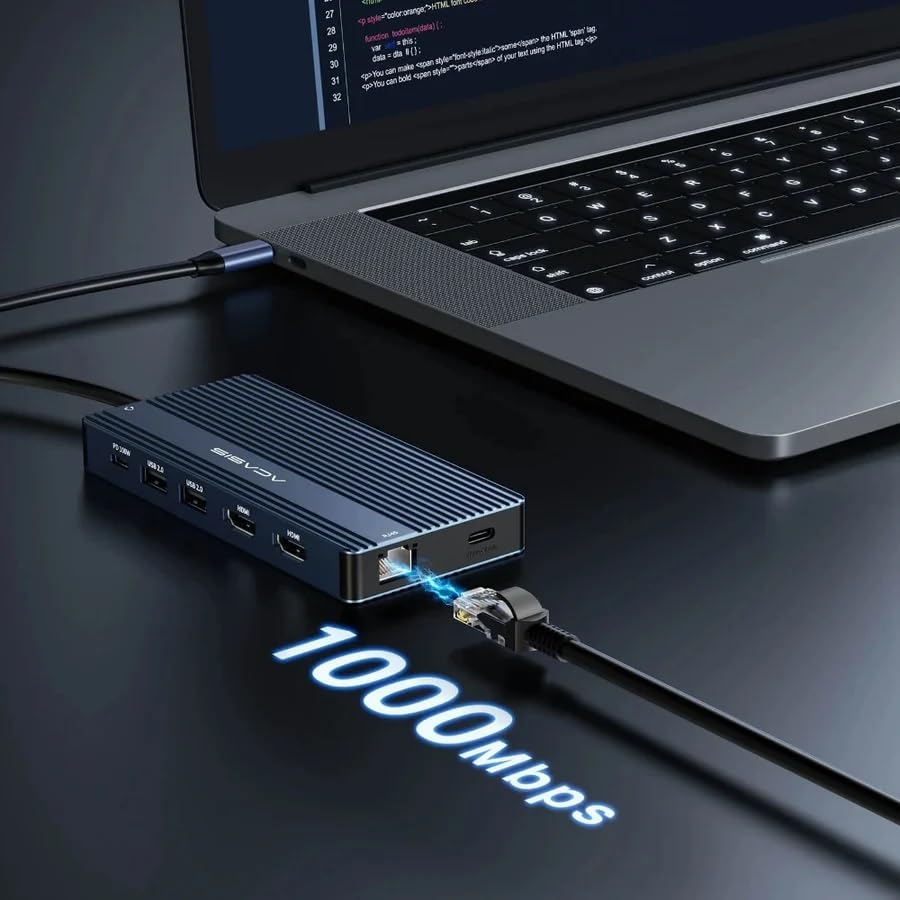
Image: The docking station connected to a laptop and an Ethernet cable, highlighting the 1000Mbps Gigabit Ethernet speed.

Image: An example of a laptop connected to an external monitor via the docking station, displaying a crisp 4K@60Hz resolution.
3. Specifications
| Brand | ACASIS |
| Model | AC-DM0203 |
| Product Dimensions | 10 x 10 x 3 cm |
| Item Weight | 150 g |
| Operating System Compatibility | Windows, macOS, ChromeOS, iPadOS, Android |
| Hardware Interface | Thunderbolt 4, USB-C |
| Compatible Devices | Gaming Console, Personal Computer, Tablet |
| Number of Ports | 14 |
| Total USB Ports | 7 (3x USB-C 3.1, 1x USB-A 3.1, 2x USB-A 5Gbps, 1x USB-C Video+Data) |
| Total HDMI Ports | 2 |
| Power Delivery | Up to 100W (85W pass-through) |
| Country of Origin | China |

Image: A graphic displaying various compatible laptop brands and operating systems, including Apple, HP, Lenovo, Dell, ASUS, Microsoft, Windows, macOS, ChromeOS, iPadOS, and Android.

Image: A visual guide explaining different types of USB-C ports and their functionalities, distinguishing between Thunderbolt/Full Function, Data Transfer + DP Alt Mode, Data Transfer Only, and Charging Only ports.
4. Setup Guide
Follow these steps to set up your ACASIS docking station:
- Connect Power: If your laptop requires charging via the dock, connect a USB-C power adapter (not included) to the "PD 100W" USB-C port on the docking station.
- Connect to Laptop: Connect the integrated USB-C cable from the docking station to a compatible USB-C port on your laptop. Ensure your laptop's USB-C port supports video output (DisplayPort Alt Mode) and power delivery for full functionality.
- Connect Displays: Connect your external monitors to the HDMI 2.0 ports and/or the USB-C Video+Data port on the docking station using appropriate cables.
- Connect Peripherals: Plug in your USB devices (keyboard, mouse, external drives), Ethernet cable, SD/Micro SD cards, and audio devices into the corresponding ports on the docking station.
- Driver Installation: In most cases, the docking station is plug-and-play. If prompted, allow your operating system to install any necessary drivers automatically.
5. Operating Instructions
Once set up, the docking station operates automatically. Here are key operational aspects:
- Automatic Detection: The docking station will automatically detect connected devices and displays.
- Power Delivery: If a power adapter is connected to the PD port, your laptop will receive power through the docking station.
- Data Transfer: USB 3.1 and USB-C 3.1 ports support high-speed data transfer for connected storage devices.
- Network Connectivity: The Gigabit Ethernet port provides a stable wired internet connection, bypassing Wi-Fi limitations.
- Card Reading: Insert SD or Micro SD cards into the dedicated slots for quick data access.
6. Display Configuration
The ACASIS docking station supports various display modes for both Windows and macOS systems. Ensure your laptop's USB-C port supports DisplayPort Alt Mode for video output.
6.1. Windows Display Modes
For Windows laptops, the docking station supports both Mirror and Extended display modes, allowing for up to three external 4K@60Hz displays.
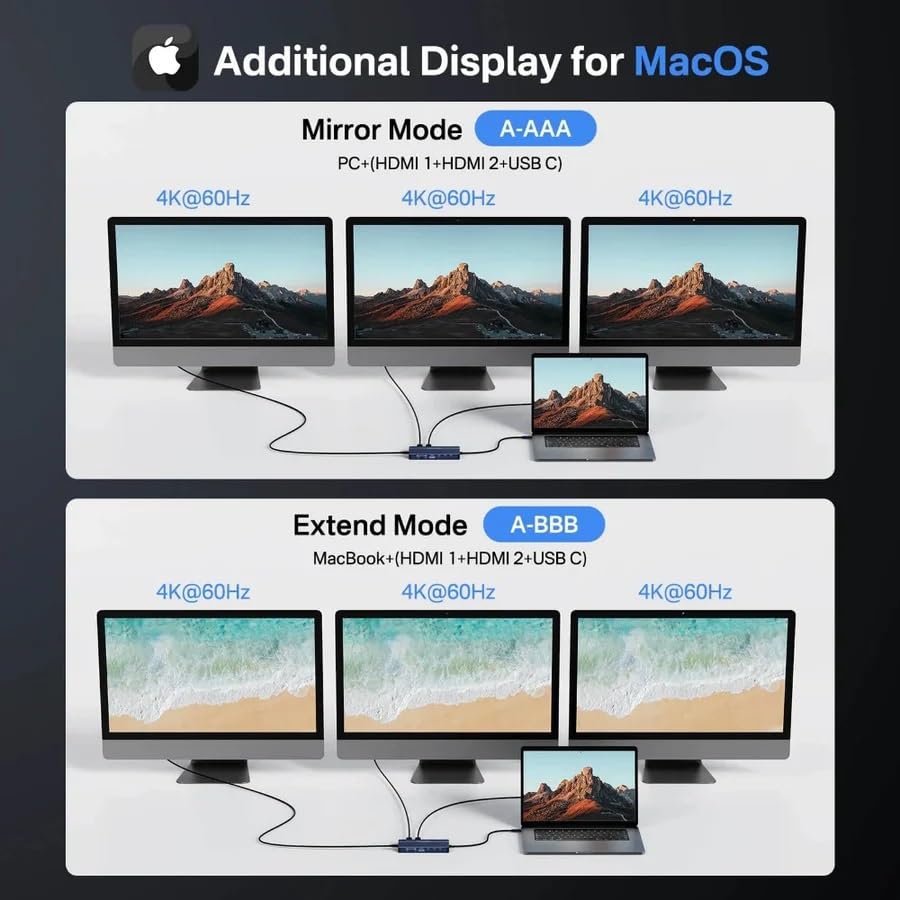
Image: A graphic illustrating various display configurations for Windows, including Mirror Mode (A-BBB) and Extended Mode (A-BCD, ABC), showing how multiple 4K@60Hz monitors can be connected.
- Mirror Mode (A-BBB): Your laptop screen is duplicated across all connected external displays.
- Extended Mode (A-BCD): Each external display shows a different desktop, extending your workspace. This mode supports up to three distinct 4K@60Hz displays.
- Configuration: Access display settings in Windows (Right-click on Desktop > Display settings) to arrange and configure your monitors.
6.2. macOS Display Modes
For macOS laptops, the docking station supports Mirror and Extended display modes. Please note that macOS typically supports a limited number of extended displays depending on the Mac model and chip (e.g., M1/M2 Macs may have limitations on external display count for extended mode).
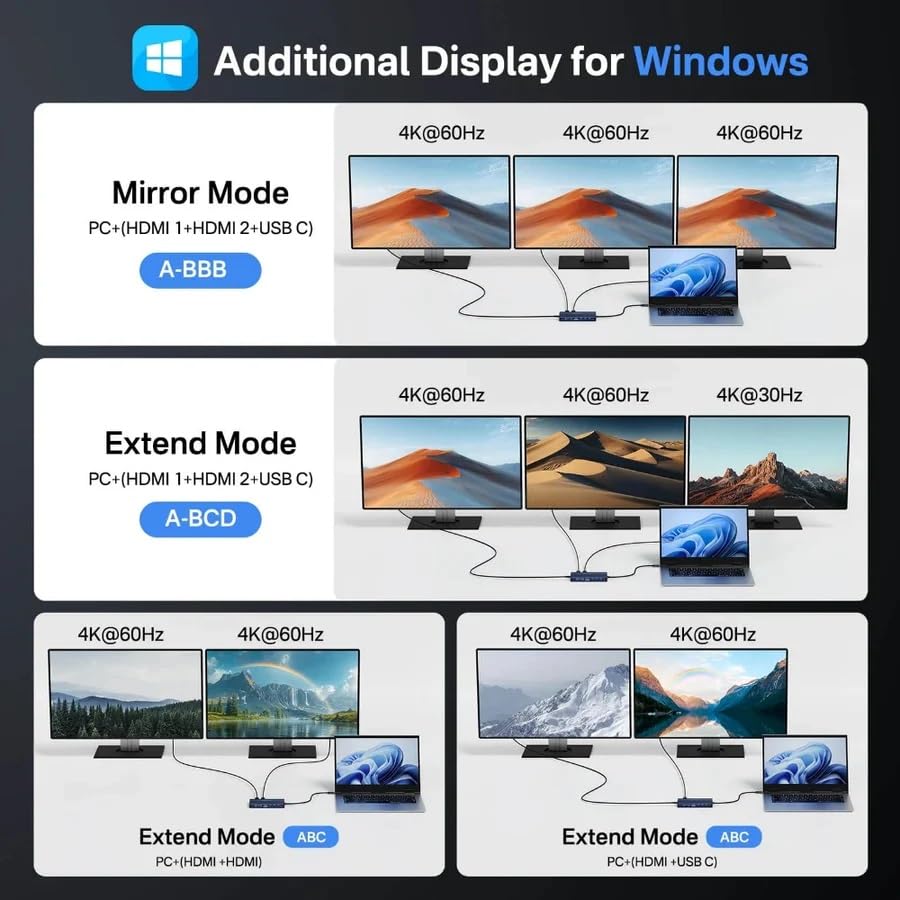
Image: A graphic illustrating display configurations for macOS, including Mirror Mode (A-AAA) and Extended Mode (A-BBB), showing how multiple 4K@60Hz monitors can be connected.
- Mirror Mode (A-AAA): Your MacBook screen is duplicated across all connected external displays.
- Extended Mode (A-BBB): Each external display shows a different desktop, extending your workspace.
- Configuration: Access display settings in macOS (System Settings > Displays) to arrange and configure your monitors.
- Important Note for M1/M2/M3 MacBooks: Some Apple Silicon Macs (e.g., M1/M2 MacBook Air/Pro) natively support only one external display in extended mode. This docking station utilizes MST (Multi-Stream Transport) technology, which is primarily supported by Windows for multiple extended displays. For macOS, while it can mirror multiple displays, achieving multiple extended displays beyond Apple's native support may require specific drivers or software (DisplayLink, not included with this product) or may not be possible. Please verify your MacBook's external display capabilities.
7. Maintenance
To ensure the longevity and optimal performance of your ACASIS docking station, follow these maintenance guidelines:
- Cleaning: Use a soft, dry, lint-free cloth to clean the surface of the docking station. Avoid using liquid cleaners, aerosols, or abrasive materials.
- Storage: Store the docking station in a cool, dry place away from direct sunlight and extreme temperatures.
- Handling: Handle the device with care. Avoid dropping it or subjecting it to strong impacts.
- Ventilation: Ensure the docking station has adequate ventilation to prevent overheating, especially during prolonged use.
- Cable Management: Avoid bending or crimping cables excessively, as this can damage them over time.
8. Troubleshooting
If you encounter issues with your ACASIS docking station, refer to the following common solutions:
- No Display Output:
- Ensure your laptop's USB-C port supports DisplayPort Alt Mode. Not all USB-C ports support video output.
- Check all cable connections (USB-C from dock to laptop, HDMI/USB-C to monitors).
- Try a different HDMI cable or monitor.
- Update your laptop's graphics drivers.
- For macOS users, be aware of native external display limitations, especially with M1/M2/M3 series chips. This dock primarily uses MST, which is better supported by Windows for multiple extended displays.
- Devices Not Recognized (USB, SD Card):
- Ensure the docking station is securely connected to your laptop.
- Try connecting the device to a different port on the dock.
- Restart your laptop.
- Check Device Manager (Windows) or System Information (macOS) to see if the device is detected.
- No Network Connection:
- Verify the Ethernet cable is securely connected to both the dock and your router/modem.
- Check your network settings on your laptop.
- Ensure your router/modem is functioning correctly.
- Laptop Not Charging:
- Ensure a compatible USB-C power adapter is connected to the PD 100W port on the docking station.
- Verify your laptop supports charging via its USB-C port.
- Check the power adapter and cable for damage.
- Intermittent Connectivity:
- Ensure all connections are firm.
- Avoid placing the dock near strong electromagnetic interference sources.
- Reduce the number of high-power devices connected to the dock if experiencing issues.
9. Warranty and Support
The ACASIS 14-in-1 Triple Display USB-C Docking Station comes with a standard warranty to cover manufacturing defects.
- Warranty Period: This product typically includes a 1-year warranty from the date of purchase. Please refer to your purchase documentation for exact terms.
- Extended Warranty: An optional 1-Year Extended Warranty may be available for purchase.
- Manufacturer: ACASIS
- Importer/Packer (India): KSP ELECTRONICS, info@kspelectronics.com, +91-6124512443
- Customer Support: For technical assistance, troubleshooting, or warranty claims, please contact ACASIS customer support or the authorized reseller from whom you purchased the product.
- Online Resources: Visit the official ACASIS website for updated drivers, FAQs, and additional support resources.
10. Usage Scenarios
The ACASIS docking station is designed to enhance your experience in various settings:

Image: A collage depicting different environments where the docking station can be used, including an office setup with multiple monitors, a casual setting for yoga, a home theater projection, and a gaming setup.
- Office: Create a powerful workstation with multiple displays, wired internet, and all your peripherals connected through a single USB-C cable.
- Home Theater: Connect your laptop to a large screen or projector for movies and presentations.
- Gaming: Enhance your gaming setup with stable network and multiple display options.
- Creative Work: Ideal for designers and video editors needing high-resolution external displays and fast data transfer for external storage.
Related documentsAC-DM0203


Ask a question about this manual
Ask about setup, troubleshooting, compatibility, parts, safety, or missing instructions. Manuals+ will review the question and use this page’s manual context to help answer it.