
1. Introduction
Thank you for choosing the CCYLEZ 5G WiFi 6 Mobile Hotspot Router. This device provides high-speed 5G and WiFi 6 connectivity, allowing you to share internet access with up to 16 devices simultaneously. Its rugged design ensures durability for travel, and the long-lasting battery offers extended usage. This manual will guide you through the setup, operation, and maintenance of your new mobile hotspot.
2. Package Contents
Please verify that all items are present in your package:
- 1 x CCYLEZ 5G WiFi 6 Mobile Hotspot Router
- 1 x USB Cable (Type-C)
- 1 x User Manual
3. Product Overview
The CCYLEZ 5G WiFi 6 Mobile Hotspot Router is designed for portable, high-speed internet access. It features a compact, durable casing and intuitive LED indicators for status monitoring.

Image 3.1: Front view of the CCYLEZ 5G WiFi 6 Mobile Hotspot Router with included USB cable.
3.1 Key Features
- High-Speed Connectivity: Supports 5G NR and 4G TDD/FDD network bands, with download speeds up to 2.77Gbps and upload speeds up to 1.25Gbps.
- Dual-Band WiFi 6: Operates on 2.4GHz and 5.8GHz bands, supporting up to 16 connected devices with WiFi 6 technology.
- Rugged Design: Built to withstand drops, dust, and water, making it suitable for travel.
- Long-lasting Battery: Equipped with a 6100mAh battery for extended usage.
- LED Indicators: Provides visual feedback for 5G/4G signal strength, WiFi status, and battery level.
3.2 Device Layout
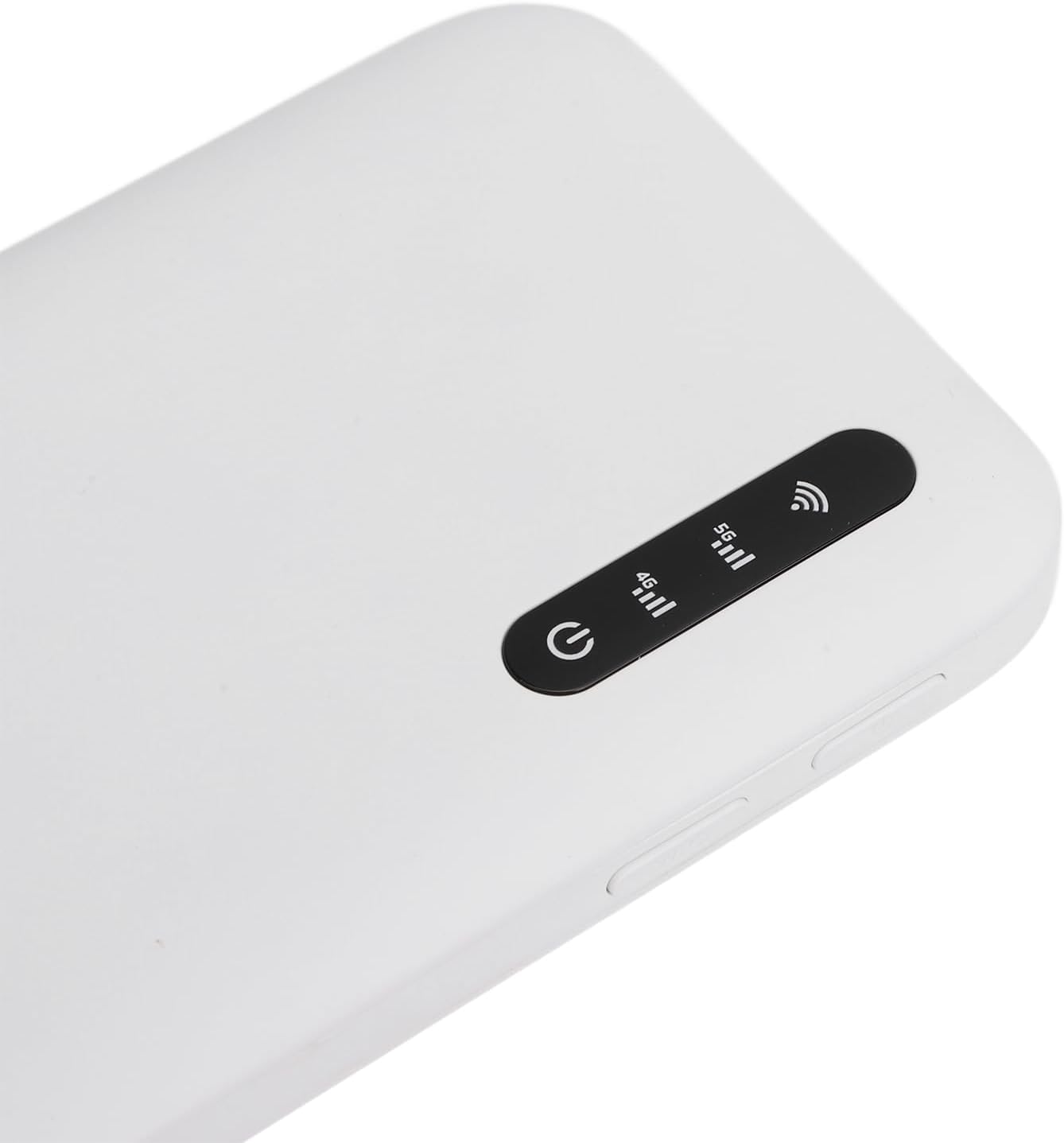
Image 3.2: Close-up view of the LED indicators and power button on the device's top surface.
The top surface of the device features LED indicators for 5G signal, 4G signal, WiFi status, and battery level, along with the power button.

Image 3.3: Back view of the device displaying default SSID, Wi-Fi Key, and IMEI information.
The back of the device contains important information such as the default 5.8G SSID, 2.4G SSID, Wi-Fi Keys, and the device's IMEI. Keep this information secure.
4. Setup
4.1 SIM Card Installation
- Ensure the device is powered off.
- Locate the SIM card slot on the side of the device.
- Insert a Nano SIM card into the slot with the gold contacts facing down and the notched corner aligned correctly. Push gently until it clicks into place.
4.2 Charging the Device
- Connect the included USB Type-C cable to the charging port on the device.
- Connect the other end of the USB cable to a compatible USB power adapter (not included) or a computer's USB port.
- The battery indicator LED will show charging status. A full charge is indicated when the LED stops blinking or turns solid green (depending on model specifics).
4.3 Powering On/Off
- To Power On: Press and hold the Power button (refer to Image 3.2) for approximately 3 seconds until the indicators light up.
- To Power Off: Press and hold the Power button for approximately 3 seconds until the indicators turn off.
5. Operating Instructions
5.1 Connecting Devices to the Hotspot
- Ensure the hotspot is powered on and has established a network connection (5G or 4G indicator is solid).
- On your device (smartphone, laptop, tablet), open the Wi-Fi settings.
- Search for available Wi-Fi networks. You will see two network names (SSIDs) corresponding to the 2.4GHz and 5.8GHz bands, as listed on the back of your hotspot (e.g., MIFI-780194-5G, MIFI-780194-2.4G).
- Select your preferred network (5.8GHz offers faster speeds but shorter range; 2.4GHz offers wider range but slightly lower speeds).
- Enter the Wi-Fi Key (password) provided on the back of your hotspot when prompted.
- Your device should now be connected to the internet through the hotspot.
5.2 Monitoring Status with LED Indicators
The LED indicators provide real-time status of your hotspot:
- 5G/4G Signal Indicator: Shows the strength of the cellular network connection. More bars indicate a stronger signal.
- WiFi Indicator: Indicates if the WiFi network is active.
- Battery Indicator: Displays the current battery level and charging status.
5.3 Accessing Web Management Interface
For advanced settings such as changing Wi-Fi names (SSID), passwords, or other network configurations, you can access the web management interface. Typically, this is done by connecting a device to the hotspot's Wi-Fi and then navigating to a specific IP address (e.g., 192.168.0.1 or 192.168.1.1) in a web browser. Please refer to the device's packaging or a separate quick start guide for the exact IP address and default login credentials.
6. Maintenance
6.1 Cleaning
To clean the device, use a soft, dry cloth. Avoid using liquid cleaners or abrasive materials, as these can damage the casing or internal components.
6.2 Battery Care
- Avoid exposing the device to extreme temperatures (hot or cold) as this can degrade battery performance.
- For long-term storage, charge the battery to approximately 50% and store the device in a cool, dry place.
- Use only the provided USB cable for charging.
6.3 Storage
When not in use, store the hotspot in a safe place away from direct sunlight, moisture, and extreme temperatures.
7. Troubleshooting
7.1 No Internet Connection
- Check if the SIM card is correctly inserted and activated with a data plan.
- Verify that the 5G/4G signal indicator shows a strong signal. If not, move to an area with better network coverage.
- Restart the hotspot and your connected device.
- Ensure your data plan has not been exhausted.
7.2 Slow Internet Speed
- Check the signal strength. Weak signals result in slower speeds.
- Reduce the number of connected devices.
- Ensure no background applications on connected devices are consuming excessive bandwidth.
- Try connecting to the 5.8GHz Wi-Fi band if your device supports it and you are close to the hotspot.
7.3 Cannot Connect to Wi-Fi
- Ensure the hotspot's Wi-Fi indicator is active.
- Double-check the Wi-Fi password (Key). It is case-sensitive.
- Restart both the hotspot and the device you are trying to connect.
- Ensure your device is within the Wi-Fi range of the hotspot.
7.4 Device Not Powering On
- Ensure the battery is charged. Connect the device to a power source and allow it to charge for at least 30 minutes before attempting to power on again.
- Try using a different USB cable and power adapter to rule out faulty accessories.
8. Specifications
| Feature | Description |
|---|---|
| Model Number | CCYLEZ41fxbzag2c |
| Dimensions | Approx. 136 x 72 x 16mm / 5.35 x 2.83 x 0.63in |
| Weight | 9.7 ounces |
| Battery | Lithium Battery 6100mAh |
| Memory | LPDDR4X 4GB RAM, NAND 2GB ROM |
| Charging Port | Type C |
| SIM Card Type | Nano SIM (Not Included) |
| Network Standard | 3GPP Rel.15, 5G NR (SA/NSA), Sub 6G/LTE Category 18 |
| 5G NR Bands | FDD: N1/N3/N28; TDD: N41/N78 |
| 4G Bands | FDD: B1/B3/B5/B8; TDD: B34/38/39/40/41 |
| 3G Bands | B1 |
| Wi-Fi Bands | WiFi 6 (802.11 a/b/g/n/ac/ax) 2.4GHz, 5.8GHz |
| NR Rate | 2.77Gbps (DL) / 1.25Gbps (UL) |
| Max Connections | Up to 16 devices simultaneously |
9. Warranty and Support
For warranty information or technical support, please refer to the warranty card included with your product or contact CCYLEZ customer service through the retailer where you purchased the device. Keep your purchase receipt as proof of purchase.