
joliker M301-pro
joliker M301-pro MP3 Player User Manual
Model: M301-pro
Introduction
This user manual provides comprehensive instructions for the operation, maintenance, and troubleshooting of your joliker M301-pro MP3 Player. Please read this manual thoroughly before using the device to ensure proper functionality and to maximize your user experience.

Image: The joliker M301-pro MP3 Player, showcasing its sleek black design and vibrant touchscreen interface with pre-installed applications.
Package Contents
Verify that all items are present in the package:
- 1x joliker M301-pro Music Player
- 1x USB Type-C Charging Cable
- 1x Wired Headphones
- 1x 64GB TF Card (pre-installed)
- 1x Screen Protective Film
- 1x Protective Case
- 1x User Manual (this document)
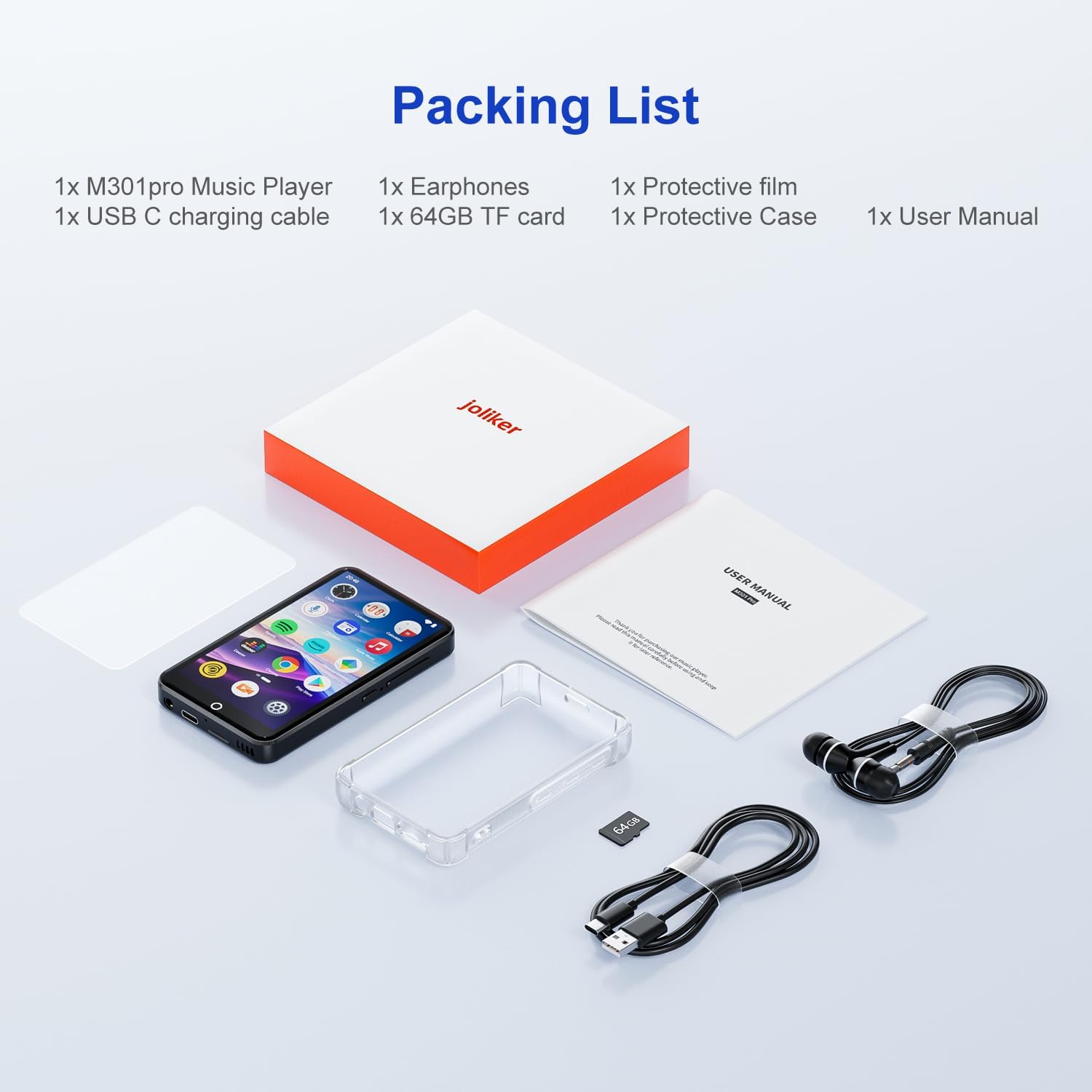
Image: A visual representation of all items included in the joliker M301-pro MP3 Player retail package.
Product Overview
The joliker M301-pro is an advanced MP3/MP4 player featuring Android 13, an 8-core MTK processor, and a 4.02-inch IPS touchscreen. It offers extensive storage and versatile connectivity options.
Key Features:
- Operating System: Android 13
- Processor: 8-core MTK chip
- Memory: 4GB RAM + 32GB ROM (internal), 64GB Micro SD card included (total 96GB)
- Expandable Storage: Up to 1TB via Micro SD card
- Display: 4.02-inch IPS Touchscreen (640x1136px resolution)
- Connectivity: Bluetooth 5.0, Wi-Fi, USB Type-C
- Battery: 2000mAh (up to 50 hours music playback, 8 hours video playback)
- Pre-installed Apps: Spotify, Deezer, Amazon Music, Google Play Store
- Supported Video Formats: AVI, MKV, RMVB, MP4, MPG, MOV

Image: Internal specifications of the joliker M301-pro, detailing its MTK 8-core processor, Android 13 OS, and memory configuration.
Setup
1. Initial Charge
Before first use, fully charge the device. Connect the included USB Type-C cable to the player's charging port and the other end to a USB power adapter (not included) or a computer's USB port.
- Charging Time: Approximately 2 hours for a full charge.
- Battery Indicator: The screen will display a charging icon.

Image: Battery specifications and performance metrics for the joliker M301-pro.
2. Power On/Off
- Power On: Press and hold the Power button (located on the side) until the screen lights up.
- Power Off: Press and hold the Power button, then select "Power off" from the options.
- Screen On/Off: Briefly press the Power button to turn the screen on or off without powering down the device.
3. Initial Setup Wizard
Upon first power-on, follow the on-screen prompts to:
- Select Language
- Connect to Wi-Fi network
- Set Date and Time
- Sign in to Google Account (optional, for Play Store access)

Image: The device's Wi-Fi connectivity and customizable app features, showing the Google Play Store for app downloads.
Operating Instructions
1. Navigation and Interface
- Touchscreen: Navigate by tapping, swiping, and pinching on the 4.02-inch IPS display.
- Home Button: The circular button below the screen returns you to the home screen.
- Volume Buttons: Located on the side, use to adjust audio volume.
2. Music Playback
The device comes with pre-installed music apps like Spotify, Deezer, and Amazon Music. You can also use the built-in music player for local files.
- Adding Music: Connect the player to a computer via USB-C cable. The device will appear as a removable storage device. Drag and drop music files (MP3, FLAC, WAV, etc.) into the "Music" folder.
- Playing Music: Open your preferred music application. Browse your library and select a song to play.
- HiBy Music App: The device features a powerful HiBy Music App for high-fidelity audio playback.
3. Video Playback
The M301-pro supports 1080P HD video playback and various formats.
- Supported Formats: AVI, MKV, RMVB, MP4, MPG, MOV.
- Adding Videos: Connect to a computer and transfer video files to the "Videos" folder.
- Playing Videos: Open a video player app (e.g., the default Gallery or a downloaded player) and select your video.

Image: The device's capability for 1080P HD video playback, showing a clear visual experience on its IPS touchscreen.
4. Bluetooth Connectivity
Connect to Bluetooth headphones, speakers, or other devices.
- Go to Settings > Connected devices > Bluetooth.
- Toggle Bluetooth On.
- Ensure your Bluetooth device is in pairing mode.
- Select your device from the list of available devices to pair.
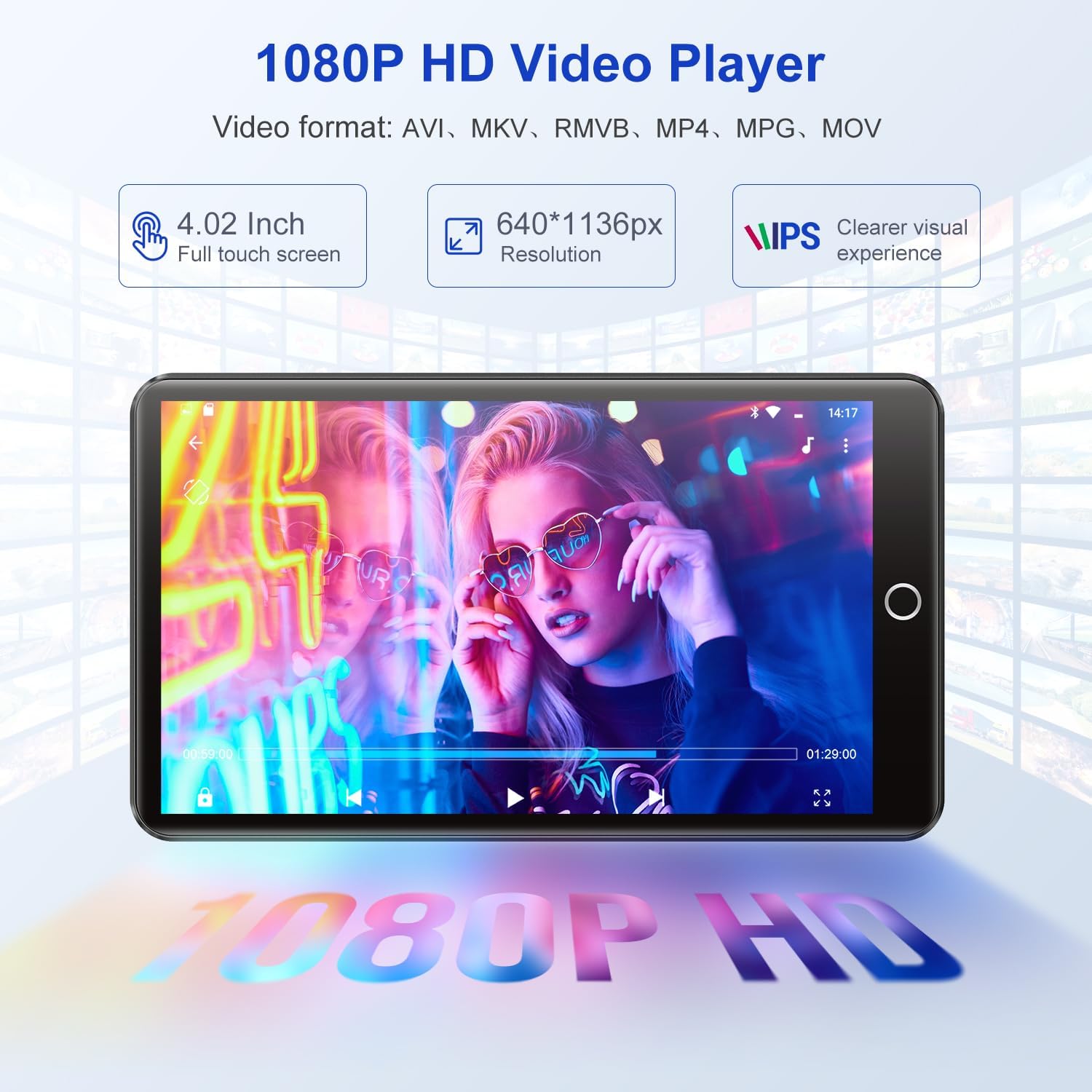
Image: Demonstration of the upgraded Bluetooth 5.0 connection, enabling stable pairing with various audio devices.
5. Wi-Fi Connectivity and App Store
Connect to Wi-Fi for online streaming, app downloads, and web browsing.
- Go to Settings > Network & internet > Wi-Fi.
- Toggle Wi-Fi On.
- Select your desired network and enter the password if prompted.
Once connected, you can use pre-installed apps or download new ones from the Google Play Store.
- Google Play Store: Tap the "Play Store" icon on the home screen to browse and download apps like Audible, YouTube Kids, Kindle, etc.
6. Storage Management
The device comes with 96GB of total storage (32GB internal + 64GB TF card) and supports expansion up to 1TB.
- Checking Storage: Go to Settings > Storage to view available space.
- Inserting/Removing TF Card: Locate the TF card slot on the side of the device. Gently insert or remove the card. Ensure the device is powered off before removing the card to prevent data corruption.

Image: Illustration of the 96GB large storage capacity and its expandability up to 1TB via a Micro SD card.
Maintenance
1. Cleaning the Device
- Use a soft, lint-free cloth to clean the screen and body.
- Do not use abrasive cleaners, alcohol, or solvents.
- Avoid getting moisture into ports or openings.
2. Battery Care
- Avoid extreme temperatures (hot or cold) as they can degrade battery life.
- Charge the device regularly, but avoid leaving it fully discharged for extended periods.
- If storing the device for a long time, charge it to about 50% before storage.
3. Software Updates
Periodically check for software updates to ensure optimal performance and security.
- Go to Settings > System > System update.
- Follow the on-screen instructions to download and install any available updates.
Troubleshooting
| Problem | Possible Cause | Solution |
|---|---|---|
| Device won't turn on | Low battery; System crash | Charge the device for at least 30 minutes. If still unresponsive, press and hold the Power button for 10-15 seconds to force a restart. |
| Cannot connect to Wi-Fi | Incorrect password; Router issue; Out of range | Double-check password. Restart your Wi-Fi router. Move closer to the router. Try connecting to another Wi-Fi network. |
| Bluetooth pairing fails | Device not in pairing mode; Interference | Ensure the Bluetooth accessory is in pairing mode. Turn Bluetooth off and on again on the player. Clear previous Bluetooth connections. |
| Music/Video playback issues | Unsupported file format; Corrupted file; Low storage | Verify file format is supported. Try playing another file. Check available storage space. Re-transfer the file. |
| Device is slow/unresponsive | Too many apps running; Low memory | Close background applications. Restart the device. Consider uninstalling unused apps or clearing cache. |
Specifications
| Feature | Detail |
|---|---|
| Model Name | j-US M301-pro sample |
| Operating System | Android 13 |
| Processor | 8-core MTK chip |
| RAM | 4GB |
| Internal Storage | 32GB ROM |
| Included TF Card | 64GB (Total 96GB) |
| Max Expansion | Up to 1TB (Micro SD) |
| Screen Size | 4.02 Inches IPS Touchscreen |
| Resolution | 640x1136px |
| Bluetooth Version | 5.0 |
| Connectivity | Wi-Fi, Bluetooth, USB Type-C |
| Battery Capacity | 2000mAh Lithium Polymer |
| Music Playback Time | Up to 50 hours |
| Video Playback Time | Up to 8 hours |
| Charging Time | Approx. 2 hours |
| Dimensions | 0.35 x 2.24 x 4 inches |
| Weight | 3.09 ounces |
| Supported Video Formats | AVI, MKV, RMVB, MP4, MPG, MOV |
| Special Features | Built-In Speaker, Equalizer, FM Radio, Touch Screen, Video Playback, App Store |
Warranty and Support
For warranty information and technical support, please refer to the warranty card included in your package or visit the official joliker website. Keep your purchase receipt as proof of purchase.
Customer Service Contact: Please refer to the contact information provided on the product packaging or the official joliker website for support inquiries.
Related documentsM301-pro

Ask a question about this manual
Ask about setup, troubleshooting, compatibility, parts, safety, or missing instructions. Manuals+ will review the question and use this page’s manual context to help answer it.