
1. Introduction
This manual provides comprehensive instructions for the installation, operation, and maintenance of your Orbitell Wireless Wi-Fi Video Doorbell Camera. This device is designed to enhance your home security by providing real-time video monitoring, two-way audio communication, and motion detection capabilities.

Figure 1.1: Orbitell Wireless Wi-Fi Video Doorbell Camera with Chime and App Interface.
2. What's Included
Verify that all components are present in the package:
- Doorbell Camera
- Adhesive tape
- Mounting accessories (screws and anchors)
- Wireless Chime
- USB Charging Cable
- User Manual
3. Product Features
- Two-Way Audio: Communicate easily with visitors through built-in speakers and microphone.
- Motion Detection: Receive instant alerts when movement is detected, enhancing security.
- Night Vision: Captures clear video in low-light environments, ensuring visibility after dark.
- Cloud Storage: Safely stores recordings online, providing easy access and backup options.
- IP65 Weather Resistant: Designed to endure harsh weather conditions, ensuring durability for outdoor use.
- 2.4GHz Wi-Fi Compatibility: Works only with 2.4GHz Wi-Fi for a fast, stable connection (does not support 5GHz Wi-Fi).

Figure 3.1: Key Features of the Orbitell Doorbell Camera.
4. Specifications
| Feature | Detail |
|---|---|
| Model Number | M50 |
| Indoor/Outdoor Usage | Outdoor |
| Compatible Devices | Smartphone (Android) |
| Power Source | Battery Powered (5200 mAh) |
| Connectivity Protocol | Wi-Fi (2.4GHz only) |
| Mounting Type | Door Mount (Screw In) |
| Video Capture Resolution | 1080p (Maximum Webcam Image Resolution: 1080 Pixels) |
| Viewing Angle | 155 Degrees (Field Of View: 180 Degrees) |
| Night Vision Range | 17 Feet (Low light technology: Night Color) |
| Frame Rate | 25 frames_per_second |
| Dimensions (L x W x H) | 1.34 x 1.77 x 5.4 inches |
| Item Weight | 9.9 ounces |
| Video Encoding | H.265 |
| Alert Type | Motion Only |
5. Setup Guide
5.1 Prepare Your Doorbell
- Charge the Doorbell: Before first use, fully charge the doorbell camera using the provided USB cable. A solid RED light indicates charging, and the light turns OFF when fully charged.
- Remove Battery Tab: If present, remove any battery isolation tabs from the doorbell.

Figure 5.1: Two-Way Audio Communication via the App.
5.2 App Installation and Setup
- Download the App: Scan the QR code in the user manual or search for "VicoHome" (or similar app name if specified in manual) in your smartphone's app store (Apple App Store or Google Play Store).
- Create Account: Open the app and follow the on-screen instructions to create a new user account.
- Add Device:
- Tap the "+" (Add Device) button in the app.
- Select "Video Doorbell" and choose the M50 model.
- Follow the app's prompts to connect the doorbell to your 2.4GHz Wi-Fi network. Ensure your phone is connected to the same 2.4GHz Wi-Fi network during setup.
- Scan the QR code displayed on your phone with the doorbell camera.
- Confirm successful device registration.
5.3 Wireless Chime Setup
- Plug in the Chime: Plug the wireless chime into a standard USB port or wall outlet.
- Pairing: Press and hold the pairing button on the chime until it enters pairing mode (indicated by a flashing light). Then, press the doorbell button on the camera. The chime will ring to confirm successful pairing.

Figure 5.2: Doorbell Receiver (Chime) in Operation.
5.4 Physical Installation
- Choose Location: Select a suitable outdoor location near your front door, ensuring good Wi-Fi signal strength.
- Mounting Bracket: Use the provided mounting bracket. You can either use the adhesive tape for temporary or non-damaging installation, or use the screws and anchors for a more secure, permanent installation.
- Attach Doorbell: Slide the doorbell camera onto the mounting bracket until it clicks securely into place.

Figure 5.3: Mounted Doorbell Camera.
6. Operating Instructions
6.1 Live View
Open the app on your smartphone to access the live video feed from your doorbell camera at any time. This allows you to monitor your doorstep in real-time.
6.2 Two-Way Audio
When a visitor presses the doorbell or motion is detected, you will receive a notification on your phone. Tap the notification to open the live view. Use the microphone icon in the app to speak to the visitor, and their voice will be projected through the doorbell's speaker. Listen through the doorbell's microphone.
6.3 Motion Detection and AI Human Detection
The doorbell camera is equipped with advanced motion detection and AI human detection. When motion or a human figure is detected, you will receive an instant alert on your smartphone. You can adjust the sensitivity settings within the app to minimize false alarms.
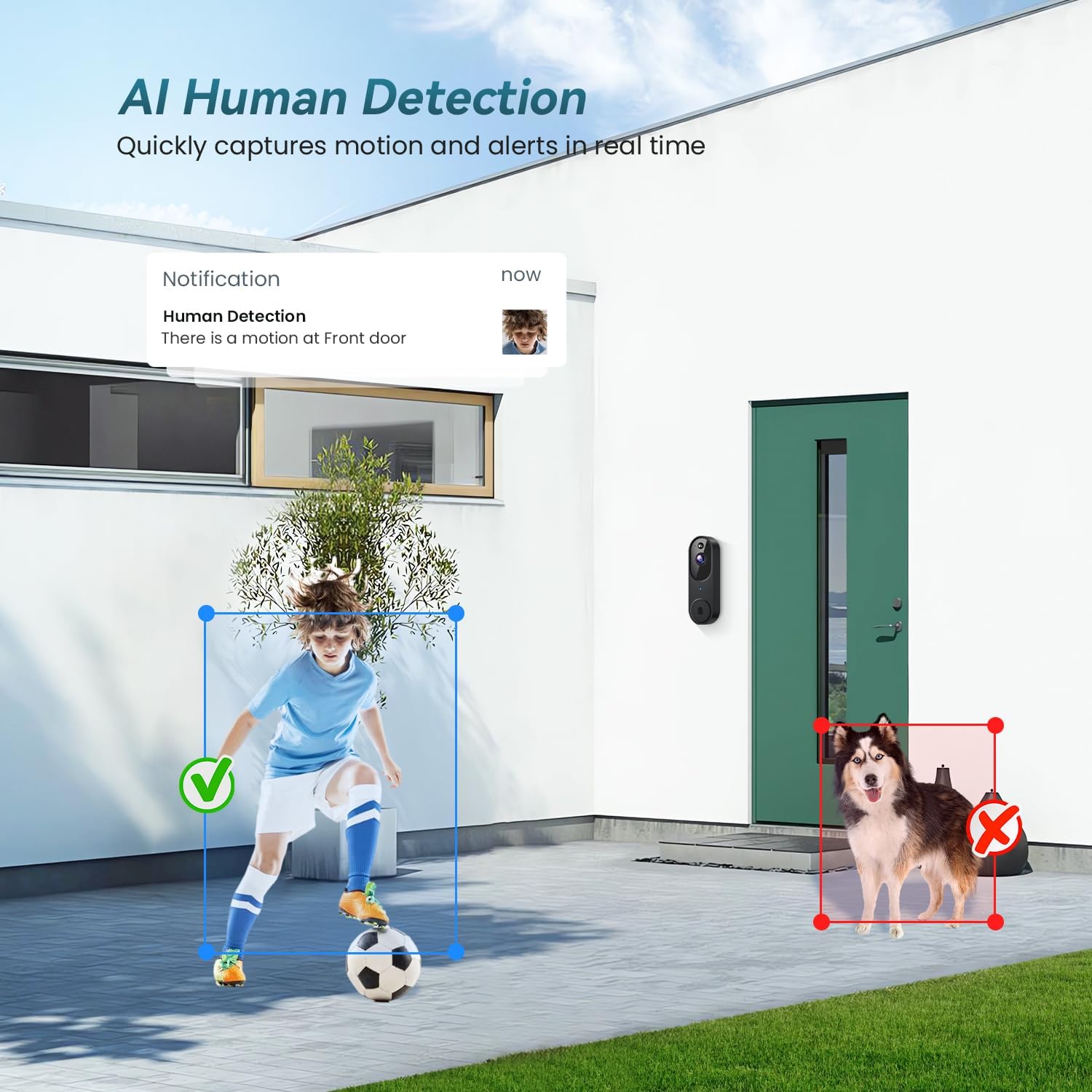
Figure 6.1: AI Human Detection in action.
6.4 Night Vision
The doorbell automatically switches to night vision mode in low-light conditions, providing clear black-and-white video footage up to 17 feet. This ensures continuous monitoring even in complete darkness.

Figure 6.2: IR Night Vision Capability.
6.5 Cloud Storage
Recorded videos are securely stored in the cloud, allowing you to review past events from anywhere. Access your video history through the app's library section. Cloud storage may require a subscription for extended retention.

Figure 6.3: Cloud Storage for Recorded Events.
7. Maintenance
7.1 Battery Charging
The doorbell camera is battery-powered. When the battery level is low, you will receive a notification in the app. Remove the doorbell from its mounting bracket and charge it using the provided USB cable. Ensure to use a power source of at least 5V/1A.
7.2 Cleaning
Periodically clean the camera lens and the doorbell's exterior with a soft, damp cloth to remove dust and debris. Avoid using harsh chemicals or abrasive materials that could damage the device.
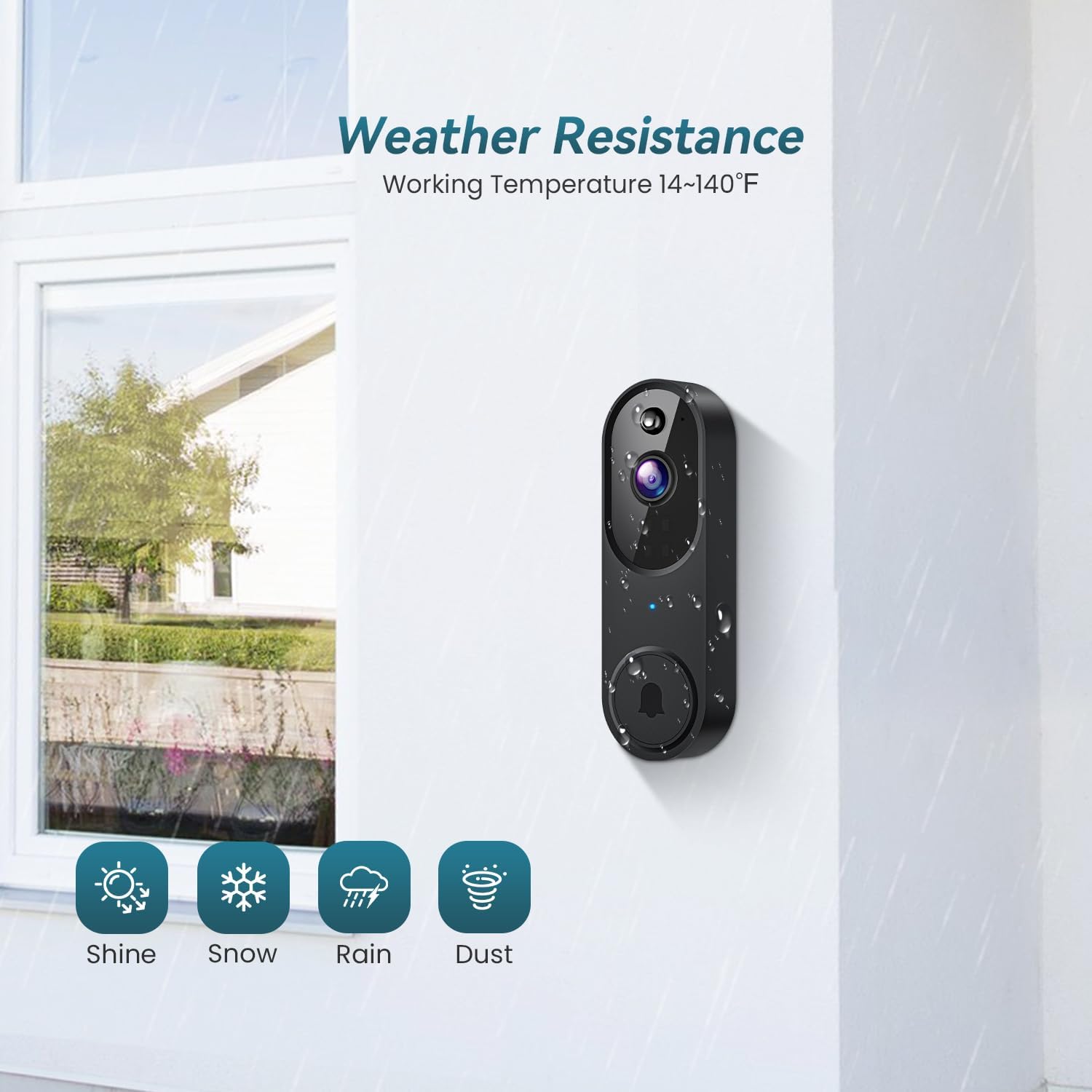
Figure 7.1: IP65 Weather Resistance.
8. Troubleshooting
8.1 Wi-Fi Connectivity Issues
- Ensure your Wi-Fi router is broadcasting a 2.4GHz network. This doorbell does not support 5GHz Wi-Fi.
- Check the Wi-Fi signal strength in the app. If it's weak, consider moving your router closer or using a Wi-Fi extender.
- If the device is offline, try restarting your router and then re-pairing the doorbell with the app.
8.2 Short Battery Life
- Frequent motion detection events can drain the battery faster. Adjust the motion detection sensitivity in the app to a lower setting.
- Ensure the doorbell is fully charged before installation.
- Extreme temperatures can affect battery performance.
8.3 False Motion Alerts
- Adjust the motion detection zones in the app to exclude areas with frequent, non-relevant movement (e.g., trees swaying, passing cars if not needed).
- Lower the motion detection sensitivity.
9. Warranty and Support
For warranty information, technical support, or further assistance, please refer to the contact details provided on the product packaging or the official Orbitell website. Keep your purchase receipt for warranty claims.
Manufacturer: Shenzhen Puge Electronics Co., Ltd.
Country of Origin: China